
Help homeहेल्प होम
Screen guide · Teacher app
Notifications
Alerts sent to you: school notices, settings changes and EDII messages; mark all read.
1 step1 स्टेप
यह पेज अंग्रेज़ी में है। कुछ समझ न आए तो ।
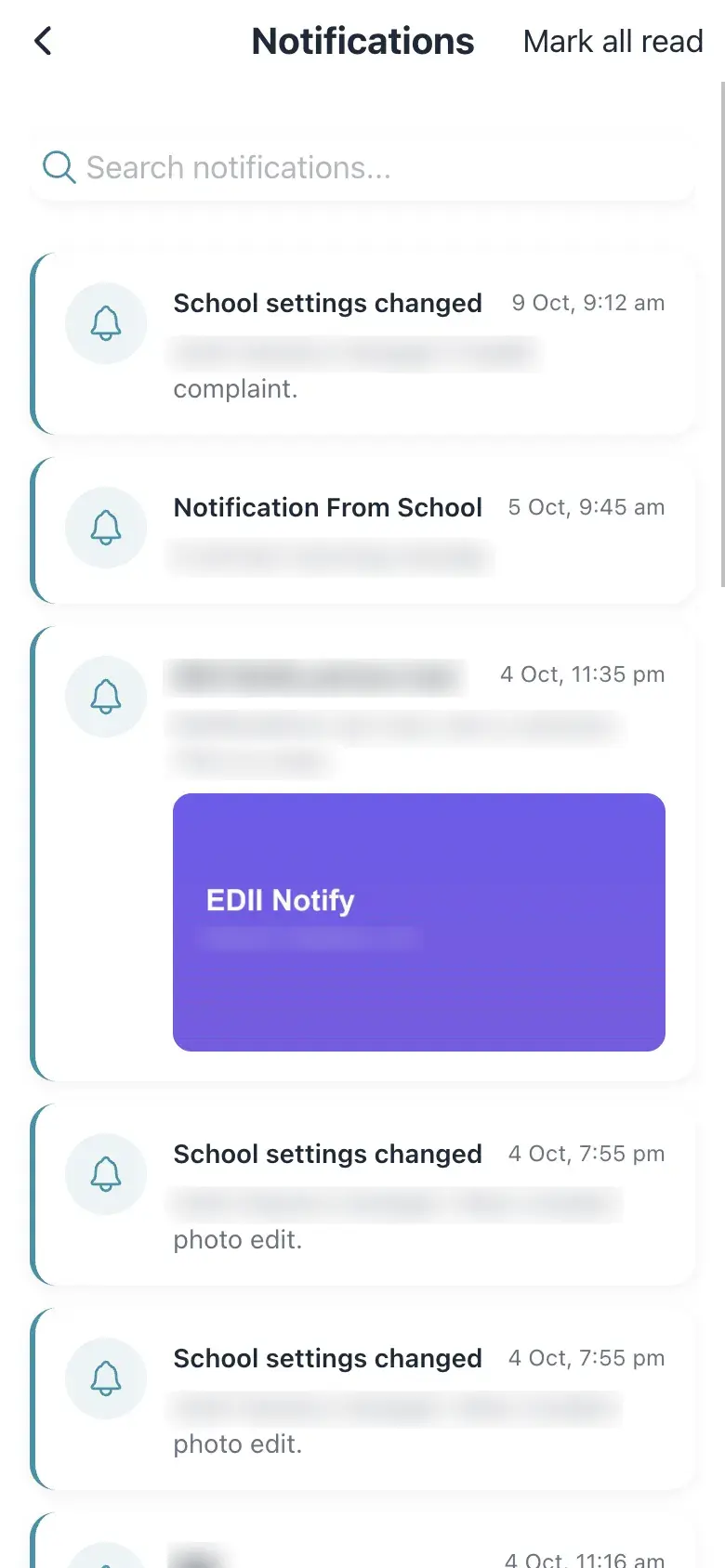
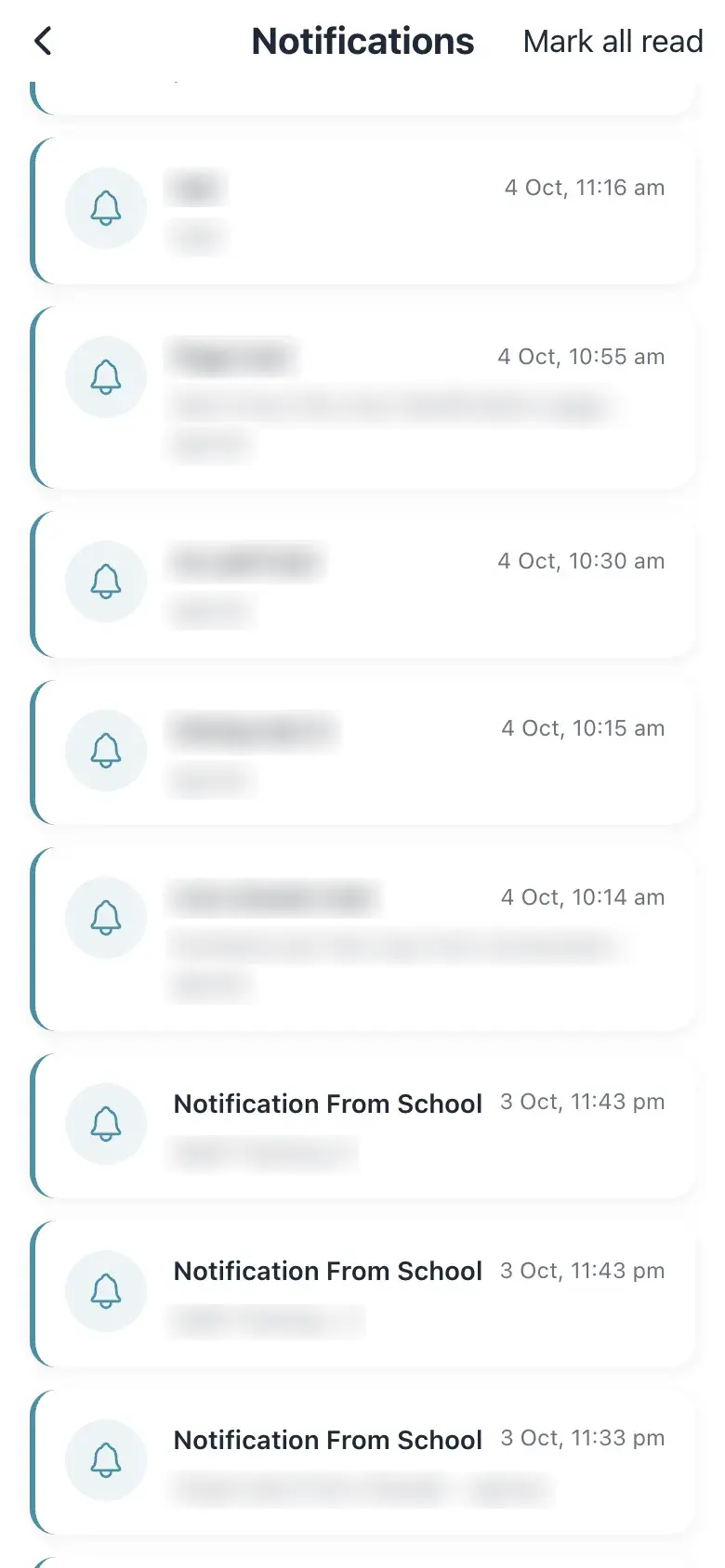
Notifications lists notices with a title, time and text (for example Notification From School, School settings changed). Search with Search notifications… and select Mark all read. Empty: No Notifications — You’re all caught up!
Who uses it and when
Section titled “Who uses it and when”Teachers, to catch up.
Before you start
Section titled “Before you start”- Allow notifications for the app.
Where to find it
Section titled “Where to find it”- Select the bell on Home, or ☰ › Notifications.
 Open a bigger pictureतस्वीर बड़ी करें
Step by step
Section titled “Step by step”1. Read
Section titled “1. Read”Scroll the list.
 Open a bigger pictureतस्वीर बड़ी करें
Buttons
Section titled “Buttons”| Button | What it does | What happens next |
|---|---|---|
| Mark all read | Clears the unread marks. | The bell count clears. |
After you save
Section titled “After you save”- This screen only shows information.
Messages you may see
Section titled “Messages you may see”| Message | What it means | What to do |
|---|---|---|
| No Notifications | Nothing received. | Nothing to do. |
- Check after school events.
Stuck? Try this
Section titled “Stuck? Try this”| Problem | Likely cause | What to do |
|---|---|---|
| No alerts on my phone | Phone notifications are off. | Allow them. |
Did this page help?क्या इस पेज से मदद मिली?
Thanks! Glad it helped.धन्यवाद! अच्छा लगा कि काम बन गया।
Sorry about that. Ask in your own words, or write to us.माफ़ कीजिए। अपने शब्दों में पूछें, या हमें लिखें।