
Screen guide · Web app
Student Profile
One student's complete record in a single screen: details, fees and ledger, attendance, attachments, academic performance and learning-app insights, with actions to edit, change section, promote, transfer, suspend, delete and add concessions or transport.
यह पेज अंग्रेज़ी में है। कुछ समझ न आए तो ।
The Student Profile is where everything about one child comes together. It opens from the student lists (Student Search, Student Profile, class lists) with the student chosen. At the top you see the photo, name, class and section, admission date and when the record was last updated, plus colour-coded tags you can add (for example Scholarship or Needs help).
Below are tabs for the student’s details, fees, attendance, attachments and academic performance. A toggle switches between Classic View and Modern Dashboard, and a Learning App Insights card shows how the child uses the self-paced Learning app (days active, quizzes taken, topics mastered, topics where they lag behind).
The buttons at the top run the main student actions: Edit, Section Change, Concession, School Transport, Promote, Session Update, Suspend, Transfer and Delete, and Ledger for the fees ledger.
Who uses it and when
Section titled “Who uses it and when”The office, class teachers and principals open it to answer questions about a student, to move a student between sections, to add a fee concession, or to prepare a transfer.
Before you start
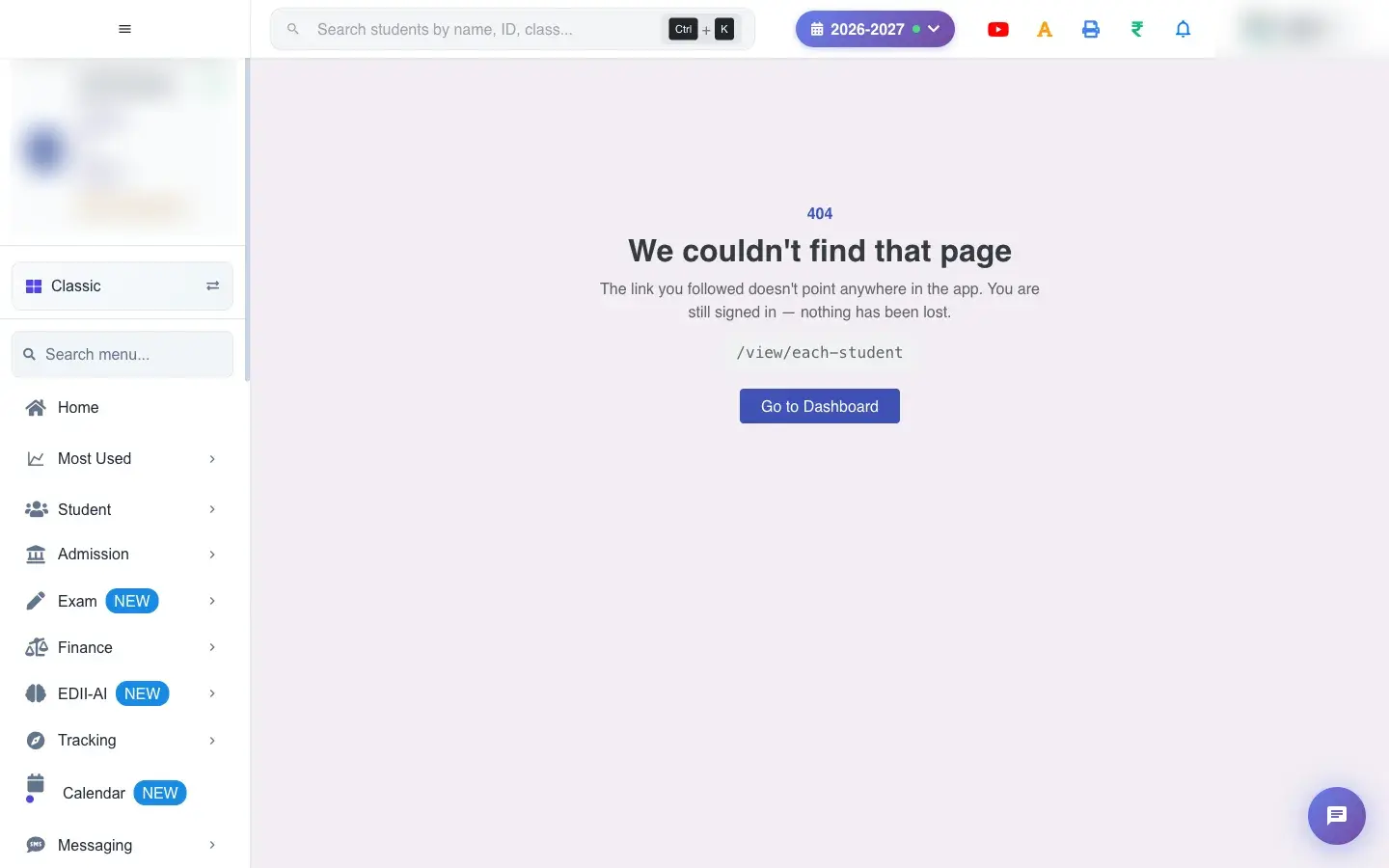
Section titled “Before you start”- Open it from a student list: this screen needs a student chosen. If you open its address directly EDII shows the page-not-found screen.
- Some actions need permission (delete, suspend, transfer, concession).
Where to find it
Section titled “Where to find it”- This screen opens from another screen, not from the menu.
- Address:
/view/each-student - If it is missing from your menu, your role does not include it. Ask your school admin.
 Open a bigger pictureतस्वीर बड़ी करें
Step by step
Section titled “Step by step”1. Read the header
Section titled “1. Read the header”The photo, name, class, section, roll number and admission date are at the top. Tags show labels you added; select Add tag, type up to 30 characters and press Enter to add one. Remove a tag with its cross. Last updated tells you when the record was last changed.
2. Read the Learning App Insights
Section titled “2. Read the Learning App Insights”If the child uses the Learning app you see days active, quizzes taken, topics mastered and the last active date, with Lagging behind - needs help in: a list of weak topics, or Keeping up well. If they have not started you see This student hasn’t started using the self-paced Learning app yet.
3. Details tab
Section titled “3. Details tab”Full Name, Id No, Class, Section, Roll No, Enrollment No, Aadhaar No, State Id, PEN No, Father’s Name, Mother Name, Email Id, Phone Number (and Phone Number1), Date-of-Birth, Height, Weight, Address, Father Education, Mother Education, Caste Name, Student Type, Father Aadhaar and Mother Aadhaar. The year buttons (2025-2026, 2024-2025 … 2017-2018) let you view the record as it was in an earlier session.
4. Fees tab
Section titled “4. Fees tab”Month by month the fees show Name, Amount, Discount, Fees Paid and Discount Paid, with Paid or Un-paid status and a Pay Fees button for unpaid months. A yellow notice Payments retained from a prior section lists fees that belong to the old section: their original payments are kept, so review them before arranging a refund, credit or allocation. Ledger opens the student’s full fees ledger.
5. Attendance tab
Section titled “5. Attendance tab”Shows the student’s attendance details, or No Attendance Details Present for the student.
6. Attachments tab
Section titled “6. Attachments tab”Lists documents uploaded for the student, such as certificates. Images are previewed and each file has Download. It says No attachments available when there are none.
7. Academic Performance Analysis
Section titled “7. Academic Performance Analysis”Shows results and progress trends. Switch View by Exam Type or View by Subject. Each group shows the Overall Average, number of Subjects, Total Tests, Marks Obtained and Max Marks, a chart and a Subject-wise Breakdown (Subject, Tests, Percentage). Until tests are marked you see No Performance Data Available.
8. Edit the student
Section titled “8. Edit the student”Edit opens the Edit Student form to change any detail or the photo.
9. Change section
Section titled “9. Change section”Section Change moves the student to another class and section for the current session. EDII says: Moving a student updates their current class and section. Payments for matching fee heads follow the new section. After confirming you see Student moved to …, and Attendance and marks are still being moved across — give it a minute before checking the new section. If the move fails you see Attendance and marks did not move with the student — please tell support or Transfer blocked — see details in the dialog.
10. Add a concession
Section titled “10. Add a concession”Concession opens Add Concession: pick each Fee Name, the Months (All or specific), the Discount (₹) and a Comment, then Submit (Discount Details added!). The history shows earlier concessions.
11. Set school transport
Section titled “11. Set school transport”School Transport lets you add the bus fare and stop for the student (Transport Details added!).
12. Promote the student
Section titled “12. Promote the student”Promote shows the new session, class and section and a Promote button for this student only.
13. Add to another session
Section titled “13. Add to another session”Session Update adds the student to another session’s roster. The student stays in the source session and also appears in the target session, for example a student in 2024-2025 can also be shown in 2026-2027. Only the roster is added; the main profile is not changed. If the student is already in the target session nothing is overwritten. You must choose a target session different from the source.
14. Transfer to another school
Section titled “14. Transfer to another school”Transfer moves the student to another school on EDII: choose Select New School and Submit. The message reads Student Has been Transferred to the School: ….
15. Suspend or delete
Section titled “15. Suspend or delete”Suspend puts the student on the suspended list; Delete removes them from the roll. Both can be reversed from Suspended Student and Deleted Student.
Fields and filters
Section titled “Fields and filters”| Field | What it is | Notes |
|---|---|---|
| Tags | Short labels on the student. | Up to 30 characters each. |
| Session buttons | View an earlier session’s record. | 2025-2026 back to 2017-2018. |
| Concession: Fee Name / Months / Discount (₹) / Comment | A fee discount. | Months can be All. |
| Select New School | Target school for a transfer. | Required. |
| Target session | For Session Update. | Different from the source. |
Buttons
Section titled “Buttons”| Button | What it does | What happens next |
|---|---|---|
| Edit | Opens the edit form. | Changes are saved there. |
| Section Change | Moves the student between sections. | Payments for matching fee heads follow the new section. |
| Concession | Adds a discount. | Fees update. |
| School Transport | Adds bus fare details. | Transport fees are added. |
| Promote | Promotes this student. | They appear in the new class. |
| Session Update | Adds to another session. | Only the roster is added. |
| Suspend / Transfer / Delete | Changes the student’s status. | Reversible except a completed transfer to another school. |
| Ledger / Pay Fees | Opens the ledger or fee payment. | You leave this screen. |
After you save
Section titled “After you save”- Section change, concession, transport, promote, session update, transfer, suspend and delete each change the student’s record and the lists, fees and reports that use it.
- A section change also moves payments for matching fee heads, attendance and marks to the new section.
Good to know
Section titled “Good to know”- The student must be chosen first; the screen cannot be opened on its own.
- A session update needs a target session that differs from the source.
- Fees absent from the current section keep their original payments.
- Transfers, deletions and suspensions need permission.
Messages you may see
Section titled “Messages you may see”| Message | What it means | What to do |
|---|---|---|
| Student moved to … | The section change worked. | Wait a minute for attendance and marks to follow. |
| Attendance and marks did not move with the student — please tell support. | The move was incomplete. | Contact support. |
| Transfer blocked — see details in the dialog | A rule stops the move. | Read the dialog. |
| Discount Details added! | The concession was saved. | Nothing to do. |
| Transport Details added! | Bus details were saved. | Nothing to do. |
| Student Has been Transferred to the School: … | The transfer is done. | Nothing to do. |
| Student id missing, please reopen the profile | The student was not chosen. | Open it from a student list. |
| Target session must be different from the source session | Session Update needs another session. | Choose a different session. |
| Bad/Slow Internet Connection, Please check your internet connection | A request failed. | Try again. |
- Use tags to mark students who need a special follow-up, then search by tag.
- Check the yellow fees notice before refunds after a section change.
Stuck? Try this
Section titled “Stuck? Try this”| Problem | Likely cause | What to do |
|---|---|---|
| The screen shows page not found | It was opened without choosing a student. | Open it from Student Search or a class list. |
| Attendance did not follow a section change | The move was still running or failed. | Wait a minute and refresh; if the error message appears, contact support. |
Did this page help?क्या इस पेज से मदद मिली?
Thanks! Glad it helped.धन्यवाद! अच्छा लगा कि काम बन गया।
Sorry about that. Ask in your own words, or write to us.माफ़ कीजिए। अपने शब्दों में पूछें, या हमें लिखें।