
Screen guide · Web app
Backfill Optional Fees Students
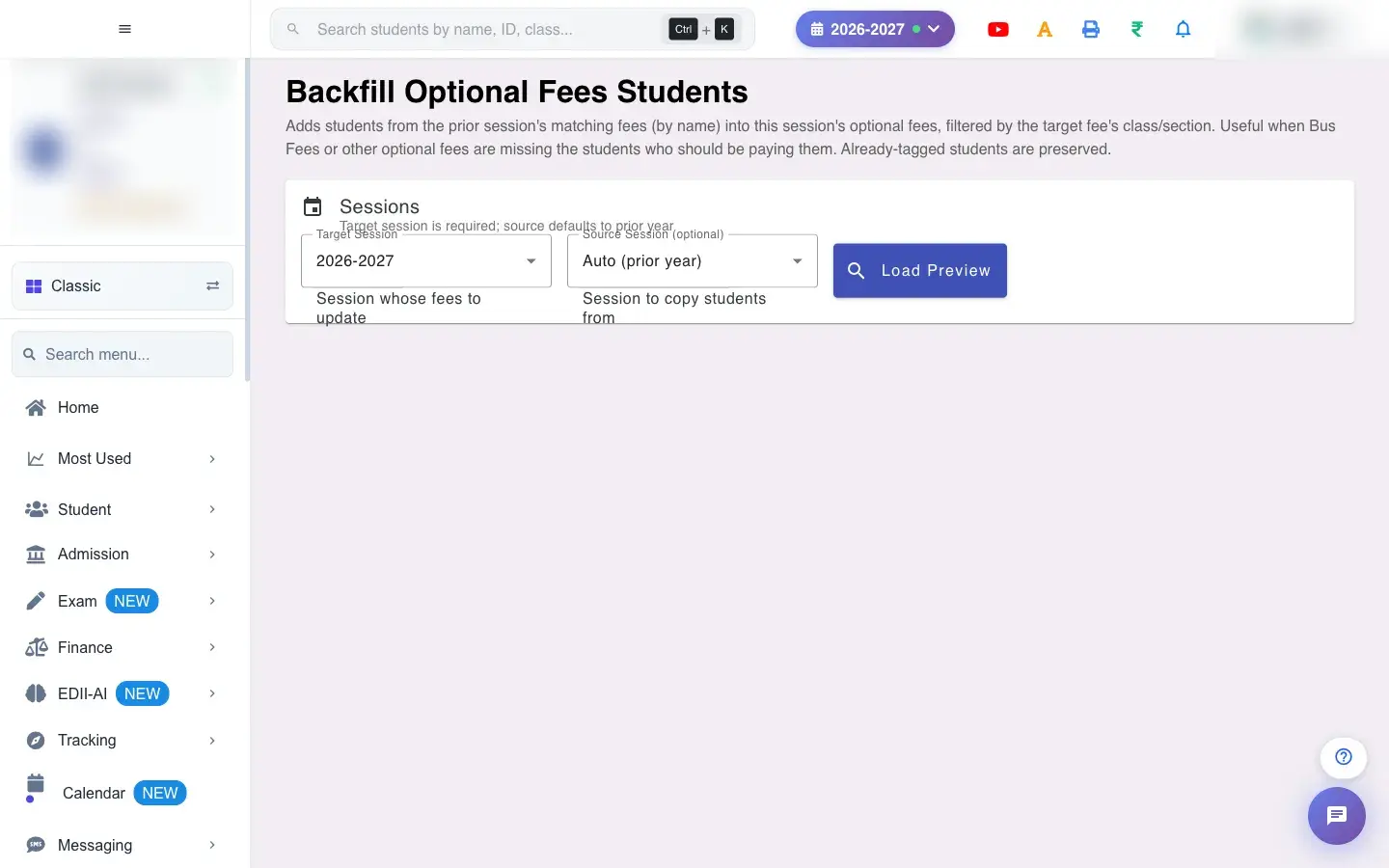
Copy the list of students who paid an optional fee in the previous session into the matching optional fee of the new session, after previewing exactly what will change.
यह पेज अंग्रेज़ी में है। कुछ समझ न आए तो ।
Backfill Optional Fees Students (Finance › Optional Fees Students) saves you re-adding students to optional fees every year, for example Bus Fees. It looks at the previous session’s matching fees (matched by name), finds the students who paid them, and adds those students to this session’s optional fees, limited to the target fee’s class and section.
Students already tagged on a fee are kept. You see a Preview first and choose which fees to update.
Who uses it and when
Section titled “Who uses it and when”The accounts head runs it after creating the new session’s optional fees, or when optional fees are missing students who should be paying.
Before you start
Section titled “Before you start”- The new session’s optional fees must exist with the same names as last year’s. Choose the target session; the source defaults to the previous year.
Where to find it
Section titled “Where to find it”- Menu: Finance › Optional Fees Students
- Address:
/add/backfill-optional-fees - If it is missing from your menu, your role does not include it. Ask your school admin.
 Open a bigger pictureतस्वीर बड़ी करें
Step by step
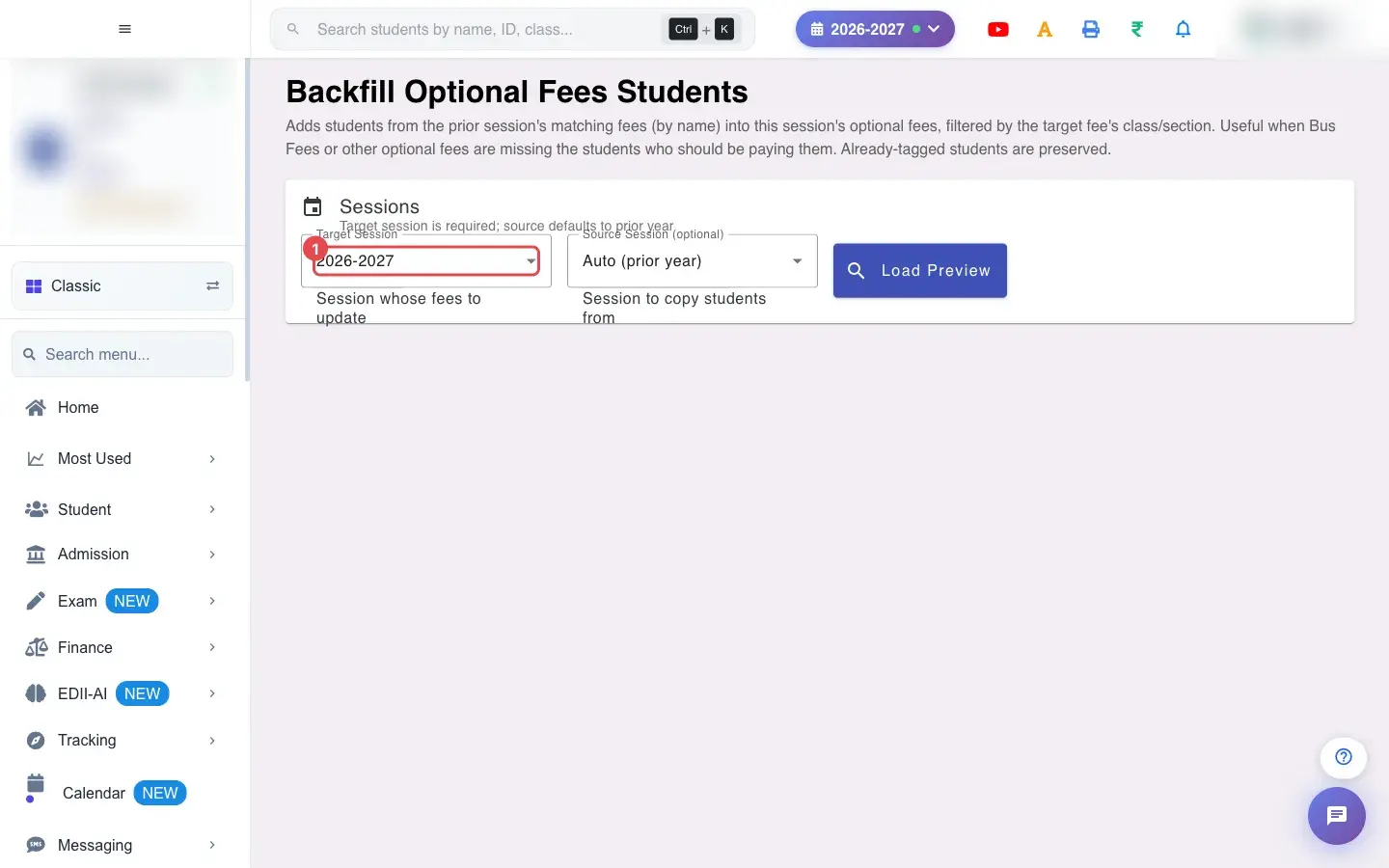
Section titled “Step by step”1. Choose Target Session (for example 2026-2027)
Section titled “1. Choose Target Session (for example 2026-2027)”Choose the Target Session: the session whose fees you want to update.
 Open a bigger pictureतस्वीर बड़ी करें
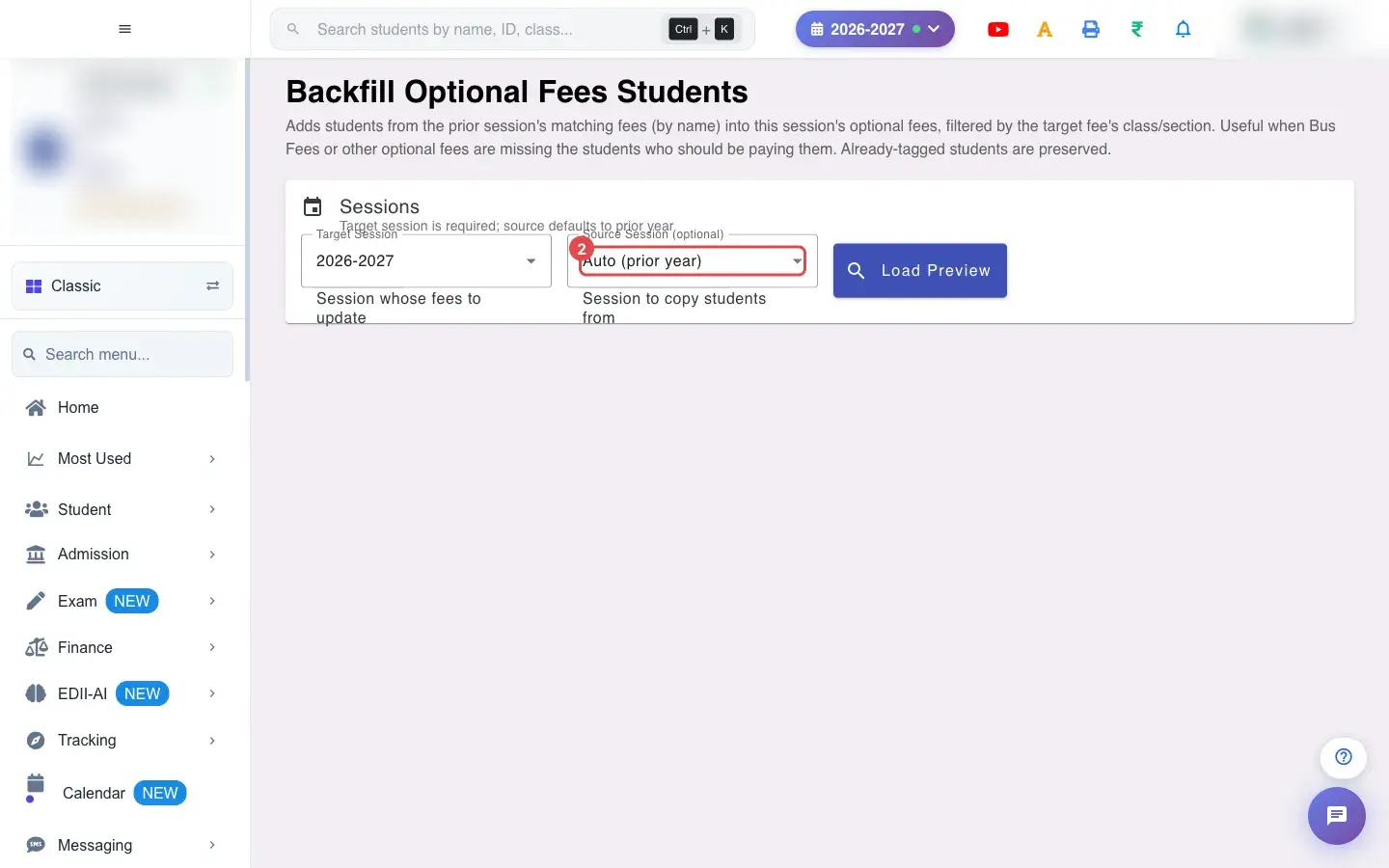
2. Choose Source Session (optional) (for example Auto (prior year))
Section titled “2. Choose Source Session (optional) (for example Auto (prior year))”Choose the Source Session (optional): the session to copy students from. Auto (prior year) is the default.
 Open a bigger pictureतस्वीर बड़ी करें
3. Load the preview
Section titled “3. Load the preview”Select Load Preview. EDII compares the two sessions and lists the fees that need students. A message tells you what it found, for example Found N fee(s) with M student addition(s) to make, or No fees need backfill for this session.
4. Read the preview
Section titled “4. Read the preview”Each fee shows its Class / Section, Current → After counts, the Students to add (+N new, from N in source), those Not found in target session, and those in a Different class/section (skipped). The totals show how many fees are selected.
5. Choose fees
Section titled “5. Choose fees”Use Select All or Clear All, or tick the fees one by one.
6. Apply
Section titled “6. Apply”Apply the backfill. The message Backfill complete. Updated N fee(s). Skipped M. confirms it. A network failure reads Network error while applying backfill. Please try again.
With data
Section titled “With data” Open a bigger pictureतस्वीर बड़ी करें
Fields and filters
Section titled “Fields and filters”| Field | What it is | Notes |
|---|---|---|
| Target Session | The session to update. | Required. |
| Source Session (optional) | Where to copy students from. | Auto = previous year. |
Buttons
Section titled “Buttons”| Button | What it does | What happens next |
|---|---|---|
| Load Preview | Shows what would change. | Nothing is saved yet. |
| Select All / Clear All | Ticks or unticks fees. | Only affects the preview. |
| Apply (done) | Adds the students to the ticked fees. | Existing students are kept. |
After you save
Section titled “After you save”- The ticked optional fees get the previous session’s students added, only for students whose class and section match the target fee.
- Students who already have the fee are not touched.
- Students in a different class or section are skipped.
Good to know
Section titled “Good to know”- The target session is required.
- Fees are matched by name.
- Only students in the same class and section as the target fee are added.
Messages you may see
Section titled “Messages you may see”| Message | What it means | What to do |
|---|---|---|
| No fees need backfill for this session. | Nothing is missing. | Nothing to do. |
| Found N fee(s) with M student addition(s) to make. | The preview is ready. | Review and apply. |
| Backfill complete. Updated N fee(s). Skipped M. | Applied. | Check the fees. |
| Network error while loading preview. Please try again. | The preview failed. | Try again. |
| Network error while applying backfill. Please try again. | Apply failed. | Try again. |
- Use the same fee names every year so they match.
- Review students shown as skipped; they changed class or section.
Stuck? Try this
Section titled “Stuck? Try this”| Problem | Likely cause | What to do |
|---|---|---|
| A student was not added | They are in a different class or section now, or not in the target session. | Add them to the fee manually in Fees Master. |
Did this page help?क्या इस पेज से मदद मिली?
Thanks! Glad it helped.धन्यवाद! अच्छा लगा कि काम बन गया।
Sorry about that. Ask in your own words, or write to us.माफ़ कीजिए। अपने शब्दों में पूछें, या हमें लिखें।