
Screen guide · Web app
Sibling Management
Find and manage groups of brothers and sisters studying in the school: let EDII detect them from parent details, confirm or reject, or create groups by hand, and set each child's position.
यह पेज अंग्रेज़ी में है। कुछ समझ न आए तो ।
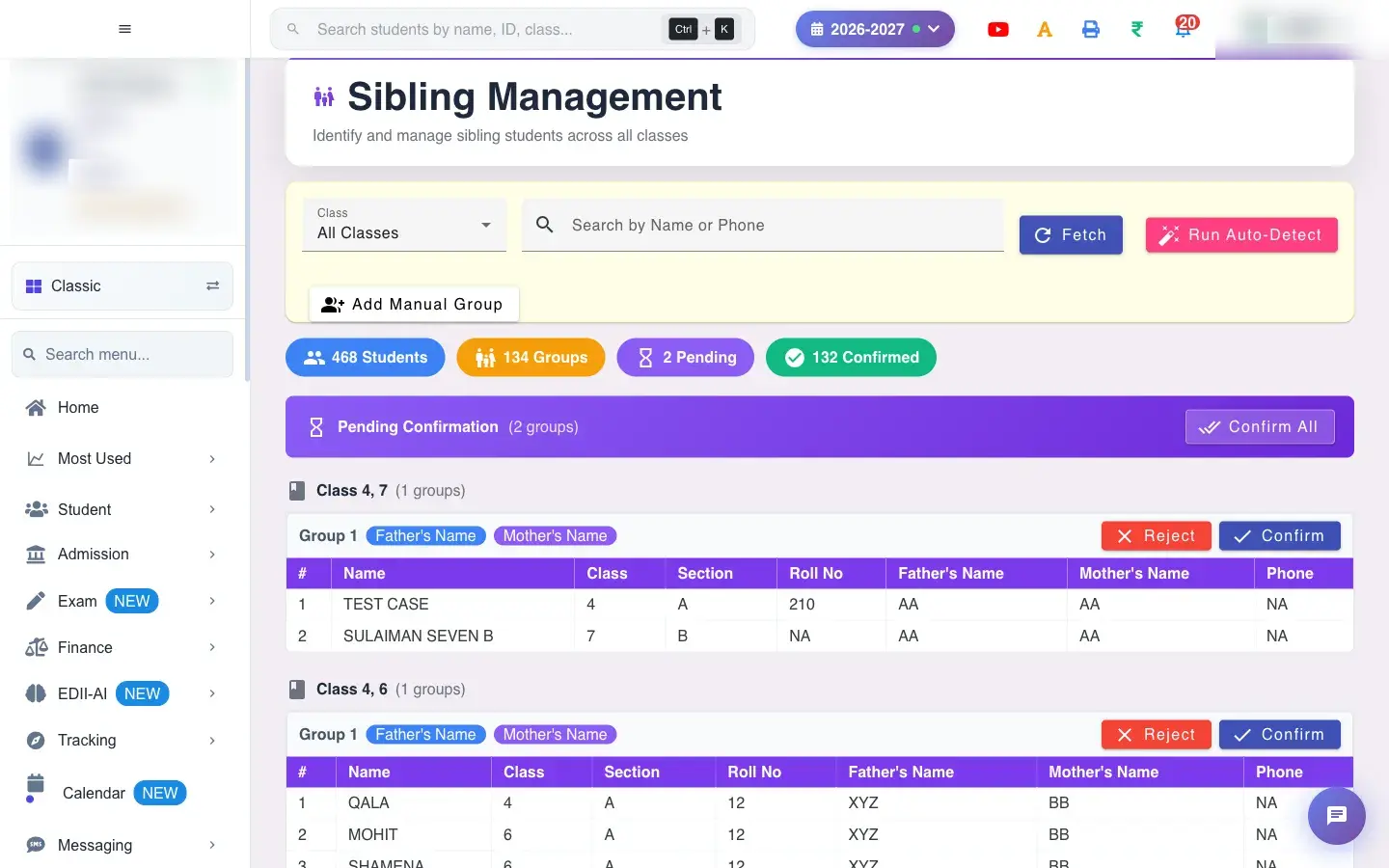
Sibling Management (Student › Siblings) keeps the school’s sibling groups, which can be used for sibling fee concessions and for linking siblings in the parent app. Choose a Class (default All Classes) and select Fetch to list existing groups. Run Auto-Detect compares father’s name, mother’s name and phone numbers and proposes new groups (No new sibling groups found if there are none). Review each proposed group and Confirm or Reject it, or use Confirm All.
Add Manual Group lets you pick up to six students (Sibling 1 to Sibling 6) yourself (Sibling group created). In a confirmed group assign each child’s position (first, second, third…) and select Save Positions (Sibling positions saved successfully; Please assign a position to all members if one is missing). A child can be removed from a group (Student removed from group) and a whole group deleted with Delete Group (Sibling group deleted). The student table shows Name, Class, Section, Roll No, Father’s Name, Mother’s Name and Phone.
Who uses it and when
Section titled “Who uses it and when”The office after admissions, and before fee concessions for siblings are applied.
Before you start
Section titled “Before you start”- Parent names and phone numbers should be correct in student records, because detection relies on them.
Where to find it
Section titled “Where to find it”- Menu: Student › Siblings
- Address:
/view/sibling-management - If it is missing from your menu, your role does not include it. Ask your school admin.
 Open a bigger pictureतस्वीर बड़ी करें
Step by step
Section titled “Step by step”1. Fetch the groups
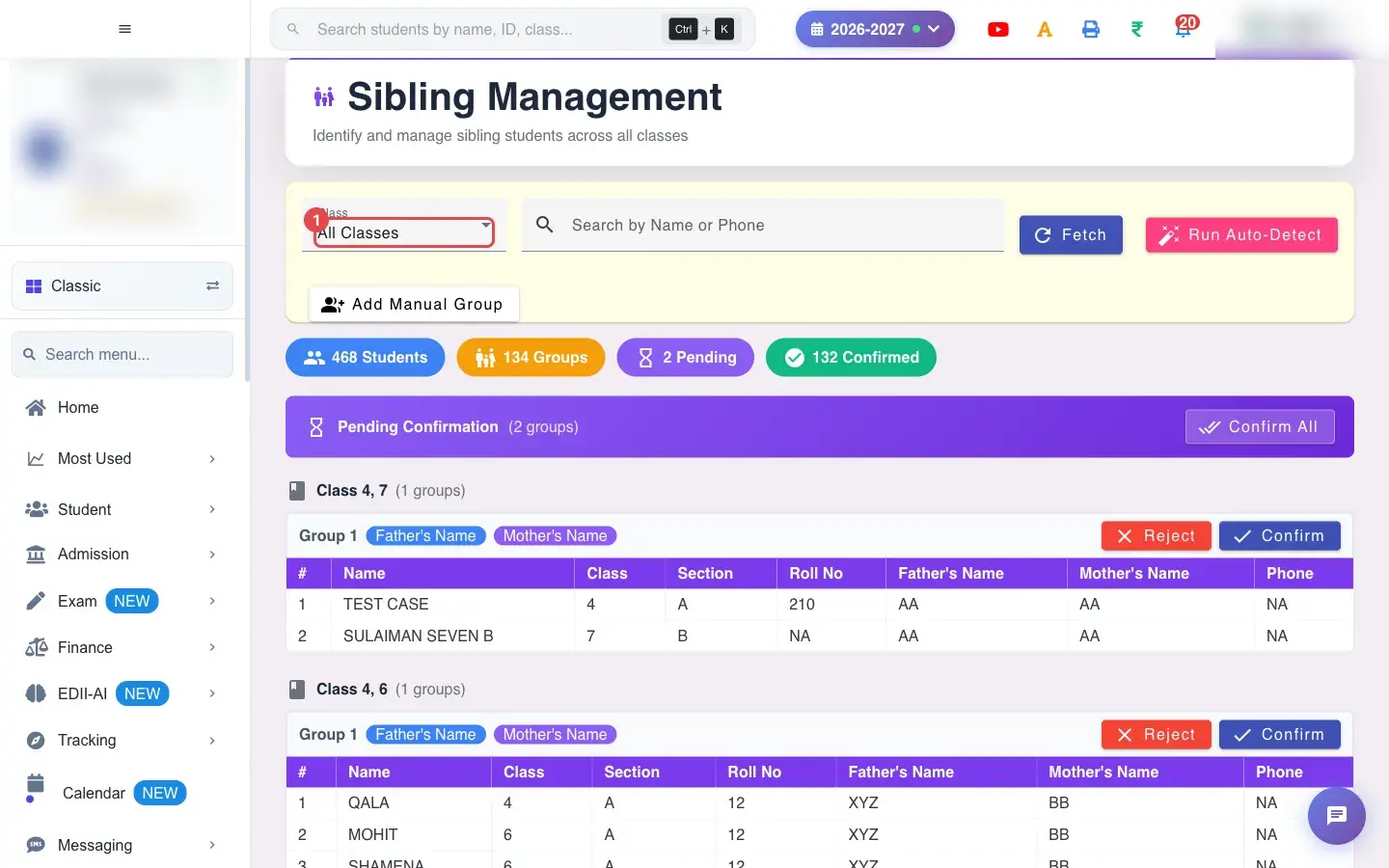
Section titled “1. Fetch the groups”Choose the class and select Fetch.
 Open a bigger pictureतस्वीर बड़ी करें
2. Detect new groups
Section titled “2. Detect new groups”Select Run Auto-Detect. Check each proposed group carefully: families with similar names can be different.
3. Confirm or reject
Section titled “3. Confirm or reject”Confirm correct groups (or Confirm All) and Reject wrong ones.
4. Set positions
Section titled “4. Set positions”Give every child a position and select Save Positions.
With data
Section titled “With data”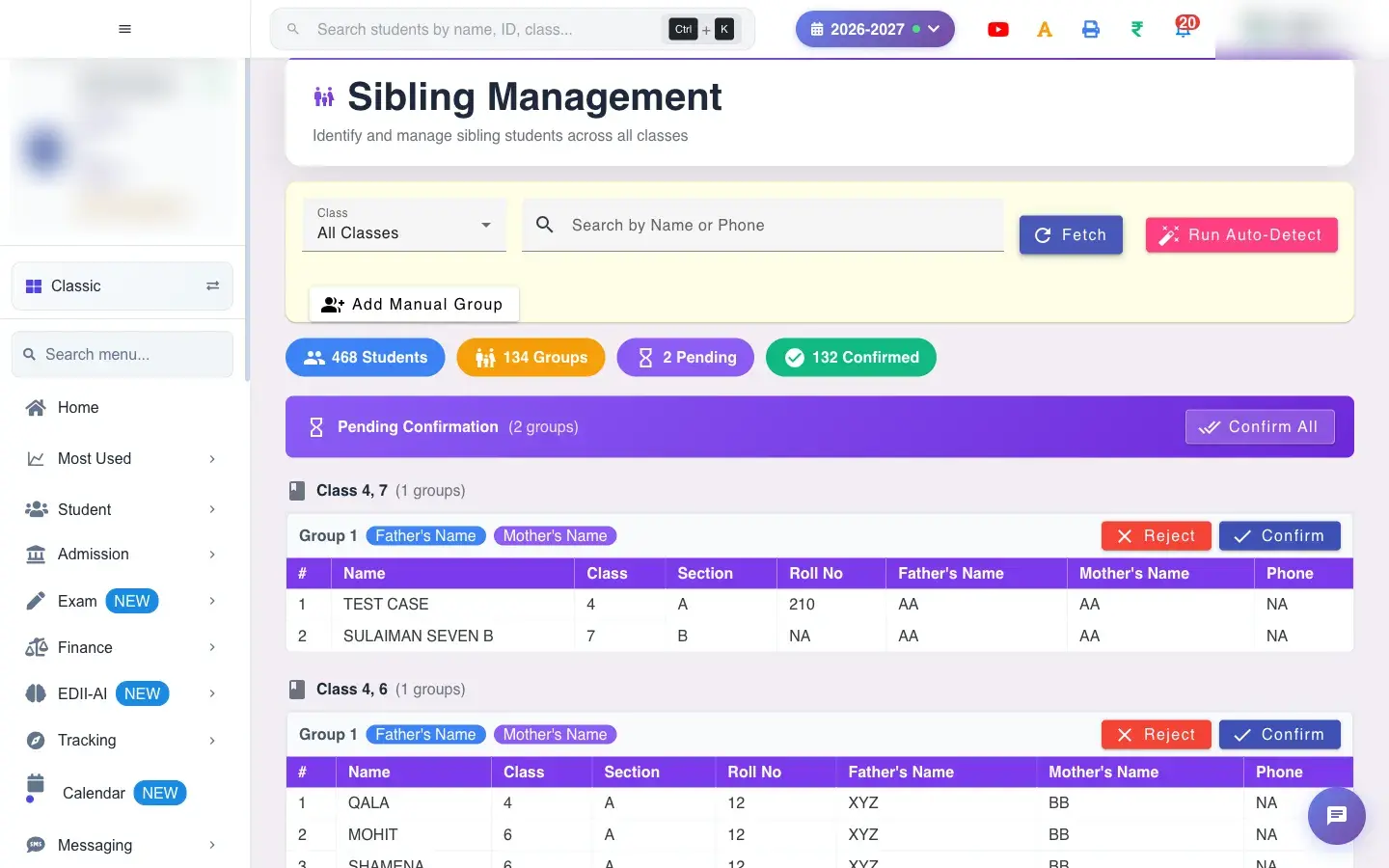 Open a bigger pictureतस्वीर बड़ी करें
Fields and filters
Section titled “Fields and filters”| Field | What it is | Notes |
|---|---|---|
| Class | Which class’s students and groups to show. | Default All Classes. |
| Sibling 1 to Sibling 6 | Students for a manual group. | At least two. |
| Position | Each child’s order in the family. | Required for all members. |
Buttons
Section titled “Buttons”| Button | What it does | What happens next |
|---|---|---|
| Fetch | Loads groups. | The list appears. |
| Run Auto-Detect | Finds likely sibling groups. | Proposed groups appear. |
| Add Manual Group | Creates a group by hand. | Sibling group created. |
| Confirm / Confirm All / Reject | Accept or discard proposed groups. | Sibling group confirmed or rejected. |
| Save Positions | Saves the order of children. | Sibling positions saved successfully. |
| Delete Group | Removes a group. | Sibling group deleted. |
After you save
Section titled “After you save”- Confirmed groups link the children as siblings for concessions and in the parent app.
Good to know
Section titled “Good to know”- Every member needs a position before saving.
- Reject groups that are not truly siblings.
Messages you may see
Section titled “Messages you may see”| Message | What it means | What to do |
|---|---|---|
| No new sibling groups found | Detection found nothing new. | Create groups by hand if needed. |
| Sibling group confirmed | Accepted. | Set positions. |
| Please assign a position to all members | A position is missing. | Assign all. |
| Sibling positions saved successfully | Saved. | Nothing to do. |
| Network Issue, Please Try Again. | A request failed. | Try again. |
- Run Auto-Detect once after admissions close.
- Check phone numbers to avoid joining unrelated families.
Stuck? Try this
Section titled “Stuck? Try this”| Problem | Likely cause | What to do |
|---|---|---|
| Two real siblings not detected | Parent names or phone differ. | Add a manual group. |
| Two unrelated students grouped | Shared surname and phone. | Reject or remove the child. |
Did this page help?क्या इस पेज से मदद मिली?
Thanks! Glad it helped.धन्यवाद! अच्छा लगा कि काम बन गया।
Sorry about that. Ask in your own words, or write to us.माफ़ कीजिए। अपने शब्दों में पूछें, या हमें लिखें।