
Screen guide · Web app
Manage Curriculum
Build a class's curriculum as three linked lists (subjects, topics, sub-topics), add or remove items, and import a ready-made subject and topic list from the CBSE template.
यह पेज अंग्रेज़ी में है। कुछ समझ न आए तो ।
Manage Curriculum (Exam › Curriculum) is where a class’s subjects, topics and sub-topics are defined in one place. The page shows three columns side by side: Subjects, Topics and Subtopics. Select a subject to see its topics, and a topic to see its sub-topics. Each column has an add box and a remove (✕) button on every item.
Import from CBSE Template brings in the standard subject list for the class and, when you choose a subject, its topics too, so you do not type them. The curriculum is used by tests, the question bank, report cards and the apps.
A warning appears when no students are enrolled in the class for the session: A curriculum saved here will not reach the student or teacher apps — they will keep showing the default subject list. Check that this is the same class name your students are enrolled under.
Who uses it and when
Section titled “Who uses it and when”The exam in-charge or academic head sets the curriculum at the start of the session.
Before you start
Section titled “Before you start”- Choose the class first (Please select a class first). The class name must match the name your students are enrolled under.
Where to find it
Section titled “Where to find it”- Menu: Exam › Curriculum
- Address:
/add/manage-curriculum - If it is missing from your menu, your role does not include it. Ask your school admin.
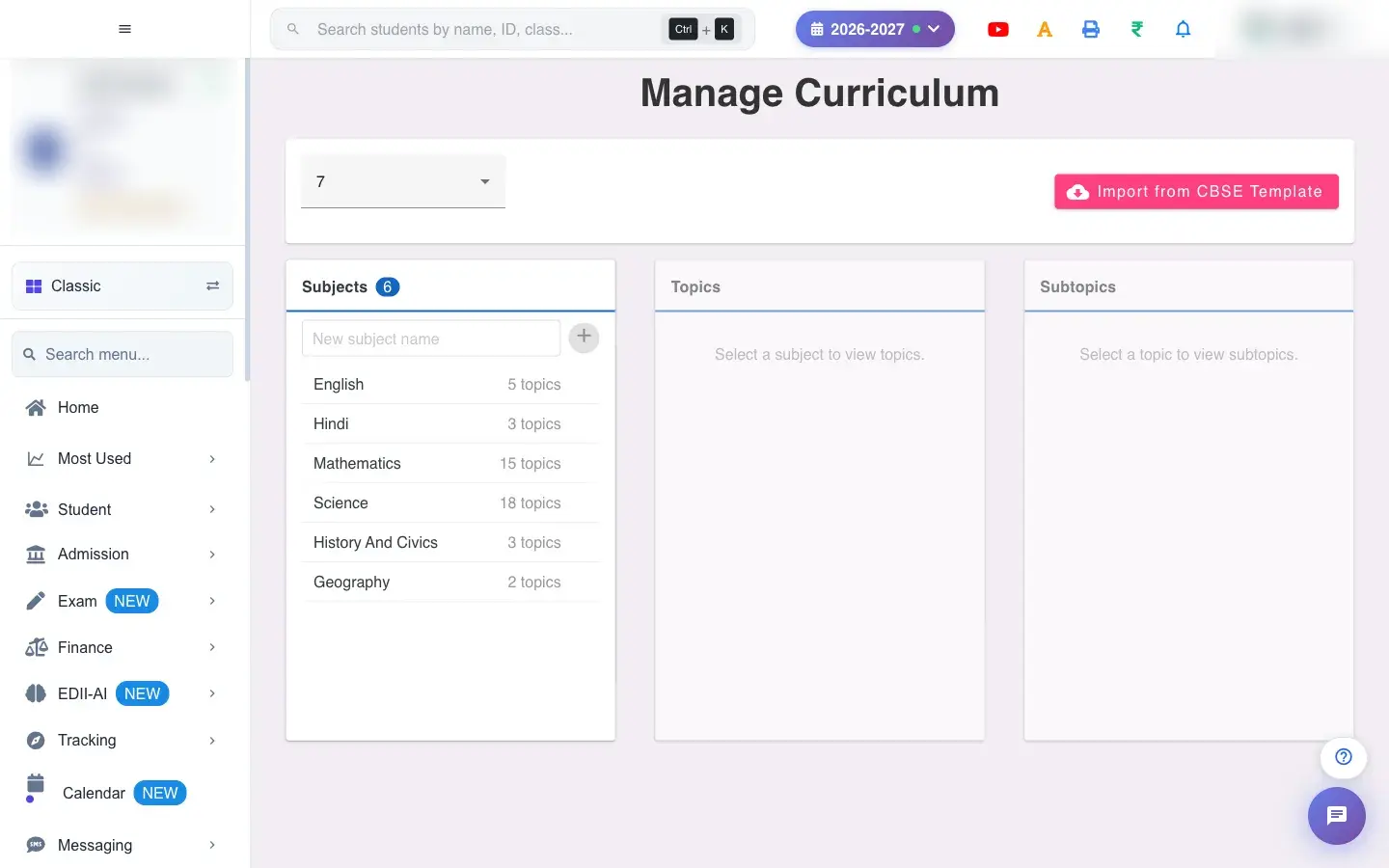 Open a bigger pictureतस्वीर बड़ी करें
Step by step
Section titled “Step by step”1. Choose Select Class (for example 7)
Section titled “1. Choose Select Class (for example 7)”Choose the Class whose curriculum you want to manage.
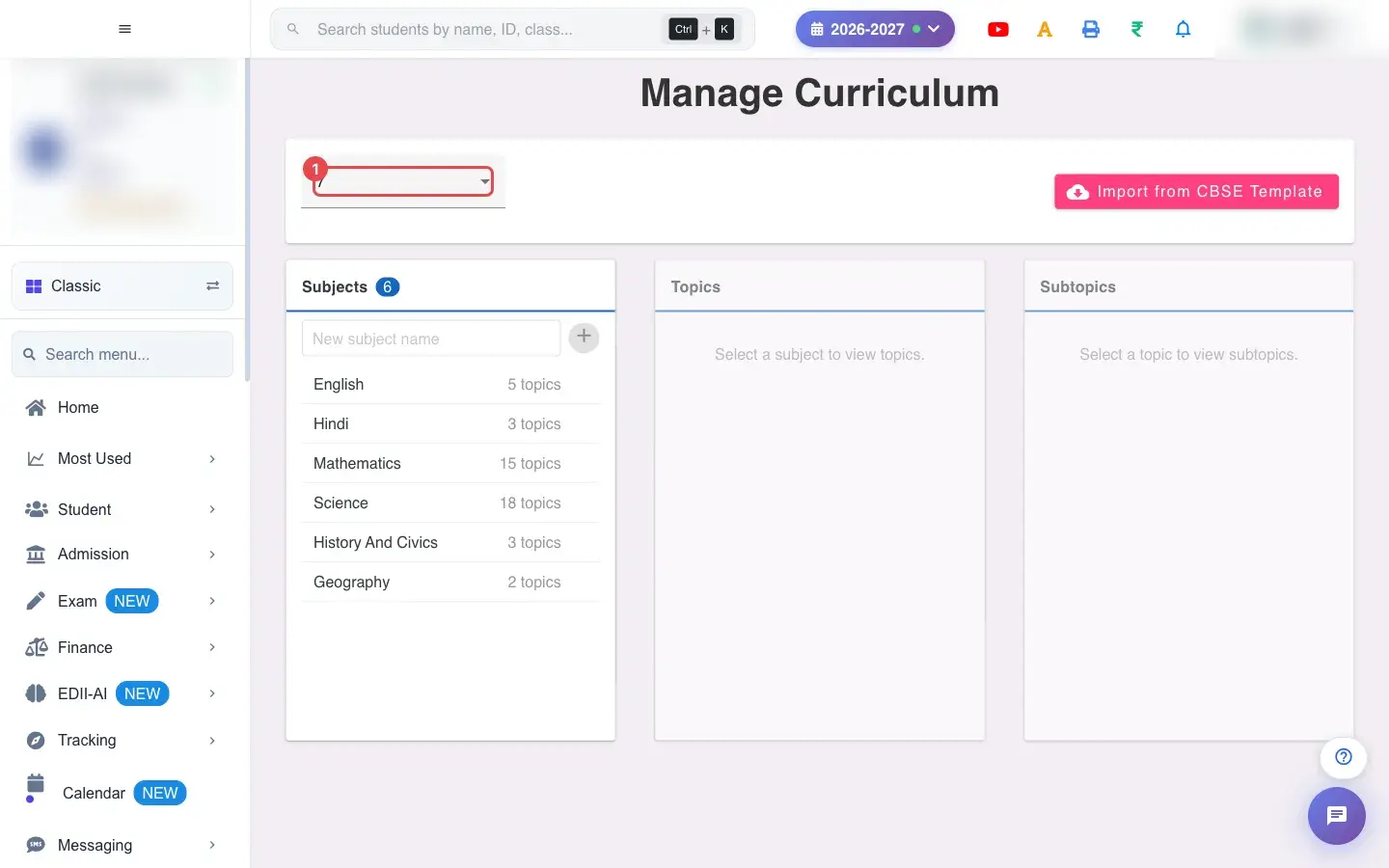 Open a bigger pictureतस्वीर बड़ी करें
2. Import from the CBSE template
Section titled “2. Import from the CBSE template”Select Import from CBSE Template. EDII lists CBSE Template Subjects for Class N; click to preview and choose a subject from the dropdown to import its topics into it. When the import works you see Successfully imported. If there is no template for the class you see No CBSE template available for this class.
3. Add a subject
Section titled “3. Add a subject”Type a name under + New subject and add it (Subject added successfully). An existing name shows Subject already exists.
4. Add topics
Section titled “4. Add topics”Select a subject, type a topic name and add it (Topic added successfully; Topic already exists for a duplicate). Each subject shows how many topics it has.
5. Add sub-topics
Section titled “5. Add sub-topics”Select a topic, type a sub-topic and add it (Subtopic added successfully; Subtopic already exists for a duplicate).
6. Remove an item
Section titled “6. Remove an item”The ✕ next to a subject, topic or sub-topic removes it (Subject removed, Topic removed, Subtopic removed).
With data
Section titled “With data”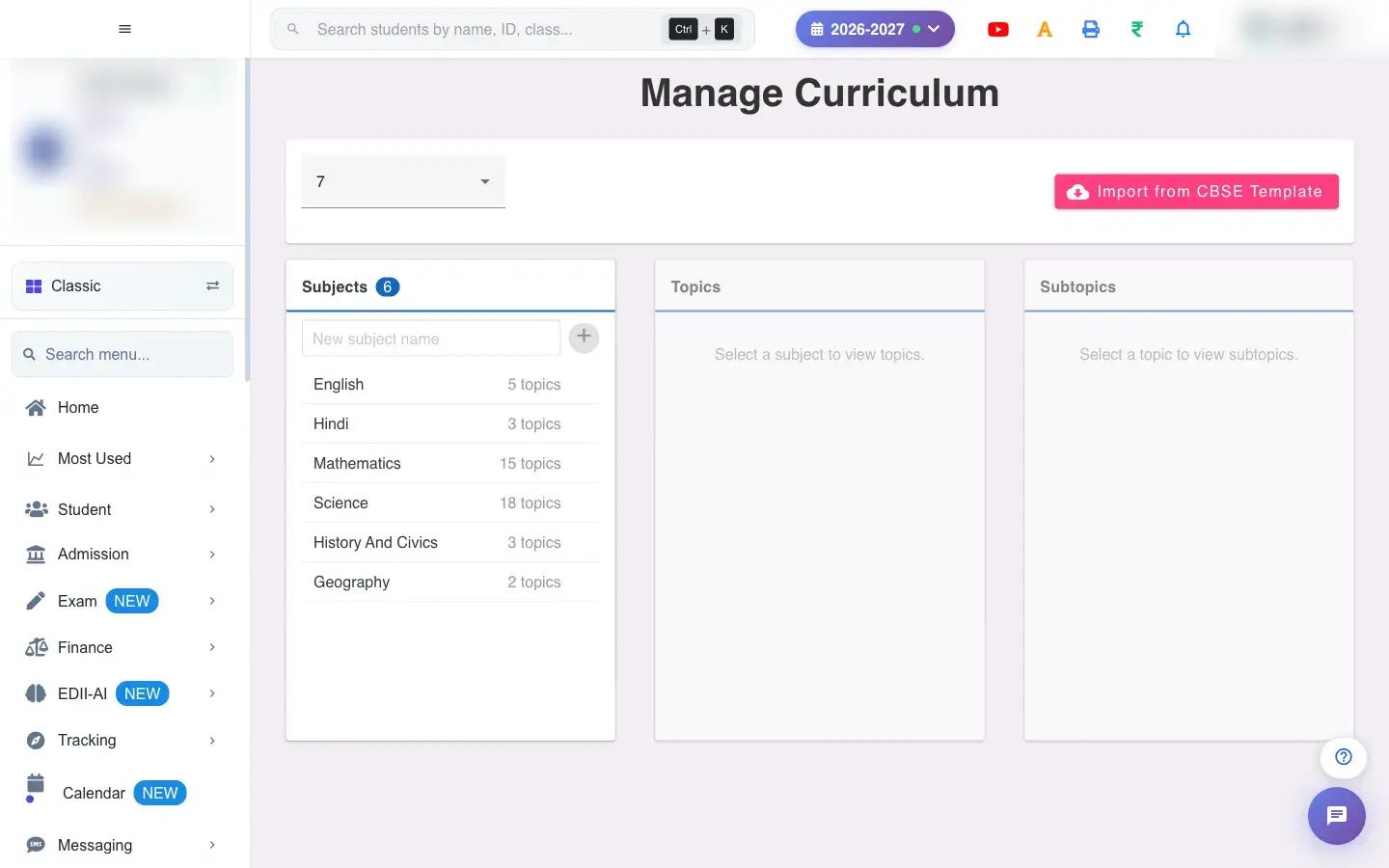 Open a bigger pictureतस्वीर बड़ी करें
Fields and filters
Section titled “Fields and filters”| Field | What it is | Notes |
|---|---|---|
| Select Class | The class to manage. | Required. |
| New subject / topic / sub-topic name | What you are adding. | Must be new. |
Buttons
Section titled “Buttons”| Button | What it does | What happens next |
|---|---|---|
| Import from CBSE Template | Brings in standard subjects and topics. | Successfully imported. |
| Add (subject, topic, sub-topic) | Adds an item. | It appears in the lists and in tests and questions. |
| Remove (✕) | Removes an item. | Tests and questions that used it keep their records. |
Columns
Section titled “Columns”| Column | Meaning |
|---|---|
| Subjects / Topics / Subtopics | The three levels of the curriculum, with counts. |
After you save
Section titled “After you save”- Changes are saved straight away for the class and session.
- The curriculum is used when creating tests and questions and on report cards. If no students are enrolled in the class, the student and teacher apps still show the default list.
Good to know
Section titled “Good to know”- A class must be chosen first.
- Names must be unique at their level.
- Importing requires a CBSE template for the class.
Messages you may see
Section titled “Messages you may see”| Message | What it means | What to do |
|---|---|---|
| No subjects found. Add subjects or import from CBSE template. | The class has no subjects yet. | Add or import. |
| Please select a class first | No class chosen. | Choose one. |
| No CBSE template available for this class | There is no template. | Add subjects by hand. |
| Successfully imported | The import worked. | Check the lists. |
| Subject already exists / Topic already exists / Subtopic already exists | A duplicate name. | Use a different name. |
| Subject removed / Topic removed / Subtopic removed | The item was removed. | Nothing to do. |
| Bad/Slow Internet Connection | A request failed. | Try again. |
- Import the CBSE template first, then add your own subjects.
- Check the class name matches your students’ class before saving.
Stuck? Try this
Section titled “Stuck? Try this”| Problem | Likely cause | What to do |
|---|---|---|
| The apps still show the default subjects | No students are enrolled under this class name. | Check the class name and enrol students. |
Did this page help?क्या इस पेज से मदद मिली?
Thanks! Glad it helped.धन्यवाद! अच्छा लगा कि काम बन गया।
Sorry about that. Ask in your own words, or write to us.माफ़ कीजिए। अपने शब्दों में पूछें, या हमें लिखें।