
Screen guide · Web app
Teacher Performance
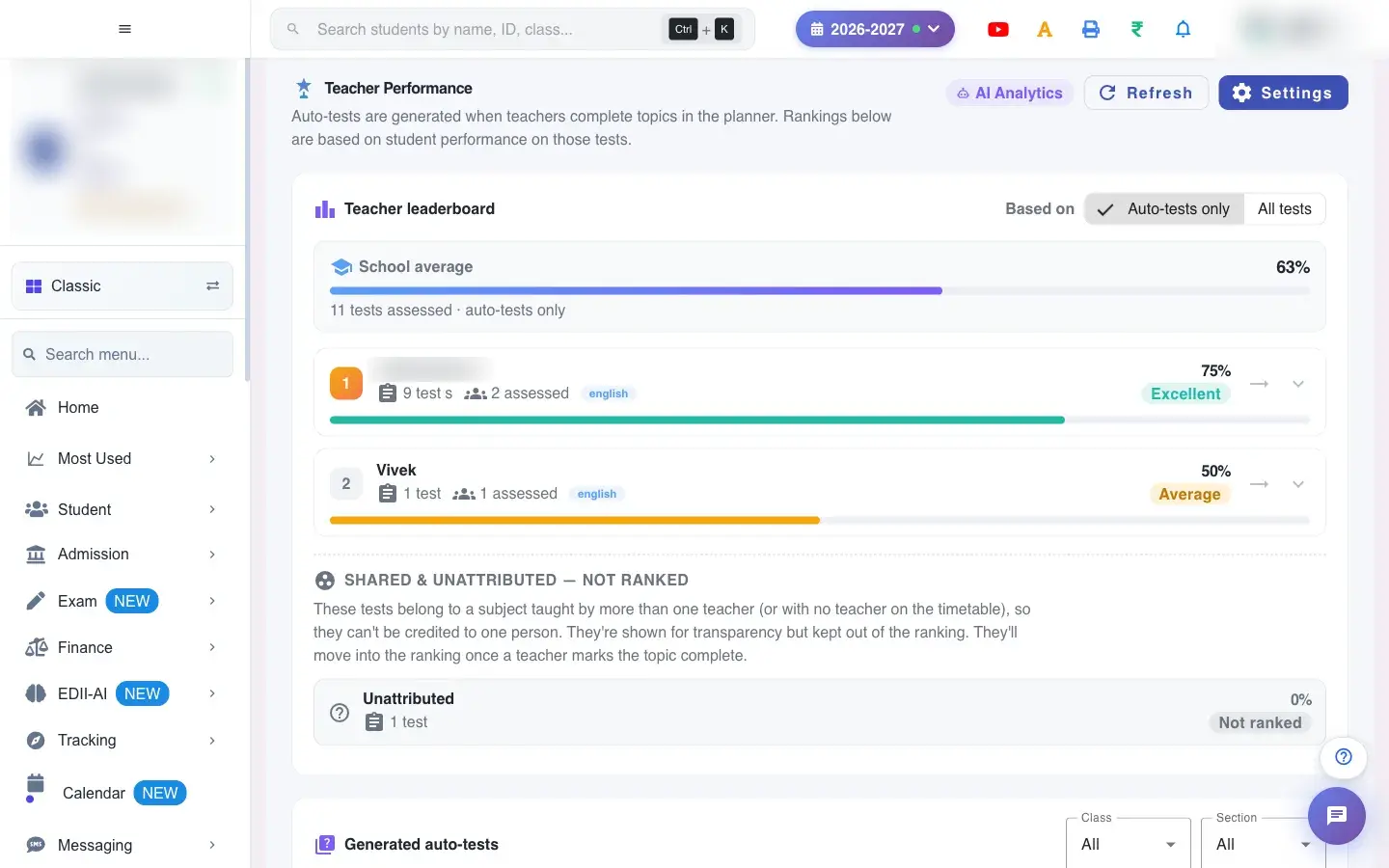
Teacher leaderboard based on how students perform in tests, with settings to switch on automatic AI practice tests when a teacher completes a topic.
यह पेज अंग्रेज़ी में है। कुछ समझ न आए तो ।
Teacher Performance (EDII-AI › Teacher Performance) ranks teachers by how their students did in tests. Auto-tests are generated when teachers complete topics in the Teaching Plan, and the rankings are based on student performance on those tests. Choose Auto-tests only or All tests as the basis. A Teacher leaderboard and a table list Topic, Class, Subject, Teacher, Date, Attempted, Avg % and Status.
Settings controls Auto-test settings: When enabled, completing a topic in the Teaching Plan automatically creates an AI practice test for that class, section and subject. You set Enable automatic topic tests, Board, Difficulty, Questions per test, Available for (days) and Question types.
Who uses it and when
Section titled “Who uses it and when”The principal and academic head review teacher impact; an administrator sets the auto-test rules.
Before you start
Section titled “Before you start”- Teachers must complete topics in the Teaching Plan for auto-tests to be created.
Where to find it
Section titled “Where to find it”- Menu: EDII-AI › Teacher Performance
- Address:
/view/teacher-test-performance - If it is missing from your menu, your role does not include it. Ask your school admin.
 Open a bigger pictureतस्वीर बड़ी करें
Step by step
Section titled “Step by step”1. Choose the basis
Section titled “1. Choose the basis”Select Auto-tests only or All tests. Filter by two lists (for example class and subject).
2. Read the leaderboard
Section titled “2. Read the leaderboard”The leaderboard ranks teachers; the table lists each auto-test and how many students attempted it and the average score.
3. Change auto-test settings
Section titled “3. Change auto-test settings”Open Settings, switch automatic topic tests on or off, set board, difficulty, questions per test and how many days the test is available, choose at least one question type (Select at least one question type) and save (Auto-test settings saved; Could not save settings on failure).
With data
Section titled “With data”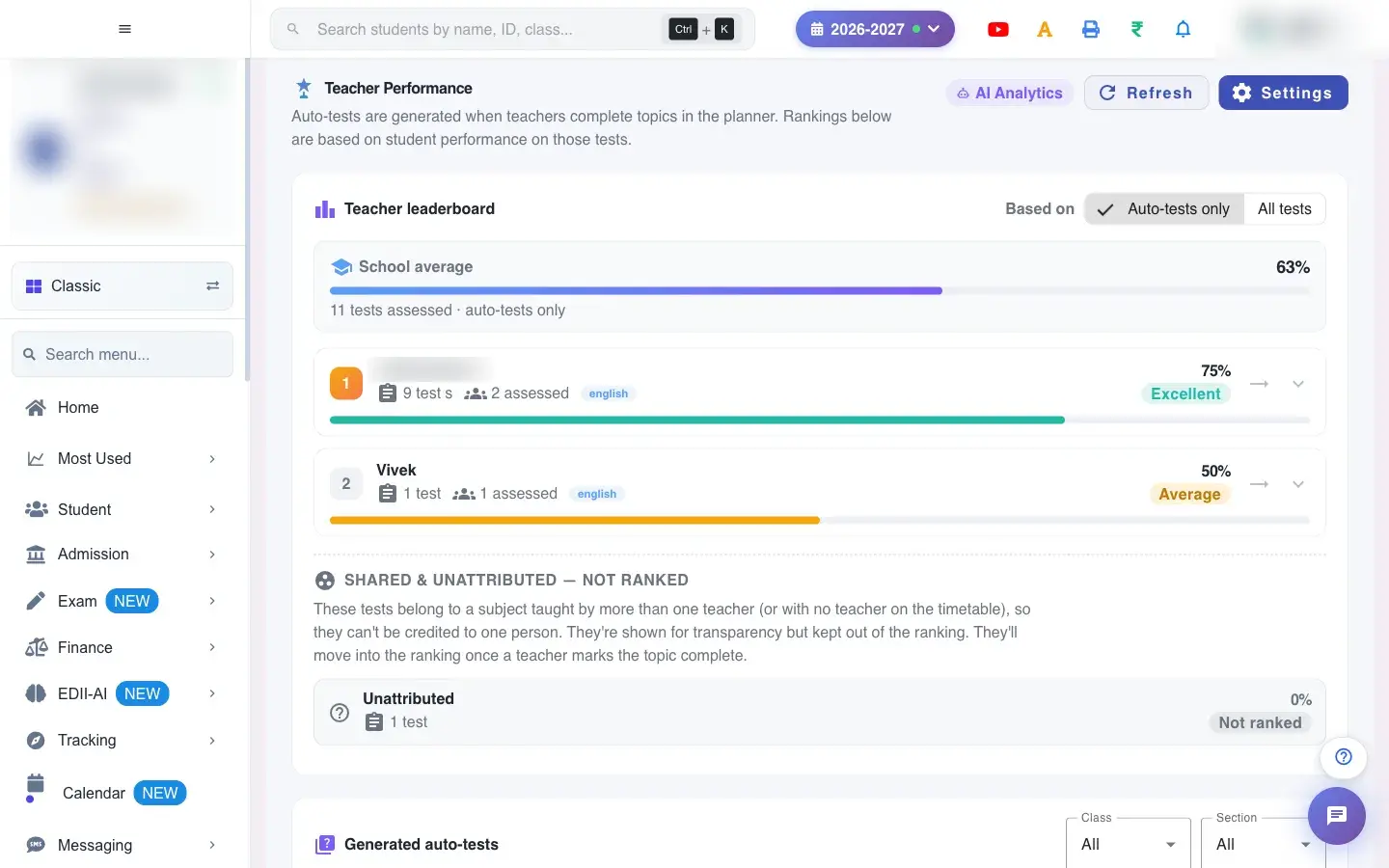 Open a bigger pictureतस्वीर बड़ी करें
Fields and filters
Section titled “Fields and filters”| Field | What it is | Notes |
|---|---|---|
| Enable automatic topic tests | Create a practice test when a topic is completed. | On or off. |
| Board / Difficulty / Questions per test / Available for (days) / Question types | How the auto-tests are built. | At least one question type. |
Buttons
Section titled “Buttons”| Button | What it does | What happens next |
|---|---|---|
| Settings | Opens the auto-test settings. | Save stores them. |
| Refresh | Reloads the numbers. | No data changes. |
Columns
Section titled “Columns”| Column | Meaning |
|---|---|
| Topic / Class / Subject / Teacher / Date | The auto-test. |
| Attempted / Avg % / Status | How students did. |
After you save
Section titled “After you save”- Saved settings apply to topics completed from then on.
Good to know
Section titled “Good to know”- Auto-tests are created when a topic is completed in the Teaching Plan.
- At least one question type is required.
Messages you may see
Section titled “Messages you may see”| Message | What it means | What to do |
|---|---|---|
| Auto-test settings saved | Stored. | Nothing to do. |
| Select at least one question type | None chosen. | Choose one. |
| Could not save settings | Saving failed. | Try again. |
- Use the rankings to share good practice, not to compare teachers unfairly: class strength differs.
Stuck? Try this
Section titled “Stuck? Try this”| Problem | Likely cause | What to do |
|---|---|---|
| No auto-tests appear | Automatic tests are off or no topic was completed. | Turn them on and complete topics. |
Did this page help?क्या इस पेज से मदद मिली?
Thanks! Glad it helped.धन्यवाद! अच्छा लगा कि काम बन गया।
Sorry about that. Ask in your own words, or write to us.माफ़ कीजिए। अपने शब्दों में पूछें, या हमें लिखें।