
Screen guide · Web app
Bill Master
For EDII administrators: select a school, see its bills, record payments against them and generate a consolidated bill.
यह पेज अंग्रेज़ी में है। कुछ समझ न आए तो ।
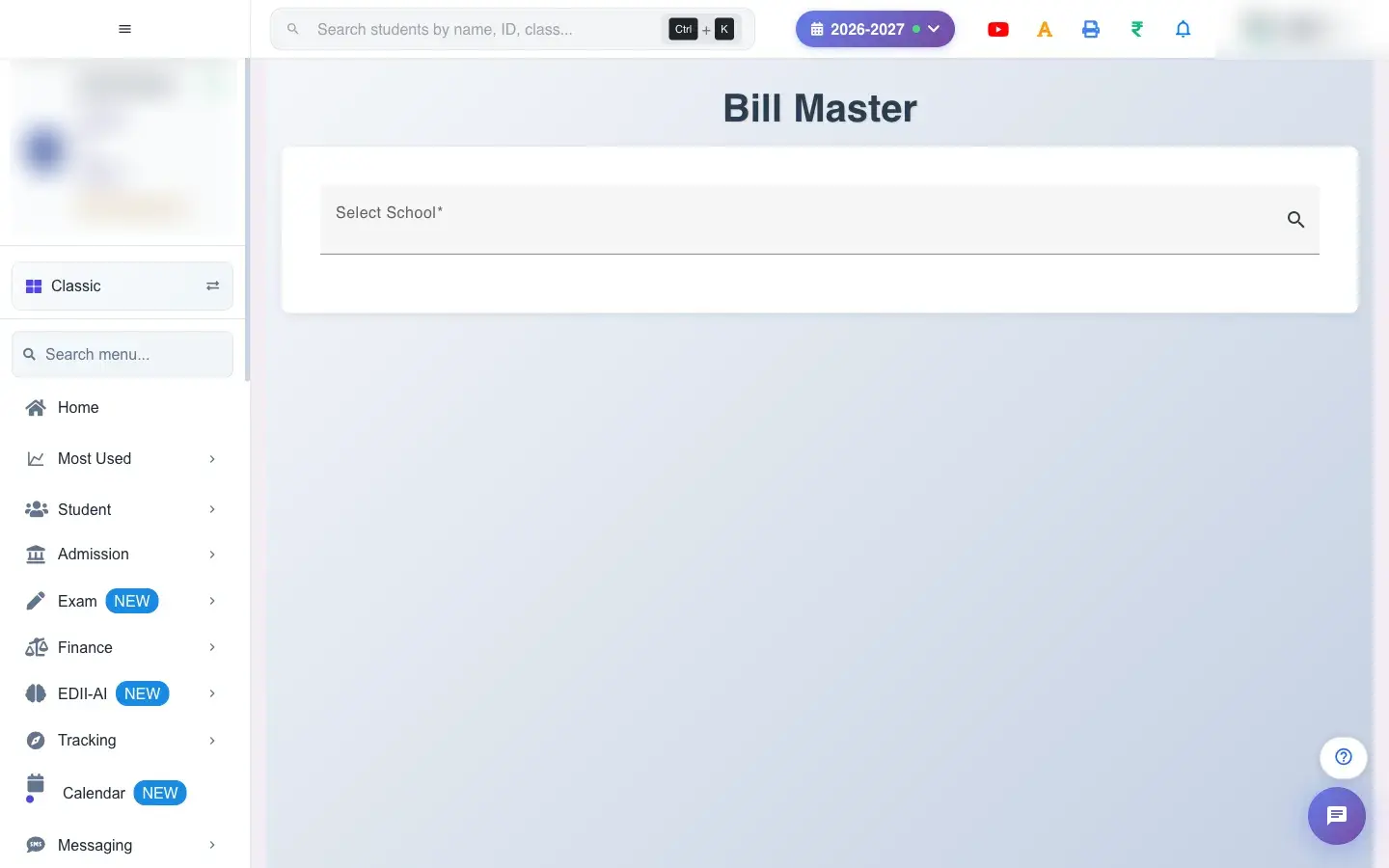
Bill Master (Finance › All Schools) is the screen EDII’s administrators use to manage subscription bills across schools. Choose a school (Search and select school…) and its bills appear with Month/Year, Bill Amount, Paid, Due and Status. Open a bill to see its Bill Details and the Bill Items (Service Description, Quantity, Rate), and to record a payment.
Most schools never see this screen; it is available only to EDII administrators.
Who uses it and when
Section titled “Who uses it and when”EDII administrators use it when a school pays by bank transfer, cash or another offline route and the payment needs recording.
Before you start
Section titled “Before you start”- Select the school first (Please select a school first).
Where to find it
Section titled “Where to find it”- Menu: Finance › All Schools
- Address:
/view/bill-master - If it is missing from your menu, your role does not include it. Ask your school admin.
 Open a bigger pictureतस्वीर बड़ी करें
Step by step
Section titled “Step by step”1. Select a school
Section titled “1. Select a school”Search for the school and select it. The page shows Bills for <school>.
2. Open a bill
Section titled “2. Open a bill”Select the eye icon on a bill to see the bill details, its items and the amounts billed, paid and due.
3. Record a payment
Section titled “3. Record a payment”Under Payment Details enter the Amount, choose the Payment Mode (Bank Account, Online Wallet, Cash or Other), the Payment Date and the Payment Status (Unpaid, Partial Paid or paid) and select Process Payment. The message Bill Payment Successful confirms it.
4. Generate a consolidated bill
Section titled “4. Generate a consolidated bill”Tick several bills and select Generate Consolidated Bill to pay or print them as one. With none ticked you see Please select at least one bill; if the ticked bills have nothing due you see Selected bills have no outstanding amount to pay.
5. Print or download
Section titled “5. Print or download”Print Plain Table and Download Excel / Text / CSV File are available.
Fields and filters
Section titled “Fields and filters”| Field | What it is | Notes |
|---|---|---|
| Select School | The school whose bills to manage. | Required. |
| Amount / Payment Mode / Payment Date / Payment Status | A payment to record. | All required. |
Buttons
Section titled “Buttons”| Button | What it does | What happens next |
|---|---|---|
| Process Payment | Records the payment against the bill. | Bill Payment Successful. |
| Generate Consolidated Bill | Combines ticked bills. | Needs at least one bill with an amount due. |
Columns
Section titled “Columns”| Column | Meaning |
|---|---|
| Month/Year / Bill Amount / Paid / Due / Status | The bill and its position. |
After you save
Section titled “After you save”- A recorded payment reduces the bill’s due amount and updates its status.
Good to know
Section titled “Good to know”- A school must be selected first.
- A consolidated bill needs at least one bill with an amount due.
Messages you may see
Section titled “Messages you may see”| Message | What it means | What to do |
|---|---|---|
| Please select a school first | No school chosen. | Select one. |
| Please select at least one bill | No bill ticked. | Tick a bill. |
| Selected bills have no outstanding amount to pay | Nothing is due. | Choose bills with a due amount. |
| Bill Payment Successful | The payment was recorded. | Nothing to do. |
- Record the payment date as the date the money was received.
Stuck? Try this
Section titled “Stuck? Try this”| Problem | Likely cause | What to do |
|---|---|---|
| I cannot see this screen | It is for EDII administrators. | School administrators use Invoices. |
Did this page help?क्या इस पेज से मदद मिली?
Thanks! Glad it helped.धन्यवाद! अच्छा लगा कि काम बन गया।
Sorry about that. Ask in your own words, or write to us.माफ़ कीजिए। अपने शब्दों में पूछें, या हमें लिखें।