
Screen guide · Web app
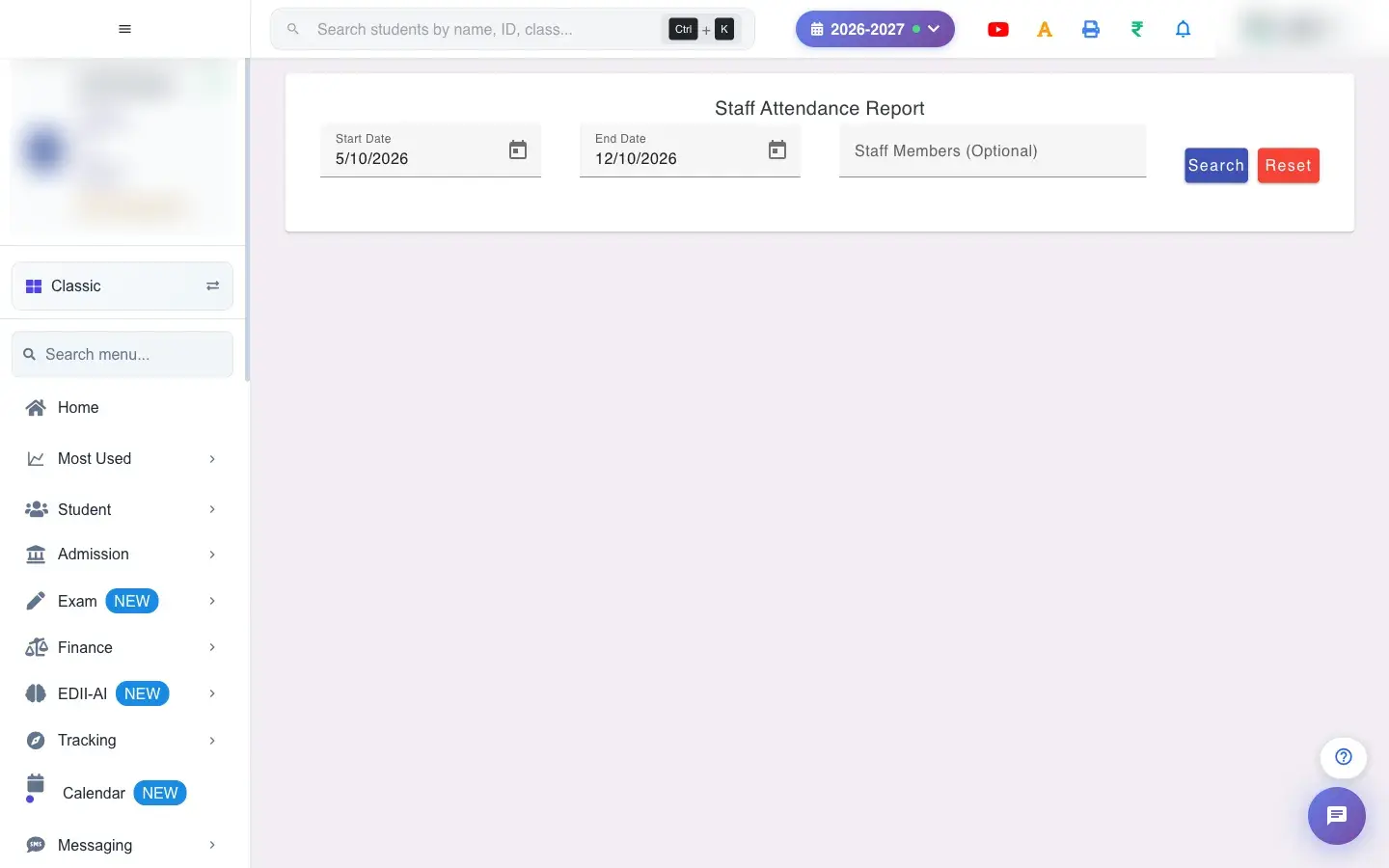
Staff Attendance Report
Staff attendance over a date range with in and out times, entry type, location and shift details such as late arrival, early leaving and hours worked, for all staff or selected staff.
यह पेज अंग्रेज़ी में है। कुछ समझ न आए तो ।
The Staff Attendance Report lists every attendance record for your staff between two dates. Each line shows the staff member, the date, In Time, Out Time, how the entry was made (Entry Type, for example device or manual), the Location and the Shift.
For shift-based schools it also shows the shift window, whether the shift ran overnight, how many minutes late the person arrived (late 12m), how many minutes early they left (early 8m), if they were absent, and total hours worked across duties.
Who uses it and when
Section titled “Who uses it and when”Administrators and the accounts office use it for monthly staff attendance and before salary is processed.
Before you start
Section titled “Before you start”- You must set both a Start Date and an End Date, and the start cannot be after the end.
Where to find it
Section titled “Where to find it”- Menu: Staff › Report
- Address:
/view/staff-attendance-report - If it is missing from your menu, your role does not include it. Ask your school admin.
 Open a bigger pictureतस्वीर बड़ी करें
Step by step
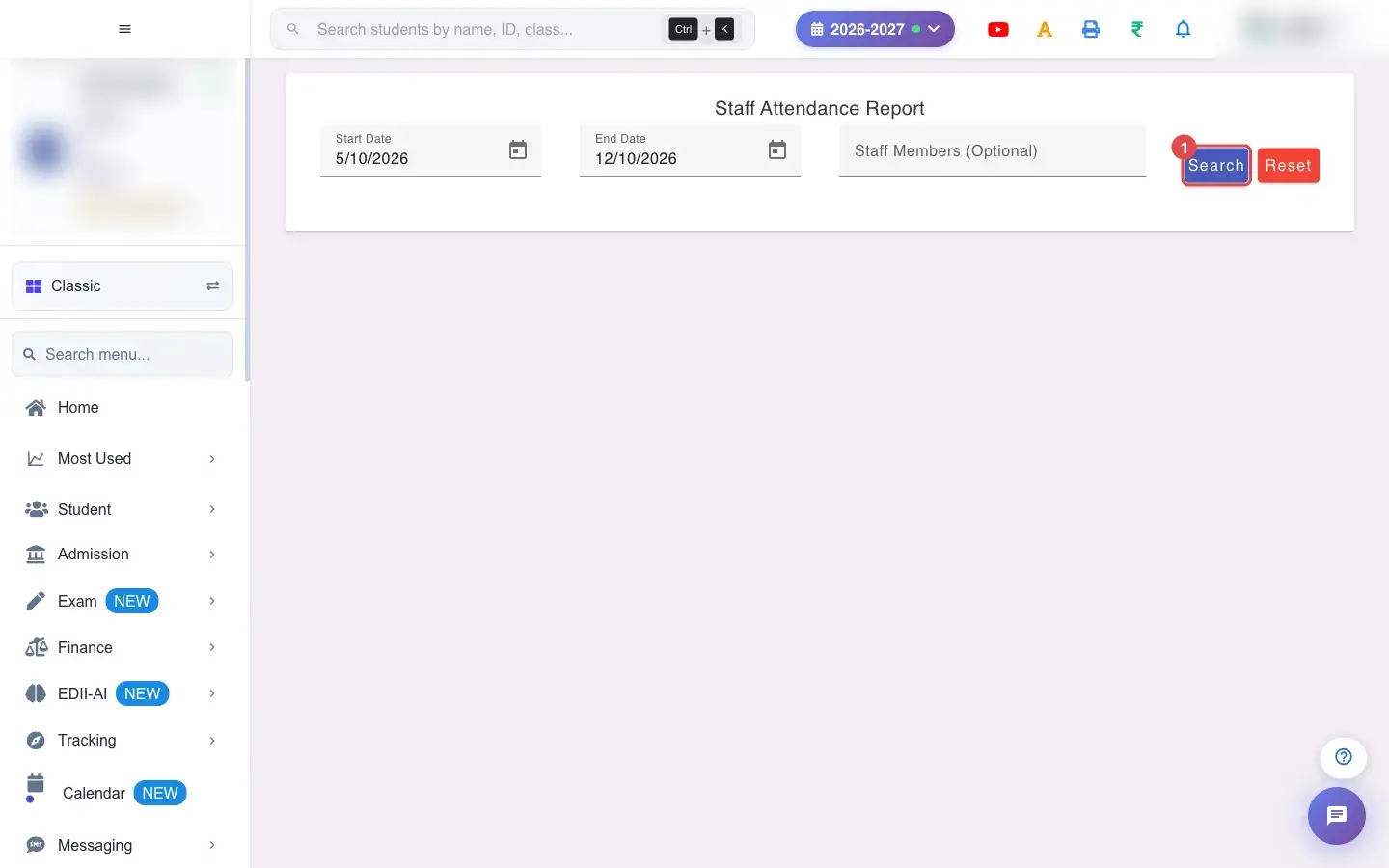
Section titled “Step by step”1. Select Search
Section titled “1. Select Search”Select Search. The records for the chosen dates and staff appear.
 Open a bigger pictureतस्वीर बड़ी करें
2. Set the dates
Section titled “2. Set the dates”Fill Start Date and End Date with the calendar. Both are required. If you leave one out you see Please select both start and end dates; if the start is later than the end you see Start date cannot be after end date.
3. Choose staff (optional)
Section titled “3. Choose staff (optional)”Staff Members (Optional) lets you pick one or more people; chosen names appear as chips you can remove with the cancel icon. Leave it empty to include everybody.
4. Read the attendance locations
Section titled “4. Read the attendance locations”Attendance Locations shows the school locations where staff checked in and out (for example School), with a check-in and check-out line.
5. Read the table
Section titled “5. Read the table”Columns: S.No, Name, Date, In Time, Out Time, Entry Type, Location, Shift. Under the shift you may see the shift hours (and overnight), Per Shift, late Nm, early Nm, absent, and worked … across … duties.
6. Print or download
Section titled “6. Print or download”Use the menu to Download Excel File, Download Text File, Download CSV File or Print. The report has the school logo and Report Generated On.
With data
Section titled “With data”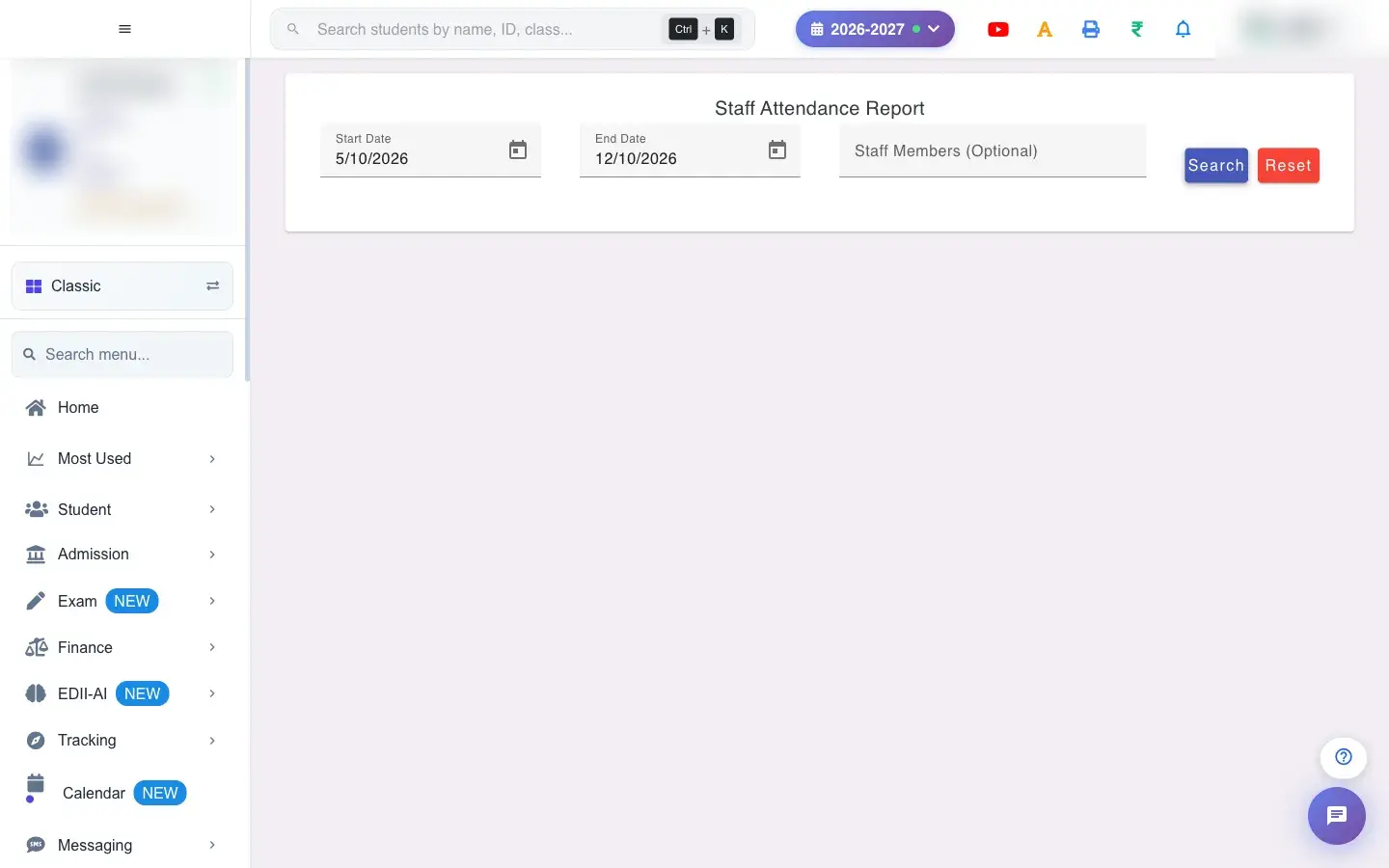 Open a bigger pictureतस्वीर बड़ी करें
Fields and filters
Section titled “Fields and filters”| Field | What it is | Notes |
|---|---|---|
| Start Date / End Date | The period. | Both required; start not after end. |
| Staff Members (Optional) | Pick specific staff. | Empty = all staff. |
Buttons
Section titled “Buttons”| Button | What it does | What happens next |
|---|---|---|
| Search | Loads the records. | Shows No Data Found! with No attendance records found for the selected date range and filters when nothing matches. |
| Reset | Clears the filters. | No data changes. |
| Print / Download | Prints or exports the table. | Opens the print window or saves the file. |
Columns
Section titled “Columns”| Column | Meaning |
|---|---|
| In Time / Out Time | When the person arrived and left. |
| Entry Type | How the record was made. |
| Location | Where it was recorded. |
| Shift | The shift window, lateness, early leaving, absence and hours worked. |
After you save
Section titled “After you save”- This screen only reads data. Nothing is saved or sent.
Good to know
Section titled “Good to know”- Both dates are required.
- The start date cannot be after the end date.
Messages you may see
Section titled “Messages you may see”| Message | What it means | What to do |
|---|---|---|
| Please select both start and end dates | A date is missing. | Fill both dates. |
| Start date cannot be after end date | The dates are in the wrong order. | Swap them. |
| Network Issue, Please Try Again. | The report could not be fetched. | Check the internet and search again. |
- Pick a single month at a time for payroll checks.
- Download the CSV to total late minutes per person in Excel.
Stuck? Try this
Section titled “Stuck? Try this”| Problem | Likely cause | What to do |
|---|---|---|
| No Data Found! | No attendance was recorded in the period for the chosen staff. | Widen the dates or clear the staff filter. |
Did this page help?क्या इस पेज से मदद मिली?
Thanks! Glad it helped.धन्यवाद! अच्छा लगा कि काम बन गया।
Sorry about that. Ask in your own words, or write to us.माफ़ कीजिए। अपने शब्दों में पूछें, या हमें लिखें।