
Screen guide · Teacher app
Add Video
Share a recorded lesson with a class: name, class, section, description, and a video you record or browse for.
यह पेज अंग्रेज़ी में है। कुछ समझ न आए तो ।
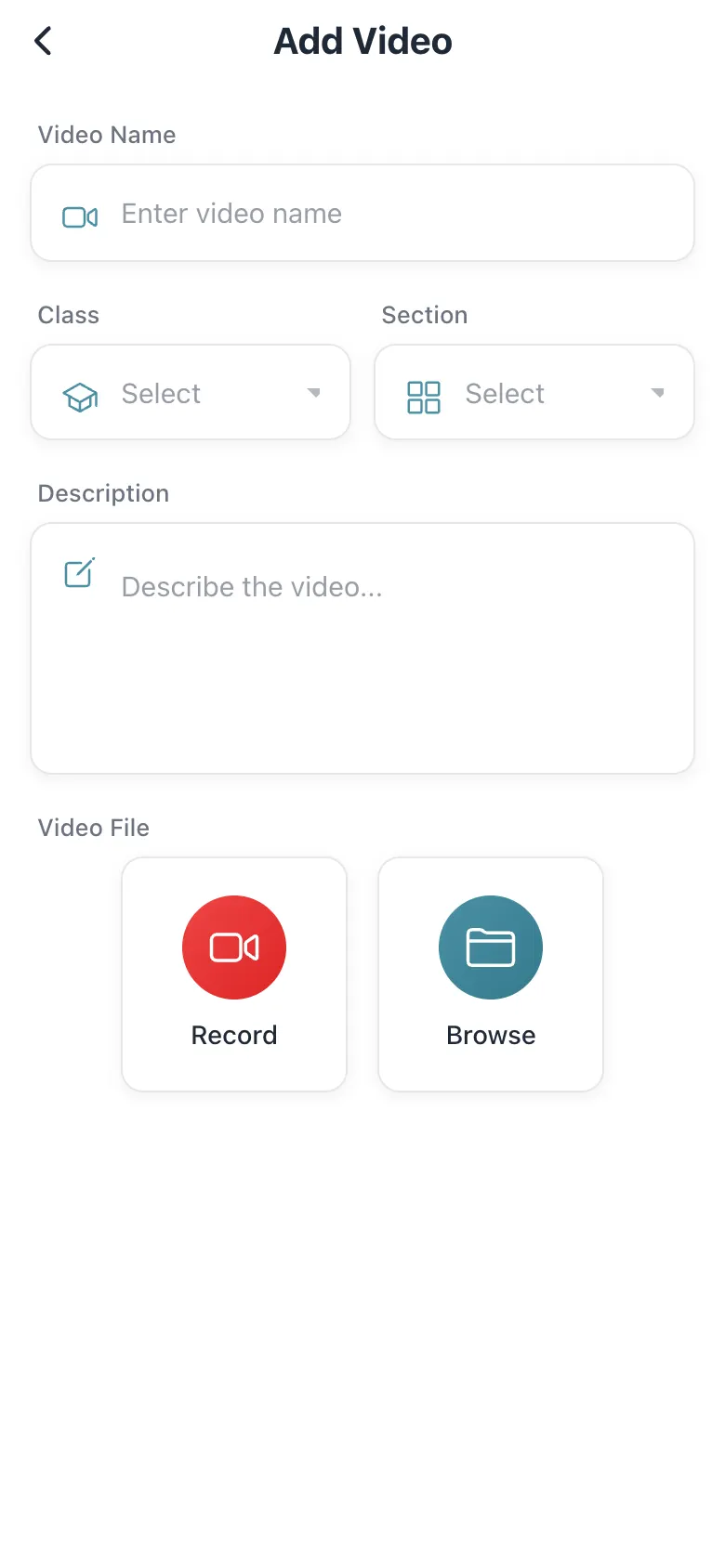
Add Video takes a Video Name, Class, Section, Description and the Video File: Record a new clip or Browse for one (Select Video Source). Uploading shows Uploading video…; Video Added! confirms. Students find it under Videos in their app.
Who uses it and when
Section titled “Who uses it and when”Teachers sharing recorded lessons.
Before you start
Section titled “Before you start”- Allow the camera if you record.
Where to find it
Section titled “Where to find it”- Open Students › Add Video.
 Open a bigger pictureतस्वीर बड़ी करें
Step by step
Section titled “Step by step”1. Fill the details
Section titled “1. Fill the details”Name the video and choose class and section.
2. Choose the file
Section titled “2. Choose the file”Select Record or Browse.
3. Upload
Section titled “3. Upload”Wait for Uploading video… to finish.
Fields and filters
Section titled “Fields and filters”| Field | What it is | Notes |
|---|---|---|
| Video Name / Description | Title and details. | Name required. |
| Class / Section | Who can watch. | Required. |
| Video File | The clip. | Required. |
Buttons
Section titled “Buttons”| Button | What it does | What happens next |
|---|---|---|
| Record / Browse | Chooses the source. | The file is selected. |
| Upload | Publishes the video. | Video Added! |
After you save
Section titled “After you save”- The video is available to the class.
Good to know
Section titled “Good to know”- A video file is required.
Messages you may see
Section titled “Messages you may see”| Message | What it means | What to do |
|---|---|---|
| Video Added! | Published. | Nothing to do. |
| Please Wait! | Upload in progress. | Wait. |
| Error! | It failed. | Try again. |
- Keep clips short.
Stuck? Try this
Section titled “Stuck? Try this”| Problem | Likely cause | What to do |
|---|---|---|
| Upload is slow | Large file. | Use Wi-Fi. |
Did this page help?क्या इस पेज से मदद मिली?
Thanks! Glad it helped.धन्यवाद! अच्छा लगा कि काम बन गया।
Sorry about that. Ask in your own words, or write to us.माफ़ कीजिए। अपने शब्दों में पूछें, या हमें लिखें।