
Screen guide · Teacher app
Absentee Follow-up
Turn a day's absence list into a worked call list: set status, reason and return date, log calls, notes and WhatsApp to parents, and copy drafted messages.
यह पेज अंग्रेज़ी में है। कुछ समझ न आए तो ।
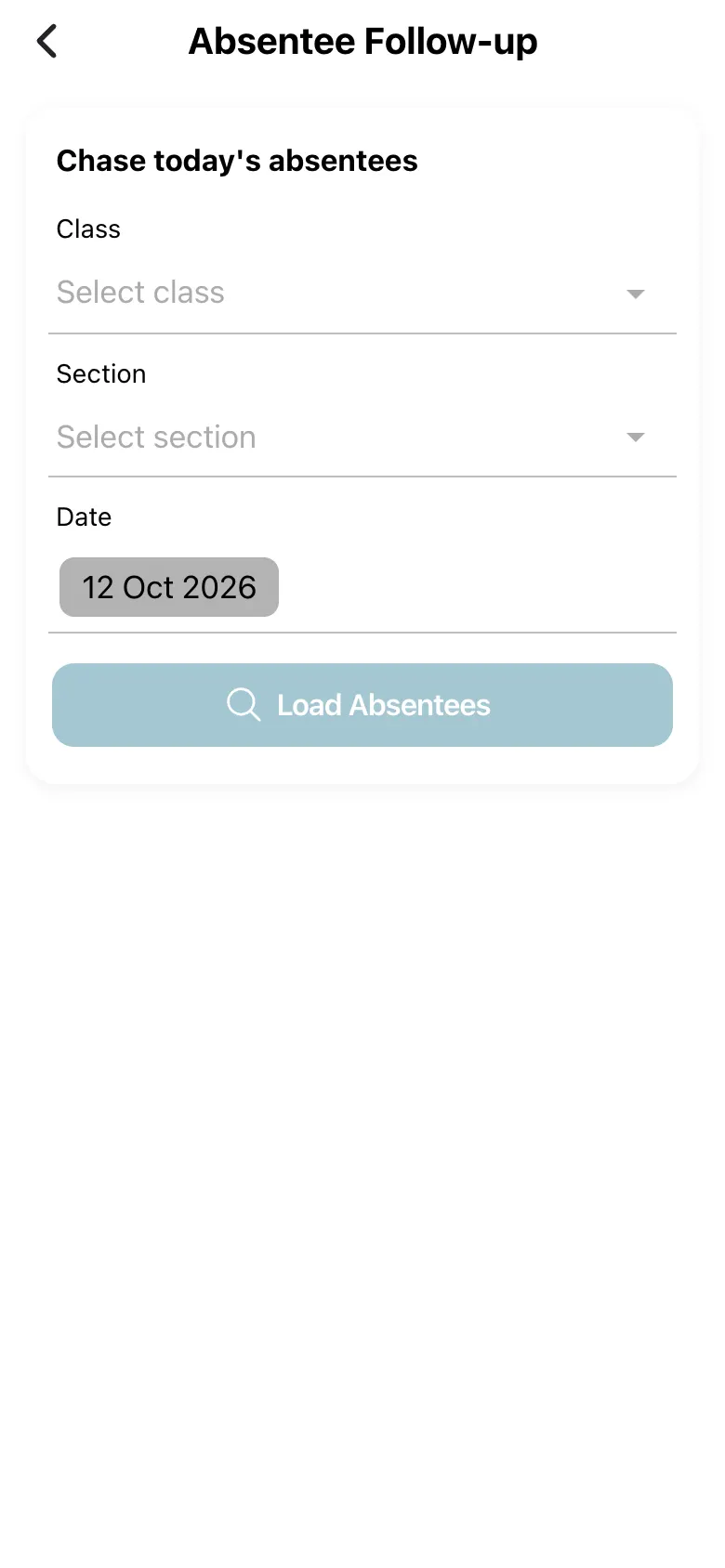
Absentee Follow-up (Chase today’s absentees) takes a Class, Section and Date (class and section are required) and loads the absentees (Load Absentees). For each student you can set the Status (Absent, Not contacted, Contacted, Escalated, Resolved), a Reason category, Notes (optional) and an Expected return date, and see Recent absences and the Contact log. Select Save to store it.
Four action buttons sit on each row: Call (logs a call), WhatsApp (asks Send WhatsApp to parent? and, on Send, sends the school’s official absence WhatsApp to the parent’s number — a real, billable message that cannot be undone), Note (Record something about this absence. Nothing is sent to the parent.) and Copy/Send for drafted messages: edit the draft (Edit the message before sending), then copy it into your own channel. A student with no number says No Number.
Who uses it and when
Section titled “Who uses it and when”Class teachers after the register is saved.
Before you start
Section titled “Before you start”- Mark attendance first.
Where to find it
Section titled “Where to find it”- Select Absentee Follow-up on Home, or choose it when asked Follow up on absentees? after saving attendance.
 Open a bigger pictureतस्वीर बड़ी करें
Step by step
Section titled “Step by step”1. Choose the class and date
Section titled “1. Choose the class and date”Pick class, section and date and select Load Absentees.
2. Work each student
Section titled “2. Work each student”Set the status, reason and expected return date.
3. Contact the parent
Section titled “3. Contact the parent”Use Call, Copy a drafted message, or WhatsApp (confirm first).
4. Save
Section titled “4. Save”Select Save.
Fields and filters
Section titled “Fields and filters”| Field | What it is | Notes |
|---|---|---|
| Status | Where the follow-up stands. | Absent, Not contacted, Contacted, Escalated, Resolved. |
| Reason category / Notes | Why the student is away. | Optional notes. |
| Expected return date | When they are due back. | Optional. |
Buttons
Section titled “Buttons”| Button | What it does | What happens next |
|---|---|---|
| Sends the official absence WhatsApp to the parent after you confirm. | A message is sent and the contact is logged. | |
| Call / Note | Logs a call or a note. | The contact log updates; nothing is sent. |
| Copy | Copies the drafted message. | Message copied. Paste it into WhatsApp or SMS. |
| Save | Saves status, reason and return date. | Success. |
After you save
Section titled “After you save”- The follow-up record is saved with the contact log.
Good to know
Section titled “Good to know”- WhatsApp sends a real message; only the Send button after confirming does it.
- Class and section are required.
Messages you may see
Section titled “Messages you may see”| Message | What it means | What to do |
|---|---|---|
| Send WhatsApp to parent? | Confirmation before sending. | Send only when you want to notify the parent. |
| No absentees — Nothing to follow up for this class today. | Nobody was absent. | Nothing to do. |
| No Number | No phone number on record. | Ask the office to add one. |
| Couldn’t load | Failed to load. | Select Retry. |
| Copied | The draft is on your clipboard. | Paste it where you want. |
- Use Note for your own record; use WhatsApp only to inform the parent officially.
Stuck? Try this
Section titled “Stuck? Try this”| Problem | Likely cause | What to do |
|---|---|---|
| Parent says they got a message twice | The register SMS and the WhatsApp both went out. | Use Call or Note when the SMS was already sent. |
Did this page help?क्या इस पेज से मदद मिली?
Thanks! Glad it helped.धन्यवाद! अच्छा लगा कि काम बन गया।
Sorry about that. Ask in your own words, or write to us.माफ़ कीजिए। अपने शब्दों में पूछें, या हमें लिखें।