
Screen guide · Web app
Fees Master
The school's fee structure in one table: every fee by class, section and month, with filters, search, editing, duplicating, bulk edit, bulk delete, and export or print.
यह पेज अंग्रेज़ी में है। कुछ समझ न आए तो ।
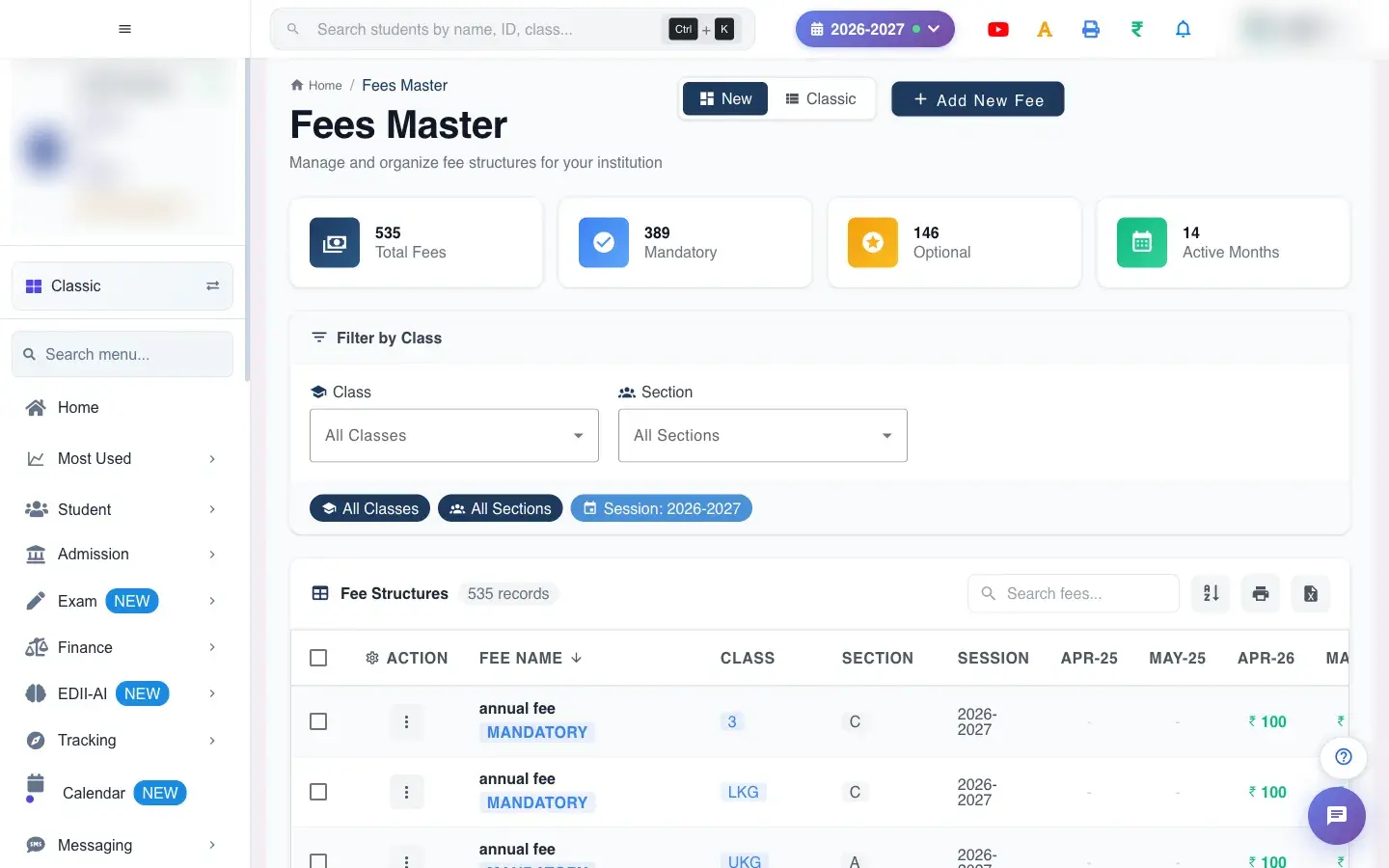
Fees Master (Finance › Fees Master V2) lists every fee your school has defined. Four counters across the top show Total Fees, how many are Mandatory (for all students), how many are Optional (for selected students), and the number of Active Months.
The table has one row per fee, class and section with the amount for each month across the page, plus Session, Last Modified and Modified By. You can change a single fee, change many at once, copy a fee, or delete fees.
Two buttons at the top, New (this screen) and Classic (the older screen), switch between layouts. Add New Fee opens the Add Fees Master form.
Who uses it and when
Section titled “Who uses it and when”The accounts head uses it to review the fee structure, to change amounts mid-year, and to remove fees that are no longer charged.
Before you start
Section titled “Before you start”- Fees you change here affect what students owe from that point; check amounts before saving bulk changes.
Where to find it
Section titled “Where to find it”- Menu: Finance › Fees Master V2
- Address:
/edit/edit-fees-master-v2 - If it is missing from your menu, your role does not include it. Ask your school admin.
 Open a bigger pictureतस्वीर बड़ी करें
Step by step
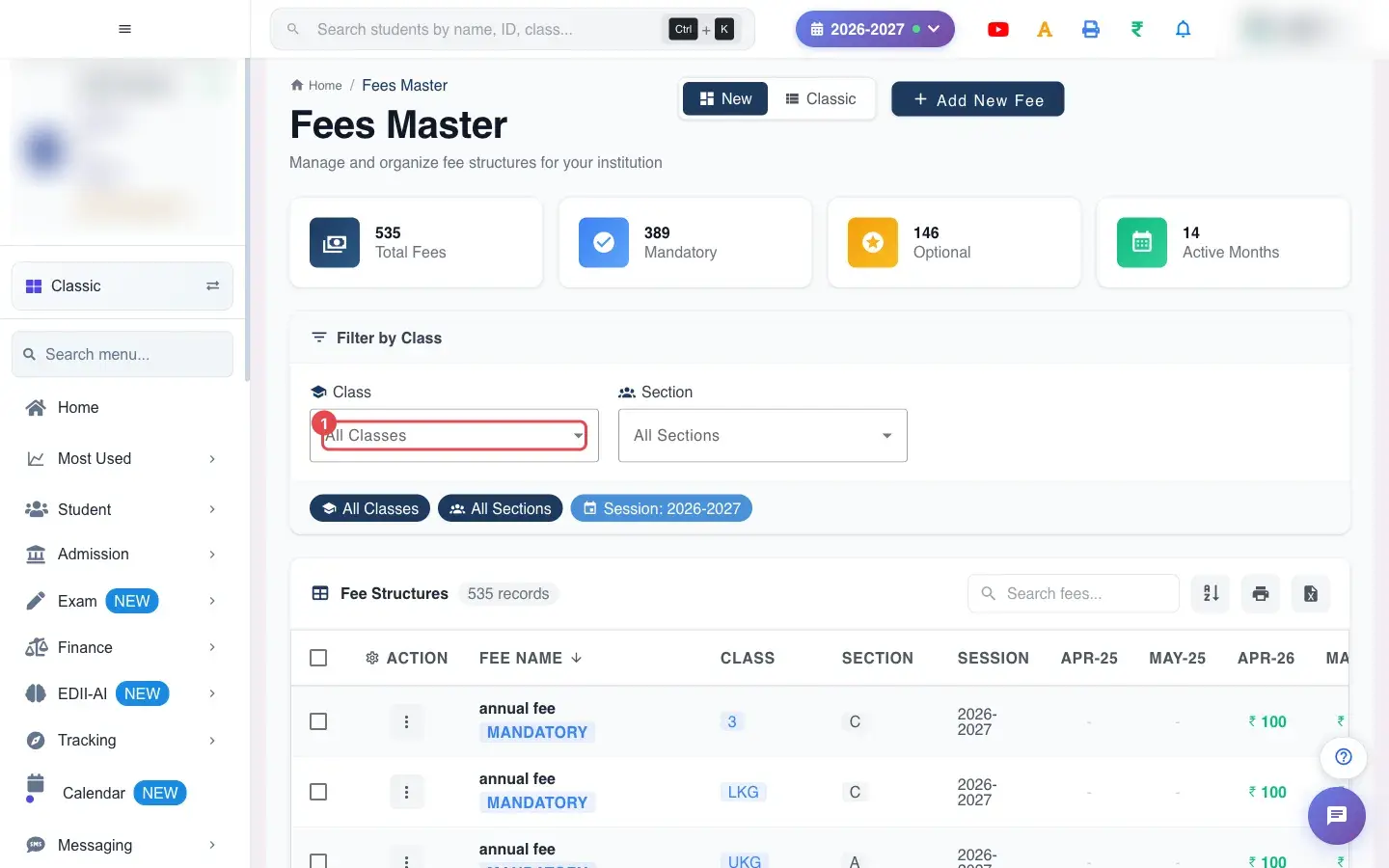
Section titled “Step by step”1. Choose All Classes (for example All Classes)
Section titled “1. Choose All Classes (for example All Classes)”Filter by Class (All Classes by default).
 Open a bigger pictureतस्वीर बड़ी करें
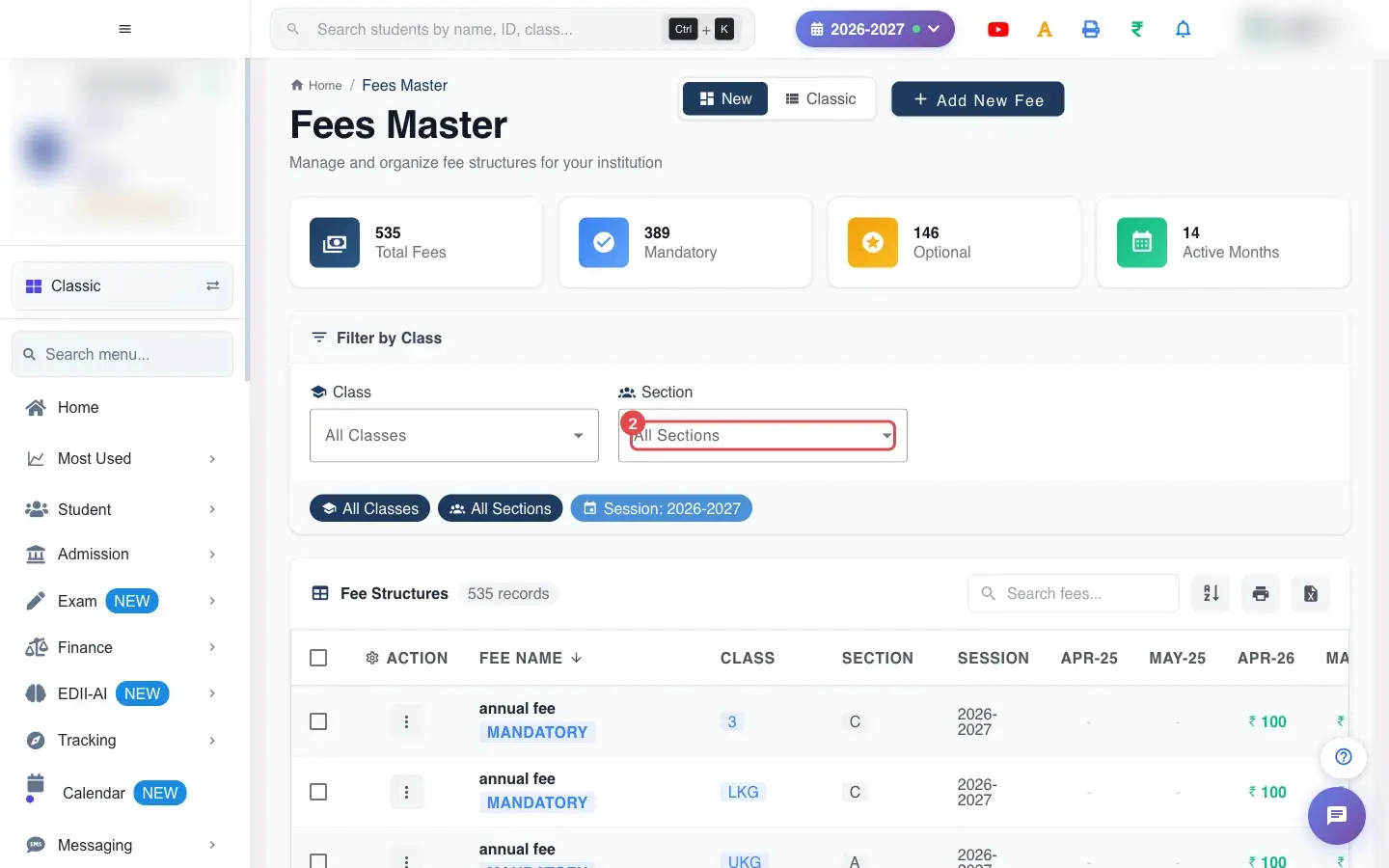
2. Choose All Sections (for example All Sections)
Section titled “2. Choose All Sections (for example All Sections)”Filter by Section (All Sections by default).
 Open a bigger pictureतस्वीर बड़ी करें
3. Search and clear filters
Section titled “3. Search and clear filters”Type in Search fees… to find a fee by name. Clear Filters removes the class and section filters. The table shows how many records match.
4. Read the table
Section titled “4. Read the table”Each row shows Fee Name, the classes and sections it covers, the Session and the amount in each month (for example Apr-26, May-26). Last Modified and Modified By show who changed it and when.
5. Edit one fee
Section titled “5. Edit one fee”Use Edit in the row’s menu. A warning reminds you: Changes will be applied to all the selected Classes, Sections and Months. You can change Fees Name, Amount, Class, Fees For (all or selected students, special categories to skip, new or old students, stream), Print Priority and the Months. Fee name, amount, class and months are required, and the amount must be valid (Please enter a valid amount). If you pick at least no month you see Please select at least one month.
6. Duplicate a fee
Section titled “6. Duplicate a fee”Duplicate copies a fee so you can change a class, section or amount and save it as a new fee.
7. Bulk edit
Section titled “7. Bulk edit”Tick several fees (the header checkbox ticks them all) and select Bulk Edit (N) to set one amount or months for all of them. Success reads Updated N fee(s) successfully; with nothing selected you see No fees selected.
8. Delete fees
Section titled “8. Delete fees”Delete in the row menu, or Delete Selected (N) for several, asks you to confirm before removing the fee.
9. Export or print
Section titled “9. Export or print”Export to Excel and Print are available; with an empty list you see No data to export or No data to print.
With data
Section titled “With data”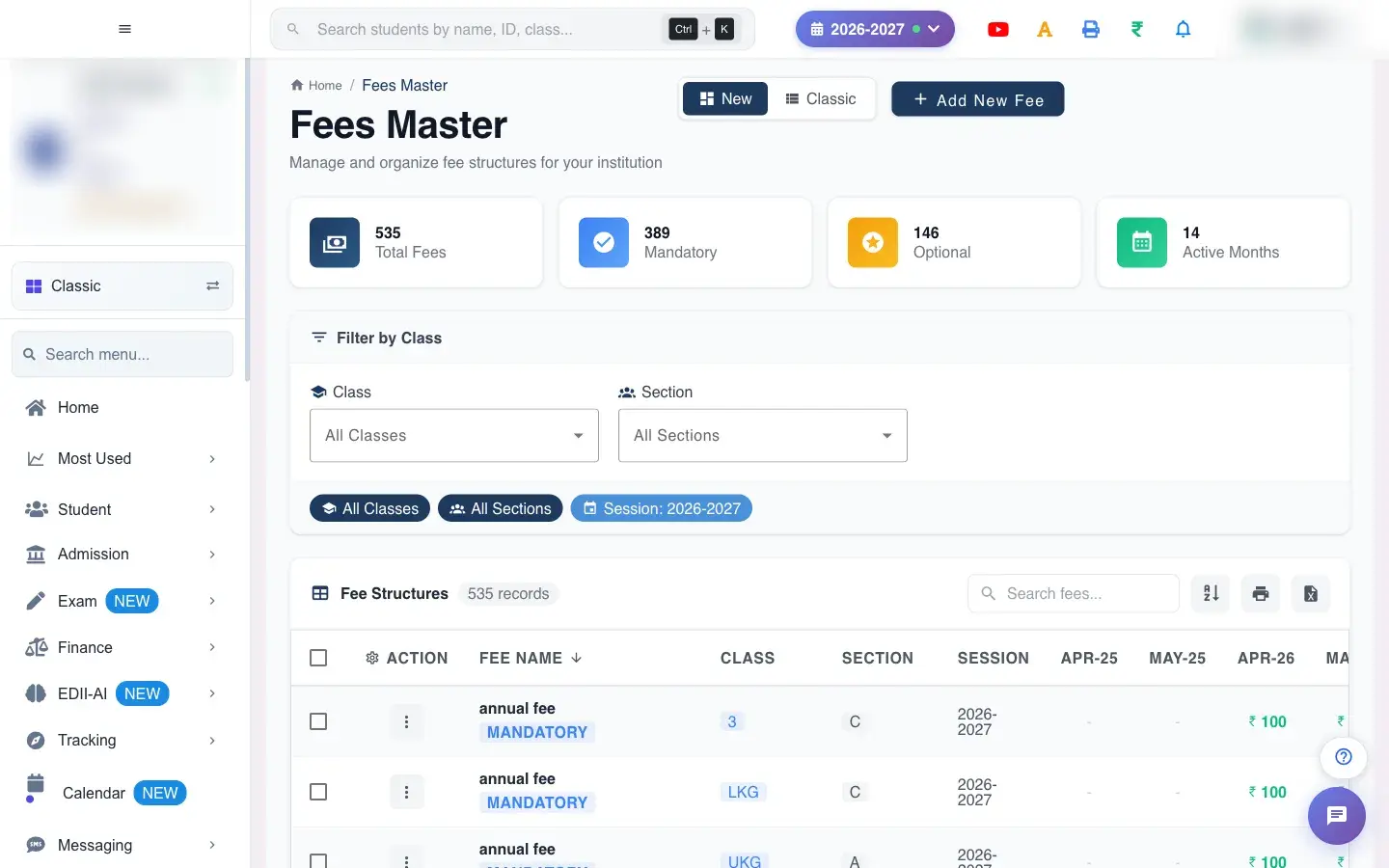 Open a bigger pictureतस्वीर बड़ी करें
Fields and filters
Section titled “Fields and filters”| Field | What it is | Notes |
|---|---|---|
| All Classes / All Sections | Filters. | Default all. |
| Search fees… | Find by fee name. | Only filters the list. |
| Fees For | All students or selected students. | A warning explains that choosing Selected turns the fee into an optional fee. |
Buttons
Section titled “Buttons”| Button | What it does | What happens next |
|---|---|---|
| New / Classic | Switch between the new and old fees master. | Only the layout changes. |
| Add New Fee | Opens Add Fees Master. | You leave this screen. |
| Edit / Duplicate / Delete | Changes, copies or removes a fee. | Delete asks for confirmation. |
| Bulk Edit (N) / Delete Selected (N) | Acts on the ticked fees. | Reports how many were updated. |
| Export to Excel / Print | Exports or prints the table. | Opens a file or the print window. |
Columns
Section titled “Columns”| Column | Meaning |
|---|---|
| Fee Name / Class / Section / Session | Which fee, for whom, in which session. |
| Apr-26, May-26 … | The amount charged in each month. |
| Last Modified / Modified By | Who changed it and when. |
After you save
Section titled “After you save”- Changes apply to every class, section and month you selected and are used straight away in fee collection, receipts and reports.
- Deleting a fee removes it from the structure; check payments already collected before deleting.
- A fee changed to Selected becomes an optional fee for the students you choose.
Good to know
Section titled “Good to know”- Name, amount, class and months are required to save an edit.
- Changes apply to all selected classes, sections and months at once.
- Selecting Selected for a fee that was for all students turns it into an optional fee; select every student it applies to.
Messages you may see
Section titled “Messages you may see”| Message | What it means | What to do |
|---|---|---|
| Updated N fee(s) successfully | The bulk edit worked. | Nothing to do. |
| No fees selected | Nothing ticked. | Tick fees. |
| Please enter a valid amount | The amount is not a number. | Enter a number. |
| Please select at least one month | No month chosen. | Tick a month. |
| Failed to update fees / changes not updated | The save failed. | Try again. |
| No matching fees found. | The search matched nothing. | Clear the filters. |
| Please Note that this is a Fees for ALL the students, Selecting the option as “Selected” will change te fees to a Optional Fees. Select all the students on which this fees is to be applied. | You are making an all-students fee optional. | Select every student who should pay it. |
| No data to export / No data to print | The list is empty. | Clear filters. |
- Filter to one class before bulk editing so you only touch what you mean to.
- Use Duplicate to build next year’s fee from this year’s.
- Export the master to Excel before big changes as a backup.
Stuck? Try this
Section titled “Stuck? Try this”| Problem | Likely cause | What to do |
|---|---|---|
| An edit changed more classes than I expected | Changes apply to all selected classes, sections and months. | Filter first and edit again with the correct values. |
| A fee disappeared for some students | It was changed to Selected and those students were not added. | Edit the fee and select the students. |
Did this page help?क्या इस पेज से मदद मिली?
Thanks! Glad it helped.धन्यवाद! अच्छा लगा कि काम बन गया।
Sorry about that. Ask in your own words, or write to us.माफ़ कीजिए। अपने शब्दों में पूछें, या हमें लिखें।