
Screen guide · Web app
Master Entry (Offline Exam)
Enter or update the marks of a whole class for all subjects of an exam type: download a marks file, fill it in, upload it and submit.
यह पेज अंग्रेज़ी में है। कुछ समझ न आए तो ।
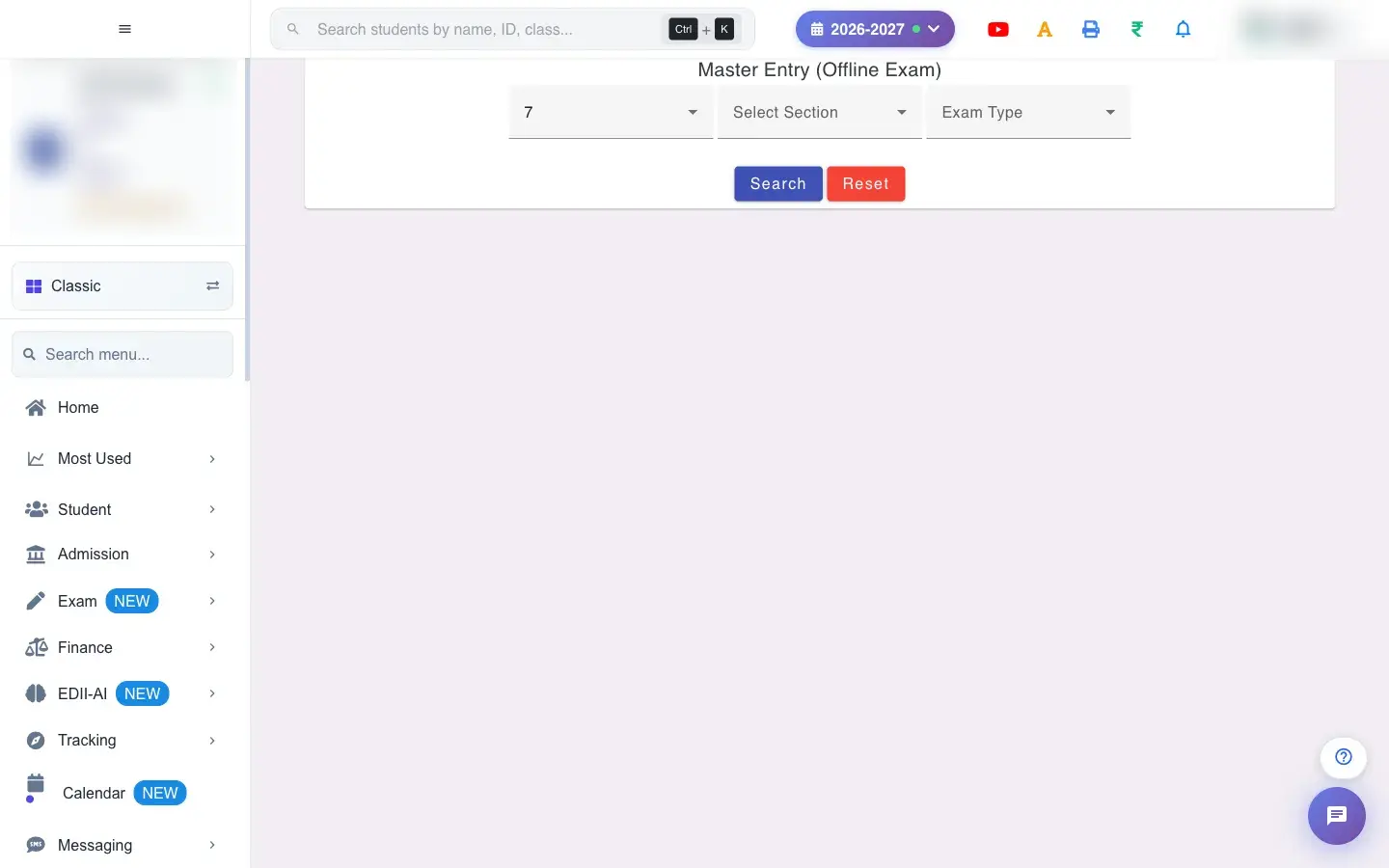
Master Entry (Offline Exam) (Exam › Bulk Entry) is the fast way to enter marks for many subjects at once. Choose the Class, Section and Exam Type and press Search; the sheet shows every student with a column per subject and the maximum marks. You can type marks directly, or Download a marks file (CSV), fill it in Excel and Upload File with marks.
Each cell shows whether it is Saved or Marks not saved. Select SUBMIT to save everything. A CSV File option exports the sheet and a markslip is available to print.
Who uses it and when
Section titled “Who uses it and when”Exam staff use it to enter a full exam’s marks quickly.
Before you start
Section titled “Before you start”- Tests must exist for the class and exam type.
Where to find it
Section titled “Where to find it”- Menu: Exam › Bulk Entry
- Address:
/view/enter-test-marks-master - If it is missing from your menu, your role does not include it. Ask your school admin.
 Open a bigger pictureतस्वीर बड़ी करें
Step by step
Section titled “Step by step”1. Choose class, section and exam type
Section titled “1. Choose class, section and exam type”Pick all three and select Search.
2. Type or upload marks
Section titled “2. Type or upload marks”Type marks in the cells (a hint shows each subject’s maximum), or Download the marks file, fill it in and Upload File with marks. A file with the wrong content shows Could not read the CSV file. Please try again.; with no file, No file selected. A successful read says CSV loaded — …; a problem says CSV upload aborted — ….
3. Submit
Section titled “3. Submit”Select SUBMIT. The message Marks Have Been Updated confirms it; Cannot submit — … explains any problem, such as marks above the maximum.
With data
Section titled “With data”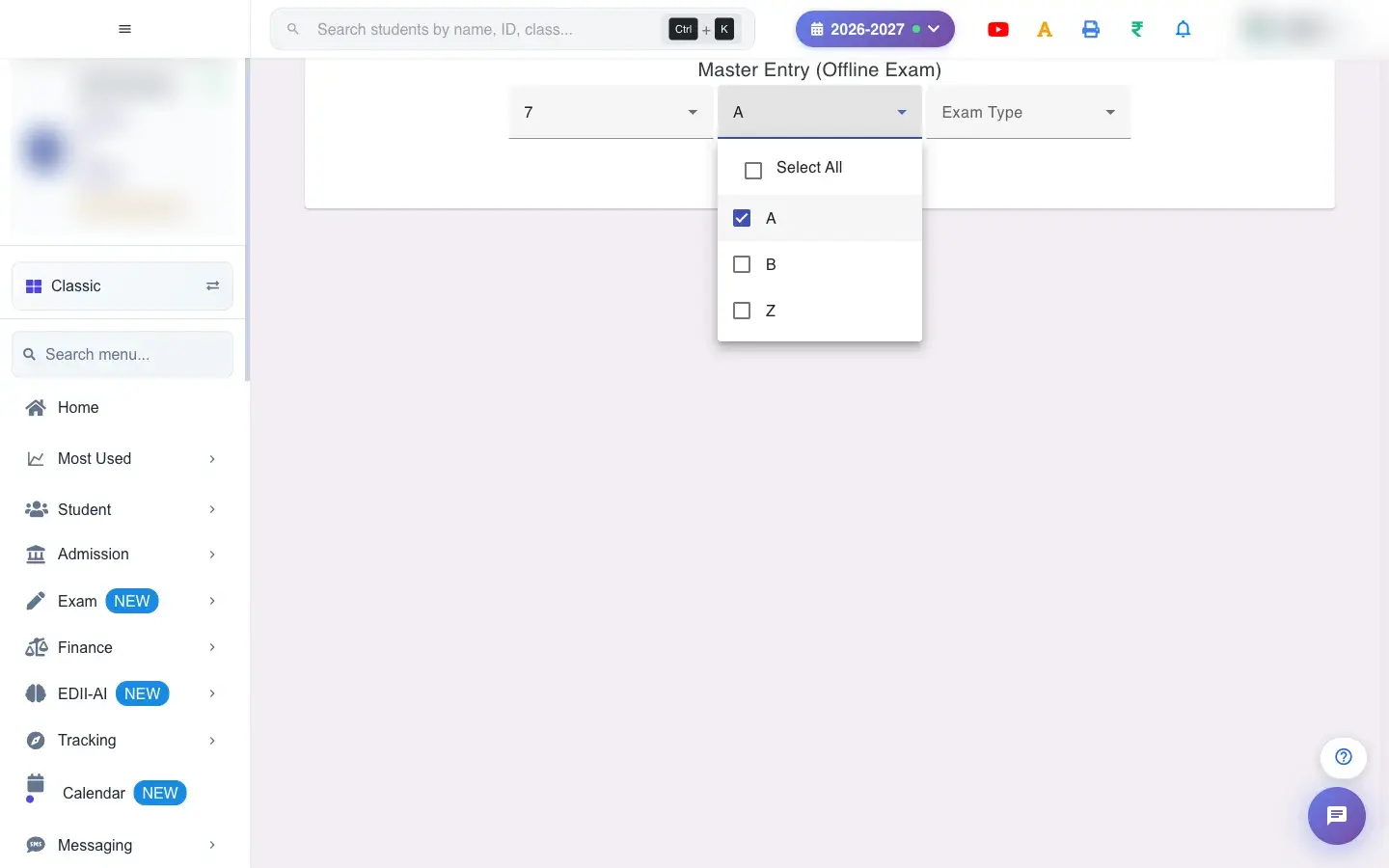 Open a bigger pictureतस्वीर बड़ी करें
Fields and filters
Section titled “Fields and filters”| Field | What it is | Notes |
|---|---|---|
| Select Class / Select Section / Exam Type | The sheet to fill. | All required. |
| Marks cells | One per student and subject. | Up to each subject’s maximum. |
| Marks file (CSV) | A downloaded sheet to fill in. | Keep the headings. |
Buttons
Section titled “Buttons”| Button | What it does | What happens next |
|---|---|---|
| Download | Gets the marks file. | Opens or saves a CSV. |
| Upload File with marks | Reads your filled file. | Fills the cells; nothing is saved yet. |
| SUBMIT | Saves all marks. | Marks Have Been Updated. |
Columns
Section titled “Columns”| Column | Meaning |
|---|---|
| S. No. / Student | The student. |
| One column per subject | Marks, with the maximum shown. |
After you save
Section titled “After you save”- Submitted marks are saved against each student, subject and exam type and appear in report cards and results (subject to the result release date).
Good to know
Section titled “Good to know”- Marks cannot exceed the maximum.
- Nothing is saved until you SUBMIT.
Messages you may see
Section titled “Messages you may see”| Message | What it means | What to do |
|---|---|---|
| Marks Have Been Updated | Saved. | Nothing to do. |
| No file selected | No file was chosen. | Choose a CSV. |
| Could not read the CSV file. Please try again. | The file is not valid. | Download a fresh file. |
| Network Issue, Please Try Again. | A request failed. | Try again. |
- Fill the downloaded file rather than a new one so headings match.
- Check the report of absent students before submitting.
Stuck? Try this
Section titled “Stuck? Try this”| Problem | Likely cause | What to do |
|---|---|---|
| My upload was rejected | The headings or student IDs changed. | Use the downloaded file unchanged except for marks. |
Did this page help?क्या इस पेज से मदद मिली?
Thanks! Glad it helped.धन्यवाद! अच्छा लगा कि काम बन गया।
Sorry about that. Ask in your own words, or write to us.माफ़ कीजिए। अपने शब्दों में पूछें, या हमें लिखें।