
How-to · Web app
Build the timetable
Create a class timetable by hand, with AI or from Excel.
यह पेज अंग्रेज़ी में है। कुछ समझ न आए तो ।
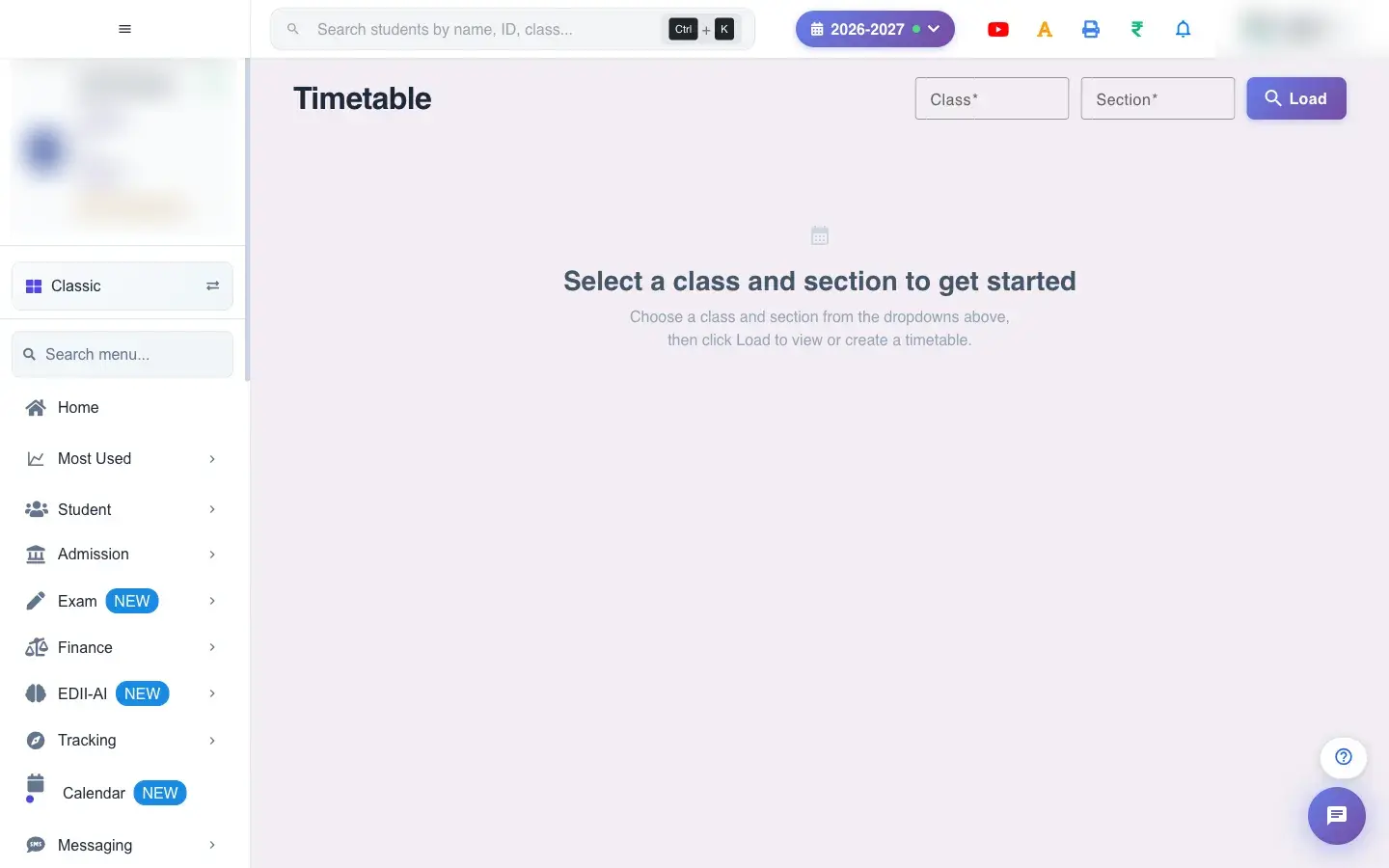
Timetable (Student › Timetable) is the main place to create and view timetables. Choose the Class and Section and select Load. If the class has none, choose how to create it: Create Manually, AI Auto-Generate (EDII’s AI drafts the week from the class’s subjects) or Build in Excel (Download Template, fill it in and upload).
Before you start
Section titled “Before you start”- Subjects must exist for the class. Decide periods per day and timings. Use AI output as a draft and review it.
1. Load the class
Section titled “1. Load the class”Choose Class and Section and select Load (Please select class and section if empty).
 Open a bigger pictureतस्वीर बड़ी करें
2. Pick how to build
Section titled “2. Pick how to build”Create manually, AI Auto-Generate, or build in Excel.
3. Set the structure
Section titled “3. Set the structure”Days per week, periods per day, start time and duration. Periods per day must be a whole number guides you.
4. Fill the grid
Section titled “4. Fill the grid”Pick a subject for each slot, add breaks and free periods, and set locations.
5. Save
Section titled “5. Save”Select Save. Timetable saved successfully confirms it.
Full details of this screen Build the timetable
What happens next
Section titled “What happens next”- The timetable is saved for the class and shows to teachers, students and parents; the teaching plan follows it.
Good to know
Section titled “Good to know”- A class and section are needed before loading.
- Review AI drafts before saving.
Stuck? Try this
Section titled “Stuck? Try this”| You see | Why | What to do |
|---|---|---|
| AI timetable has gaps | Subjects or teachers missing. | Add subjects, then regenerate or edit by hand. |
Did this page help?क्या इस पेज से मदद मिली?
Thanks! Glad it helped.धन्यवाद! अच्छा लगा कि काम बन गया।
Sorry about that. Ask in your own words, or write to us.माफ़ कीजिए। अपने शब्दों में पूछें, या हमें लिखें।