
How-to · Web app
Take an admission enquiry
Record an applicant with the entrance form.
यह पेज अंग्रेज़ी में है। कुछ समझ न आए तो ।
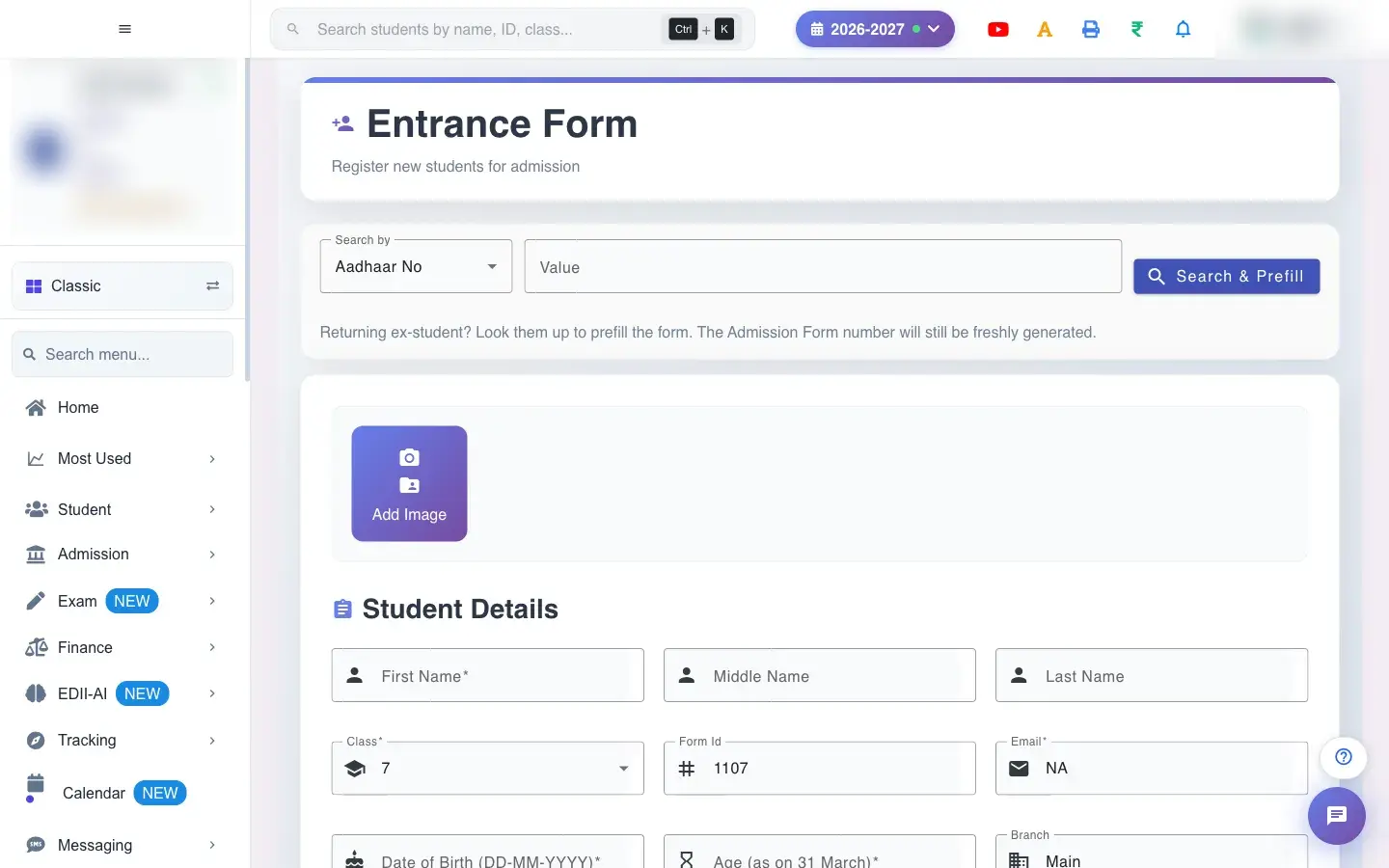
Entrance Form (Admission › Add) registers a child who is applying for admission. It collects the applicant’s details, parents and guardian, the previous school and documents, and takes the admission form fee. A Form Id is generated for you.
Before you start
Section titled “Before you start”- Know the class applied for and the admission form fee; have the applicant’s documents ready to attach.
1. Look up an ex-student (optional)
Section titled “1. Look up an ex-student (optional)”Choose what to search by (for example Aadhaar No), type the Value and select Search & Prefill. If nothing is entered you see Please enter a value to search; without a field, Please choose a field to search by. A match fills the form (Form prefilled with ex-student details. A fresh Admission Form number will be generated.).
 Open a bigger pictureतस्वीर बड़ी करें
2. Add a photo
Section titled “2. Add a photo”Use Add Image (choose a file) or Capture to take a photo with the camera.
3. Student details
Section titled “3. Student details”First Name, Middle Name, Last Name, Form Id, Email, Date of Birth (DD-MM-YYYY), Age (as on 31 March), Gender, Class, Branch, Phone Number, Admission Fee, Session, Caste, Nationality, Aadhaar Number, Optional Subject, Student PAN No, Height, Weight, UDISE No, Pincode, GR No, Place of Birth, Disability and Nature of Disability, Distance From School, Point of Contact, Referred By, PEN Number, Address and Comments. First name, class, father’s name, phone number, admission fee, session, email, date of birth, age and blood group are required.
4. Category and transport
Section titled “4. Category and transport”Choose the Category (required) and Mode of Transport (required).
5. Guardian and previous school
Section titled “5. Guardian and previous school”Fill in the Guardian Details and Previous School Details.
6. Attachments
Section titled “6. Attachments”Attach documents. Attachment(s) uploaded confirms; Failed to upload attachment(s) means try again.
7. Register
Section titled “7. Register”Select Register. Admission added to school confirms it. If the same applicant appears to exist you see This admission appears to be a duplicate. Please verify before resubmitting.
Full details of this screen Take an admission enquiry
What happens next
Section titled “What happens next”- The applicant is registered with a form number and the admission fee is recorded for the admission fee receipt.
- The applicant appears in Admission Details and the Admission Dashboard. When admitted, use Add New Student to enrol them.
Good to know
Section titled “Good to know”- The required fields must be filled.
- A likely duplicate is refused for review.
Stuck? Try this
Section titled “Stuck? Try this”| You see | Why | What to do |
|---|---|---|
| Register does nothing | A required field is empty. | Fill every required field. |
Did this page help?क्या इस पेज से मदद मिली?
Thanks! Glad it helped.धन्यवाद! अच्छा लगा कि काम बन गया।
Sorry about that. Ask in your own words, or write to us.माफ़ कीजिए। अपने शब्दों में पूछें, या हमें लिखें।