
Screen guide · Web app
Fees per Month
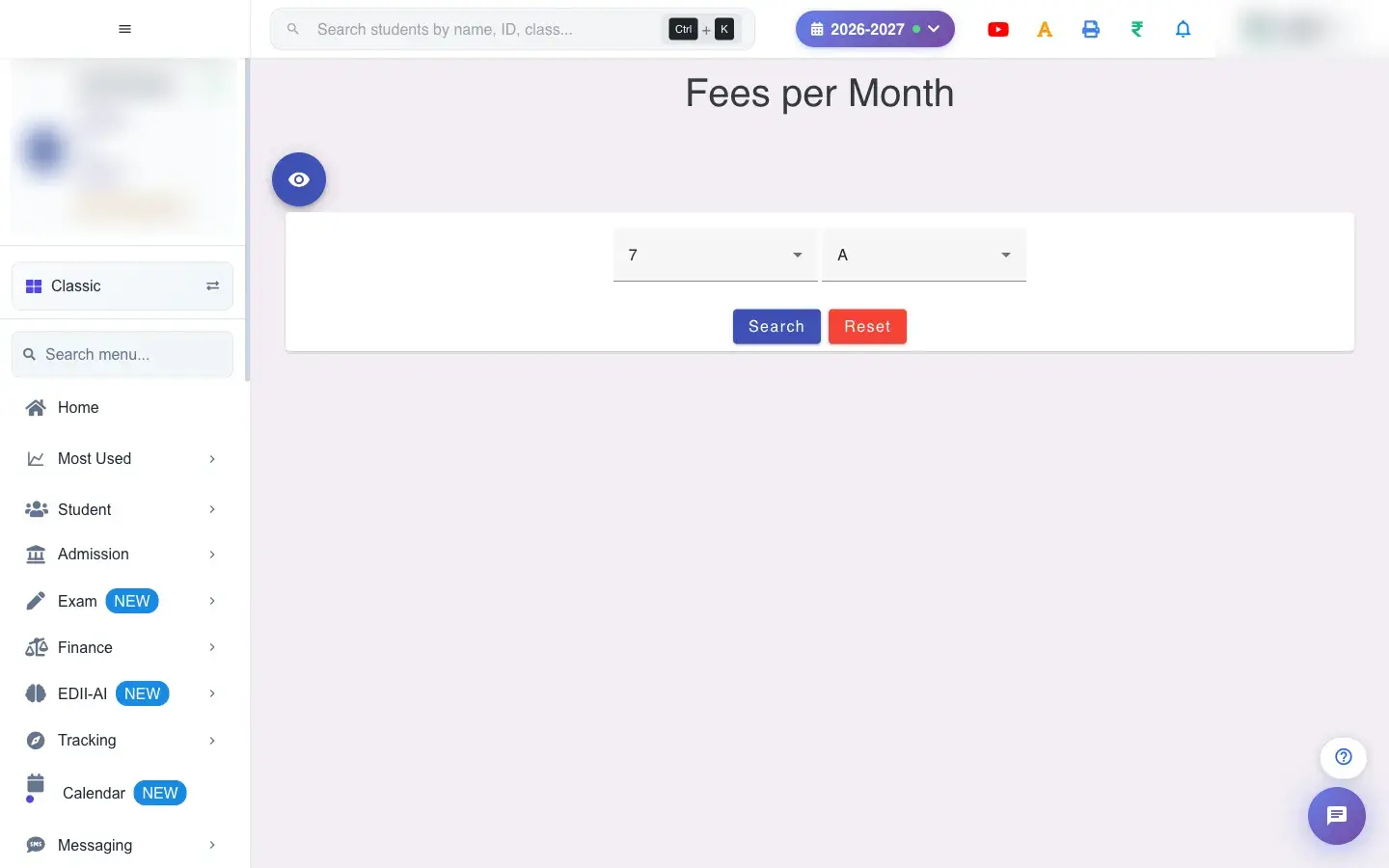
See the fees of a class and section as a table by month and edit a fee right from the table.
यह पेज अंग्रेज़ी में है। कुछ समझ न आए तो ।
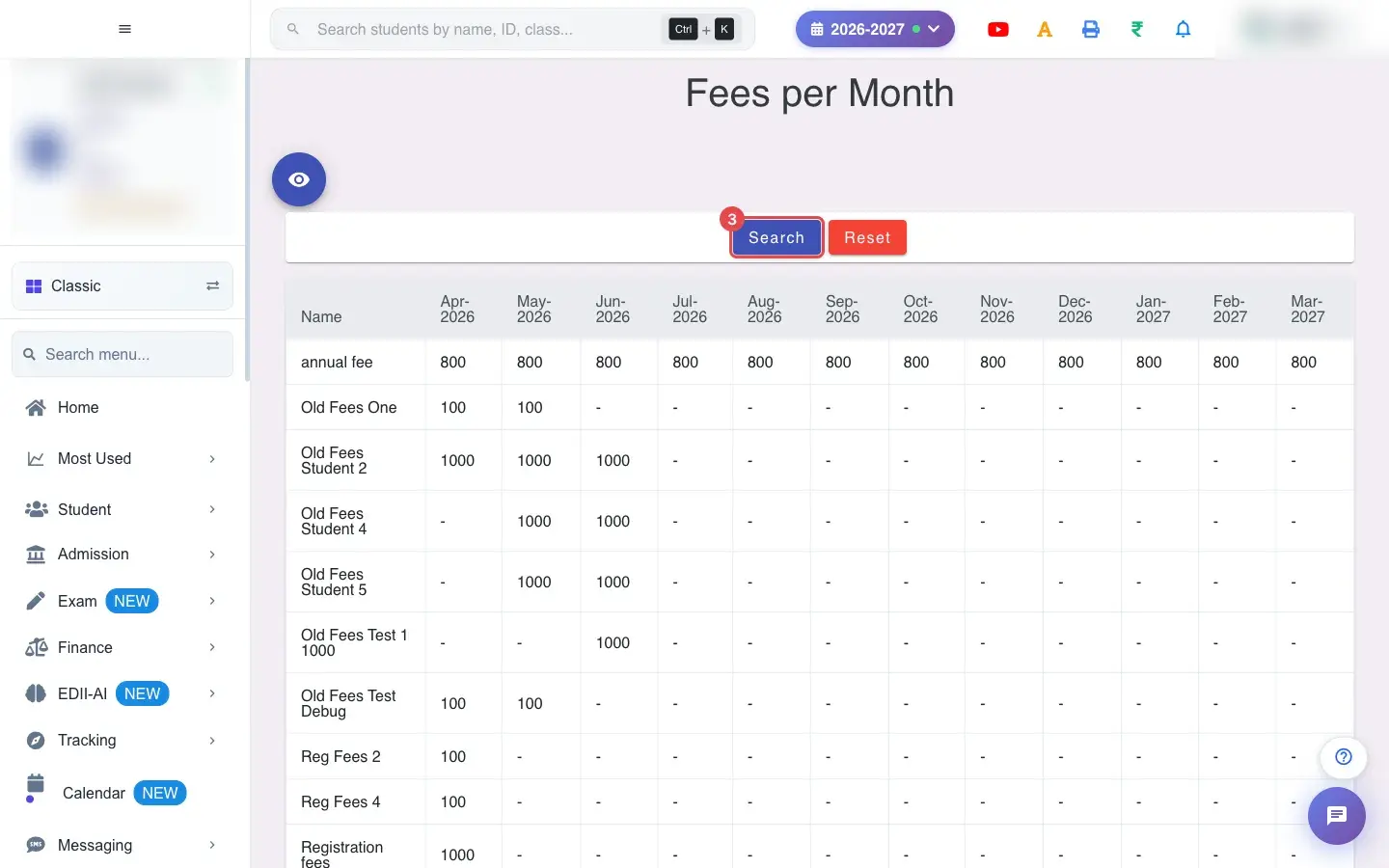
Fees per Month (Finance › View(Table)) shows the fees of one class and section as a grid: one row per fee Name and one column per month (Apr-2026 … Mar-2027) with the amount charged. Click a fee to open Edit Fees Master and change it.
It is the quickest way to check that every month has the amount you expect.
Who uses it and when
Section titled “Who uses it and when”The accountant checks the fee structure of a class here, often before fee collection starts.
Before you start
Section titled “Before you start”- Choose a class and section.
Where to find it
Section titled “Where to find it”- Menu: Finance › View(Table)
- Address:
/view/fees-per-month - If it is missing from your menu, your role does not include it. Ask your school admin.
 Open a bigger pictureतस्वीर बड़ी करें
Step by step
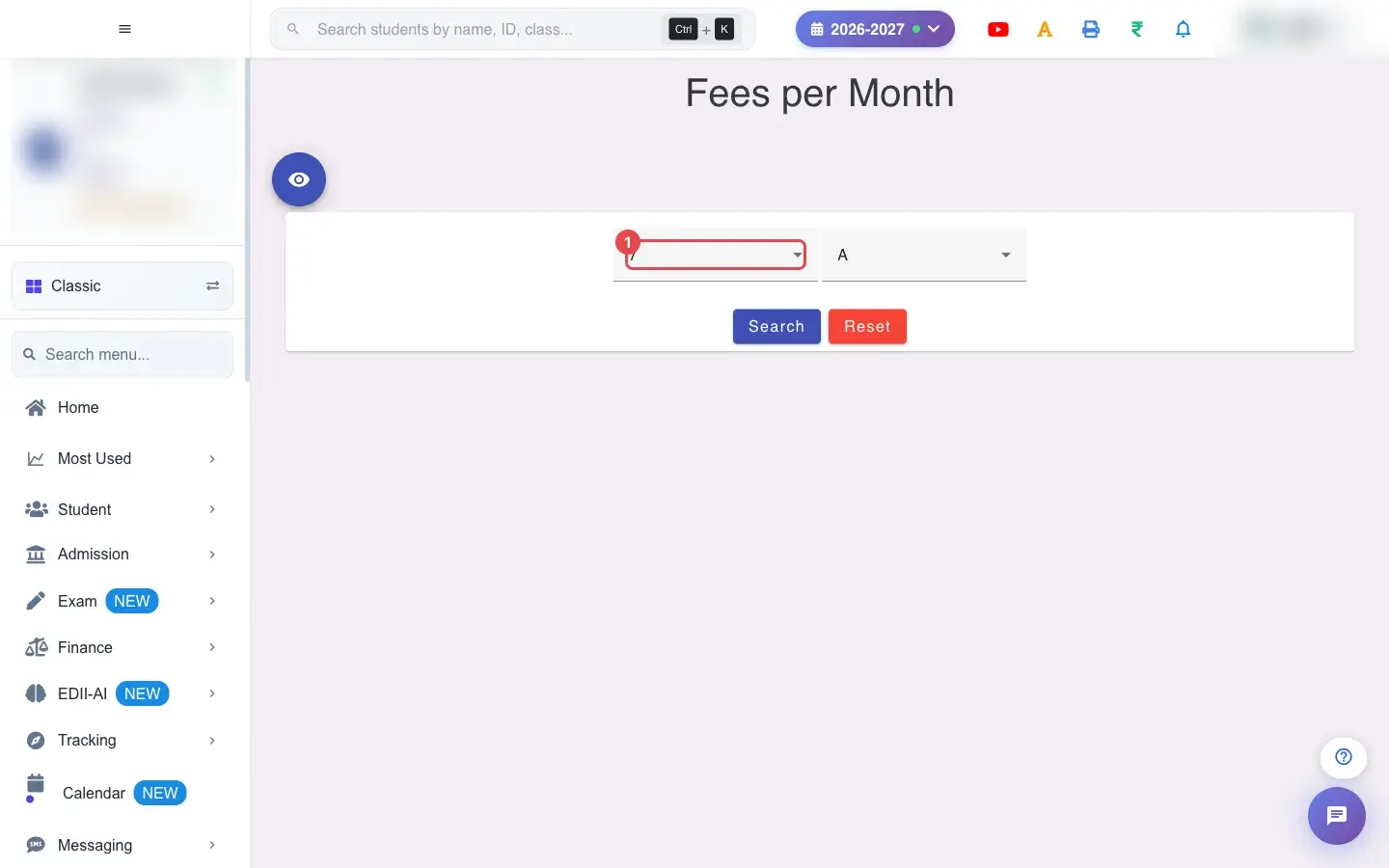
Section titled “Step by step”1. Choose Select Class (for example 7)
Section titled “1. Choose Select Class (for example 7)”Choose the Class.
 Open a bigger pictureतस्वीर बड़ी करें
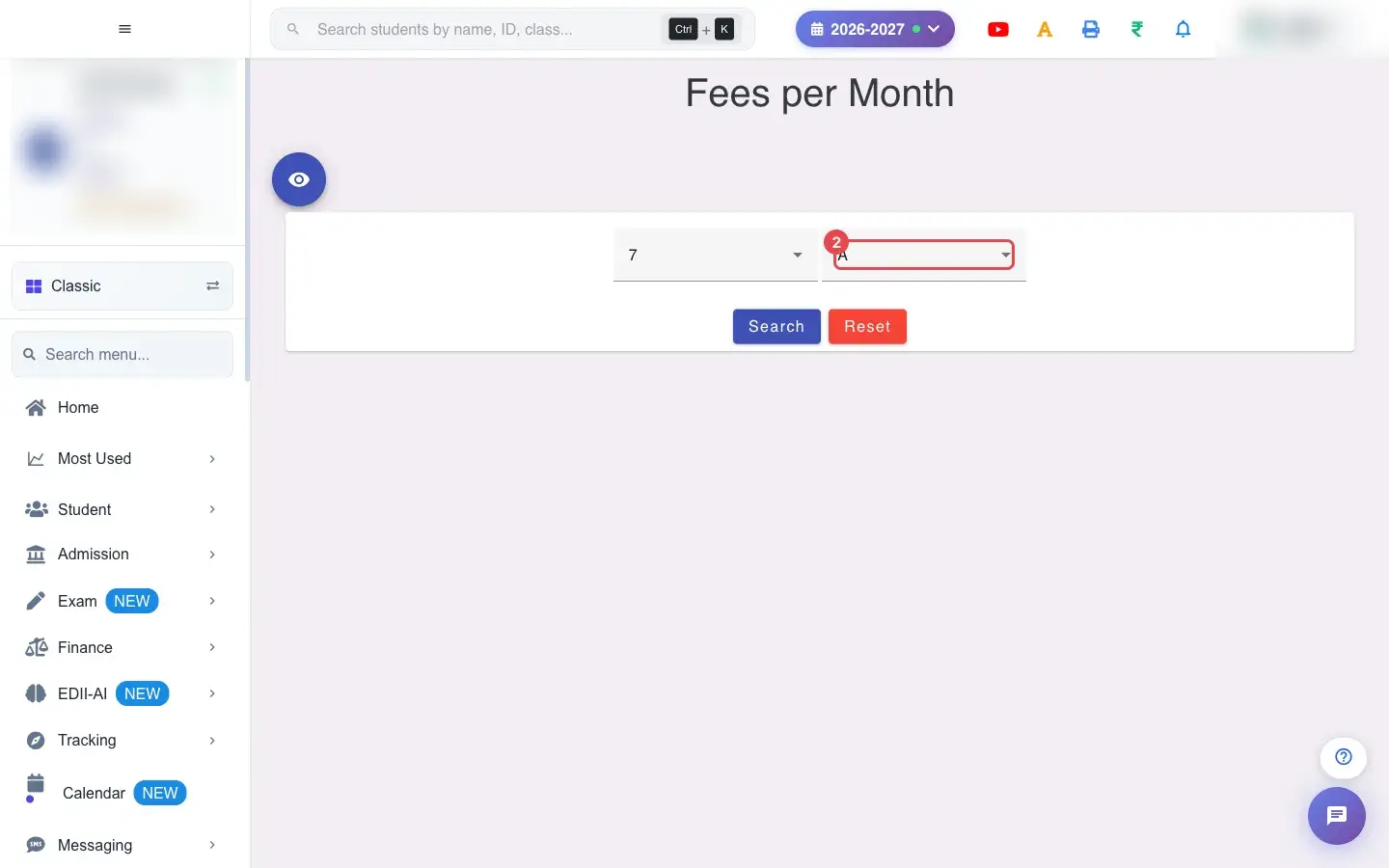
2. Choose Select Section (for example A)
Section titled “2. Choose Select Section (for example A)”Choose the Section.
 Open a bigger pictureतस्वीर बड़ी करें
3. Select Search
Section titled “3. Select Search”Select Search. The fee grid appears.
 Open a bigger pictureतस्वीर बड़ी करें
4. Edit a fee
Section titled “4. Edit a fee”Select a fee to open Edit Fees Master. A warning says Changes will be applied to all the selected Classes, Sections and Months. You can change Fees Name, Amount, Class, Section, Fees For, Print Priority, Stream, students and months; name, amount, class and months are required.
5. Save the change
Section titled “5. Save the change”Select Submit. On success the message reads Fees: <name> …; if it fails you see changes not updated. Changing a fee for all students to Selected turns it into an optional fee (Please Note that this is a Fees for ALL the students…).
With data
Section titled “With data”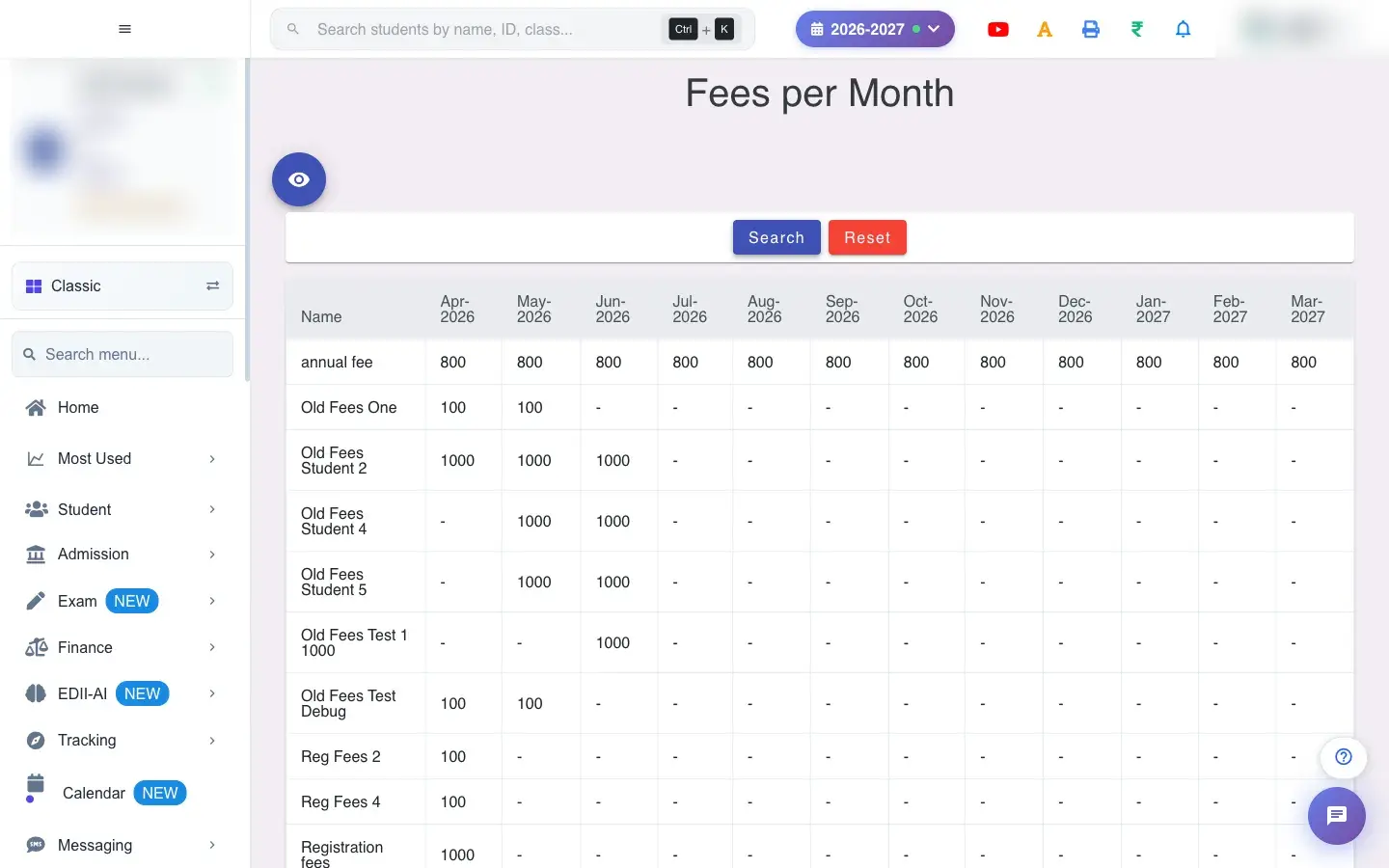 Open a bigger pictureतस्वीर बड़ी करें
Fields and filters
Section titled “Fields and filters”| Field | What it is | Notes |
|---|---|---|
| Select Class / Select Section | Which fees to show. | Required. |
Buttons
Section titled “Buttons”| Button | What it does | What happens next |
|---|---|---|
| Search | Loads the grid. | Shows Network Issue, Please Try Again. if it fails. |
| Reset | Clears the choices. | No data changes. |
| Submit (in edit) | Saves a fee change. | Applies to all selected classes, sections and months. |
Columns
Section titled “Columns”| Column | Meaning |
|---|---|
| Name | The fee. |
| Apr-2026 … Mar-2027 | Amount charged in each month. |
After you save
Section titled “After you save”- Viewing changes nothing. Submitting an edit changes the fee for every selected class, section and month and affects fees due.
Good to know
Section titled “Good to know”- Class and section are required.
- Edits apply to all selected classes, sections and months.
Messages you may see
Section titled “Messages you may see”| Message | What it means | What to do |
|---|---|---|
| changes not updated | The save failed. | Try again. |
| Network Issue, Please Try Again. | A request failed. | Try again. |
- Use Fees Master for changes across many classes; use this grid to check one class.
Stuck? Try this
Section titled “Stuck? Try this”| Problem | Likely cause | What to do |
|---|---|---|
| A month shows no amount | The fee is not charged in that month. | Edit the fee and tick the month. |
Did this page help?क्या इस पेज से मदद मिली?
Thanks! Glad it helped.धन्यवाद! अच्छा लगा कि काम बन गया।
Sorry about that. Ask in your own words, or write to us.माफ़ कीजिए। अपने शब्दों में पूछें, या हमें लिखें।