
Screen guide · Teacher app
Homework
Assign homework to a class with attachments (or write it with AI), filter what you assigned, edit or delete it, and grade the work students submit, with AI help.
यह पेज अंग्रेज़ी में है। कुछ समझ न आए तो ।
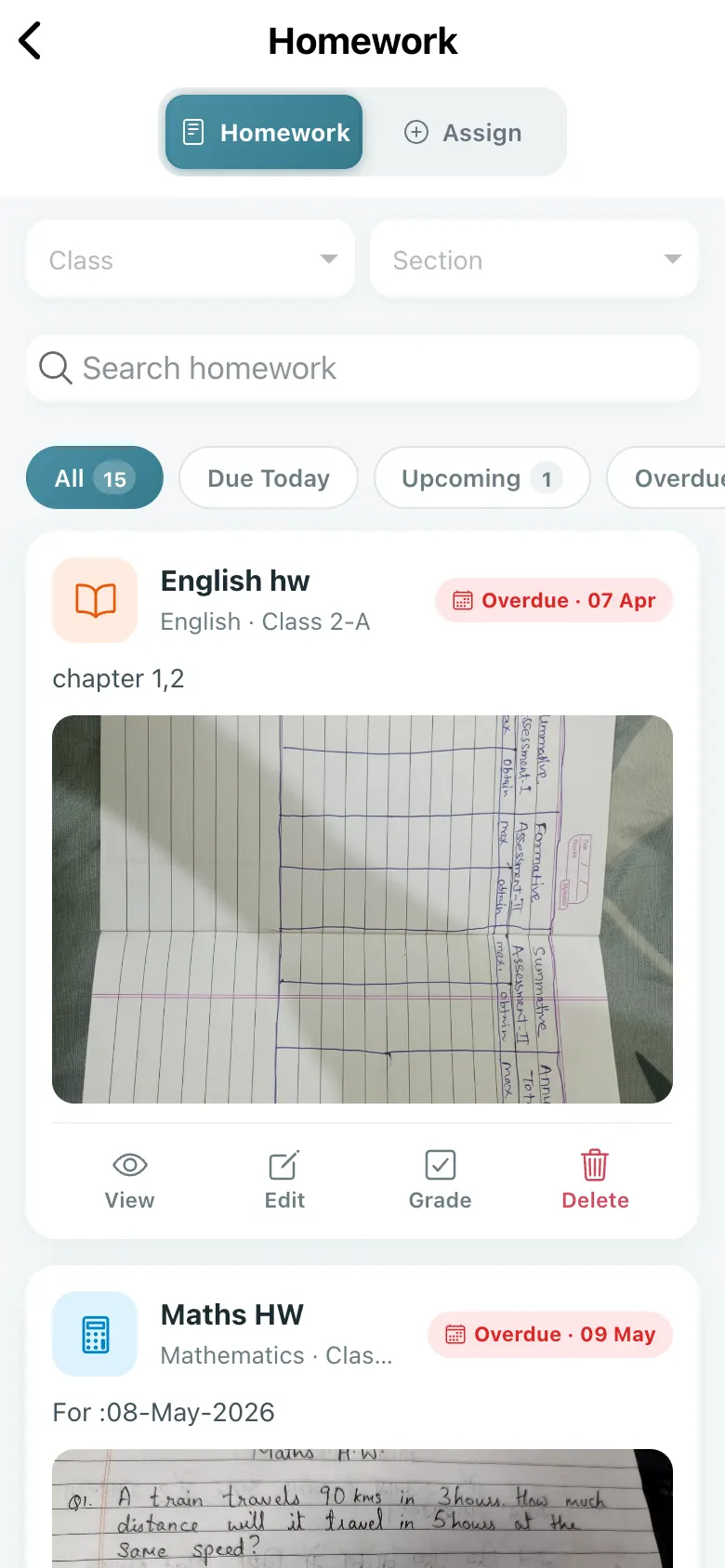
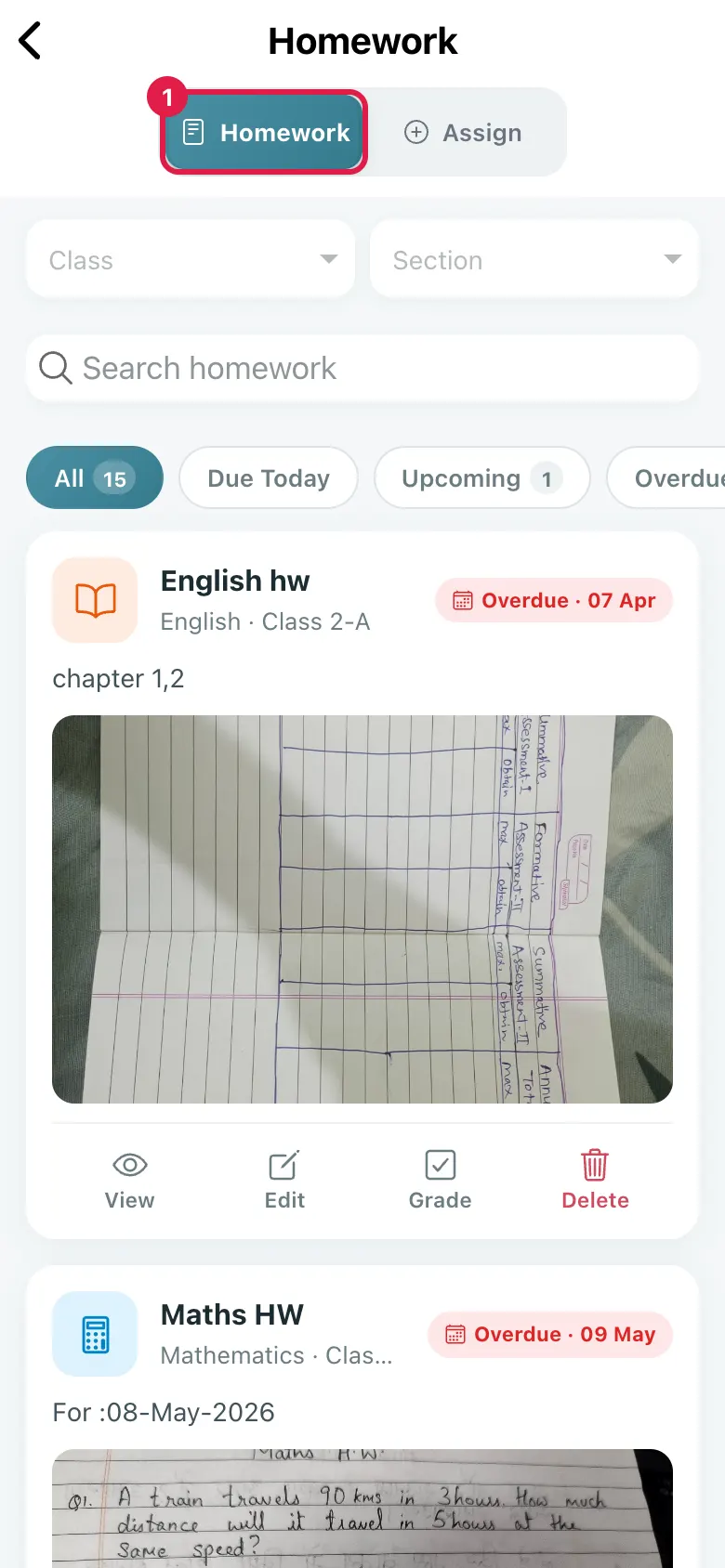
Homework lists what you assigned with filters All, Due Today, Upcoming and Overdue. Each item has Edit, Grade and Delete. With none: No homework yet — Tap “Assign” to create your first homework.
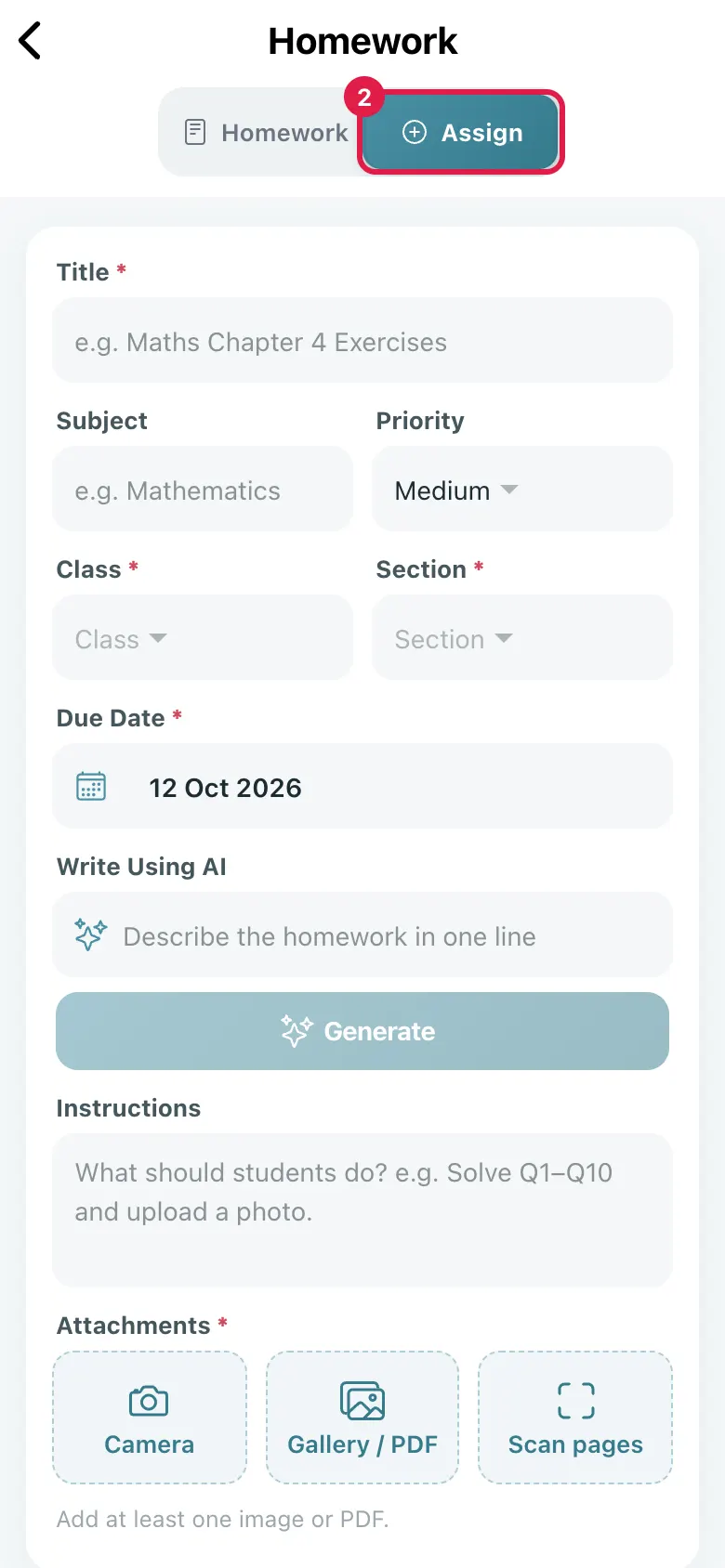
Assign opens the form: Title (required), Subject, Priority (High, Medium, Low), Class and Section (required), Due Date (required), Instructions, and attachments from the Camera or Pick Images / PDF. Write Using AI with Generate drafts the instructions from your title. Select Assign to publish (Homework Assigned); it appears in the students’ and parents’ app at once.
Grade shows the class’s submissions (Loading submissions…): View a student’s work and AI Grade to get a score and feedback (AI Graded); you review it before it counts. Deleting asks Delete Homework? and removes it for students.
Who uses it and when
Section titled “Who uses it and when”Teachers, daily.
Before you start
Section titled “Before you start”- Have the worksheet photo or PDF ready.
Where to find it
Section titled “Where to find it”- Select Homework on Home or on the Students tab.
 Open a bigger pictureतस्वीर बड़ी करें
Step by step
Section titled “Step by step”1. Start a new homework
Section titled “1. Start a new homework”Select Assign.
 Open a bigger pictureतस्वीर बड़ी करें
2. Fill the details
Section titled “2. Fill the details”Enter title, subject, class, section, due date and priority; add attachments or generate the text with AI.
3. Publish
Section titled “3. Publish”Select Assign. Homework Assigned confirms it.
4. Grade the work
Section titled “4. Grade the work”Open Grade on an assignment, view each submission and use AI Grade.
 Open a bigger pictureतस्वीर बड़ी करें
Fields and filters
Section titled “Fields and filters”| Field | What it is | Notes |
|---|---|---|
| Title | The homework’s name. | Required (Missing Title). |
| Class / Section | Who gets it. | Required. |
| Due Date | When it is due. | Required. |
| Priority | High, Medium or Low. | Default Medium. |
| Attachments | Images or a PDF. | At least one is required (Attachment Required). |
Buttons
Section titled “Buttons”| Button | What it does | What happens next |
|---|---|---|
| Assign | Publishes the homework. | Homework Assigned. |
| Write Using AI / Generate | Drafts instructions from the title. | AI Ready; edit the text. |
| Grade / AI Grade | Shows submissions and grades with AI. | AI Graded; review the result. |
| Edit / Delete | Changes or removes the homework. | Updated / Deleted. |
After you save
Section titled “After you save”- The homework appears in the student and parent app immediately.
Good to know
Section titled “Good to know”- A title, class, section, due date and at least one attachment are required.
- Deleting removes it for students.
Messages you may see
Section titled “Messages you may see”| Message | What it means | What to do |
|---|---|---|
| Missing Title | No title. | Type a title. |
| Missing Class / Missing Section / Missing Due Date | A required choice is empty. | Choose it. |
| Attachment Required | No file added. | Add an image or PDF. |
| Upload Failed | A file did not upload. | Try again. |
| Homework Assigned | Published. | Nothing to do. |
| Delete Homework? | Confirmation. | Confirm to delete. |
| No homework yet | None assigned. | Select Assign. |
- Photograph the worksheet in good light.
- Check AI grades before accepting them.
Stuck? Try this
Section titled “Stuck? Try this”| Problem | Likely cause | What to do |
|---|---|---|
| Students cannot see it | Wrong class or section. | Edit the homework. |
Did this page help?क्या इस पेज से मदद मिली?
Thanks! Glad it helped.धन्यवाद! अच्छा लगा कि काम बन गया।
Sorry about that. Ask in your own words, or write to us.माफ़ कीजिए। अपने शब्दों में पूछें, या हमें लिखें।