
How-to · Teacher app
Sign in to the teacher app
टीचर ऐप में लॉगिन करें
Sign in with your User ID and password.
यह पेज अंग्रेज़ी में है। कुछ समझ न आए तो ।
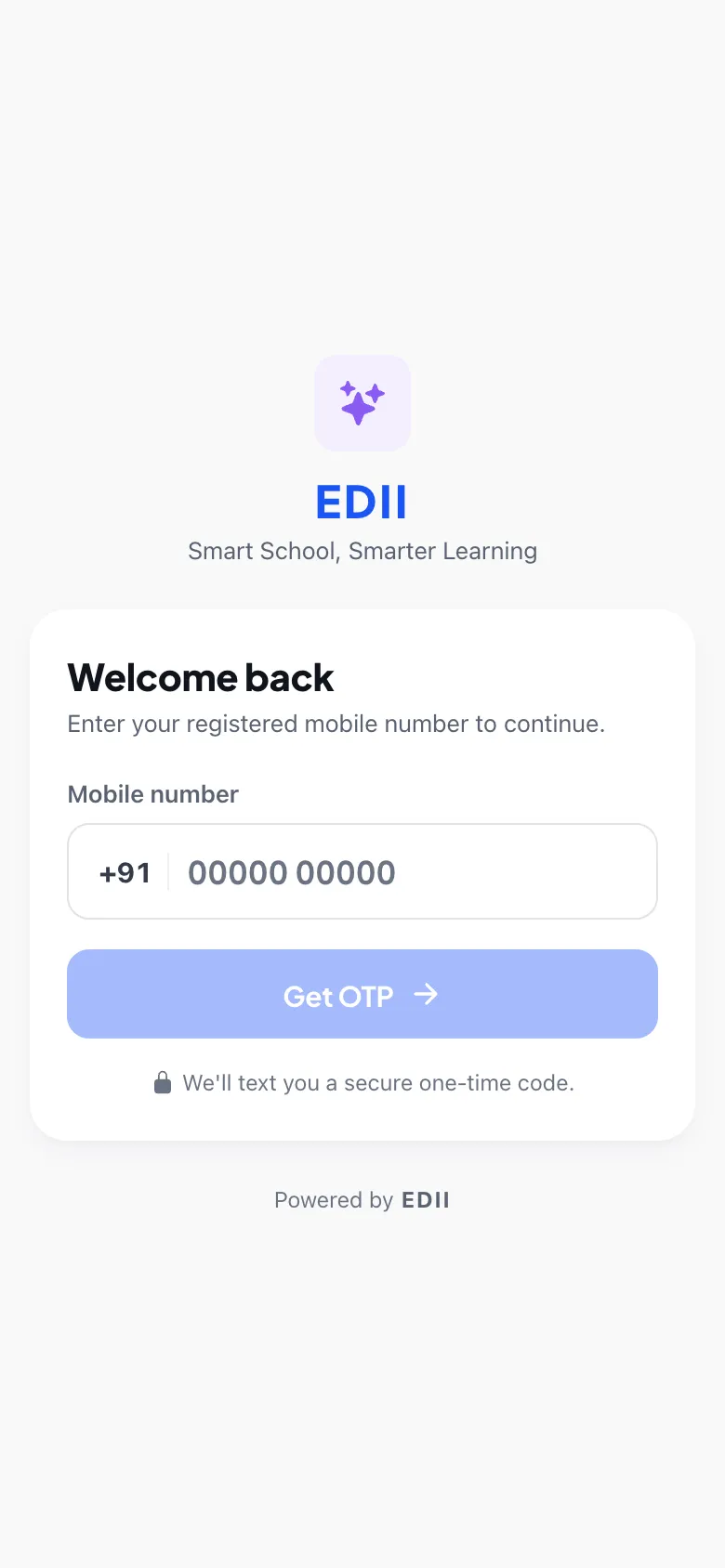
EDII Teacher (Sign in to your account) asks for your Username (your User ID) and Password. Type them and select Sign In. On success the app loads your classes, your session, your school’s logo and your permissions and opens Home. You stay signed in between launches and see this screen again only after you sign out (☰ › Sign Out).
Before you start
Section titled “Before you start”- Get your User ID and password from the school office.
1. Open the app
Section titled “1. Open the app”The sign-in screen shows the EDII Teacher logo and two boxes.
 Open a bigger pictureतस्वीर बड़ी करें
2. Enter your User ID
Section titled “2. Enter your User ID”Type your Username.
3. Enter your password
Section titled “3. Enter your password”Type your Password.
4. Sign in
Section titled “4. Sign in”Select Sign In.
Full details of this screen Sign in to the teacher app
What happens next
Section titled “What happens next”- You are signed in and your classes and permissions load.
Good to know
Section titled “Good to know”- Both boxes are required.
Stuck? Try this
Section titled “Stuck? Try this”| You see | Why | What to do |
|---|---|---|
| I cannot sign in | A wrong User ID or password, or no internet. | Check the details with the school office. |
Did this page help?क्या इस पेज से मदद मिली?
Thanks! Glad it helped.धन्यवाद! अच्छा लगा कि काम बन गया।
Sorry about that. Ask in your own words, or write to us.माफ़ कीजिए। अपने शब्दों में पूछें, या हमें लिखें।