
Screen guide · Web app
Bulk Promote
Promote a whole class to the next class and session: choose the current class and section, the new session, class and section, tick the students to promote, and promote them in one step.
यह पेज अंग्रेज़ी में है। कुछ समझ न आए तो ।
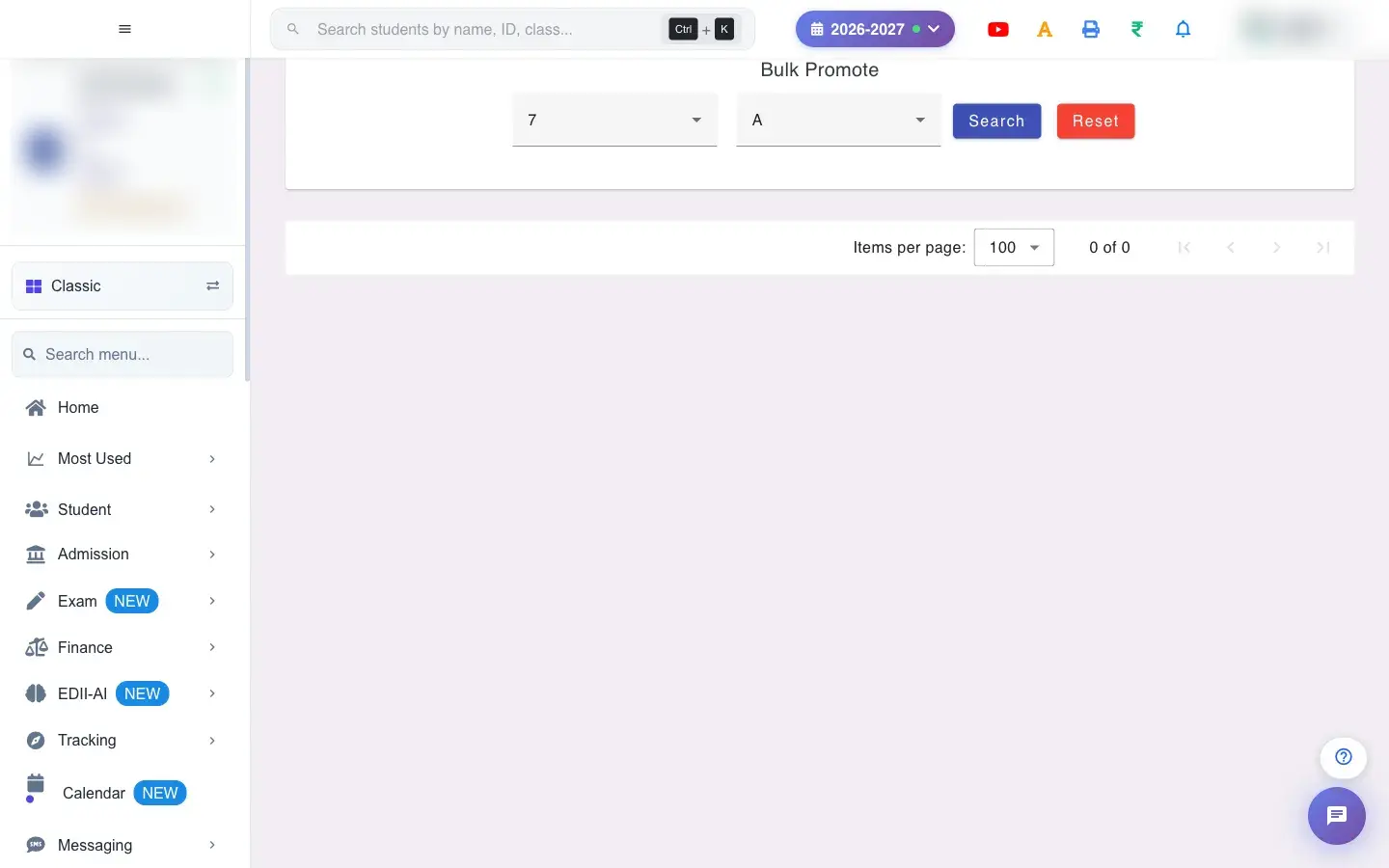
Bulk Promote (Student › Promote) moves students from the class they studied in to the class they will study in next session. You pick the current class and section, the New Session, the New Class and New Section, load the students, tick the ones to promote (by default all), and select Promote.
It is used once a year at the end of the session. Students you do not tick stay where they are (for example students who failed and will repeat the year).
Who uses it and when
Section titled “Who uses it and when”The administrator or exam in-charge runs it for each class after final results.
Before you start
Section titled “Before you start”- The new session must exist. You can only promote students from session 2021-2022 onwards.
- The new class and section must already be created.
- Download the class list before promoting so you have a record.
Where to find it
Section titled “Where to find it”- Menu: Student › Promote
- Address:
/view/student-profile-bulk-promotion - If it is missing from your menu, your role does not include it. Ask your school admin.
 Open a bigger pictureतस्वीर बड़ी करें
Step by step
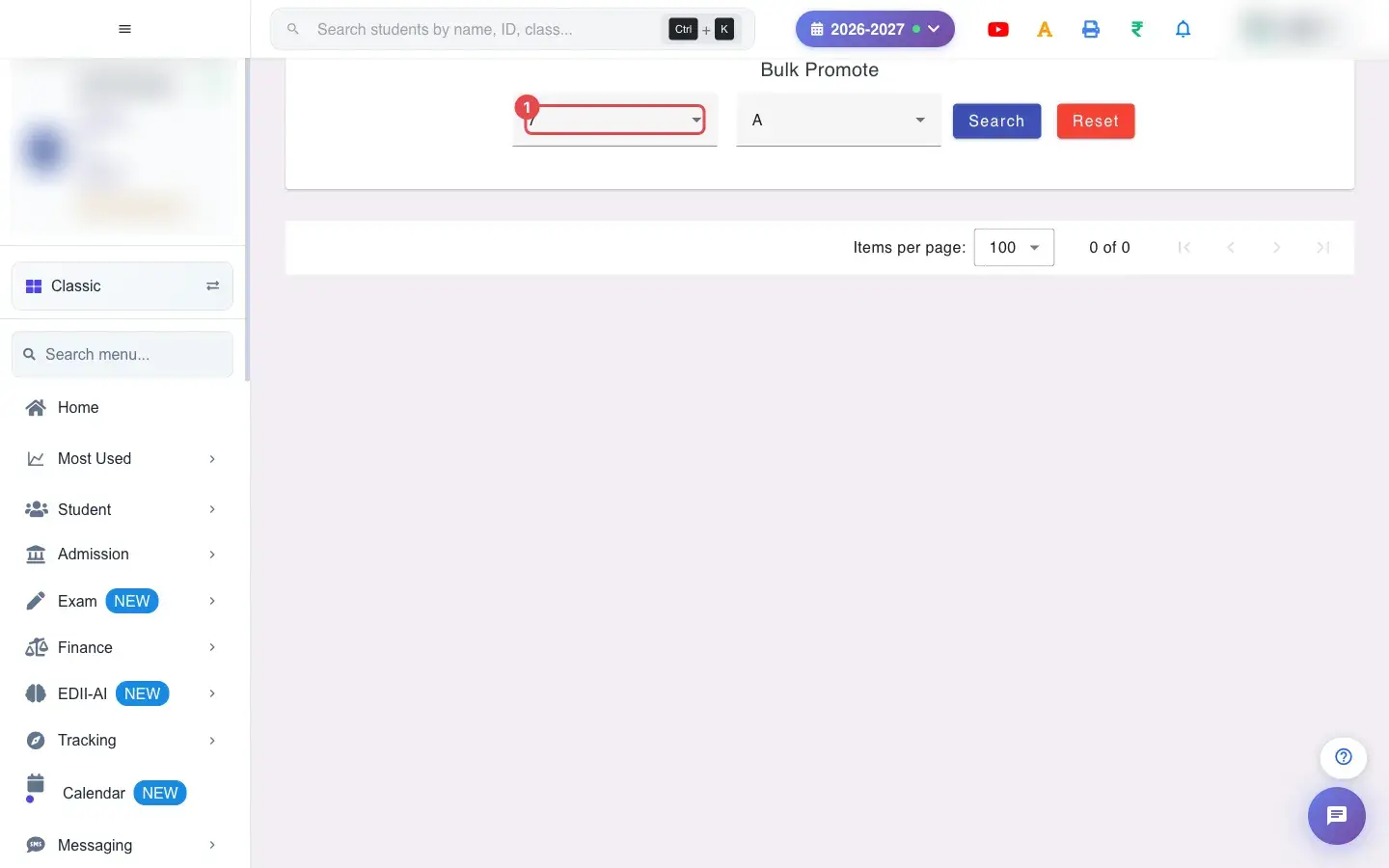
Section titled “Step by step”1. Choose Select Class (for example 7)
Section titled “1. Choose Select Class (for example 7)”Choose the current Class.
 Open a bigger pictureतस्वीर बड़ी करें
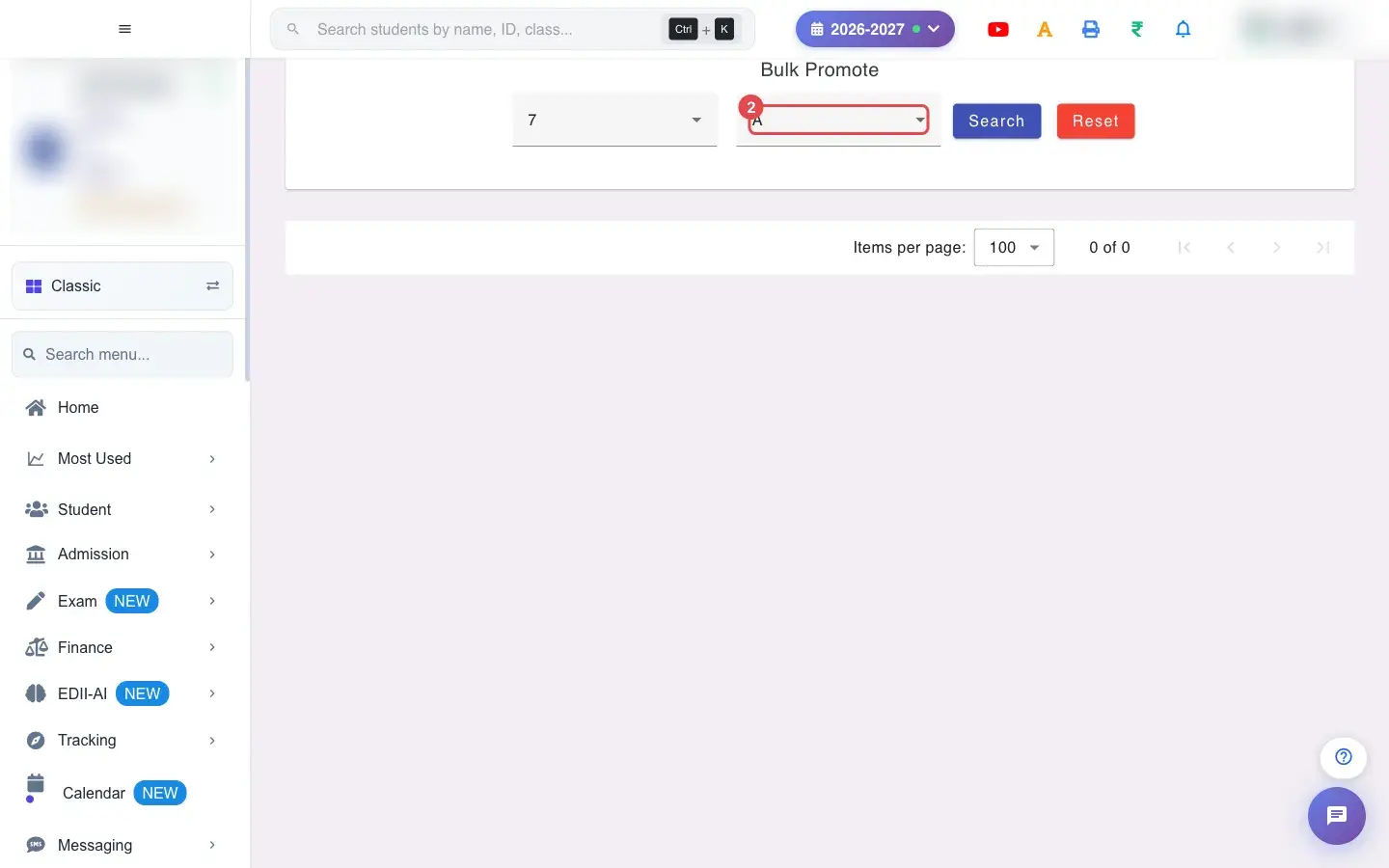
2. Choose Select Section (for example A)
Section titled “2. Choose Select Section (for example A)”Choose the current Section.
 Open a bigger pictureतस्वीर बड़ी करें
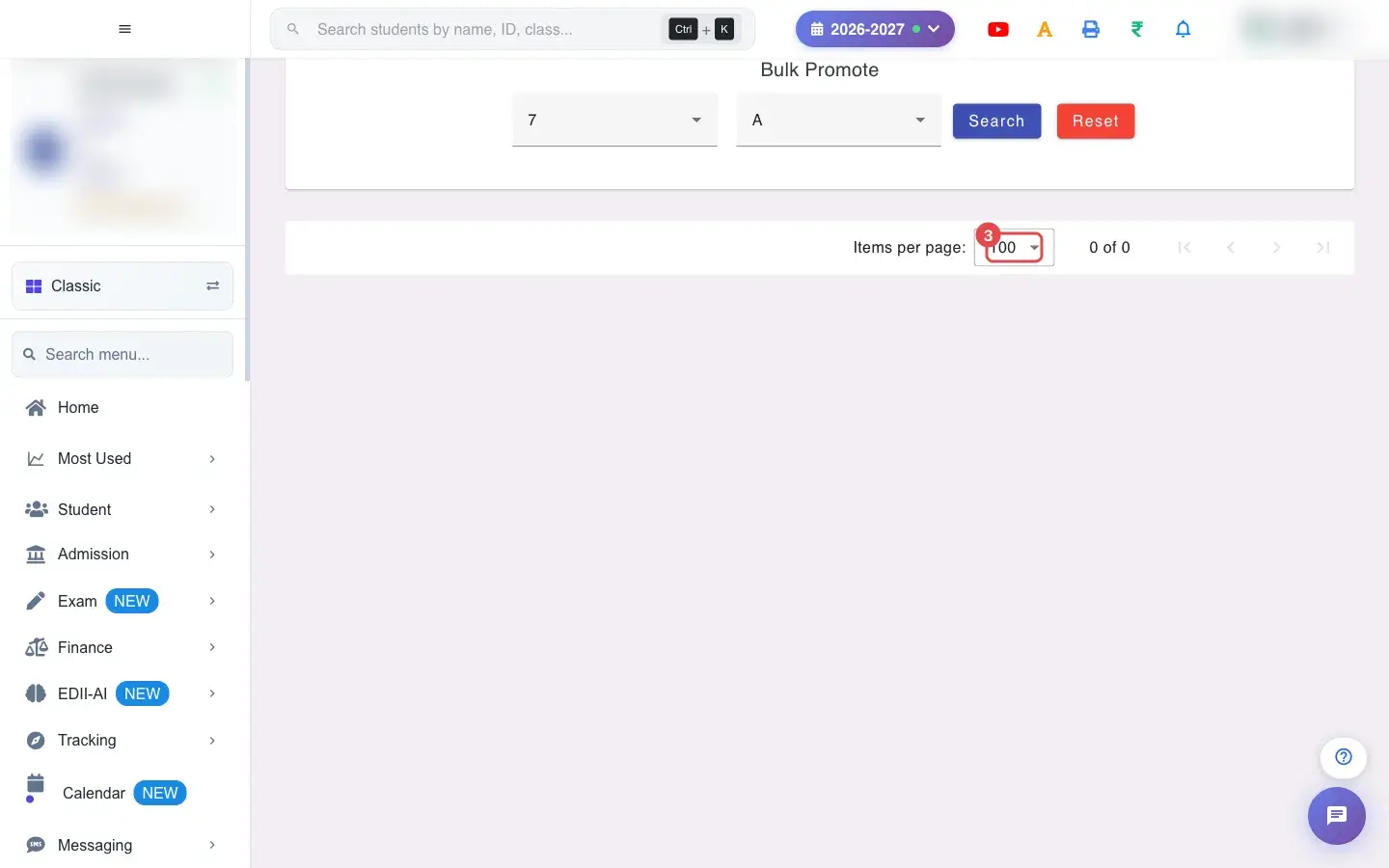
3. Choose 100 (for example 100)
Section titled “3. Choose 100 (for example 100)”Choose how many students to show per page.
 Open a bigger pictureतस्वीर बड़ी करें
4. Select Search
Section titled “4. Select Search”Select Search to load the students.
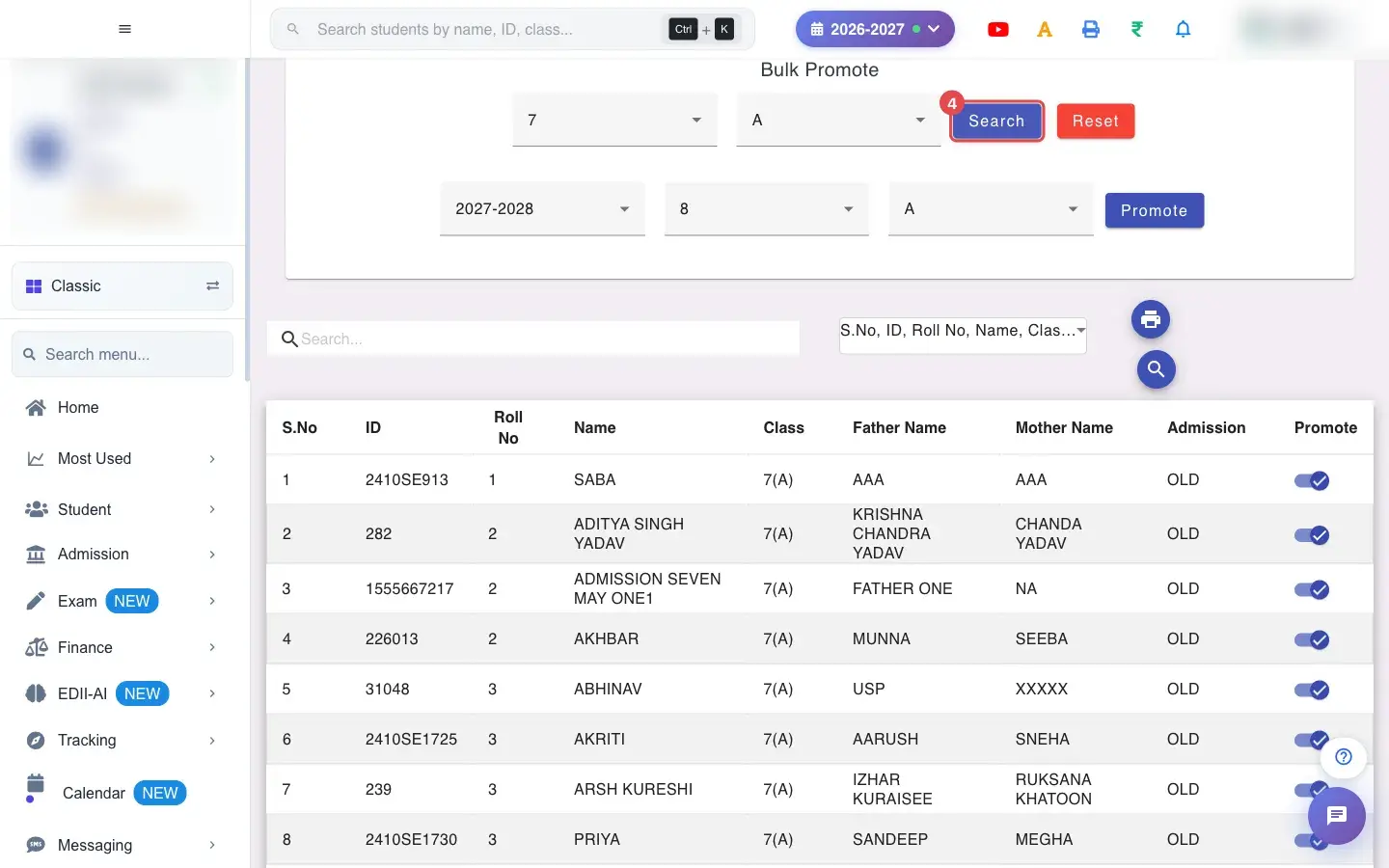 Open a bigger pictureतस्वीर बड़ी करें
5. Choose where they go
Section titled “5. Choose where they go”Set Select New Session (for example 2027-2028), New Class and New Section. These apply to every student you promote in this run.
6. Choose who to promote
Section titled “6. Choose who to promote”Each row has a Promote tick. Select All ticks everyone. Untick students who should stay back.
7. Promote
Section titled “7. Promote”Select Promote. The ticked students are moved to the new session, class and section. If the session is not allowed you see You can only promote Students from session 2021-2022 onwards.
8. Print or download
Section titled “8. Print or download”Use Download Excel / Text / CSV File or Print for your records, with Report Generated On.
With data
Section titled “With data”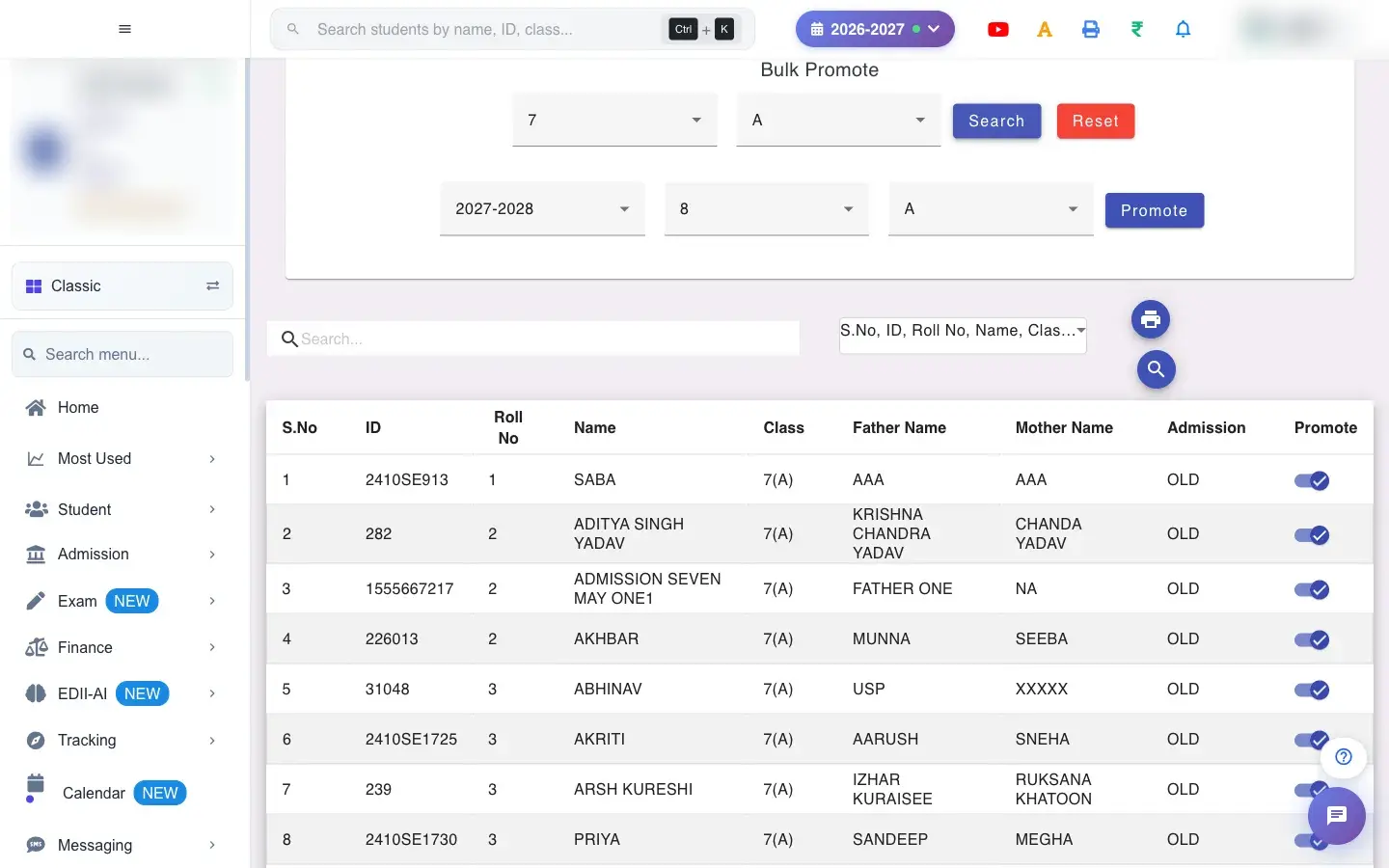 Open a bigger pictureतस्वीर बड़ी करें
Fields and filters
Section titled “Fields and filters”| Field | What it is | Notes |
|---|---|---|
| Select Class / Select Section | Where students are now. | Required. |
| Select New Session | The next academic session. | Must exist. |
| New Class / New Section | Where they will study. | Applies to all promoted students. |
| Promote (per row) | Whether a student is promoted. | Default: all. |
Buttons
Section titled “Buttons”| Button | What it does | What happens next |
|---|---|---|
| Search | Loads the students. | Shows Network Issue, Please Try Again. if it fails. |
| Promote | Promotes the ticked students. | They appear in the new class for the new session. |
| Reset | Clears the choices. | Nothing is promoted. |
Columns
Section titled “Columns”| Column | Meaning |
|---|---|
| S.No / ID / Roll No / Name / Class | Who the student is. |
| Father Name / Mother Name / Admission | Family and admission details. |
| Promote | Tick to promote. |
After you save
Section titled “After you save”- Promoted students are created in the new session in the chosen class and section, with their details carried over.
- Students not promoted remain in their current class for the current session.
- Fees and results of the old session stay with the old session.
Good to know
Section titled “Good to know”- Promotion is allowed from session 2021-2022 onwards only.
- One target class and section per run.
- Plan roll numbers after promotion.
Messages you may see
Section titled “Messages you may see”| Message | What it means | What to do |
|---|---|---|
| You can only promote Students from session 2021-2022 onwards | The chosen session is too old. | Select a later session. |
| Network Issue, Please Try Again. | The request failed. | Try again. |
- Promote section by section so you can set the new section correctly.
- Untick students who will repeat the class before you press Promote.
Stuck? Try this
Section titled “Stuck? Try this”| Problem | Likely cause | What to do |
|---|---|---|
| New class is missing | It is not created for the new session. | Create it in Configuration, then reload. |
Did this page help?क्या इस पेज से मदद मिली?
Thanks! Glad it helped.धन्यवाद! अच्छा लगा कि काम बन गया।
Sorry about that. Ask in your own words, or write to us.माफ़ कीजिए। अपने शब्दों में पूछें, या हमें लिखें।