
Screen guide · Admin app
Approvals
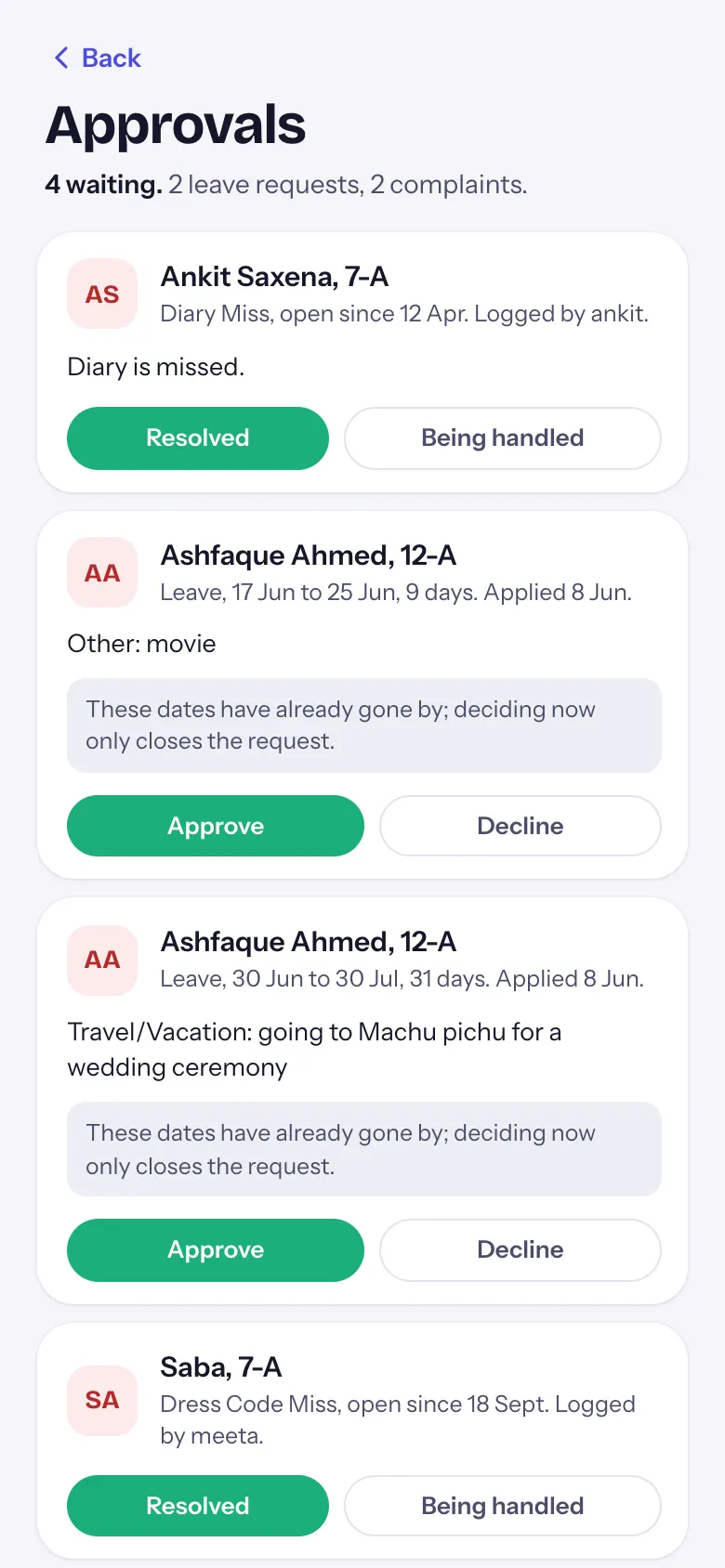
Student leave requests, open complaints and requests to change a student's details in one list: approve, decline or resolve them from the phone.
यह पेज अंग्रेज़ी में है। कुछ समझ न आए तो ।
Approvals says how many are waiting and what they are (4 waiting. 2 leave requests, 2 complaints.). Cards are oldest first, so the request that has waited longest is decided first. Each card shows the student with class and section, and:
- Leave: the dates and number of days, when it was applied and the reason. A note warns when the leave overlaps an exam paper (Overlaps Half Yearly Maths on 12 Nov.), says when the dates have already gone by (deciding now only closes the request), or counts the documents attached. Approve or Decline.
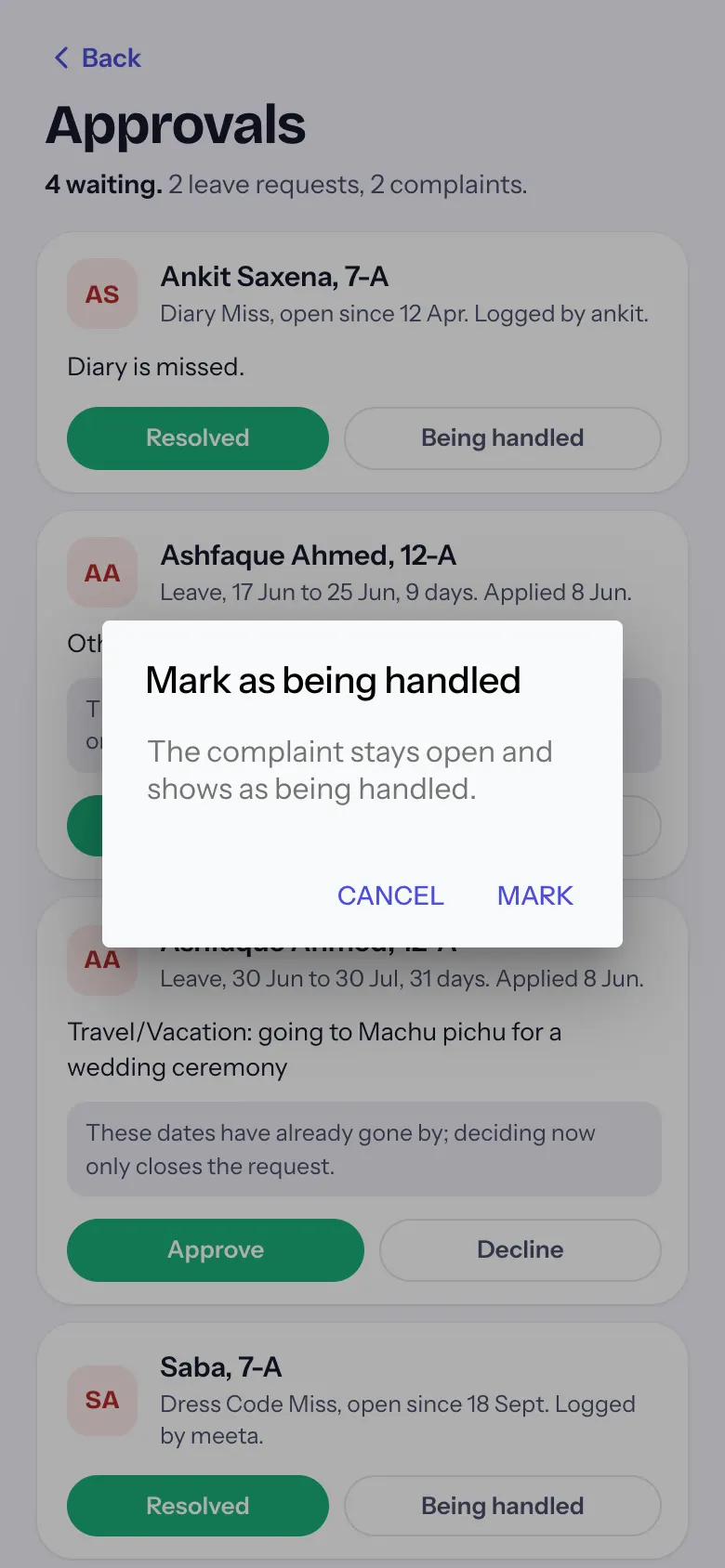
- Complaint: its type, whether it is open or being handled, since when and who logged it, and the description. Resolved closes it; Being handled keeps it open and marks it in progress.
- Detail change: each field the family asked to change, old value → new value (up to four shown), and their reason. Approve or Decline.
With nothing waiting: No leave requests, complaints or detail changes are waiting. New ones show here and on the More tab.
Who uses it and when
Section titled “Who uses it and when”Principals, a few times a day.
Before you start
Section titled “Before you start”- Families apply for leave and ask for detail changes in the EDII parent app; complaints are logged by staff.
Where to find it
Section titled “Where to find it”- On Today, select Open on approvals waiting.
- Or More › Approvals (the orange count shows how many are waiting).
 Open a bigger pictureतस्वीर बड़ी करें
Step by step
Section titled “Step by step”1. Read the card
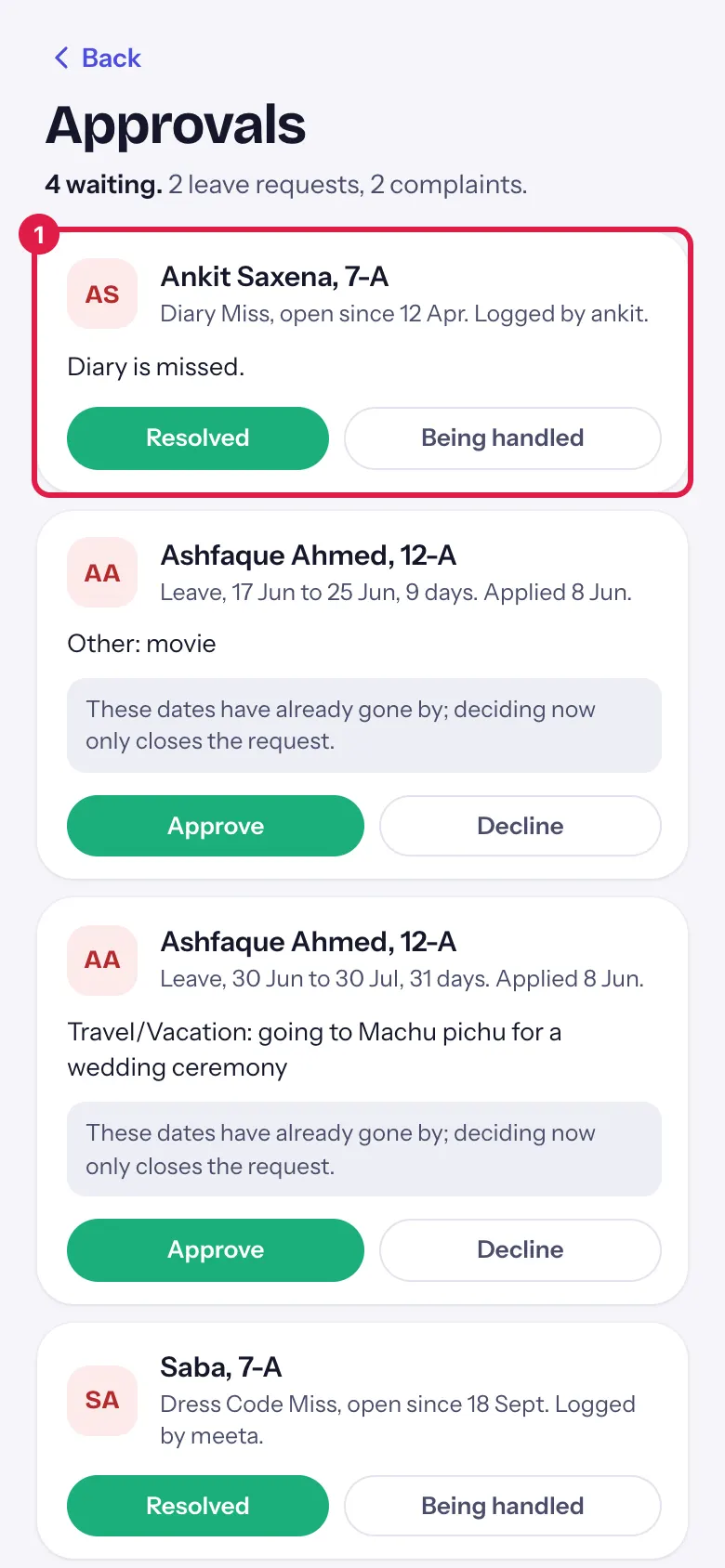
Section titled “1. Read the card”Check the student, the dates or the complaint, and any note in grey (an exam clash or dates already gone by).
 Open a bigger pictureतस्वीर बड़ी करें
2. Decide
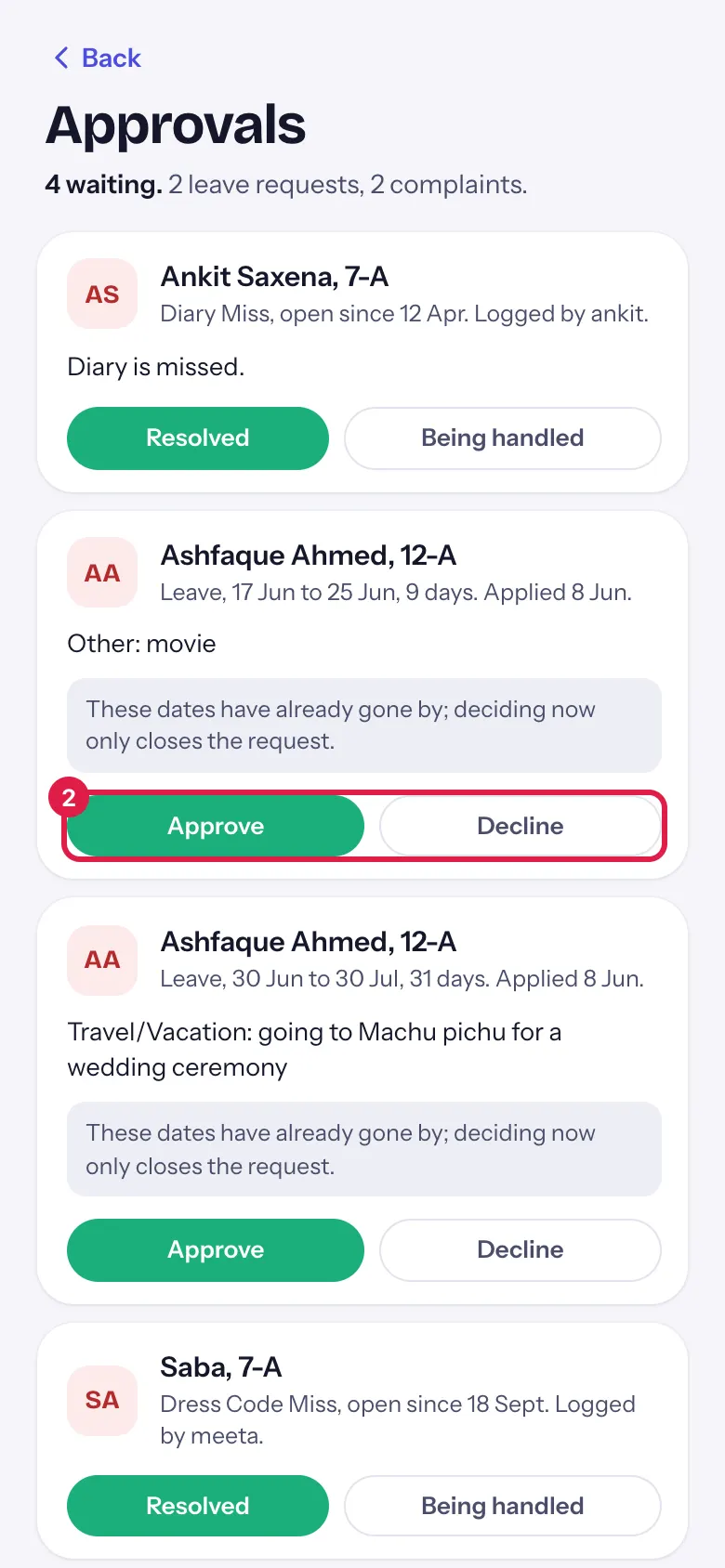
Section titled “2. Decide”Select Approve (or Resolved for a complaint). It is saved straight away and the card leaves the list.
 Open a bigger pictureतस्वीर बड़ी करें
3. Decline with a reason
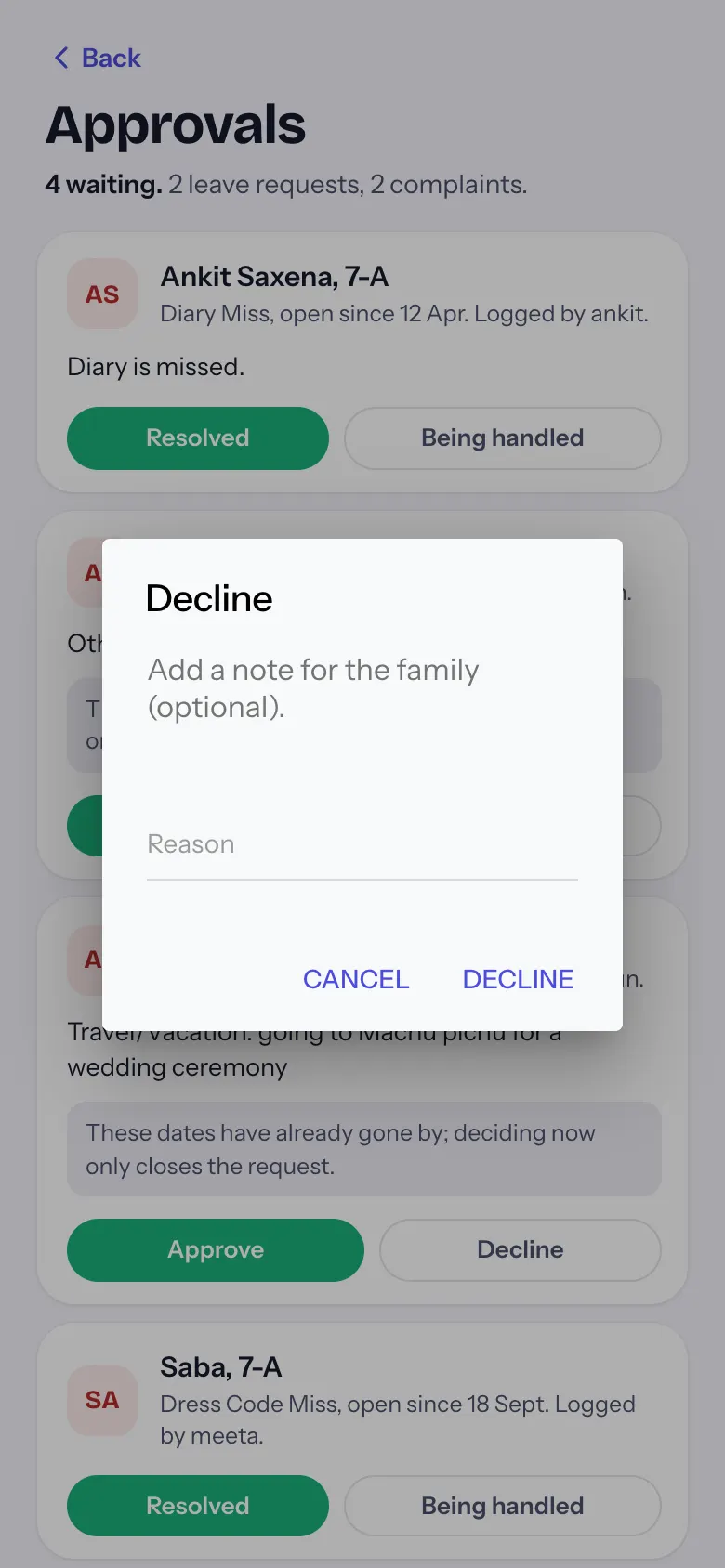
Section titled “3. Decline with a reason”Select Decline. Add a reason for the family if you like, then Decline again, or Cancel.
 Open a bigger pictureतस्वीर बड़ी करें
4. Keep a complaint open
Section titled “4. Keep a complaint open”On a complaint, select Being handled and then Mark. It stays in the list as being handled.
 Open a bigger pictureतस्वीर बड़ी करें
Fields and filters
Section titled “Fields and filters”| Field | What it is | Notes |
|---|---|---|
| Reason | A note for the family when you decline. | Optional. |
Buttons
Section titled “Buttons”| Button | What it does | What happens next |
|---|---|---|
| Approve | Approves the leave or detail change. | Approved: <student>. |
| Decline | Asks for an optional reason, then declines. | Declined: <student>. |
| Resolved | Closes a complaint. | Marked resolved: <student>. |
| Being handled | Marks a complaint as in progress. | Marked as being handled: <student>. |
| Back | Returns to the screen you came from. | — |
After you save
Section titled “After you save”- The decision is saved at once and the card leaves the list (a complaint marked being handled stays).
- The count on Today and More goes down.
Good to know
Section titled “Good to know”- Approve and Resolved act at once, without a second question; Decline and Being handled ask first.
- A leave whose dates have passed can still be decided; that only closes the request.
Messages you may see
Section titled “Messages you may see”| Message | What it means | What to do |
|---|---|---|
| Approved: <student>. | Saved. | Nothing to do. |
| Declined: <student>. | Saved. | Nothing to do. |
| Couldn’t save that. Try again. | The decision was not saved. | Try again. |
| Leave requests: couldn’t load | One kind of request could not be read; the others still show. | Pull down to try again. |
| These dates have already gone by; deciding now only closes the request. | The leave is in the past. | Decide it to clear the list. |
| Overlaps <exam> <subject> on <date>. | The leave covers an exam paper. | Check with the class teacher before approving. |
- Decide the oldest card first; it is always at the top.
Stuck? Try this
Section titled “Stuck? Try this”| Problem | Likely cause | What to do |
|---|---|---|
| A request I expected is not here | It was already decided on the web or by another admin. | Pull down to refresh. |
| A complaint stays after Being handled | Being handled keeps it open on purpose. | Select Resolved when it is closed. |
Did this page help?क्या इस पेज से मदद मिली?
Thanks! Glad it helped.धन्यवाद! अच्छा लगा कि काम बन गया।
Sorry about that. Ask in your own words, or write to us.माफ़ कीजिए। अपने शब्दों में पूछें, या हमें लिखें।