
How-to · Web app
Prepare a new session
नया सेशन शुरू करें
Copy classes, fees, subjects and exams to the next year.
यह पेज अंग्रेज़ी में है। कुछ समझ न आए तो ।
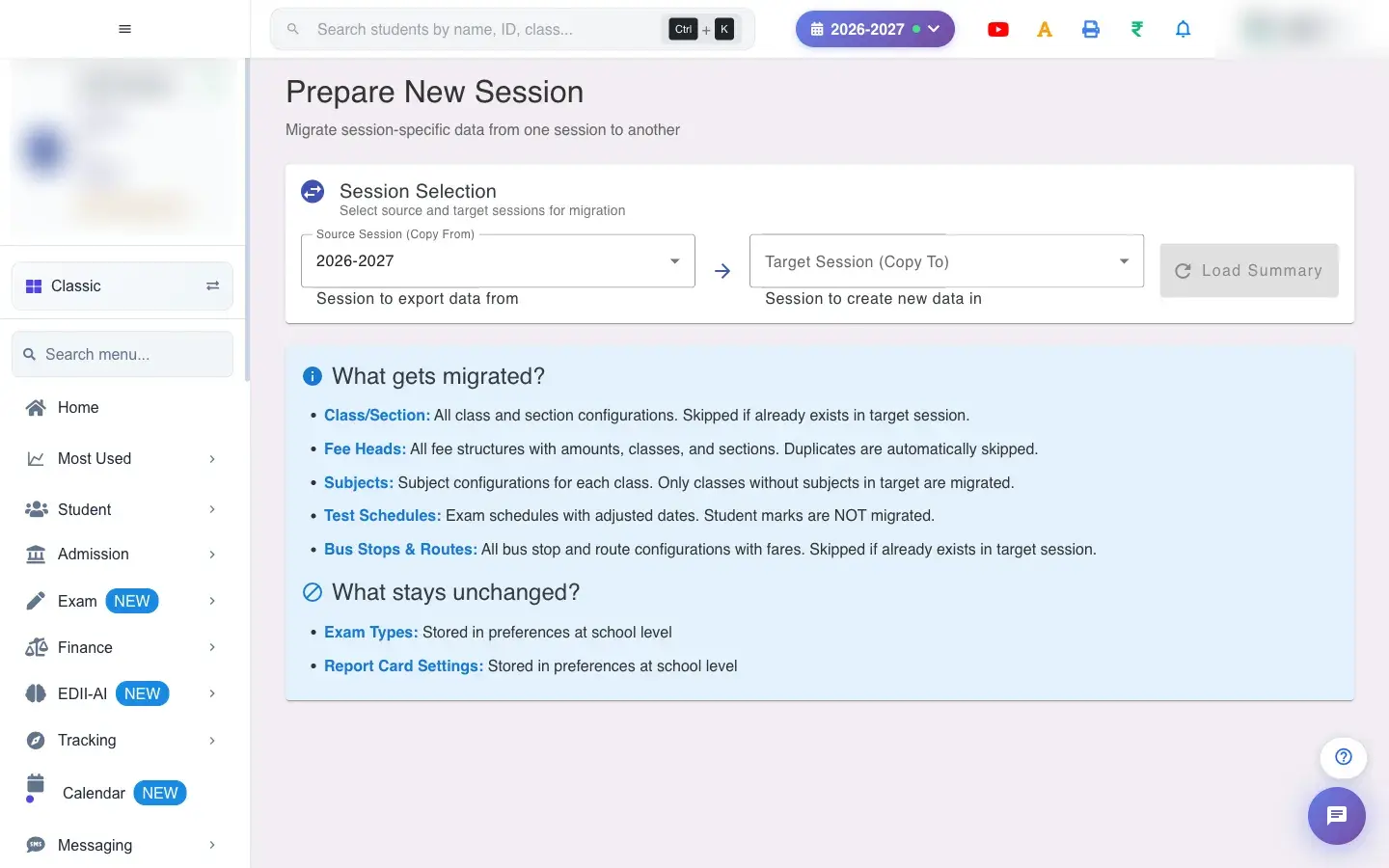
Prepare New Session (Configuration › New Session) copies the session-specific setup from one session to another so you do not enter it again. Choose the Source Session (Copy From) and Target Session (Copy To) and select Load Summary; for each item you see how many records are In Source, In Target and Pending. Tick the items to copy and select Start Migration.
Before you start
Section titled “Before you start”- Check the source session is complete. Decide the date offset for exams (usually one year).
1. Choose sessions
Section titled “1. Choose sessions”Pick the source and the target session and select Load Summary.
 Open a bigger pictureतस्वीर बड़ी करें
2. Choose what to copy
Section titled “2. Choose what to copy”Tick the items; items with nothing pending cannot be ticked.
3. Set the date offset
Section titled “3. Set the date offset”For exam schedules enter the offset (for example 1 year); it shows the total days.
4. Migrate
Section titled “4. Migrate”Select Start Migration. A result per item shows how many were exported and skipped; Migration completed successfully! confirms.
Full details of this screen Prepare a new session
What happens next
Section titled “What happens next”- The target session gets copies of the chosen setup. Existing records are skipped, so running it again is safe.
Good to know
Section titled “Good to know”- Source and target must differ.
- Student marks and school-level settings are not copied.
Stuck? Try this
Section titled “Stuck? Try this”| You see | Why | What to do |
|---|---|---|
| Some classes have no subjects | The target already had subjects for them. | Edit subjects directly in the target session. |
Did this page help?क्या इस पेज से मदद मिली?
Thanks! Glad it helped.धन्यवाद! अच्छा लगा कि काम बन गया।
Sorry about that. Ask in your own words, or write to us.माफ़ कीजिए। अपने शब्दों में पूछें, या हमें लिखें।