
Screen guide · Web app
Add Online Class
Schedule an online class for a class and section with a host, start and end time, name and notes, once or on several dates.
यह पेज अंग्रेज़ी में है। कुछ समझ न आए तो ।
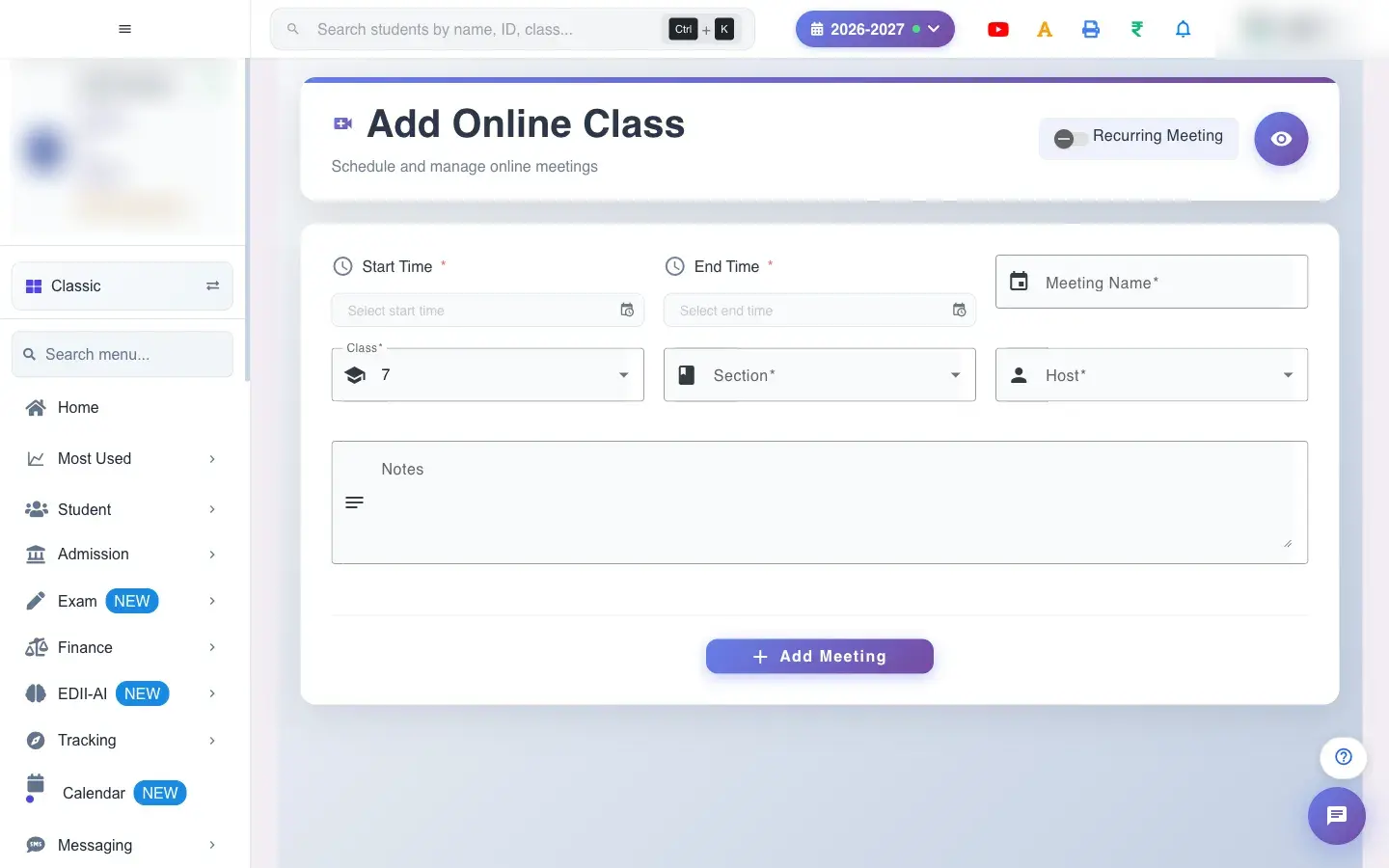
Add Online Class (E Learning › Add) schedules a live class. For a single class pick the Class, Section (there is a Select All option), Host (the teacher), start time and end time, type a Meeting Name and optional Notes, then select Add Meeting. Meeting names accept only plain characters (special symbols are blocked as you type).
Switch on Recurring Meeting to repeat the class on several days: add each date with Add Date (they appear as removable chips), choose the start and end hour and minute, the name, class, section, host and notes, and select Add Meeting. A floating button View Meetings opens the meetings list.
Who uses it and when
Section titled “Who uses it and when”Teachers and coordinators schedule live online classes.
Before you start
Section titled “Before you start”- Know the class, section, teacher and timing. For a recurring class decide the dates.
Where to find it
Section titled “Where to find it”- Menu: Student › Add
- Menu: E Learning › Add
- Address:
/add/add-meeting - If it is missing from your menu, your role does not include it. Ask your school admin.
 Open a bigger pictureतस्वीर बड़ी करें
Step by step
Section titled “Step by step”1. Choose class and section
Section titled “1. Choose class and section”Pick the Class, then the Section (or Select All sections).
2. Choose host and time
Section titled “2. Choose host and time”Pick the Host and the start and end time.
3. Name it
Section titled “3. Name it”Type the Meeting Name and, if you like, Notes for students.
4. Repeat if needed
Section titled “4. Repeat if needed”Switch on Recurring Meeting to pick several dates. Without at least two dates you see Select Multiple Dates to start a Recurring Meeting; with none you see Select at least one date for the recurring meeting.
5. Save
Section titled “5. Save”Select Add Meeting. Meeting Added confirms it.
With data
Section titled “With data”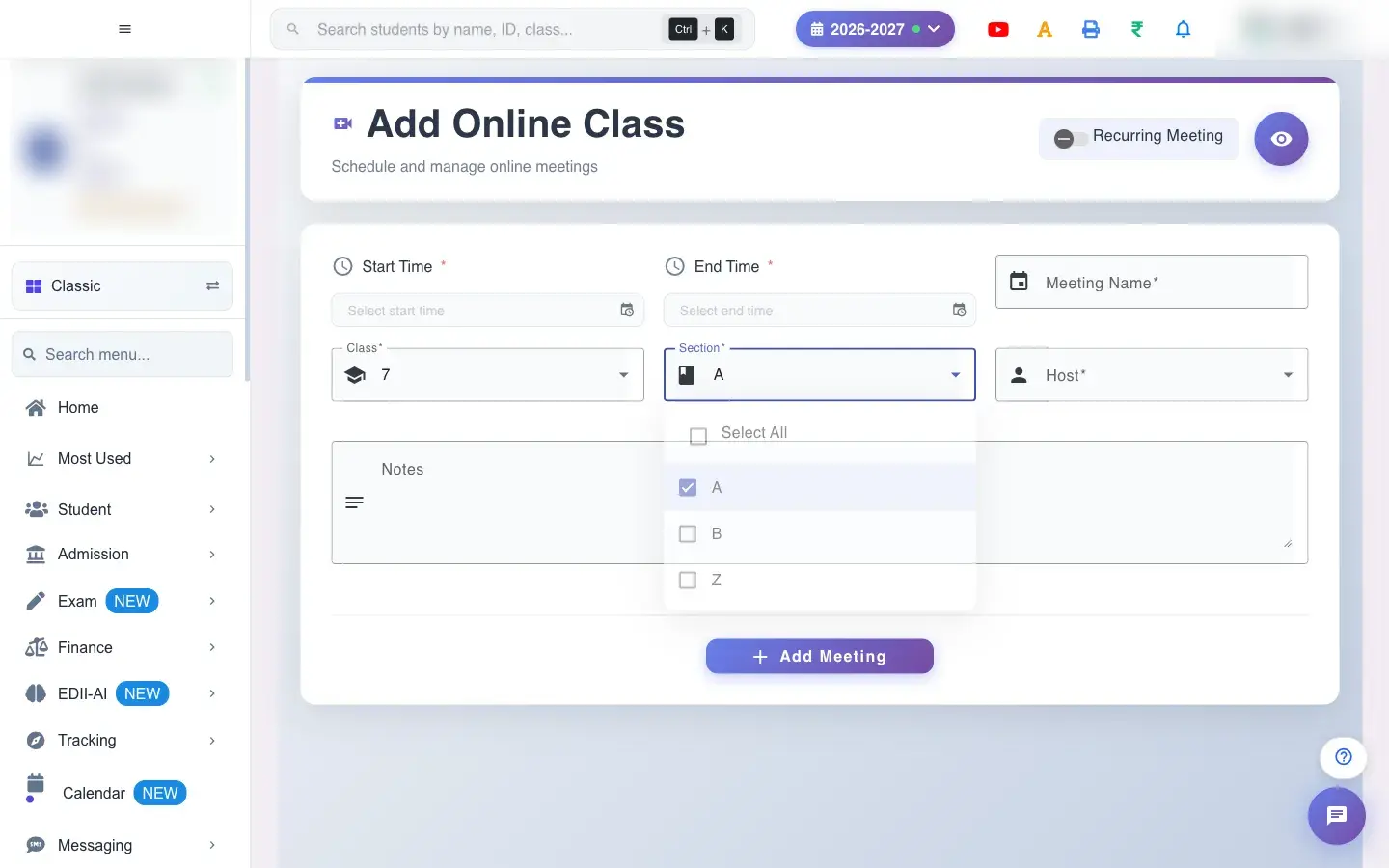 Open a bigger pictureतस्वीर बड़ी करें
Fields and filters
Section titled “Fields and filters”| Field | What it is | Notes |
|---|---|---|
| Select Class / Select Section | Who attends. | Required; Select All sections is offered. |
| Select Host | The teacher who runs the class. | Required. |
| Select start time / Select end time | When it runs. | Required. |
| Meeting Name | The title. | Required. |
| Notes | Extra instructions. | Optional. |
| Recurring Meeting / Add Date | Repeat on chosen dates. | Needs more than one date. |
Buttons
Section titled “Buttons”| Button | What it does | What happens next |
|---|---|---|
| Add Meeting | Creates the class. | Meeting Added. |
| View Meetings | Opens the meetings list. | You leave this screen. |
After you save
Section titled “After you save”- The online class is created for the class and section and appears in Meetings for the host and the students.
Good to know
Section titled “Good to know”- Name, class, section, host and times are required.
- A recurring class needs at least two dates.
Messages you may see
Section titled “Messages you may see”| Message | What it means | What to do |
|---|---|---|
| Meeting Added | The class was created. | Check Meetings. |
| Select Multiple Dates to start a Recurring Meeting | Too few dates. | Add more dates. |
| Select at least one date for the recurring meeting | No dates. | Add dates. |
| Bad/Slow Internet Connection, Please check your internet connection | A request failed. | Try again. |
- Use a recurring meeting for a weekly class instead of creating each by hand.
Stuck? Try this
Section titled “Stuck? Try this”| Problem | Likely cause | What to do |
|---|---|---|
| Cannot save | A required box is empty. | Fill class, section, host, times and name. |
Did this page help?क्या इस पेज से मदद मिली?
Thanks! Glad it helped.धन्यवाद! अच्छा लगा कि काम बन गया।
Sorry about that. Ask in your own words, or write to us.माफ़ कीजिए। अपने शब्दों में पूछें, या हमें लिखें।