
Help homeहेल्प होम
Screen guide · Web app
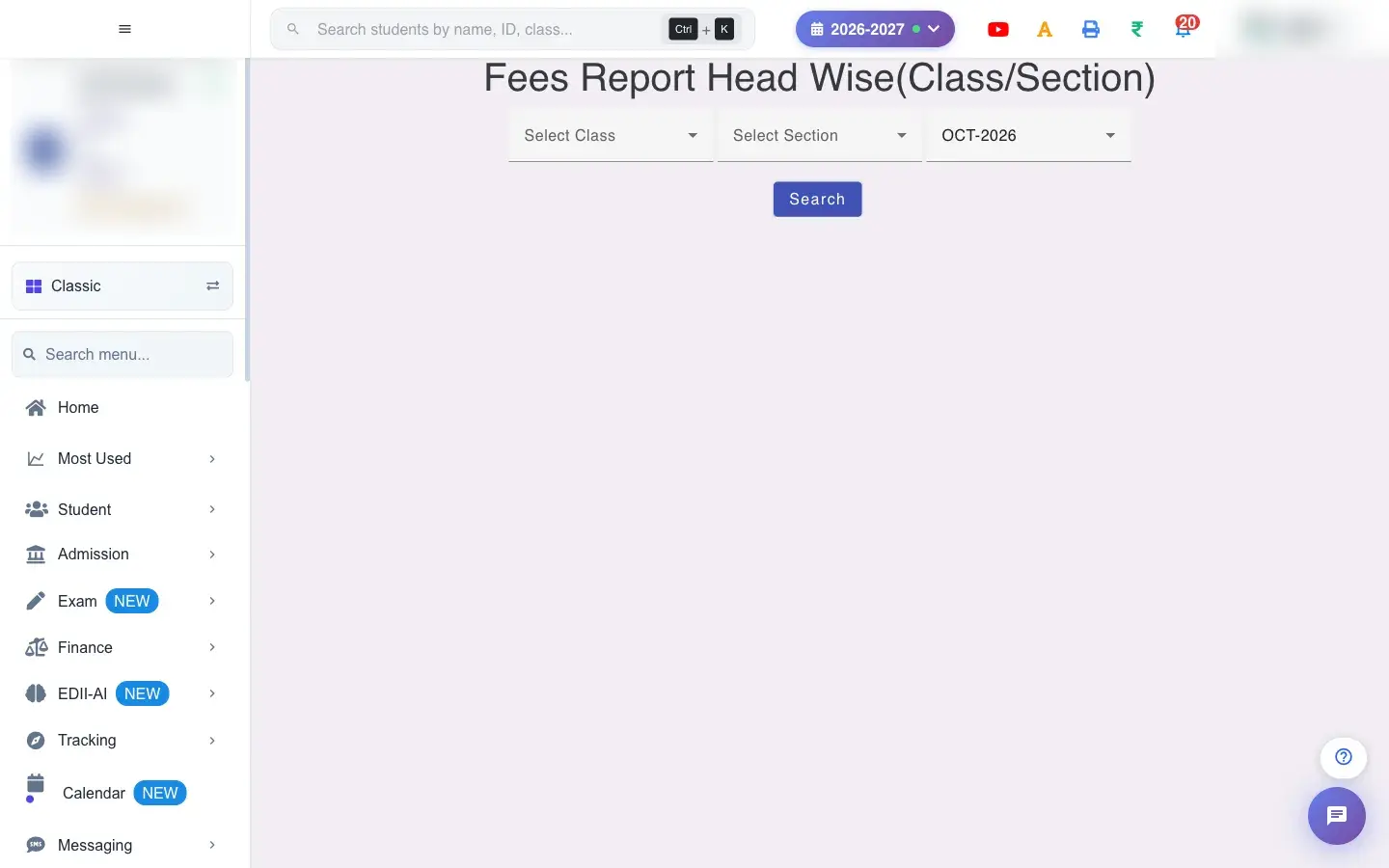
Fees Report Head Wise(Class/Section)
Fees by fee head for a class and section in a month: amount, paid, discount and unpaid for each head.
4 steps4 स्टेप
यह पेज अंग्रेज़ी में है। कुछ समझ न आए तो ।
Fees Report Head Wise (Class/Section) adds up the fee heads for one class and section in a chosen month, showing for each head the Amount, Paid, Discount and UnPaid.
Who uses it and when
Section titled “Who uses it and when”The accountant uses it to see which fee heads a class has or has not paid.
Before you start
Section titled “Before you start”- Choose the options the report needs, then press Search.
Where to find it
Section titled “Where to find it”- This screen opens from another screen, not from the menu.
- Address:
/view/fees-head-class-section - If it is missing from your menu, your role does not include it. Ask your school admin.
 Open a bigger pictureतस्वीर बड़ी करें
Step by step
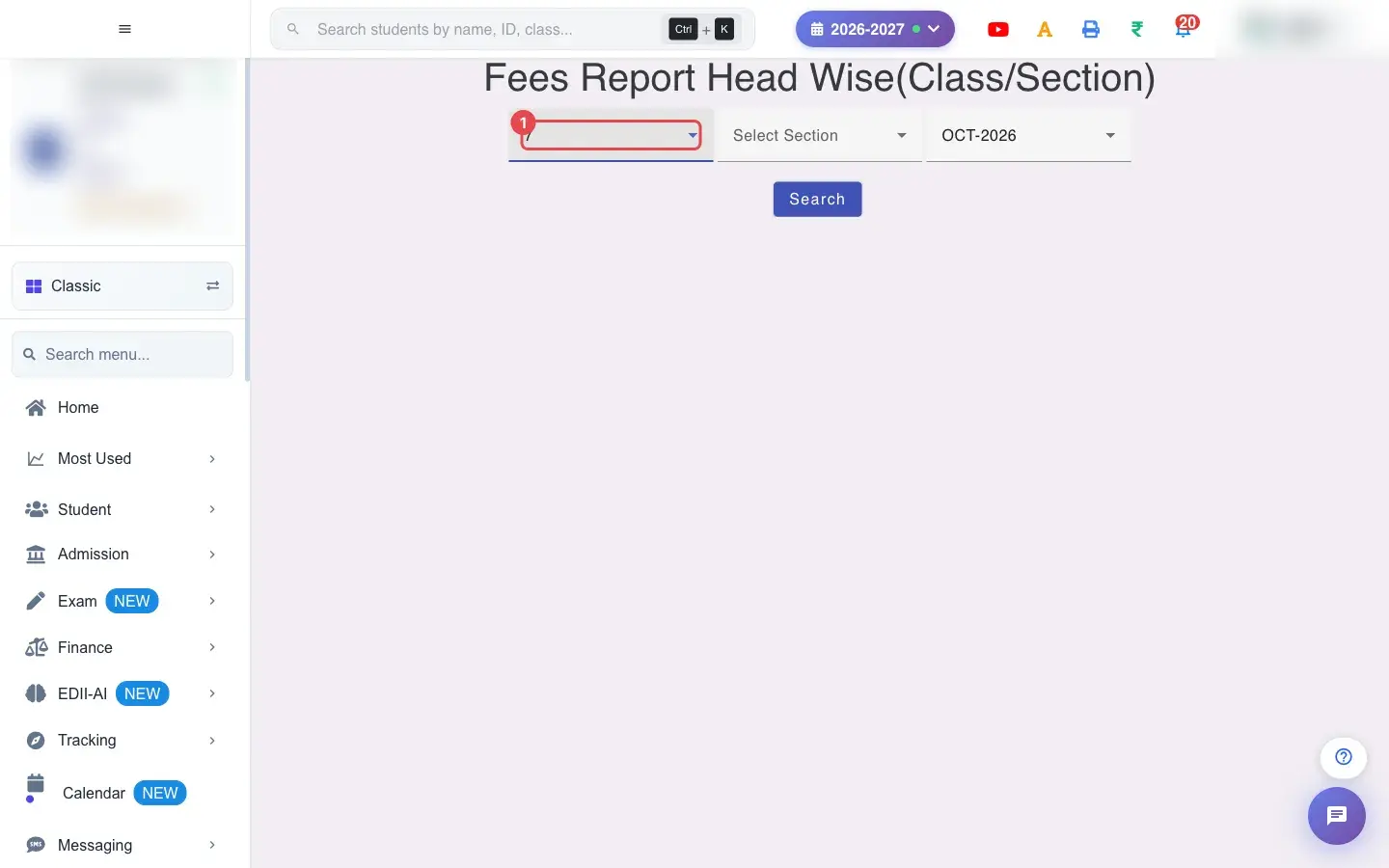
Section titled “Step by step”1. Choose Select Class (for example 7)
Section titled “1. Choose Select Class (for example 7)”Choose the Class.
 Open a bigger pictureतस्वीर बड़ी करें
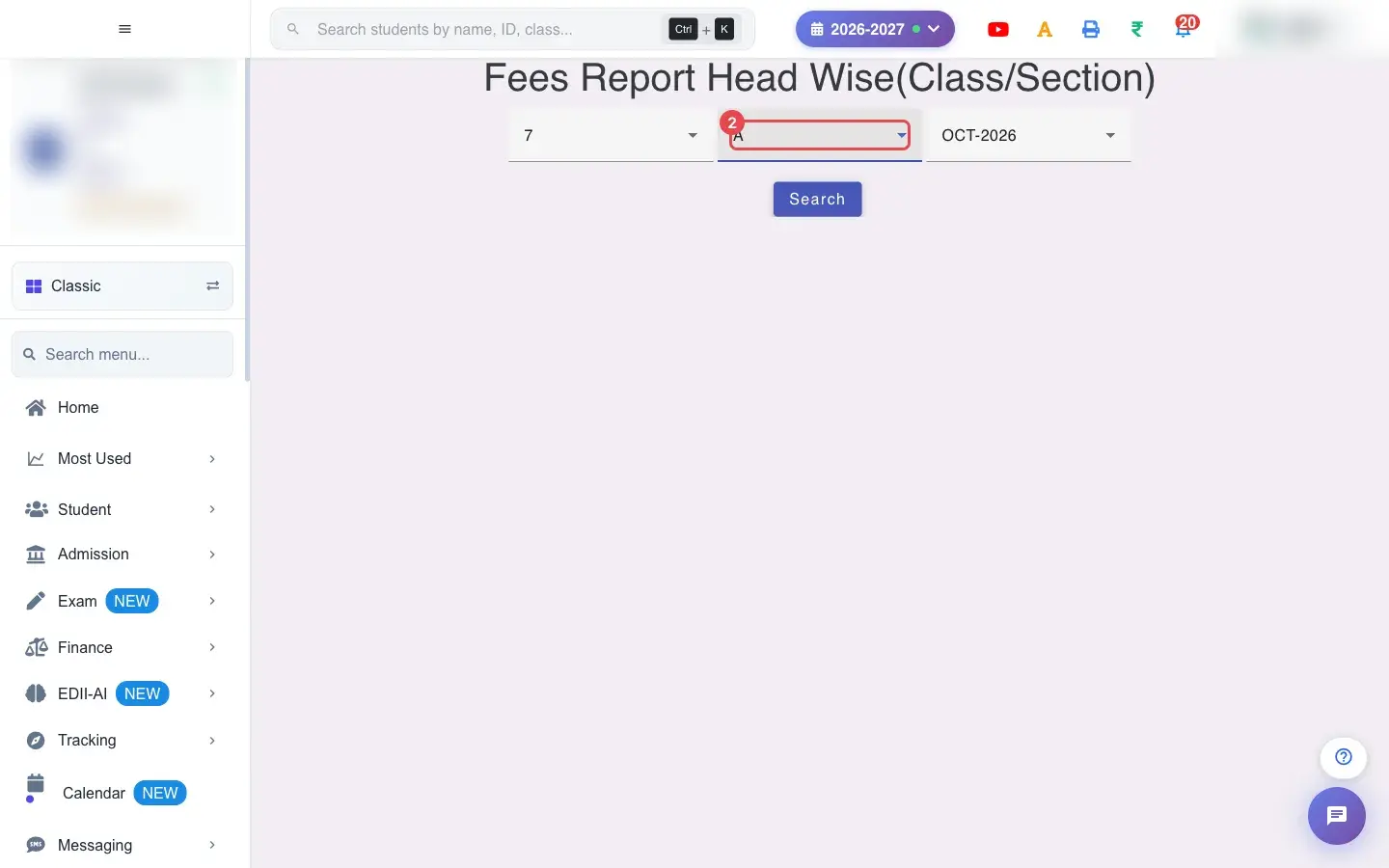
2. Choose Select Section (for example A)
Section titled “2. Choose Select Section (for example A)”Choose the Section.
 Open a bigger pictureतस्वीर बड़ी करें
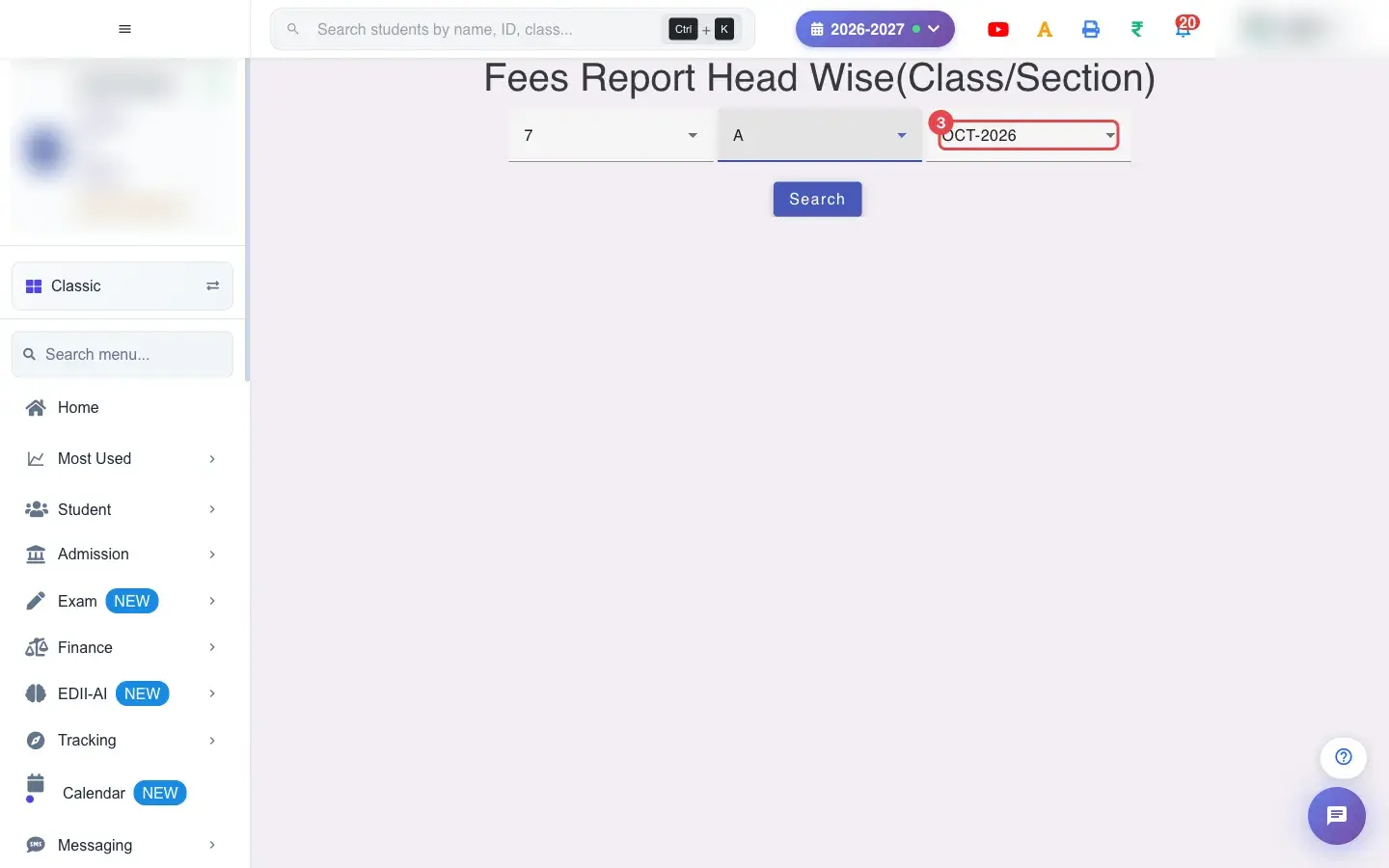
3. Choose Months (for example OCT-2026)
Section titled “3. Choose Months (for example OCT-2026)”Choose the Months.
 Open a bigger pictureतस्वीर बड़ी करें
4. Select Search
Section titled “4. Select Search”Select Search.
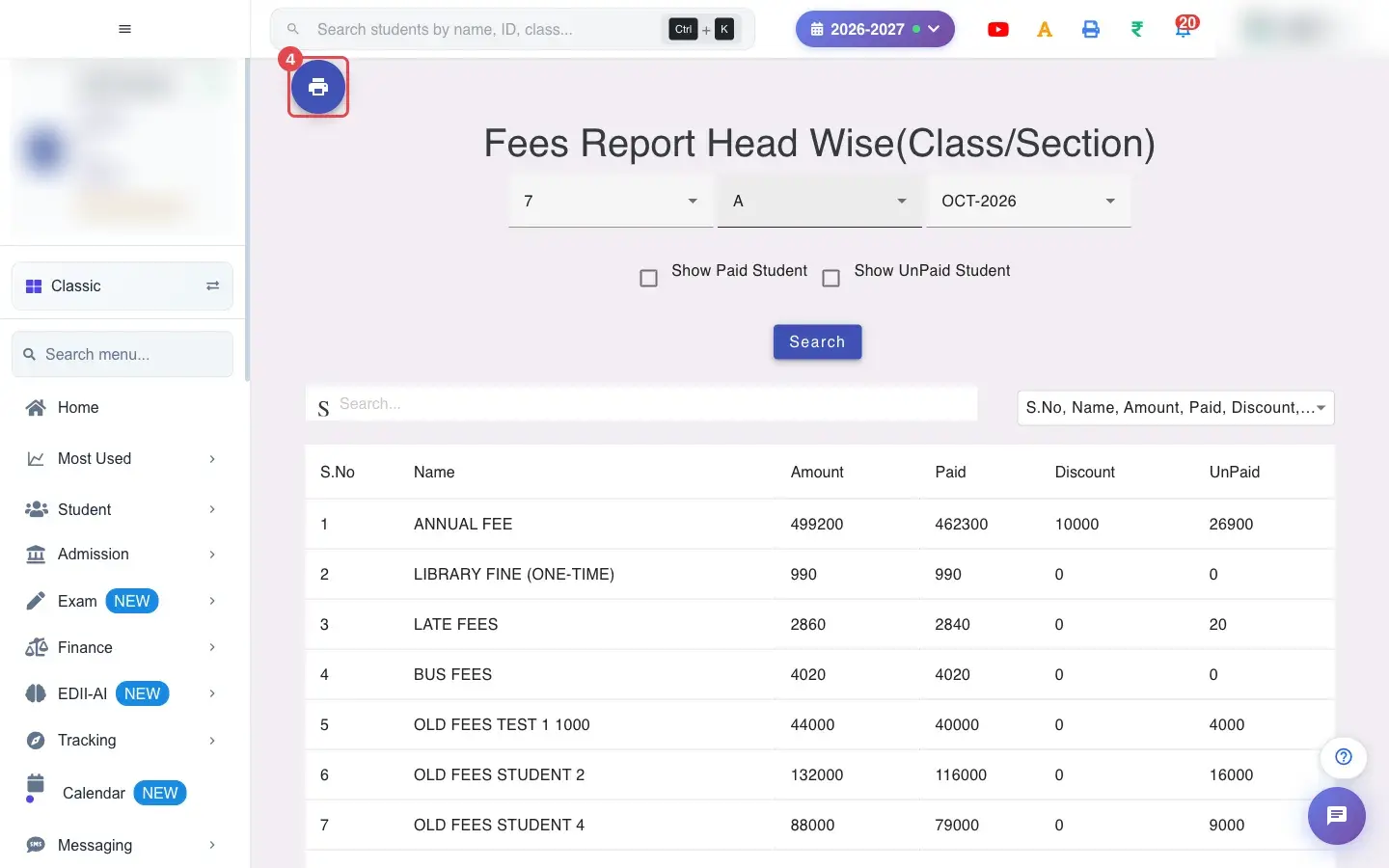 Open a bigger pictureतस्वीर बड़ी करें
With data
Section titled “With data”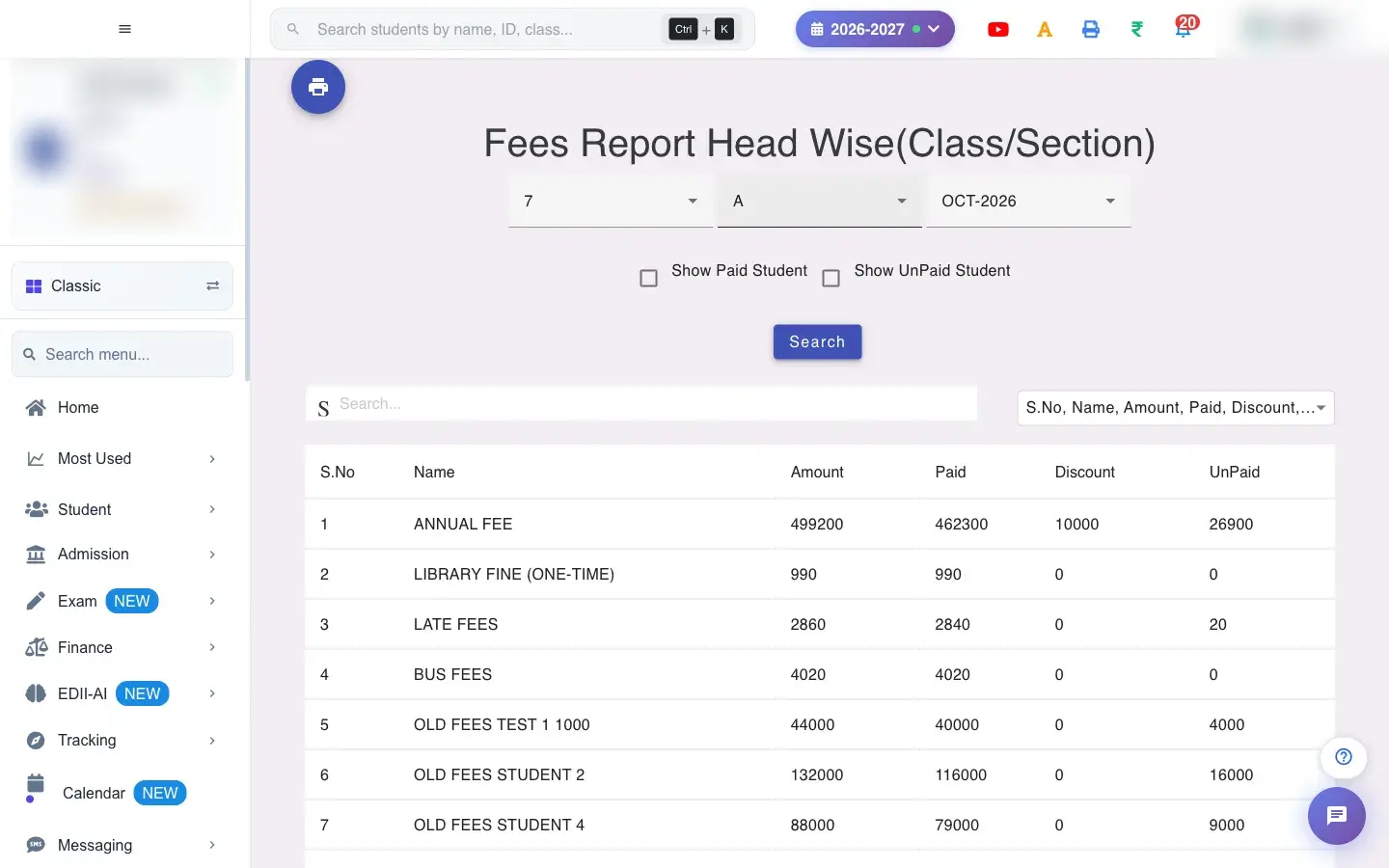 Open a bigger pictureतस्वीर बड़ी करें
Fields and filters
Section titled “Fields and filters”| Field | What it is | Notes |
|---|---|---|
| Select Class / Select Section / Months | The class and month. | Class and section required. |
| Show Paid Student / Show UnPaid Student | Filter by status. | Checkboxes. |
| Select Fields to Display | Columns. | View only. |
Buttons
Section titled “Buttons”| Button | What it does | What happens next |
|---|---|---|
| Search | Builds the report. | Shows Network Issue, Please Try Again. if it cannot load. |
| Reset | Clears the choices. | No data changes. |
| Print / Download | Prints the report or saves it as Excel, text or CSV. | Opens the print window or a file; the printout carries the school logo and Report Generated On. |
Columns
Section titled “Columns”| Column | Meaning |
|---|---|
| Name | The fee head. |
| Amount / Paid / Discount / UnPaid | Billed, collected, concession and still unpaid for the fee head. |
After you save
Section titled “After you save”- This screen only reads data. Nothing is saved or sent.
Good to know
Section titled “Good to know”- Class and section are required.
- The report only reads data.
- Printing follows the school’s print settings for paper size and font size.
Messages you may see
Section titled “Messages you may see”| Message | What it means | What to do |
|---|---|---|
| Network Issue, Please Try Again. | The report could not be fetched. | Check the internet and press Search again. |
- Download the CSV to sort and total the figures in Excel.
Stuck? Try this
Section titled “Stuck? Try this”| Problem | Likely cause | What to do |
|---|---|---|
| The report is empty | Nothing matches the choices. | Widen the dates or change the class and section. |
Did this page help?क्या इस पेज से मदद मिली?
Thanks! Glad it helped.धन्यवाद! अच्छा लगा कि काम बन गया।
Sorry about that. Ask in your own words, or write to us.माफ़ कीजिए। अपने शब्दों में पूछें, या हमें लिखें।