
Screen guide · Web app
Add AI Generated Exam
Create an exam whose questions are generated by AI: set the class, subject, exam type, board, difficulty, language, question types and topics, and watch the questions being built with live progress.
यह पेज अंग्रेज़ी में है। कुछ समझ न आए तो ।
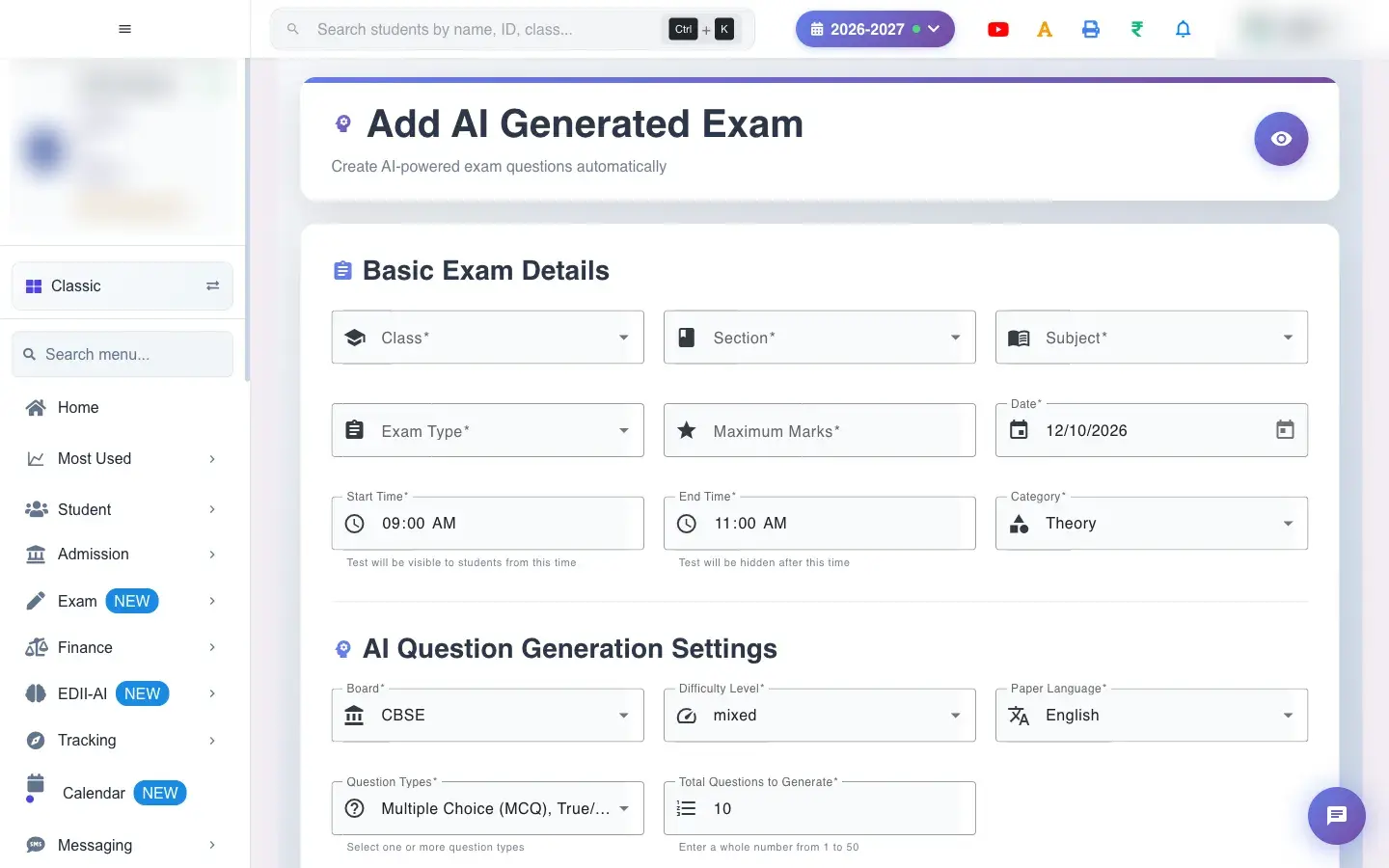
Add AI Generated Exam (Exam › Add) builds a test automatically. In Basic Exam Details you choose the Class, Section, Subject, Exam Type, Category (for example Theory), Maximum Marks, Date and the Start Time and End Time. In AI Question Generation Settings you choose the Board (for example CBSE), Difficulty (for example mixed), Language, the Question Types (Multiple Choice, True/False, Theory long answer and more) and Total Questions to Generate. Under Topics you add the topics the questions should cover.
When you create the test, EDII generates the questions in the background and shows live progress (AI is working…, batch progress, Completed or Failed). You can create another test meanwhile. When it finishes the PDFs are ready on View AI Tests.
Who uses it and when
Section titled “Who uses it and when”Teachers and the exam in-charge use it to prepare tests and practice papers quickly.
Before you start
Section titled “Before you start”- The class must have subjects (Subjects Unavailable For The Class Selected otherwise) and the school must have exam types set up (Configure in School Academic Details if none).
Where to find it
Section titled “Where to find it”- Menu: Exam › Add
- Address:
/add/add-test-ai - If it is missing from your menu, your role does not include it. Ask your school admin.
 Open a bigger pictureतस्वीर बड़ी करें
Step by step
Section titled “Step by step”1. Basic exam details
Section titled “1. Basic exam details”Choose the class, section, subject and exam type. If exam types do not load you see Exam types could not be loaded with Retry; if none are configured, No exam types are configured. Ask a school administrator to add one. Enter the maximum marks, the date and the start and end time. The category sets whether it is Theory or Practical.
2. Generation settings
Section titled “2. Generation settings”Choose the Board, Difficulty, Language and the Question Types; at least one is required (Select at least one question type style messages guide you). Enter Total Questions to Generate.
3. Topics
Section titled “3. Topics”Type a topic and Add Topic, or pick topics from the curriculum with Select All and Add all. The questions are drawn from these topics.
4. Generate
Section titled “4. Generate”Select Generate AI Exam. If something is missing you see Please correct: …. On success: Test Successfully Added! AI is generating questions — live progress is shown on this page. When done: All questions generated! PDFs are ready on the View AI Tests page.
5. Copy an earlier test
Section titled “5. Copy an earlier test”You can start from an earlier AI test’s settings (Test configuration copied! You can now modify and create a new test.).
With data
Section titled “With data”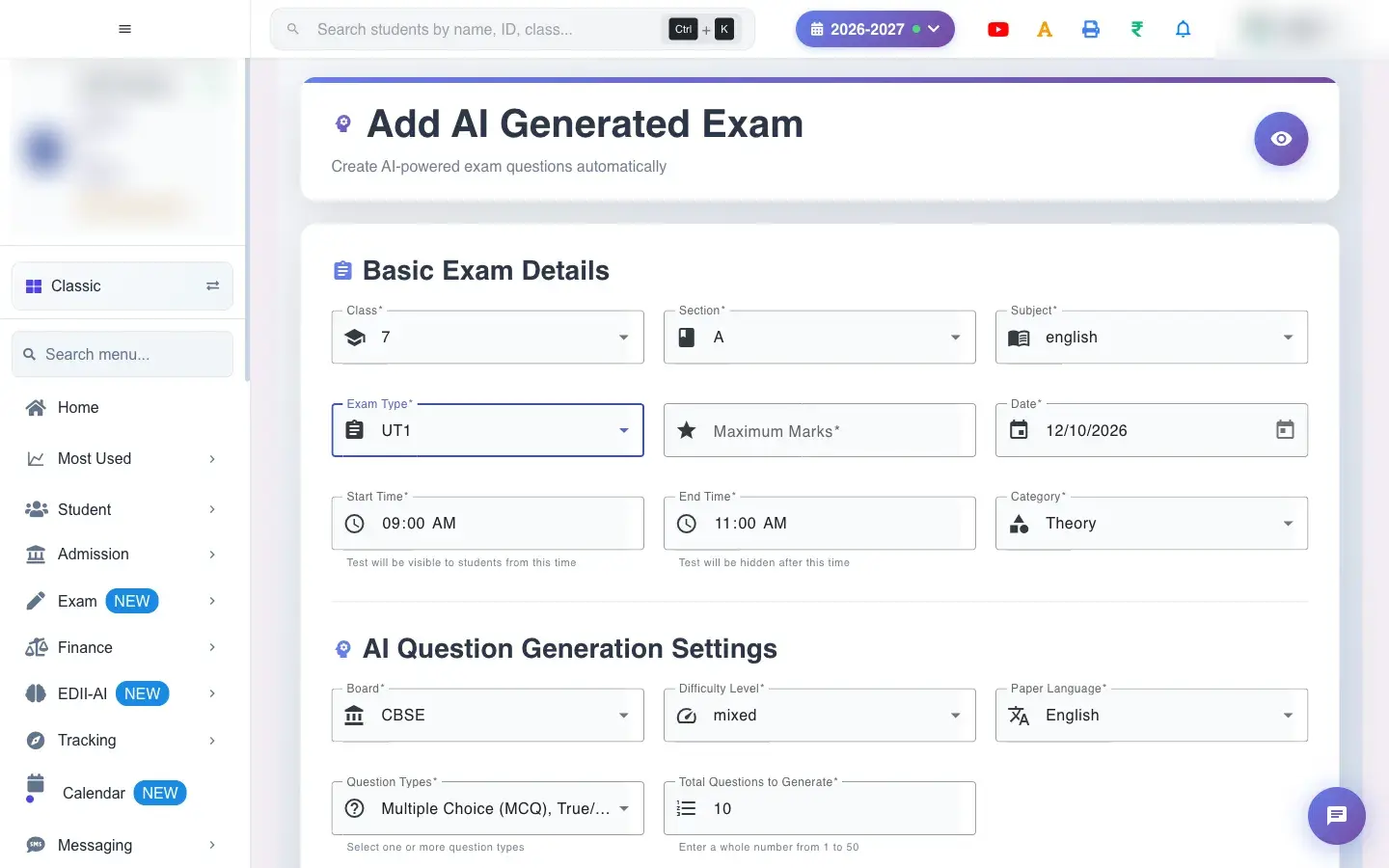 Open a bigger pictureतस्वीर बड़ी करें
Fields and filters
Section titled “Fields and filters”| Field | What it is | Notes |
|---|---|---|
| Class / Section / Subject / Exam Type / Category | Who and what. | Required. |
| Maximum Marks / Date / Start Time / End Time | Marks and timing. | Required. |
| Board / Difficulty / Language | How the questions are written. | Required. |
| Question Types | Kinds of questions to include. | At least one. |
| Total Questions to Generate | How many questions. | A number. |
| Topics | What the questions cover. | From the curriculum or typed. |
Buttons
Section titled “Buttons”| Button | What it does | What happens next |
|---|---|---|
| Add Topic / Add all | Adds topics to the list. | Used for generation. |
| Generate AI Exam | Creates the test and starts generation. | Progress shows on the page. |
| View AI Tests | Opens the AI test list. | You leave this page. |
After you save
Section titled “After you save”- A test is created and the AI writes the questions in batches; you can leave the page and a notification arrives when it is ready.
- Teachers should review the questions with Quality Check before the test is used.
Good to know
Section titled “Good to know”- Class, section, subject, exam type, marks, date and times are required.
- At least one question type is required.
Messages you may see
Section titled “Messages you may see”| Message | What it means | What to do |
|---|---|---|
| Test Successfully Added! AI is generating questions — live progress is shown on this page. You can create another test meanwhile. | Generation started. | Wait or carry on. |
| All questions generated! PDFs are ready on the View AI Tests page. | Done. | Open View AI Tests. |
| Please correct: … | A required field has a problem. | Fix what is listed. |
| Subjects Unavailable For The Class Selected | No subjects for the class. | Add subjects. |
| Error loading study materials | Curriculum topics could not load. | Try again. |
| Bad/Slow Internet Connection, Please check your internet connection | A request failed. | Try again. |
- Choose specific topics for better questions.
- Always review AI questions before giving the test to students.
Stuck? Try this
Section titled “Stuck? Try this”| Problem | Likely cause | What to do |
|---|---|---|
| Generation failed for some questions | A batch did not finish. | Open View AI Tests and retry generation. |
Did this page help?क्या इस पेज से मदद मिली?
Thanks! Glad it helped.धन्यवाद! अच्छा लगा कि काम बन गया।
Sorry about that. Ask in your own words, or write to us.माफ़ कीजिए। अपने शब्दों में पूछें, या हमें लिखें।