
Screen guide · Teacher app
Fees Report
A class's fee status by month: who has paid and who owes, read-only.
यह पेज अंग्रेज़ी में है। कुछ समझ न आए तो ।
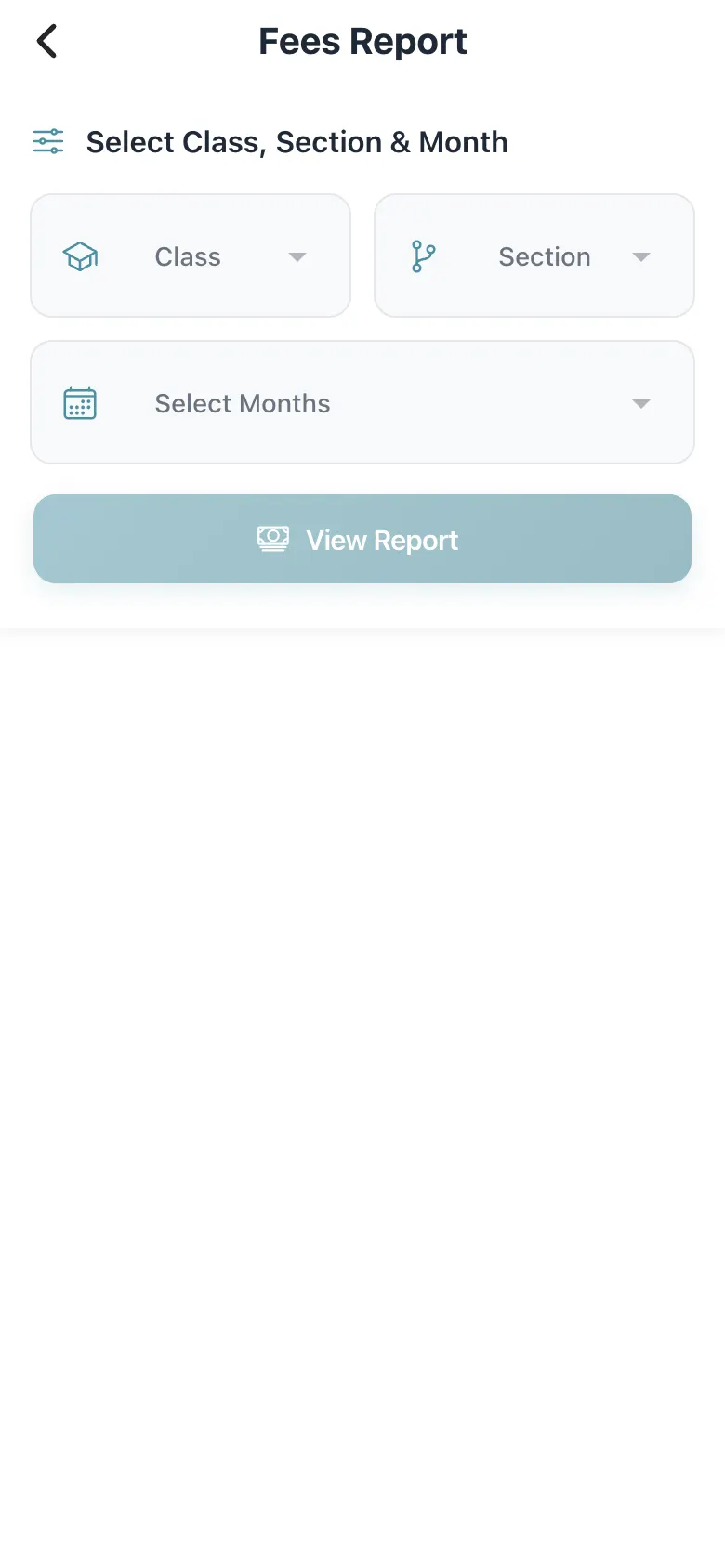
Fees Report: Select Class, Section & Month (class, section and one or more months) and select View Report. The table shows Name, Father, Class, Roll, Phone, Fees, Paid and Unpaid. Consolidate months (one total per student) combines the chosen months. Search within the list (No matches — No students match your search.). The report is read-only: payments are taken in the parent app or at the office.
Who uses it and when
Section titled “Who uses it and when”Class teachers answering fee questions.
Before you start
Section titled “Before you start”- Choose the months you need.
Where to find it
Section titled “Where to find it”- Select Fees on Home, or Students › Student Fees, or Schedule › View Fees Report.
 Open a bigger pictureतस्वीर बड़ी करें
Step by step
Section titled “Step by step”1. Choose class and months
Section titled “1. Choose class and months”Pick class, section and months.
2. View
Section titled “2. View”Select View Report.
Fields and filters
Section titled “Fields and filters”| Field | What it is | Notes |
|---|---|---|
| Class / Section / Select Months | Which students and months. | Required. |
| Consolidate months | One total per student. | Optional. |
Buttons
Section titled “Buttons”| Button | What it does | What happens next |
|---|---|---|
| View Report | Loads the report. | The table appears. |
After you save
Section titled “After you save”- This screen only shows information.
Good to know
Section titled “Good to know”- Read only.
Messages you may see
Section titled “Messages you may see”| Message | What it means | What to do |
|---|---|---|
| No Records Found | No fee data for the choice. | Change the months. |
| No matches | The search found nobody. | Clear the search. |
- Share fee reminders through the office.
Stuck? Try this
Section titled “Stuck? Try this”| Problem | Likely cause | What to do |
|---|---|---|
| Totals look off | Consolidate months is on. | Switch it off for month-by-month. |
Did this page help?क्या इस पेज से मदद मिली?
Thanks! Glad it helped.धन्यवाद! अच्छा लगा कि काम बन गया।
Sorry about that. Ask in your own words, or write to us.माफ़ कीजिए। अपने शब्दों में पूछें, या हमें लिखें।