
Screen guide · Teacher app
Class Challenges
Set a challenge for a class, review what students submit, close or extend it, start a class vote and record results.
यह पेज अंग्रेज़ी में है। कुछ समझ न आए तो ।
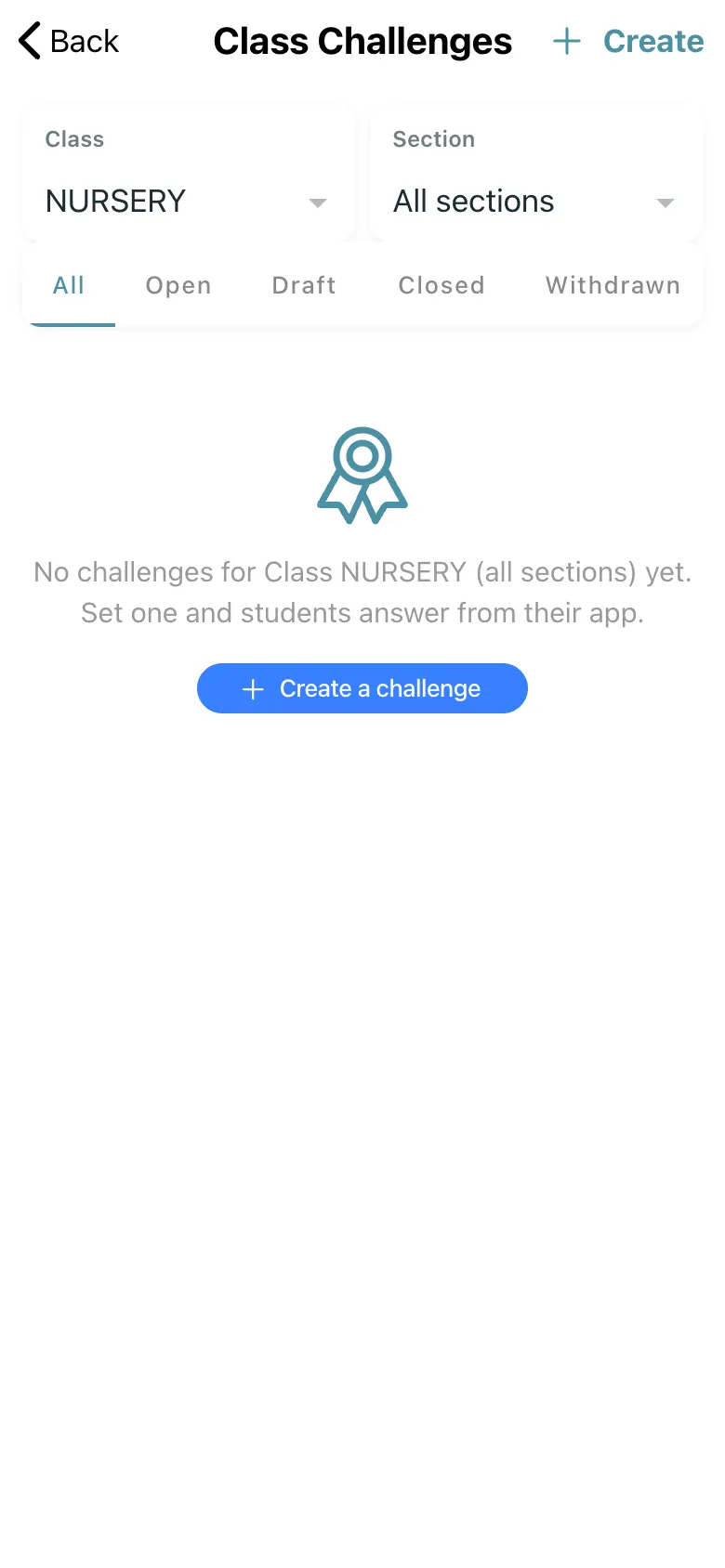
Class Challenges lists challenges for a Class and Section under All, Open, Draft, Closed and Withdrawn. Create makes a draft (a draft is invisible to students until you Publish challenge). For a challenge you can see Opens, Closes, how many Submitted, To review and Accepted, and per-student status. Actions: Publish challenge, Close now (Students cannot submit or change their work after this. You can still review, and extend it to open it again.), Extend the deadline (Save new deadline) and tell students who have not submitted (only where the school has challenge notifications on), Start a vote (Start a class vote from the accepted work; Change the selection), Record results (1st, 2nd and 3rd place, optional) and Withdraw challenge (Students, Today and My Year stop showing it. Work already submitted is kept.). Edit the title and instructions at any time; students see the change at once.
Who uses it and when
Section titled “Who uses it and when”Class teachers running projects.
Before you start
Section titled “Before you start”- The school must have class challenges switched on (Class challenges are not available for this school right now otherwise).
Where to find it
Section titled “Where to find it”- Select Class Challenges on Home.
 Open a bigger pictureतस्वीर बड़ी करें
Step by step
Section titled “Step by step”1. Pick the class
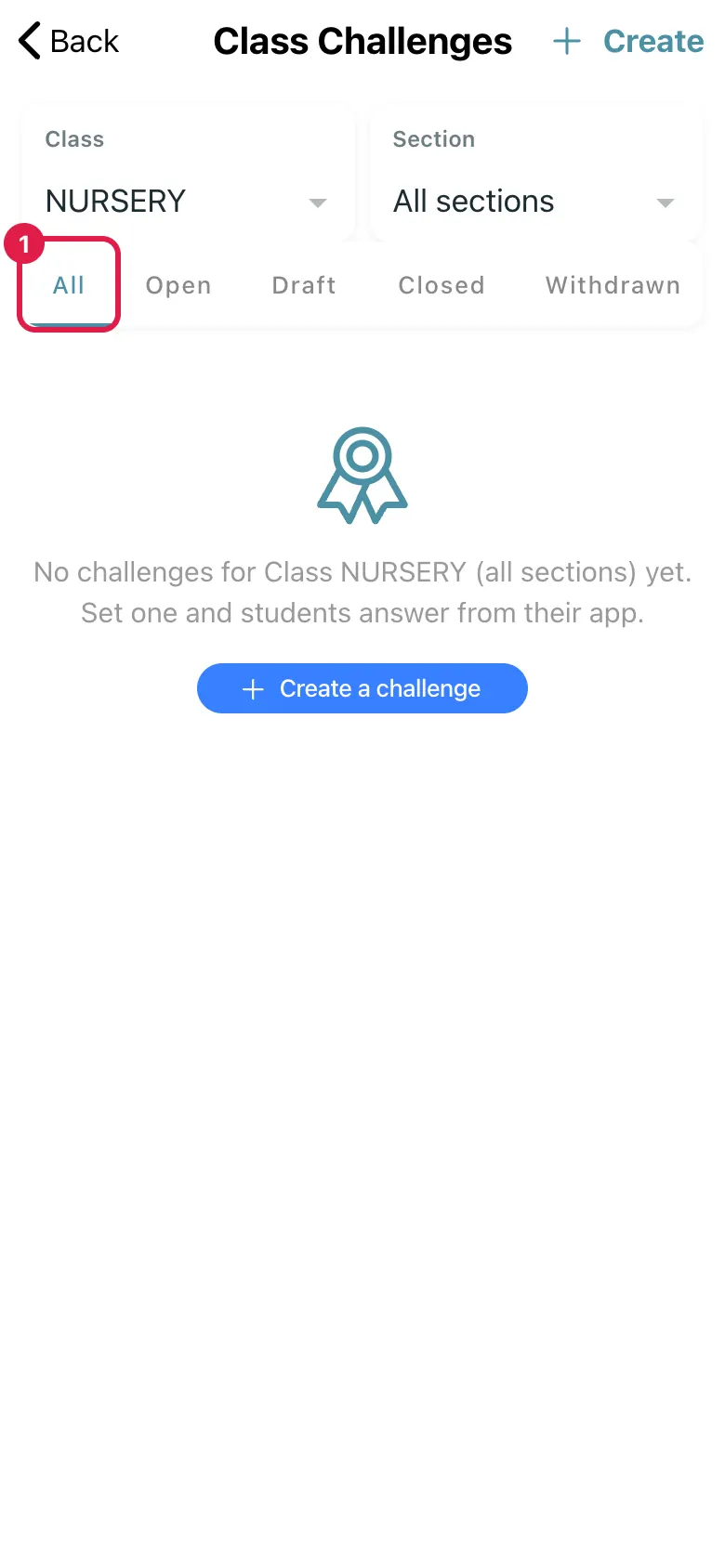
Section titled “1. Pick the class”Choose class and section.
 Open a bigger pictureतस्वीर बड़ी करें
2. Create and publish
Section titled “2. Create and publish”Select Create, add title and instructions, then Publish challenge.
3. Review work
Section titled “3. Review work”Open submissions and accept or send back.
4. Vote or record results
Section titled “4. Vote or record results”Use Start a vote or Record results.
Fields and filters
Section titled “Fields and filters”| Field | What it is | Notes |
|---|---|---|
| Class / Section | Who the challenge is for. | Required. |
| Title / Instructions | What students must do. | Required. |
| Opens / Closes | The submission window. | Required. |
Buttons
Section titled “Buttons”| Button | What it does | What happens next |
|---|---|---|
| Publish challenge | Makes a draft visible. | Students see it. |
| Close now | Stops submissions. | You can still review. |
| Withdraw challenge | Hides it from students. | Submitted work is kept. |
After you save
Section titled “After you save”- This screen only shows information.
Good to know
Section titled “Good to know”- A draft is not visible until published.
- Closing stops new work but you can extend later.
Messages you may see
Section titled “Messages you may see”| Message | What it means | What to do |
|---|---|---|
| No challenges in this filter. | None match. | Select Show all challenges. |
| Add a title first | No title. | Type one. |
| Choose a class | No class chosen. | Pick a class. |
| Nothing can go into a vote | No accepted work. | Accept submissions first. |
- Accept good work before starting a vote.
Stuck? Try this
Section titled “Stuck? Try this”| Problem | Likely cause | What to do |
|---|---|---|
| Students cannot see it | It is a draft. | Publish it. |
Did this page help?क्या इस पेज से मदद मिली?
Thanks! Glad it helped.धन्यवाद! अच्छा लगा कि काम बन गया।
Sorry about that. Ask in your own words, or write to us.माफ़ कीजिए। अपने शब्दों में पूछें, या हमें लिखें।