
Screen guide · Web app
Fees Payment
The redesigned fee-collection screen: search a student, see their ledger and pending months, pick months, build the receipt with one-time fees, and collect the payment.
यह पेज अंग्रेज़ी में है। कुछ समझ न आए तो ।
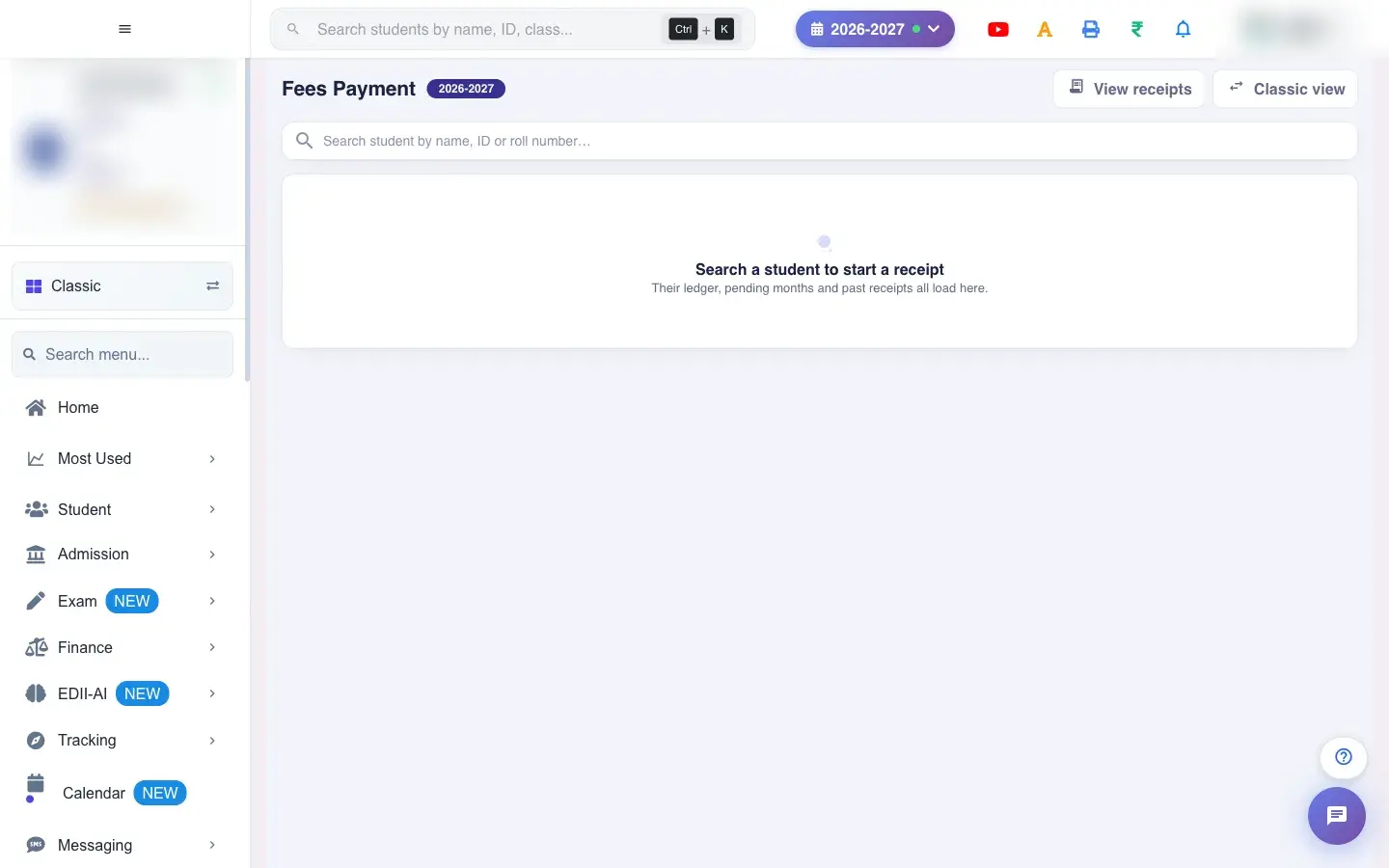
Fees Payment is the new cashier screen. It starts with a search box: Search a student to start a receipt. Choose a student and everything about their fees loads on one page: the student card (class, ID/SR, father, transport), session totals (Session fees, Collected, Balance, Discount), a row of months to tap, the receipt being built and the Collect payment panel.
It is marked beta; if anything looks wrong you can return to the original screen with Classic view or by refreshing. View receipts opens Fee Receipts.
Who uses it and when
Section titled “Who uses it and when”The accountant or office staff use it at the fee counter.
Before you start
Section titled “Before you start”- The student must be active. Fees are paid in order, oldest month first, unless the school’s Finance preference allows otherwise.
Where to find it
Section titled “Where to find it”- This screen opens from another screen, not from the menu.
- Address:
/view/payment-v2 - If it is missing from your menu, your role does not include it. Ask your school admin.
 Open a bigger pictureतस्वीर बड़ी करें
Step by step
Section titled “Step by step”1. Search the student
Section titled “1. Search the student”Type a name, ID or roll number in Search student by name, ID or roll number… and choose the student. Student not found, please search again means no match.
2. Read the student card and totals
Section titled “2. Read the student card and totals”The card shows Class, ID/SR, Father and Transport, with View full profile. Under it, Session fees, Collected, Balance and Discount summarise the year, and a line says how much of the total is collected this session.
3. Pick the months
Section titled “3. Pick the months”Tap the months to pay — fees are paid in order. A month shows ✓ paid, part (partly paid) or pending. Select all due ticks every due month and Clear unticks them. If a month is blocked, the page tells you to turn on Preferences → Finance → Collect fees if old fees is pending.
4. Choose charges
Section titled “4. Choose charges”Charges includes All months, Skip installment and Transport fees toggles to bring more fees into the receipt.
5. Review the receipt
Section titled “5. Review the receipt”The receipt table shows each Fee head with Actual and To pay and a subtotal per month, plus any Recorded discount. Edit To pay for a part payment. Messages stop impossible amounts: Total amount cannot be negative, Total amount cannot exceed …, Excess Amount entered….
6. Add one-time fees
Section titled “6. Add one-time fees”One-time fees (books, lab, apparatus and other one-off charges): enter Fee name, Month, Total and Collect, then Add fee (Additional fee added successfully). A fee that is part paid cannot be removed, only adjusted.
7. Collect the payment
Section titled “7. Collect the payment”In Collect payment the Receipt date is shown locked, and you can add an External invoice ID and a Remark. Select Collect ₹ N to take the payment. With nothing picked it says no months picked.
8. Open the receipt
Section titled “8. Open the receipt”After collecting, the receipt is created (Fee Receipt Fetched) and can be printed. View receipts shows all receipts.
Fields and filters
Section titled “Fields and filters”| Field | What it is | Notes |
|---|---|---|
| Search student | Find the student. | Name, ID or roll number. |
| To pay | Amount received for a fee head. | Cannot exceed the amount due. |
| Receipt date | Date on the receipt. | Shown locked. |
| External invoice ID / Remark | Reference and note. | Optional. |
| One-time fee: Fee name / Month / Total / Collect | An extra charge. | Collect cannot exceed Total. |
Buttons
Section titled “Buttons”| Button | What it does | What happens next |
|---|---|---|
| Collect ₹ N | Takes the payment and creates the receipt. | Ledger and reports update. |
| Select all due / Clear | Ticks or clears the due months. | Only the selection changes. |
| Add fee | Adds a one-time fee line. | Additional fee added successfully. |
| View receipts | Opens Fee Receipts. | You leave this screen. |
| Classic view | Opens the original payment screen. | Unsaved entries are lost. |
After you save
Section titled “After you save”- A receipt with a receipt number is created; the ledger, defaulter lists and collection reports update immediately.
- Part payments leave the rest of the fee due.
- The parent sees the payment in the student app.
Good to know
Section titled “Good to know”- Fees are paid oldest month first unless the preference allows otherwise.
- A payment cannot exceed what is due.
- A part-paid fee cannot be removed.
- The student must be active.
Messages you may see
Section titled “Messages you may see”| Message | What it means | What to do |
|---|---|---|
| This Feature is in Beta Right now, Use it at your own risk, If you have any issue, Revert back to the original fees view by disabling the toggle, or Refresh the page | The screen is in beta. | Use Classic view if needed. |
| Total amount cannot be negative / Total amount cannot exceed … | An amount is out of range. | Correct it. |
| Fees Selection is Not in Sequence… | An older month is unpaid. | Pay in order or change the preference. |
| Please enter fee name and select month / Please enter valid total amount | A one-time fee is incomplete. | Fill all its fields. |
| Paid amount cannot exceed total amount | Collect is more than Total. | Reduce it. |
| Cannot remove “<fee>” - this fee has already been partially paid. | A part-paid fee cannot be removed. | Adjust the payment. |
| Network Issue, Please Try Again. | A request failed. | Check View receipts before collecting again. |
- Use Select all due for full-year payers.
- Check View receipts after any error to avoid a double collection.
Stuck? Try this
Section titled “Stuck? Try this”| Problem | Likely cause | What to do |
|---|---|---|
| A month cannot be selected | An older month is unpaid. | Pay older months first or ask an admin to allow old fees pending. |
Did this page help?क्या इस पेज से मदद मिली?
Thanks! Glad it helped.धन्यवाद! अच्छा लगा कि काम बन गया।
Sorry about that. Ask in your own words, or write to us.माफ़ कीजिए। अपने शब्दों में पूछें, या हमें लिखें।