
Screen guide · Web app
📞 Absentee Follow Up
Work through the students who were absent: contact their parents by SMS, WhatsApp, phone or email, record the reason, and mark each case resolved or escalate it to the Principal.
यह पेज अंग्रेज़ी में है। कुछ समझ न आए तो ।
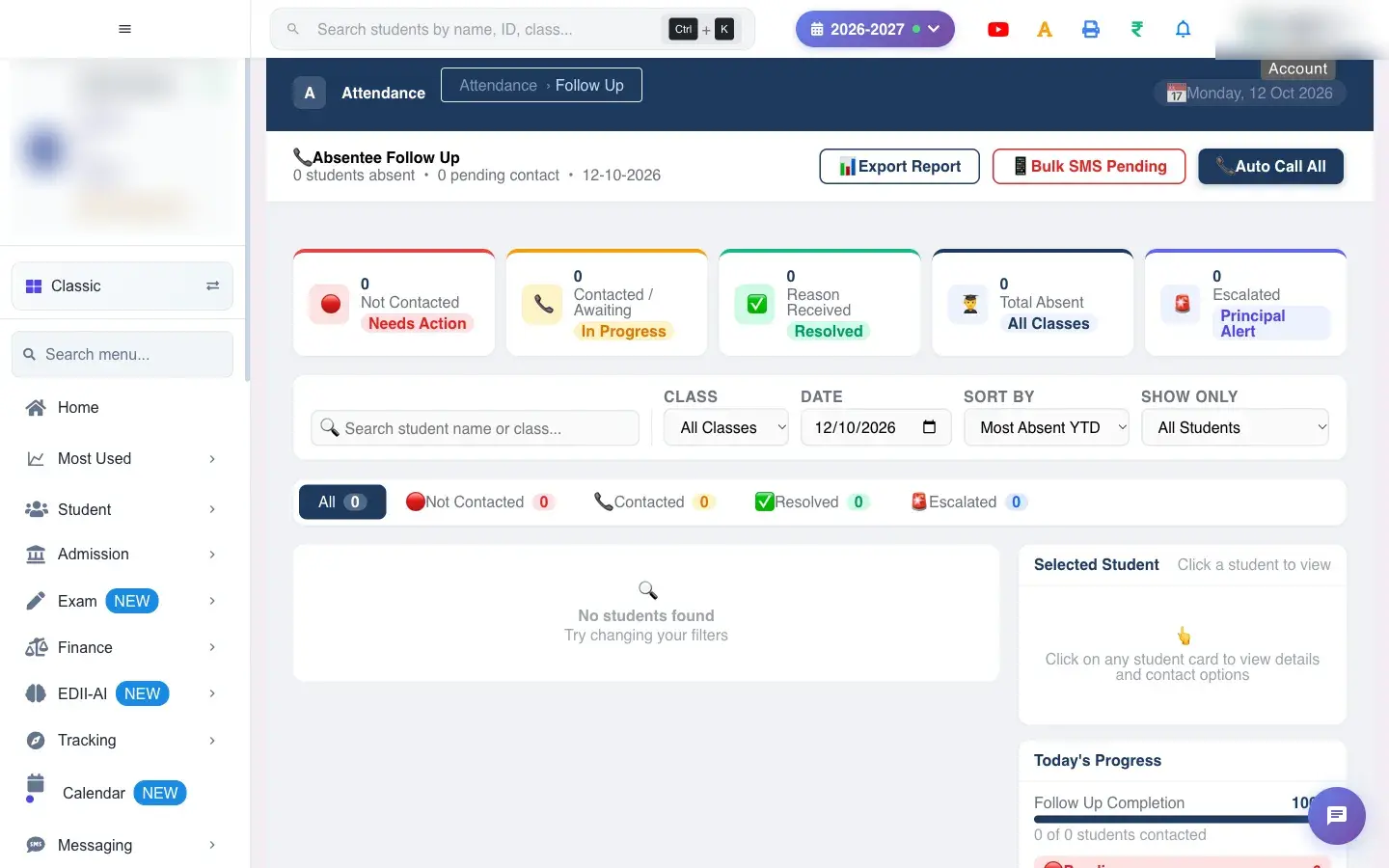
Absentee Follow Up is the working list for the attendance in-charge. Every student who was marked absent on the chosen day appears here with a status, how much attendance they have lost this year and a log of every contact so far.
The list fills itself: when a teacher saves attendance on Mark Attendance, each absent student gets a row here. If the teacher recorded a reason, the row starts as reason received; if not, it starts as not contacted so that someone follows it up.
Everything you do here is written into the student’s contact log (who was contacted, how, when and with what result), so the next person sees the history.
Who uses it and when
Section titled “Who uses it and when”The attendance in-charge, class teachers and the office use this each morning after attendance is saved. Principals use the Escalated list for cases that need their attention.
It works for one date at a time, normally today.
Before you start
Section titled “Before you start”- Attendance for the day must already be saved (see Mark Attendance), otherwise the list is empty.
- To send SMS or WhatsApp messages, the parent’s mobile number must be registered and the school needs SMS or WhatsApp balance. A student without a registered number is logged as Failed.
Where to find it
Section titled “Where to find it”- Menu: Student › Follow Up
- Address:
/view/attendance-follow-up - If it is missing from your menu, your role does not include it. Ask your school admin.
 Open a bigger pictureतस्वीर बड़ी करें
Step by step
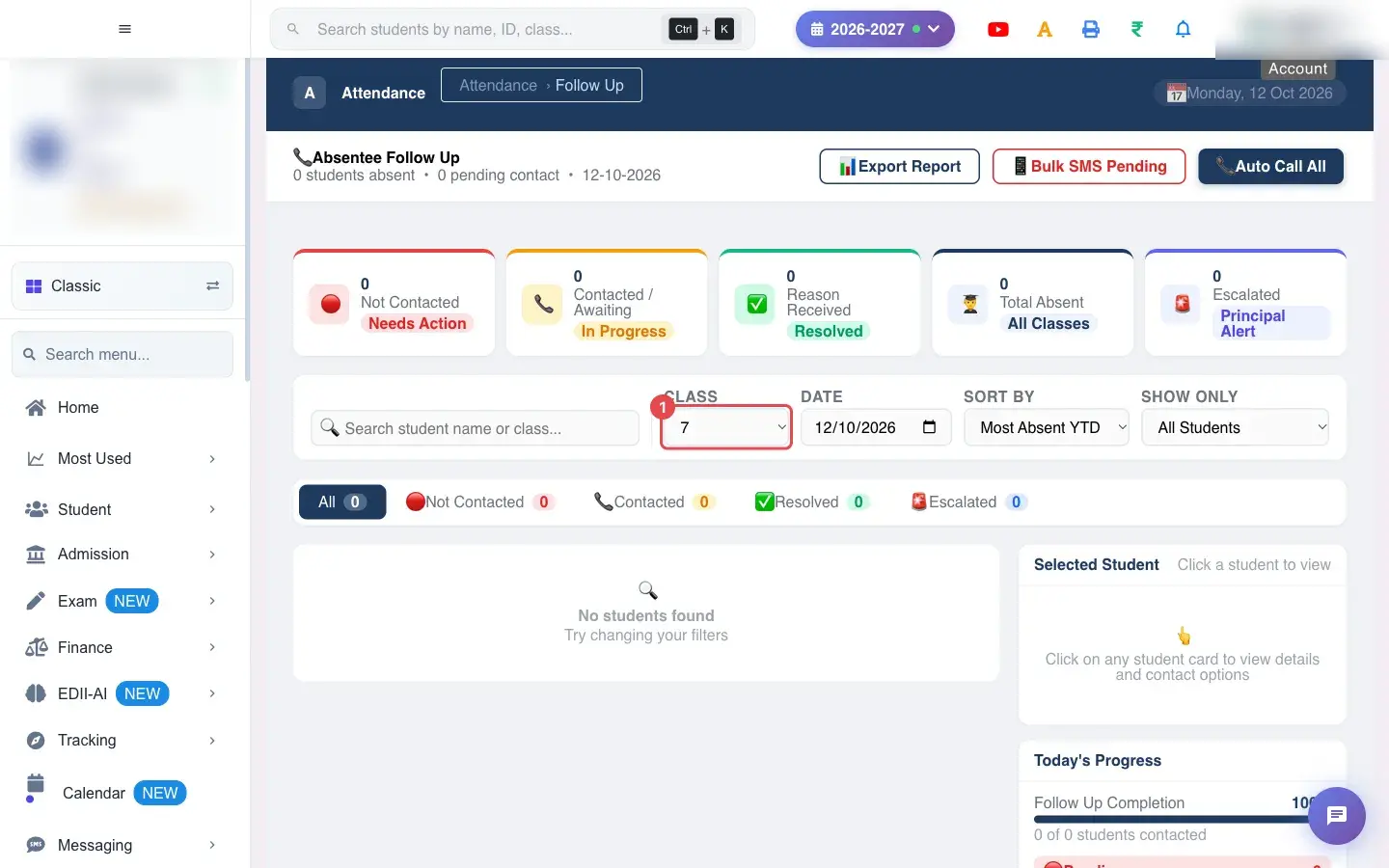
Section titled “Step by step”1. Choose Class (for example 7)
Section titled “1. Choose Class (for example 7)”Choose a class to see only its absent students. Leave it on all classes to see the whole school.
 Open a bigger pictureतस्वीर बड़ी करें
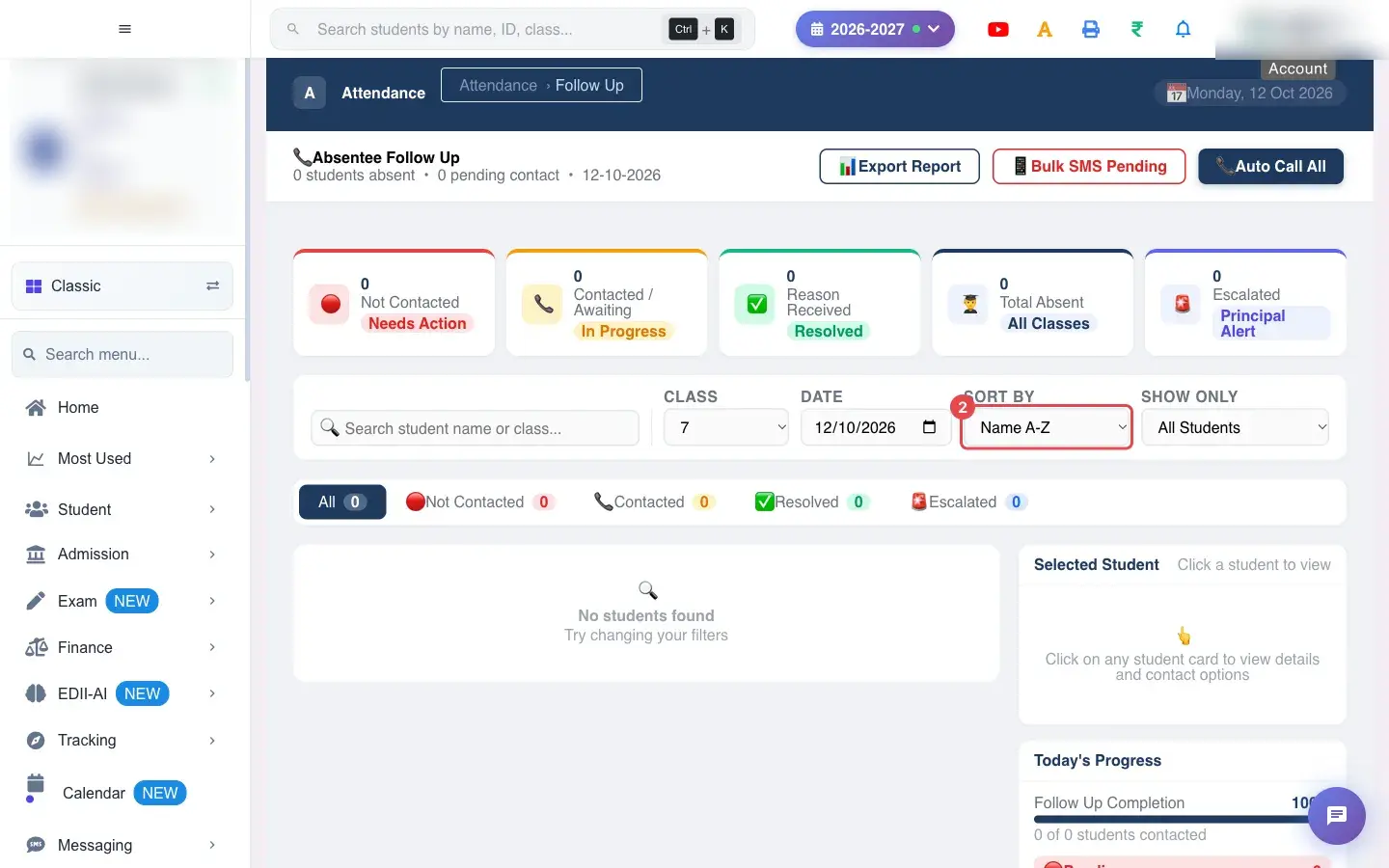
2. Choose Sort By (for example Name A-Z)
Section titled “2. Choose Sort By (for example Name A-Z)”Sort By orders the list: Most Absent YTD (lowest year-to-date attendance first), Name A-Z, Class, or Consecutive (longest run of absent days first).
 Open a bigger pictureतस्वीर बड़ी करें
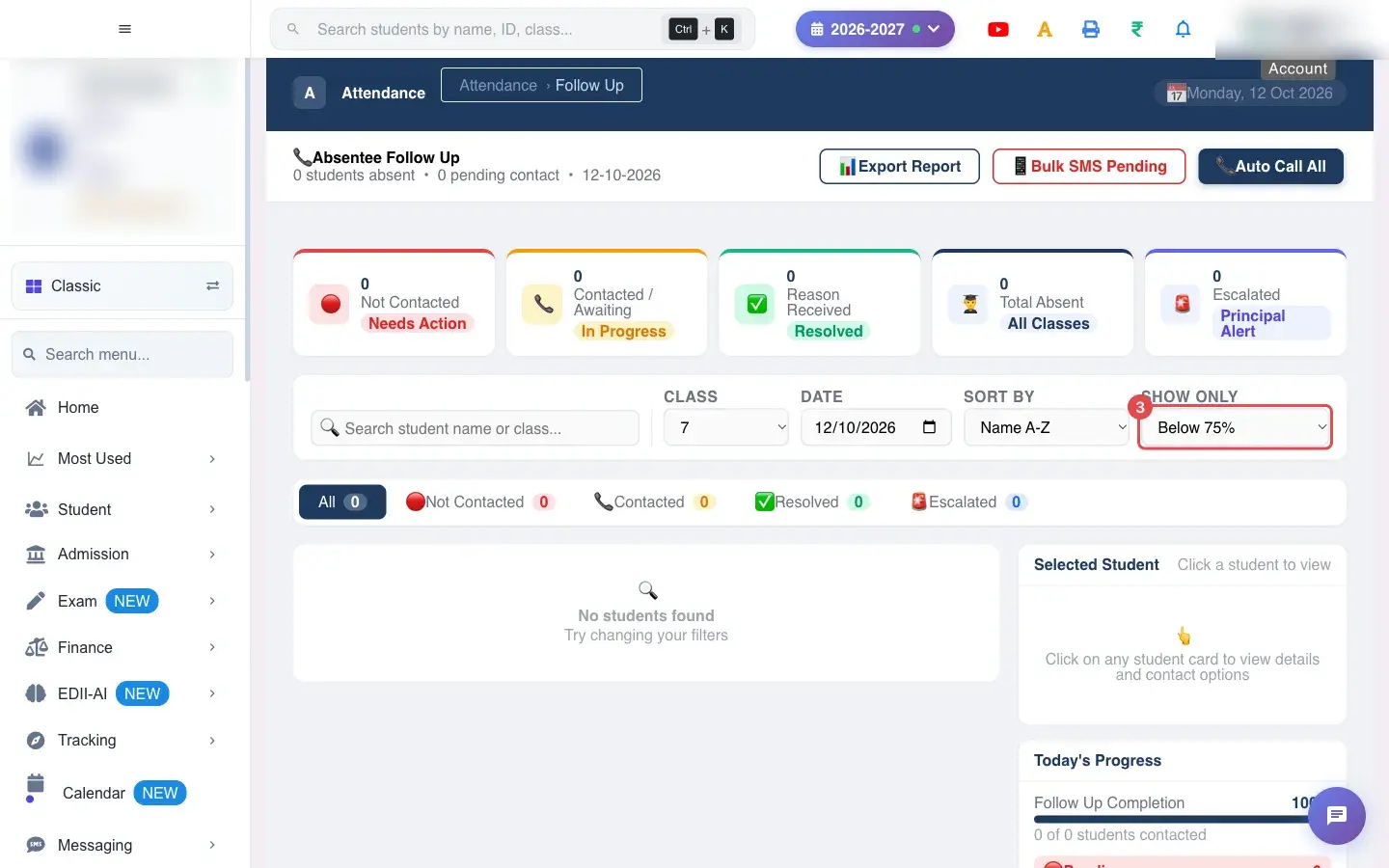
3. Choose Show Only (for example Below 75%)
Section titled “3. Choose Show Only (for example Below 75%)”Show Only narrows the list to Below 75% attendance, students absent 3 or more days in a row, or students who have never been contacted and are still not contacted.
 Open a bigger pictureतस्वीर बड़ी करें
4. Pick the date
Section titled “4. Pick the date”Date is today by default. Change it to look at an earlier day; the list reloads as soon as you pick.
5. Read the five counters
Section titled “5. Read the five counters”The cards at the top count today’s absent students by stage: Not Contacted, Contacted, Resolved (reason received plus resolved), Total Absent and Escalated. Click a card to filter the list to that stage; the tabs underneath (All, Not Contacted, Contacted, Resolved, Escalated) do the same.
6. Open a student
Section titled “6. Open a student”Select a student’s row to expand it. You see the attendance history numbers, the reason chosen so far, the notes, the expected return date and the full contact log, newest first. Each log line shows the method (phone call, SMS, WhatsApp, email), the time and the outcome: Sent, Answered, Voicemail, No Answer or Failed.
7. Contact the family
Section titled “7. Contact the family”Use the buttons on the row:
-
Call opens your phone’s dialler with the parent’s number (on a computer without a calling app nothing may open). The call is written to the log as Voicemail by default, because the screen cannot tell whether the parent answered.
-
SMS sends a real SMS to the parent’s registered number: Dear Parent, your child was marked absent on <date>. Please contact the school office. The log shows Sent, or Failed if there is no registered number or the SMS could not be sent.
-
WhatsApp sends the school’s approved absence message on WhatsApp (student name and date). It is logged the same way.
-
Email only writes a log entry; no email is sent from this screen.
-
8. Record why the child was absent
Section titled “8. Record why the child was absent”Choose one reason: Sick / Medical, Family Emergency, Travel / Vacation, No Response, Personal / Function or Other. Add a note and the expected return date (tomorrow by default). Select Save & Notify: the status becomes reason received, the reason is stored, and an SMS goes to the parent. If you press it without choosing a reason you get Please select a reason first.
9. Escalate or resolve
Section titled “9. Escalate or resolve”Escalate passes the case to the Principal: the student moves to the Escalated tab and the message reads <name> escalated to Principal. Resolve closes the case once the child is back or the matter is settled; it moves to Resolved and shows <name> marked resolved.
10. Work in bulk
Section titled “10. Work in bulk”Tick several students and use Call All, SMS All or WhatsApp All at the top; Clear unticks them. Bulk SMS Pending sends an SMS to every student whose status is Not Contacted. Auto Call All records a call attempt in the log for every Not Contacted student; it does not place automatic phone calls.
11. Export the list
Section titled “11. Export the list”Export Report downloads a CSV named attendance-followup-<date> with the students currently on screen: name, class, roll number, year-to-date percentage, consecutive absent days and status. If nothing is listed you see Nothing to export.
With data
Section titled “With data”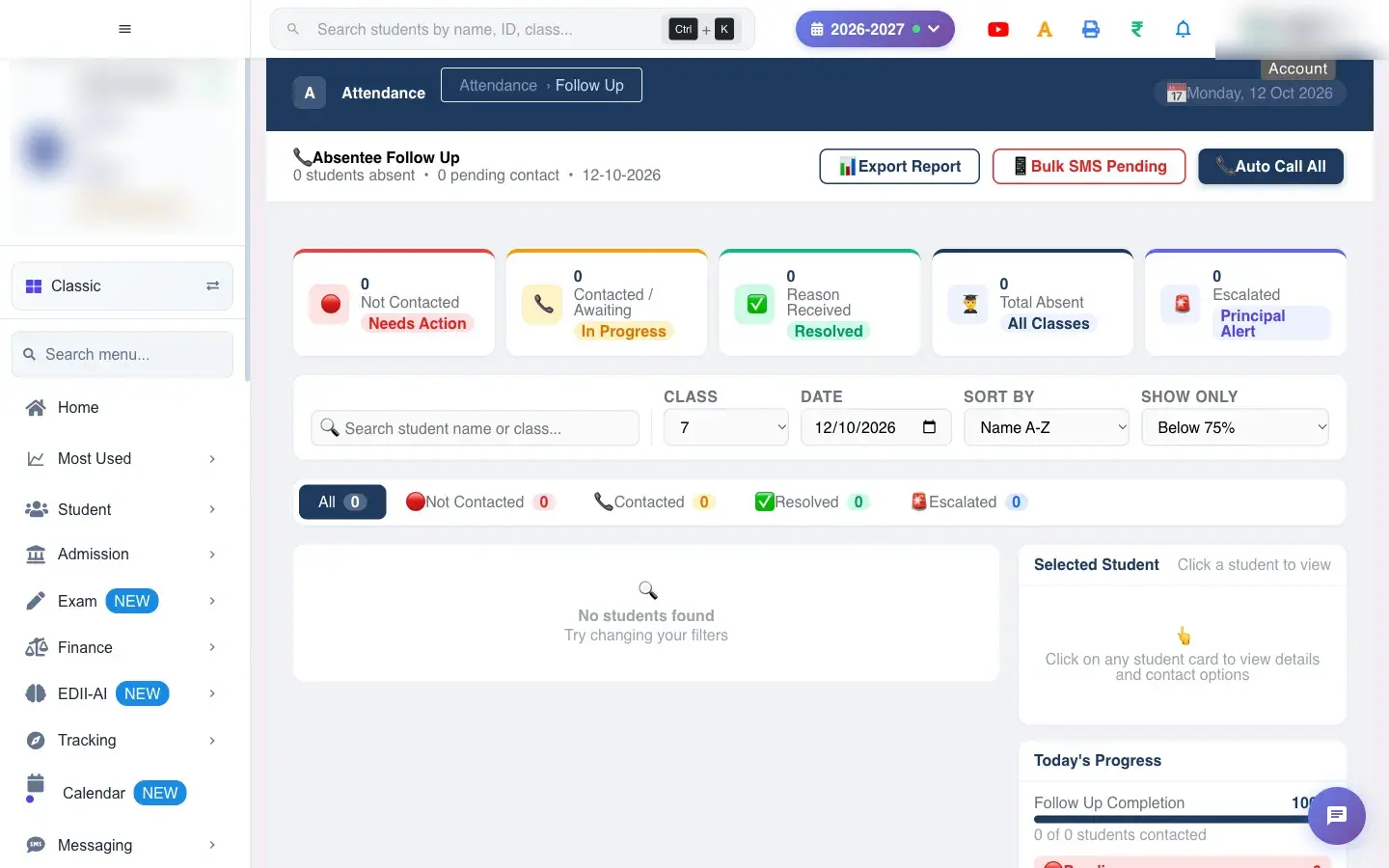 Open a bigger pictureतस्वीर बड़ी करें
Fields and filters
Section titled “Fields and filters”| Field | What it is | Notes |
|---|---|---|
| Date | The day whose absent students you are reviewing. | Today by default. Changing it reloads the list straight away. |
| Class filter | Limit the list to one class. | Default: all classes. |
| Sort By | Order of the list. | Most Absent YTD (default), Name A-Z, Class, Consecutive. |
| Show Only | Quick filter. | All Students, Below 75%, 3+ consecutive days, no response. |
| Search student name or class | Finds students as you type. | Matches the name or the class text. |
| Reason | Why the child was absent. | Required for Save & Notify. |
| Notes | Free text saved with the case. | Optional. |
| Expected return date | When the child should be back. | Defaults to the day after the date being viewed. |
Buttons
Section titled “Buttons”| Button | What it does | What happens next |
|---|---|---|
| Call / SMS / WhatsApp / Email | Contacts one parent and logs it. | SMS and WhatsApp really send. Call opens the dialler. Email only logs. |
| Save & Notify | Stores the reason and notifies the parent by SMS. | Status becomes reason received, then the list reloads. |
| Escalate | Passes the case to the Principal. | Moves to the Escalated tab. |
| Resolve | Closes the case. | Moves to the Resolved tab. |
| Call All / SMS All / WhatsApp All | Contacts every ticked student. | One log entry per student; SMS and WhatsApp are sent to each. |
| Bulk SMS Pending | SMS to every Not Contacted student. | Shows SMS sent to N pending parents. |
| Auto Call All | Logs a call attempt for every Not Contacted student. | Shows Auto-call logged for N students. No call is placed. |
| Export Report | Downloads the list as CSV. | Shows Nothing to export when the list is empty. |
After you save
Section titled “After you save”- Every contact, SMS, WhatsApp, call attempt and reason is stored permanently in that student’s contact log for that date. There is no button to delete a log entry.
- SMS and WhatsApp messages leave the school’s account: they use SMS or WhatsApp balance and reach the parent immediately.
- A student you resolve or escalate keeps their history; you can still open the row to read it.
- Counters and tabs refresh after each action.
Good to know
Section titled “Good to know”- Messages go to the mobile number registered for the parent; there is no way to type a different number here.
- The SMS text is fixed: Dear Parent, your child was marked absent on <date>. Please contact the school office. To send different words, use Messaging.
- Email and Call do not send anything by themselves; they are for your records.
- The list is for one date. Change the date to look at earlier absences.
Messages you may see
Section titled “Messages you may see”| Message | What it means | What to do |
|---|---|---|
| Could not load follow-ups | The list could not be fetched. | Check the internet and reopen the screen. |
| Could not log contact | The contact entry was not saved, so no SMS or WhatsApp was sent. | Try again. Nothing was recorded. |
| Please select a reason first | You pressed Save & Notify without choosing a reason. | Choose a reason, then save. |
| Could not update | The status change did not save. | Try again. |
| SMS sent to N pending parents | Bulk SMS was started for every Not Contacted student. | Check each student’s log for Sent or Failed. |
| Auto-call logged for N students | Call attempts were written to the log. | Phone the families yourself; nothing was dialled. |
| Nothing to export | The current filter shows no students. | Clear the filters and export again. |
- Start with Sort By › Most Absent YTD and Show Only › Below 75%: these are the children most at risk.
- Record a reason even for short absences; the report of reasons helps you see patterns such as illness spikes.
- Use Escalate only after you have tried to reach the family; the Principal then sees a short, documented history.
Stuck? Try this
Section titled “Stuck? Try this”| Problem | Likely cause | What to do |
|---|---|---|
| A student I marked absent is not on the list | The attendance for that day was not saved, or you are viewing a different date. | Save attendance on Mark Attendance and reopen this screen for the same date. |
| The log shows Failed | The parent has no registered mobile number, or the SMS or WhatsApp could not be delivered. | Update the parent’s phone number on the student record, check the SMS balance, then try again. |
| Clicking Call does nothing | The computer has no calling app. | Use the number shown on the row, or open this screen on a phone. |
Did this page help?क्या इस पेज से मदद मिली?
Thanks! Glad it helped.धन्यवाद! अच्छा लगा कि काम बन गया।
Sorry about that. Ask in your own words, or write to us.माफ़ कीजिए। अपने शब्दों में पूछें, या हमें लिखें।