
Screen guide · Web app
Student Leave Applications
Review leave applications made by or for students: filter by status, class and section, read the reason and attachment, and approve or reject pending applications.
यह पेज अंग्रेज़ी में है। कुछ समझ न आए तो ।
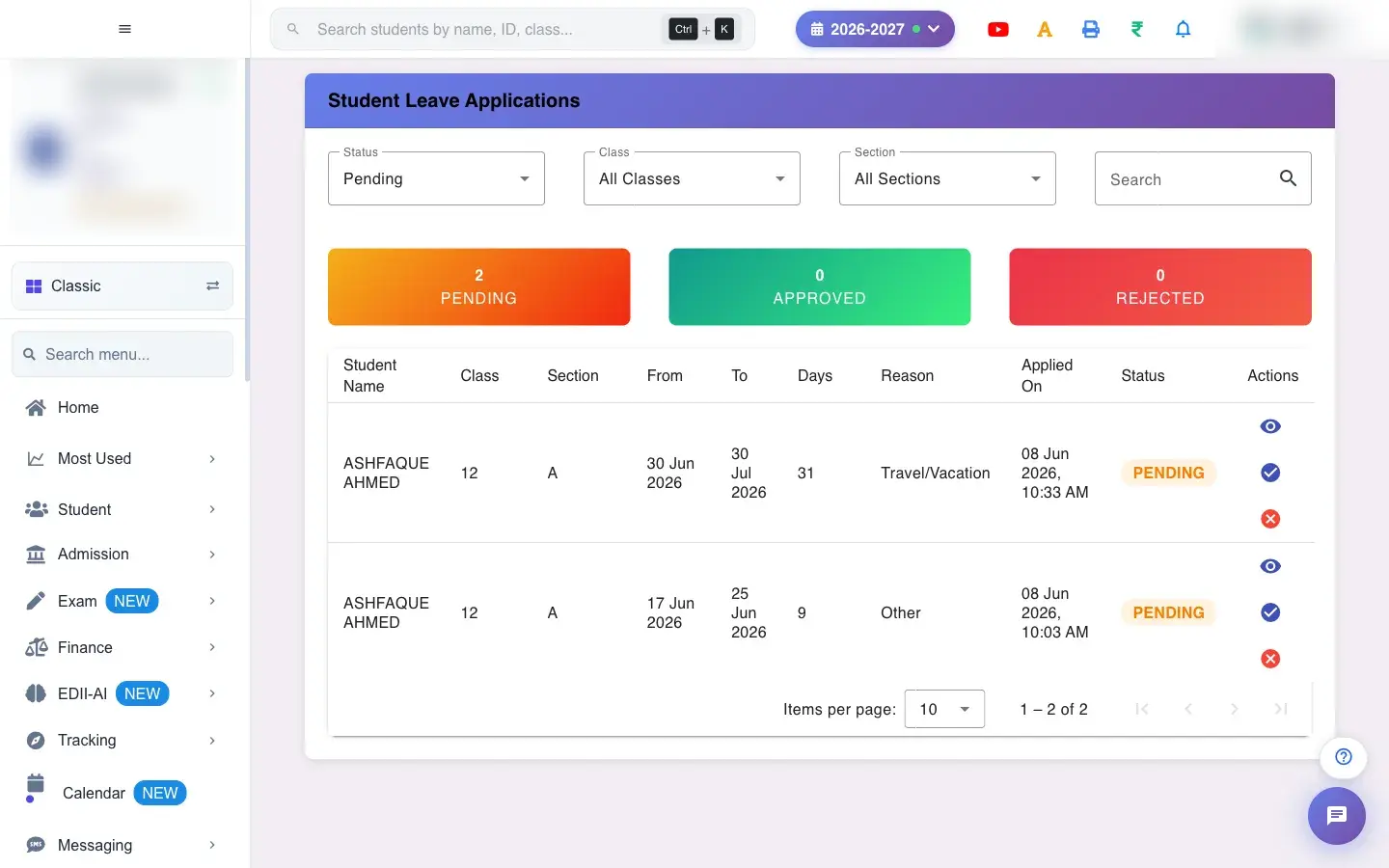
Student Leave Applications (Student › Leave Applications) lists the leave applications parents have sent for their children. Each row shows Student Name, Class, Section, From, To, Days, Reason, Applied On and Status.
It opens on Pending, so you see what needs a decision first. You approve or reject each application.
Who uses it and when
Section titled “Who uses it and when”Class teachers and the office review it each morning.
Before you start
Section titled “Before you start”- Applications appear only after parents submit them from the student app.
Where to find it
Section titled “Where to find it”- Menu: Student › Leave Applications
- Address:
/view/view-student-leave-applications - If it is missing from your menu, your role does not include it. Ask your school admin.
 Open a bigger pictureतस्वीर बड़ी करें
Step by step
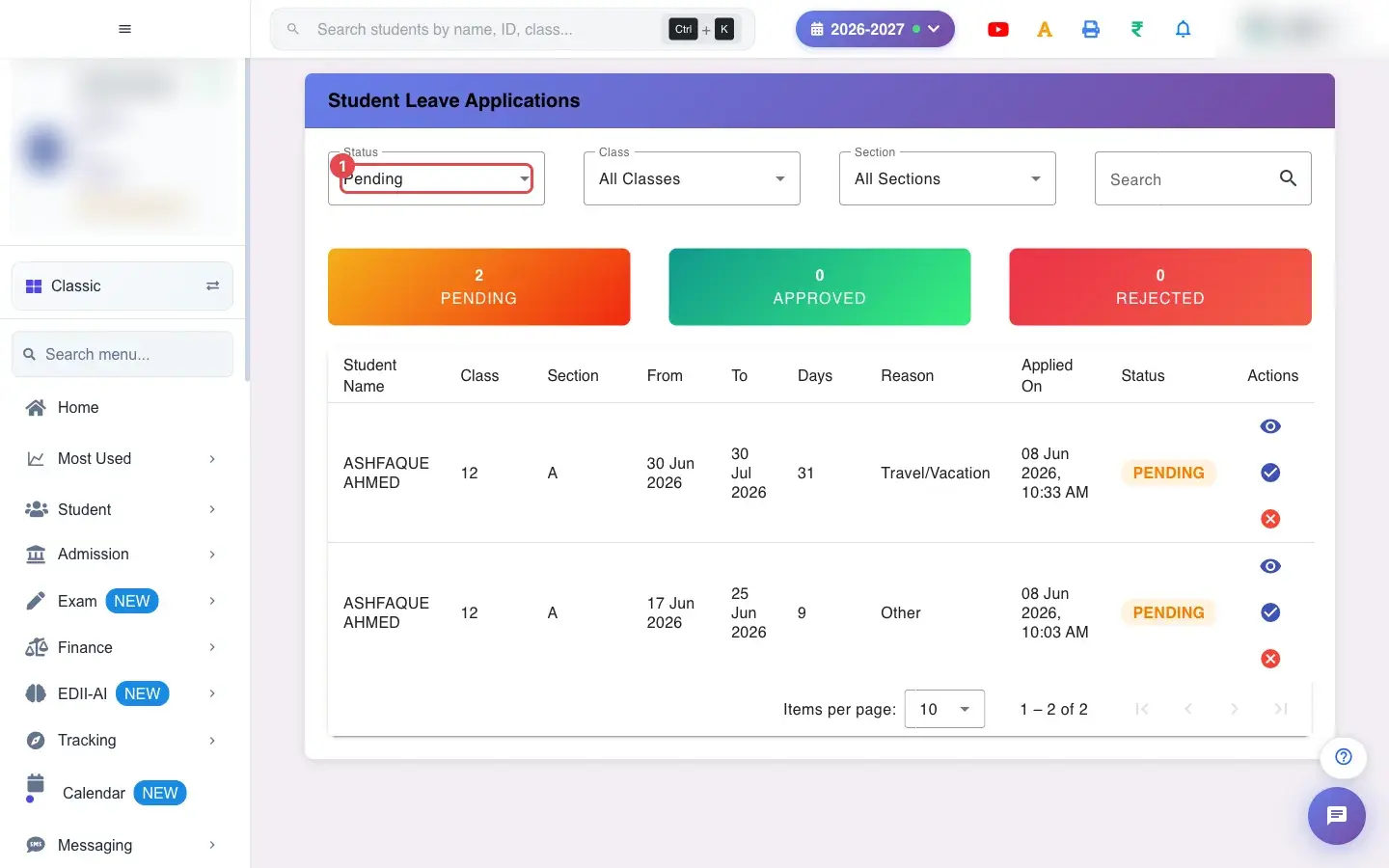
Section titled “Step by step”1. Choose Status (for example Pending)
Section titled “1. Choose Status (for example Pending)”Status: Pending (default), Approved or Rejected.
 Open a bigger pictureतस्वीर बड़ी करें
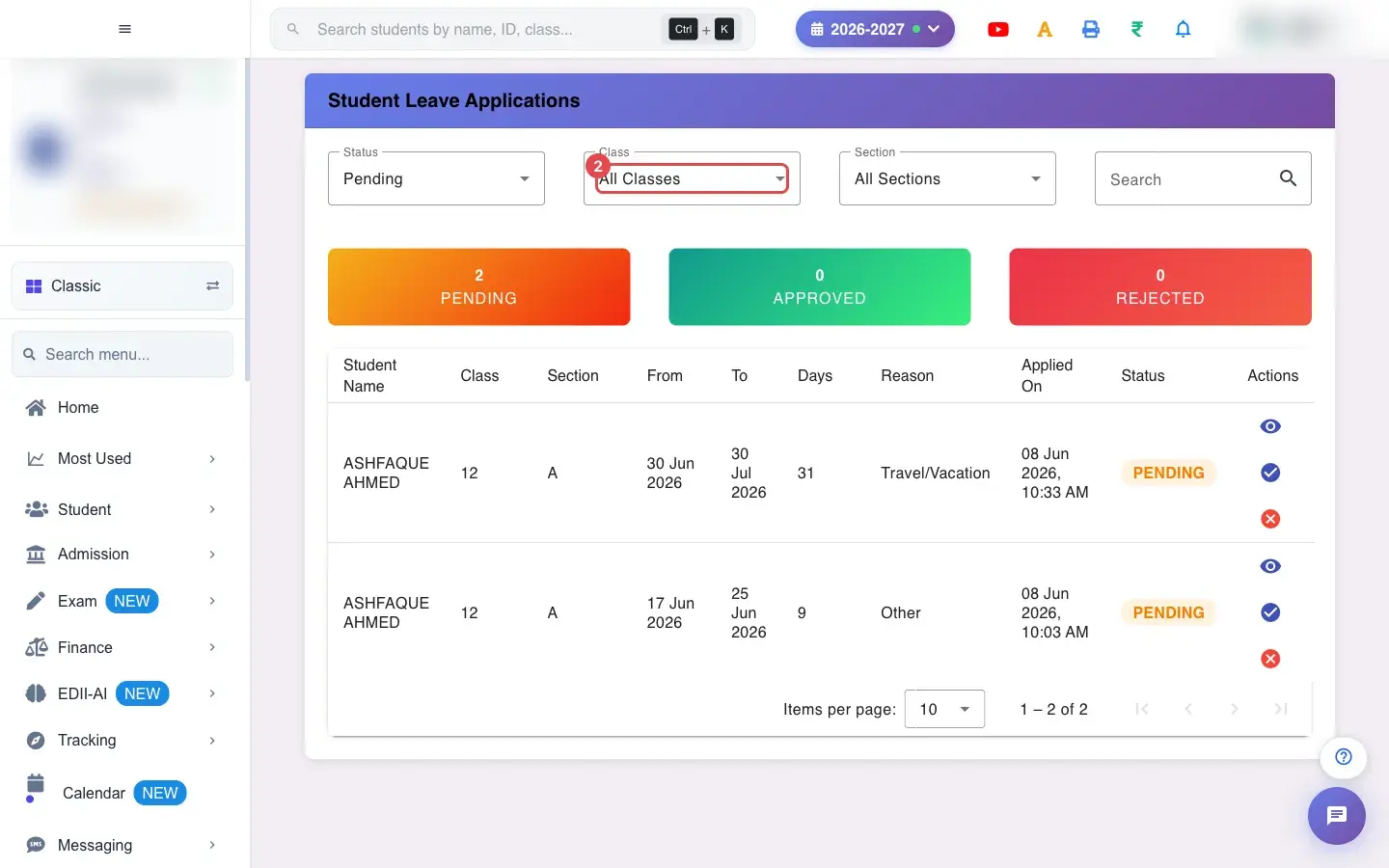
2. Choose Class (for example All Classes)
Section titled “2. Choose Class (for example All Classes)”Class: All Classes or one class.
 Open a bigger pictureतस्वीर बड़ी करें
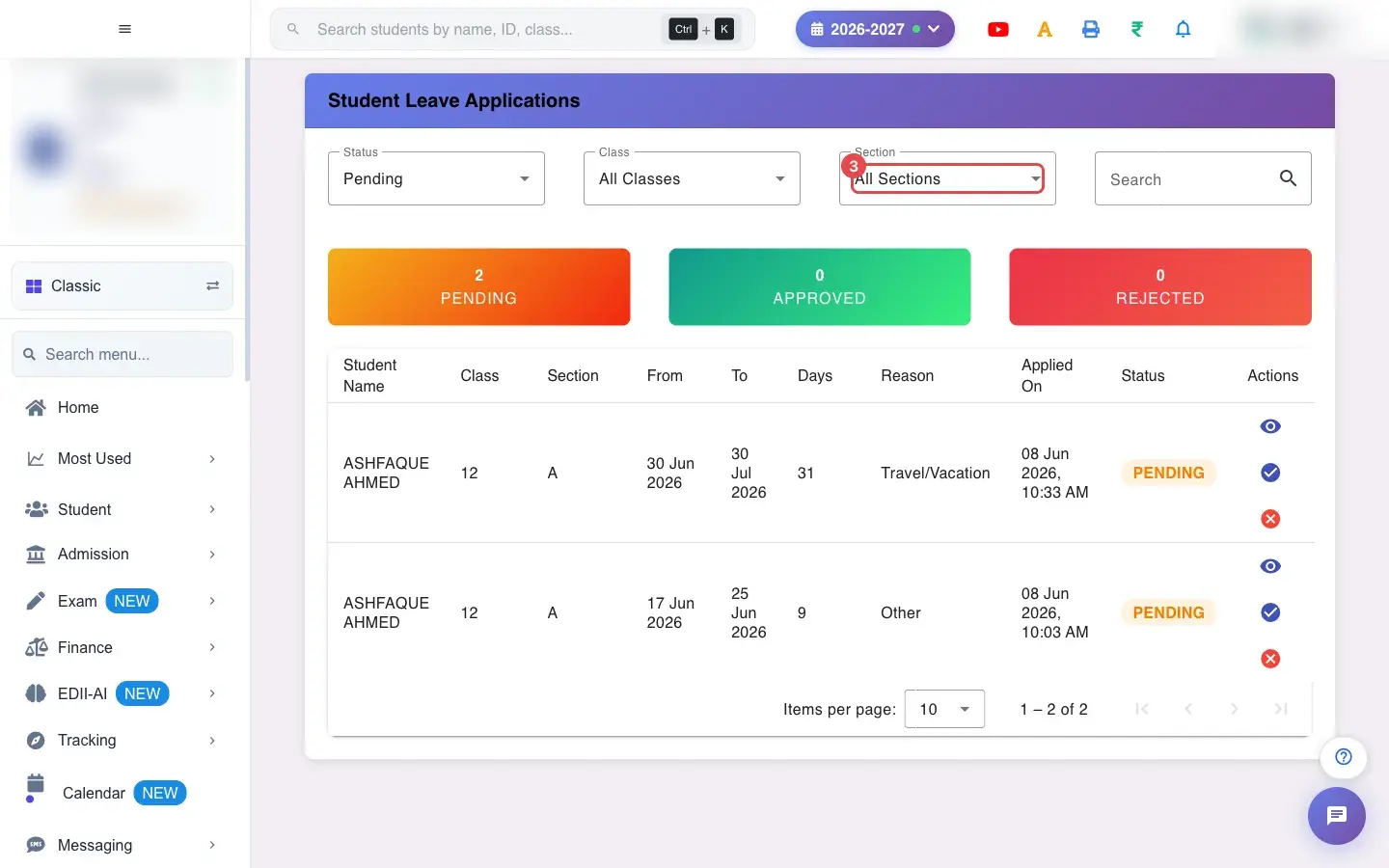
3. Choose Section (for example All Sections)
Section titled “3. Choose Section (for example All Sections)”Section: All Sections or one section.
 Open a bigger pictureतस्वीर बड़ी करें
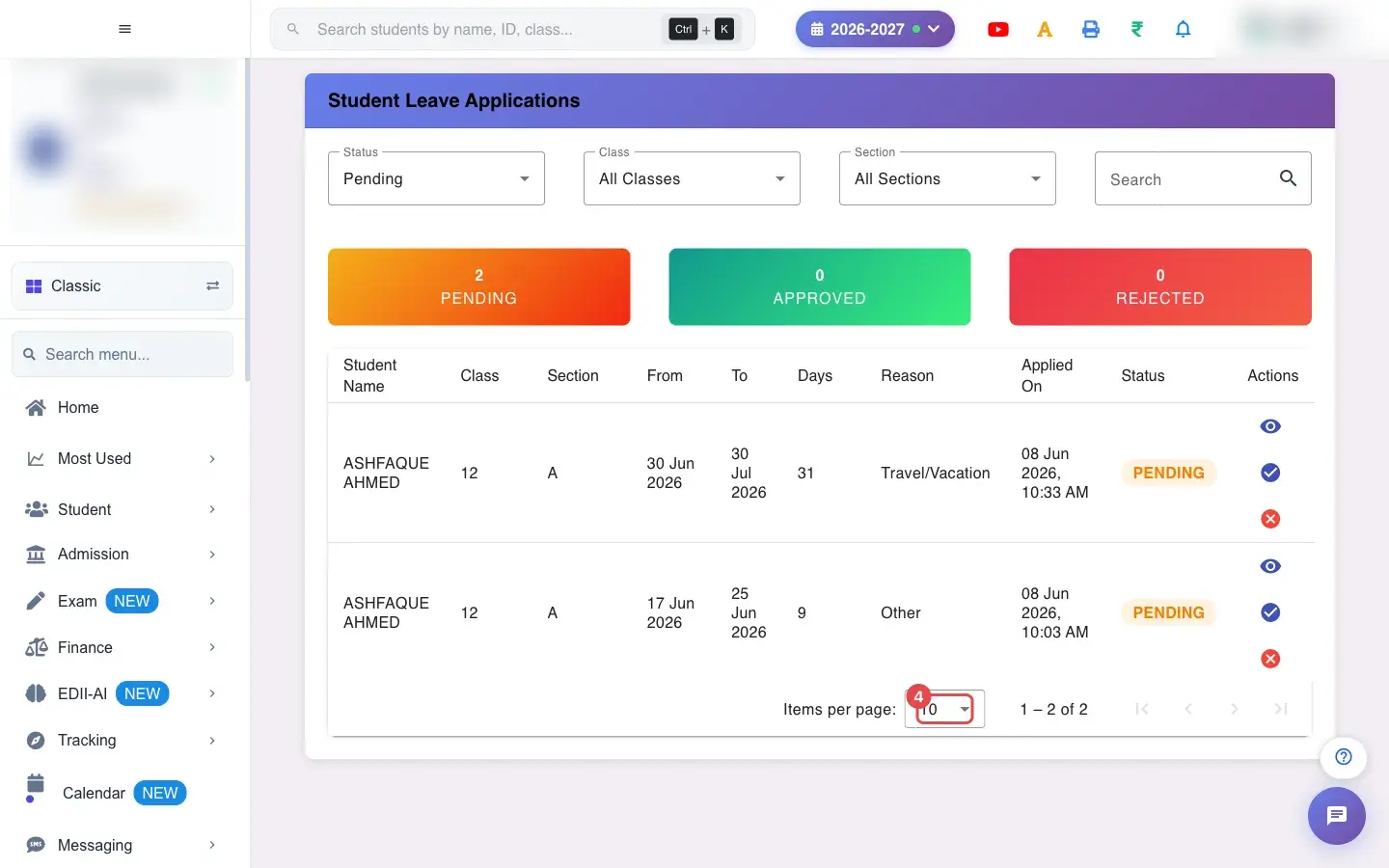
4. Choose 10 (for example 10)
Section titled “4. Choose 10 (for example 10)”Choose how many applications to show per page.
 Open a bigger pictureतस्वीर बड़ी करें
5. Search
Section titled “5. Search”Use Search to find a student by name.
6. Open the details
Section titled “6. Open the details”The eye icon shows the full application. The paperclip opens the attachment (for example a medical certificate); if there is none you see No attachments available.
7. Approve or reject
Section titled “7. Approve or reject”The tick approves and the cross rejects. The message reads Leave application approved successfully or Leave application rejected successfully. If it fails you see Error processing leave application.
With data
Section titled “With data”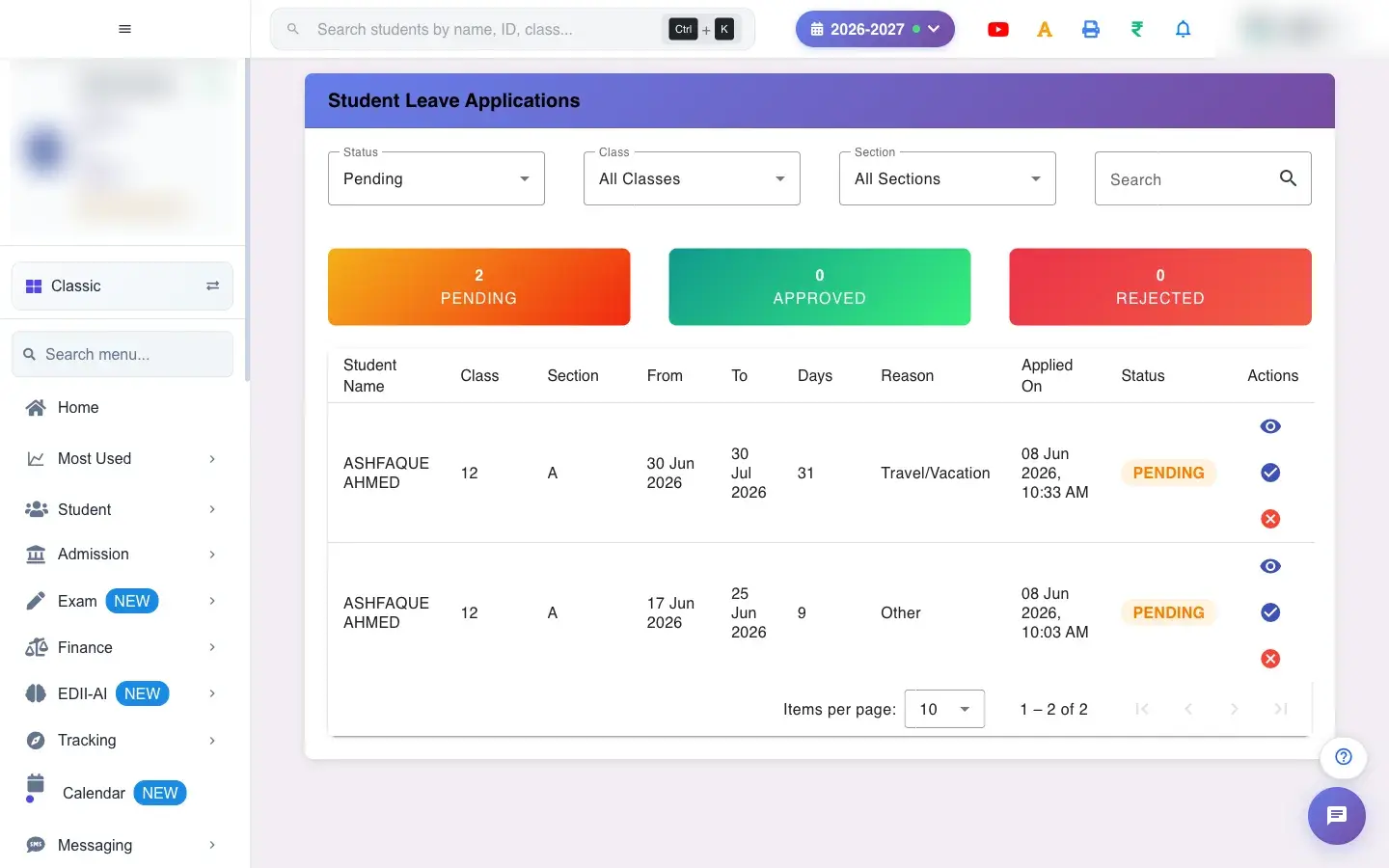 Open a bigger pictureतस्वीर बड़ी करें
Fields and filters
Section titled “Fields and filters”| Field | What it is | Notes |
|---|---|---|
| Status / Class / Section | Filters. | Default Pending, all classes, all sections. |
| Search | Find by student name. | Only filters the list. |
Buttons
Section titled “Buttons”| Button | What it does | What happens next |
|---|---|---|
| Approve (tick) / Reject (cross) | Decides the application. | The status changes to Approved or Rejected. |
| View (eye) / Attachment (paperclip) | Reads the details or file. | Read only. |
Columns
Section titled “Columns”| Column | Meaning |
|---|---|
| Student Name / Class / Section | Who the leave is for. |
| From / To / Days | Dates and number of days. |
| Reason / Applied On / Status | Why, when it was sent, and the decision. |
After you save
Section titled “After you save”- The decision is saved with the application and shown as its status.
- Approve or reject only after reading the reason and any attachment.
Good to know
Section titled “Good to know”- Pending is shown first.
- Only pending applications can be decided.
Messages you may see
Section titled “Messages you may see”| Message | What it means | What to do |
|---|---|---|
| Error loading leave applications | The list could not load. | Check the internet and reopen. |
| No attachments available | The parent did not attach a file. | Nothing to do. |
| Error processing leave application | The decision could not be saved. | Try again. |
- Read the attachment before approving sick leave of several days.
Stuck? Try this
Section titled “Stuck? Try this”| Problem | Likely cause | What to do |
|---|---|---|
| No applications | Parents have not applied, or the filter is on a status with none. | Set Status to Approved or Rejected, or check back later. |
Did this page help?क्या इस पेज से मदद मिली?
Thanks! Glad it helped.धन्यवाद! अच्छा लगा कि काम बन गया।
Sorry about that. Ask in your own words, or write to us.माफ़ कीजिए। अपने शब्दों में पूछें, या हमें लिखें।