
Screen guide · Web app
Student Profile
The classic student list for a class and section with fees status, printable student and admission forms, report cards for several students, edit shortcuts and bulk delete.
यह पेज अंग्रेज़ी में है। कुछ समझ न आए तो ।
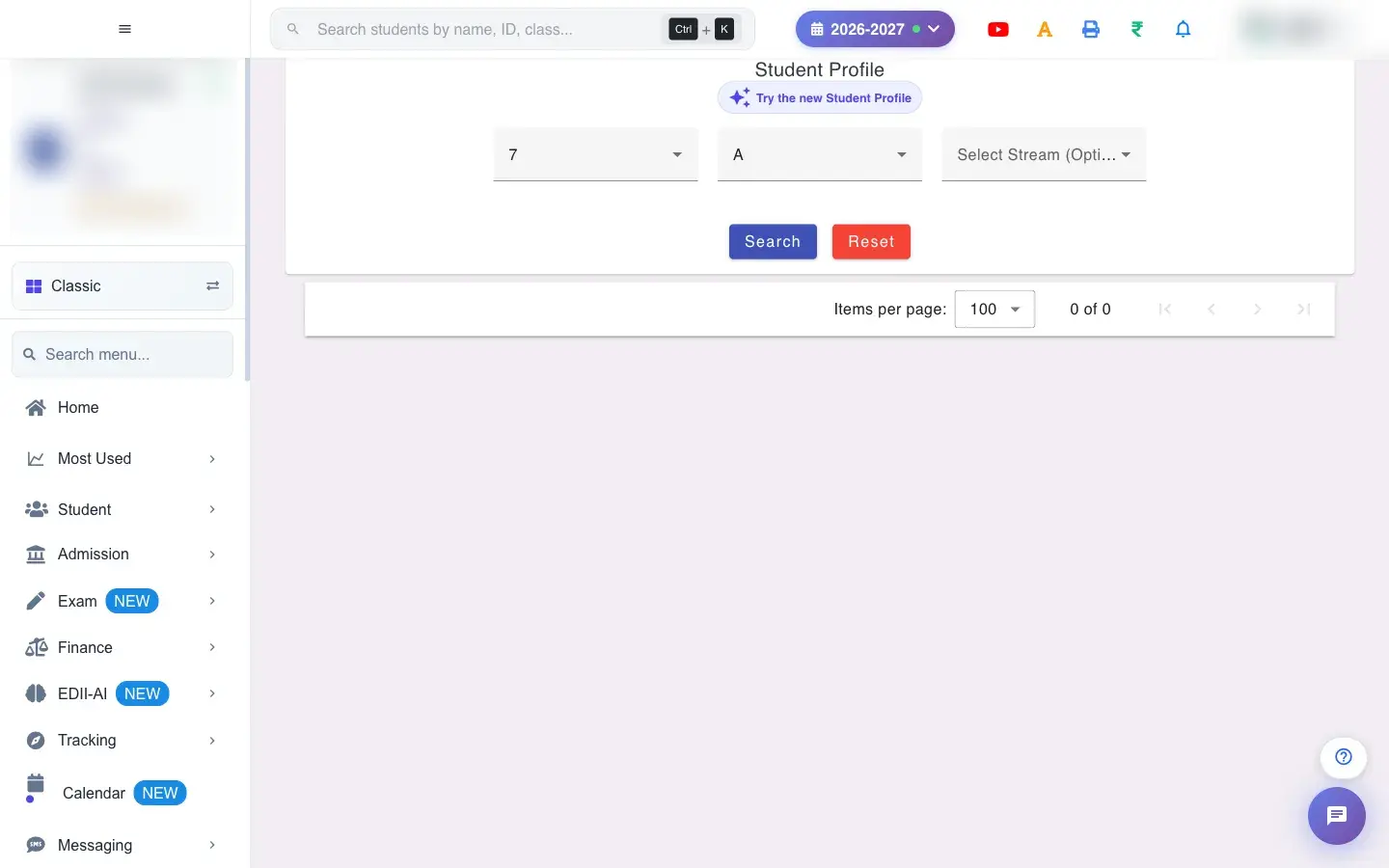
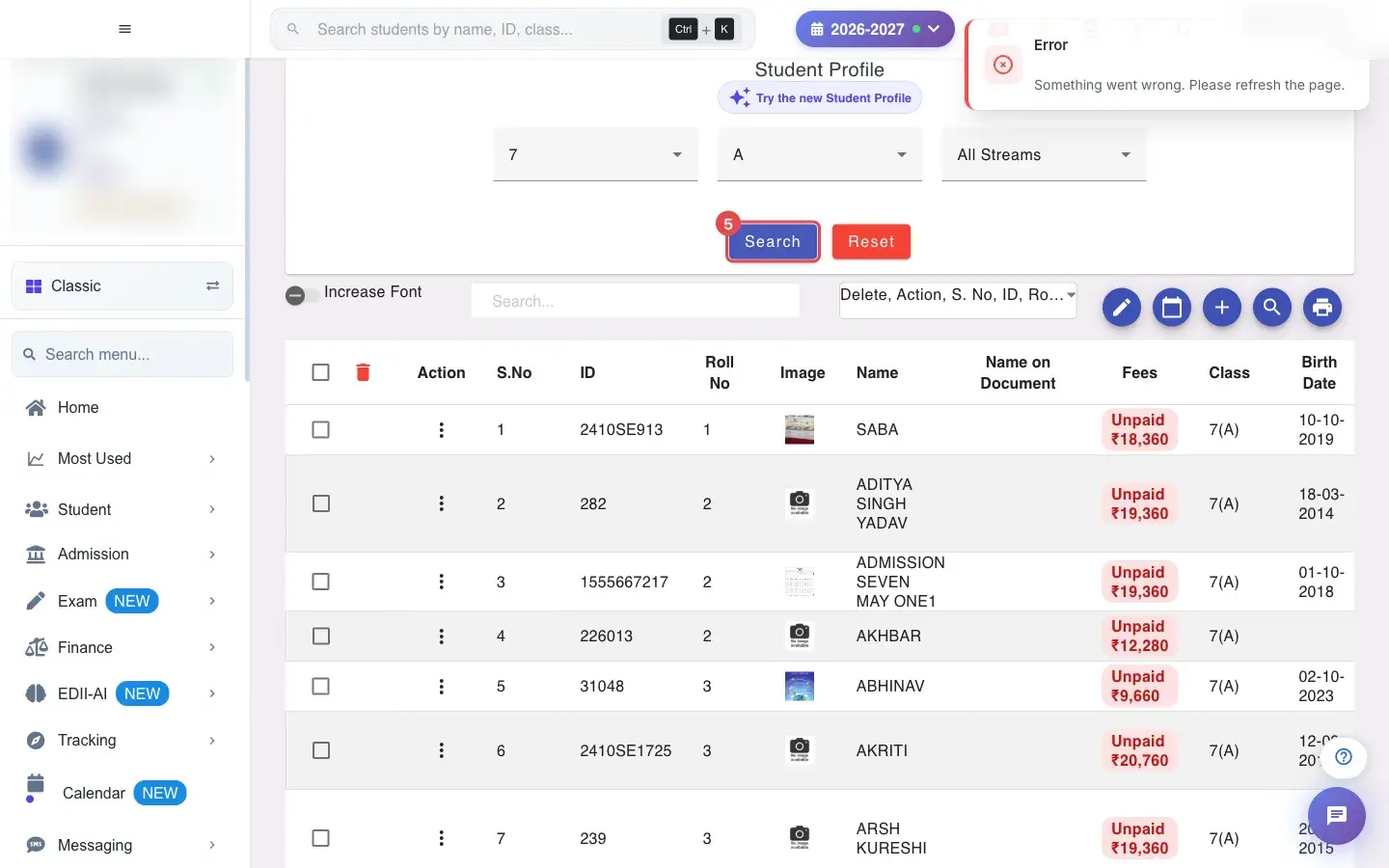
Student Profile is the classic student list. After choosing a class, section and optional stream you see every student with up to 50 columns: ID, roll number, photo, names, fees status, dates, parents, contact numbers, address, identifiers, admission status, category, health details and more.
It is also a work screen: from the same list you can print a student’s form or admission form, print admission forms or report cards for many students at once, open the edit screens, load each student’s fee status (Paid, Partial with the amount due, or Unpaid) and delete selected students.
Who uses it and when
Section titled “Who uses it and when”The office and teachers use it every day to find students, check fees status and print forms.
Before you start
Section titled “Before you start”- Choose a class and section. Fee information shows only if your role has access to fees (Your role does not have access to fee information.).
Where to find it
Section titled “Where to find it”- This screen opens from another screen, not from the menu.
- Address:
/view/student-profile - If it is missing from your menu, your role does not include it. Ask your school admin.
 Open a bigger pictureतस्वीर बड़ी करें
Step by step
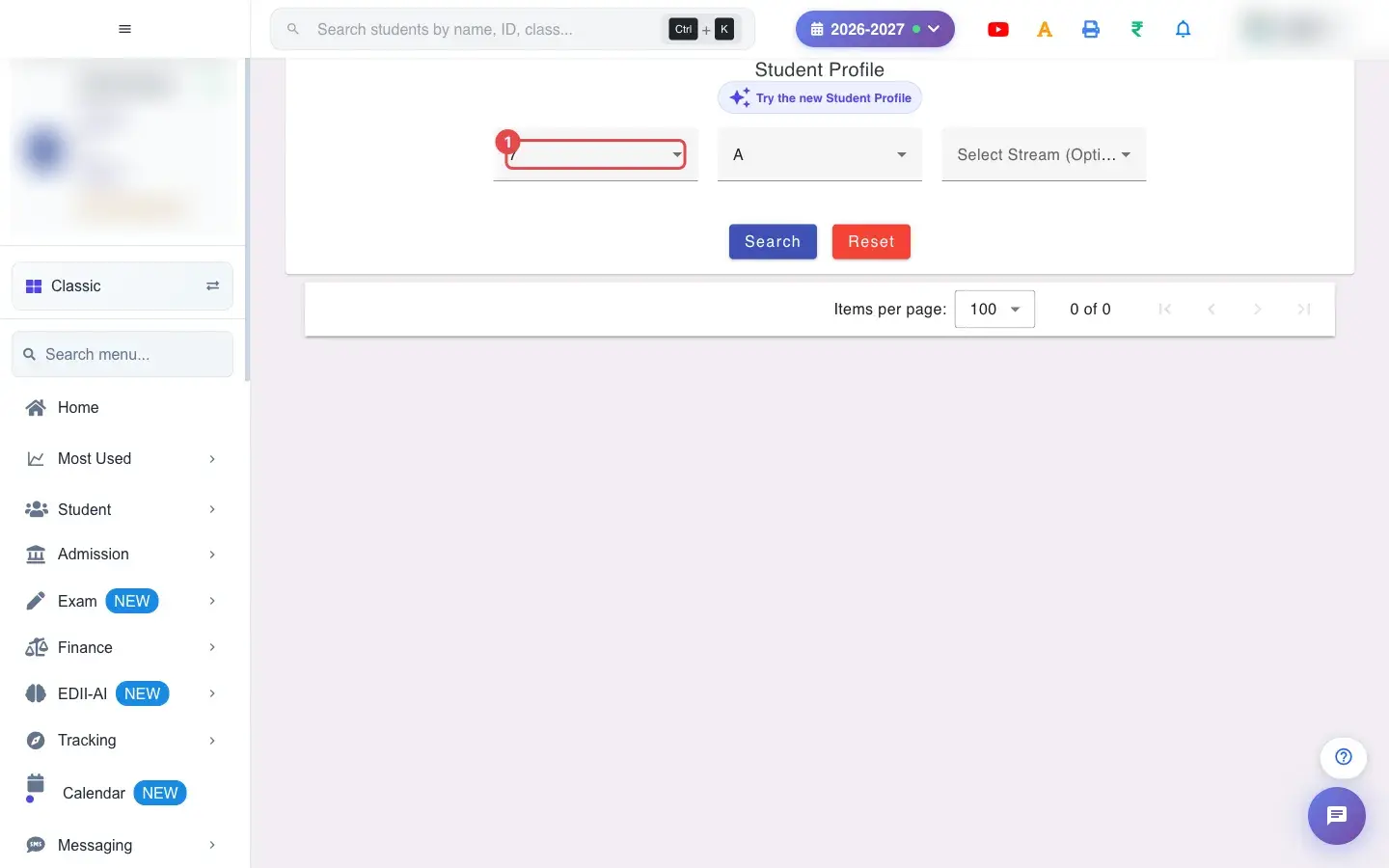
Section titled “Step by step”1. Choose Select Class (for example 7)
Section titled “1. Choose Select Class (for example 7)”Choose the Class.
 Open a bigger pictureतस्वीर बड़ी करें
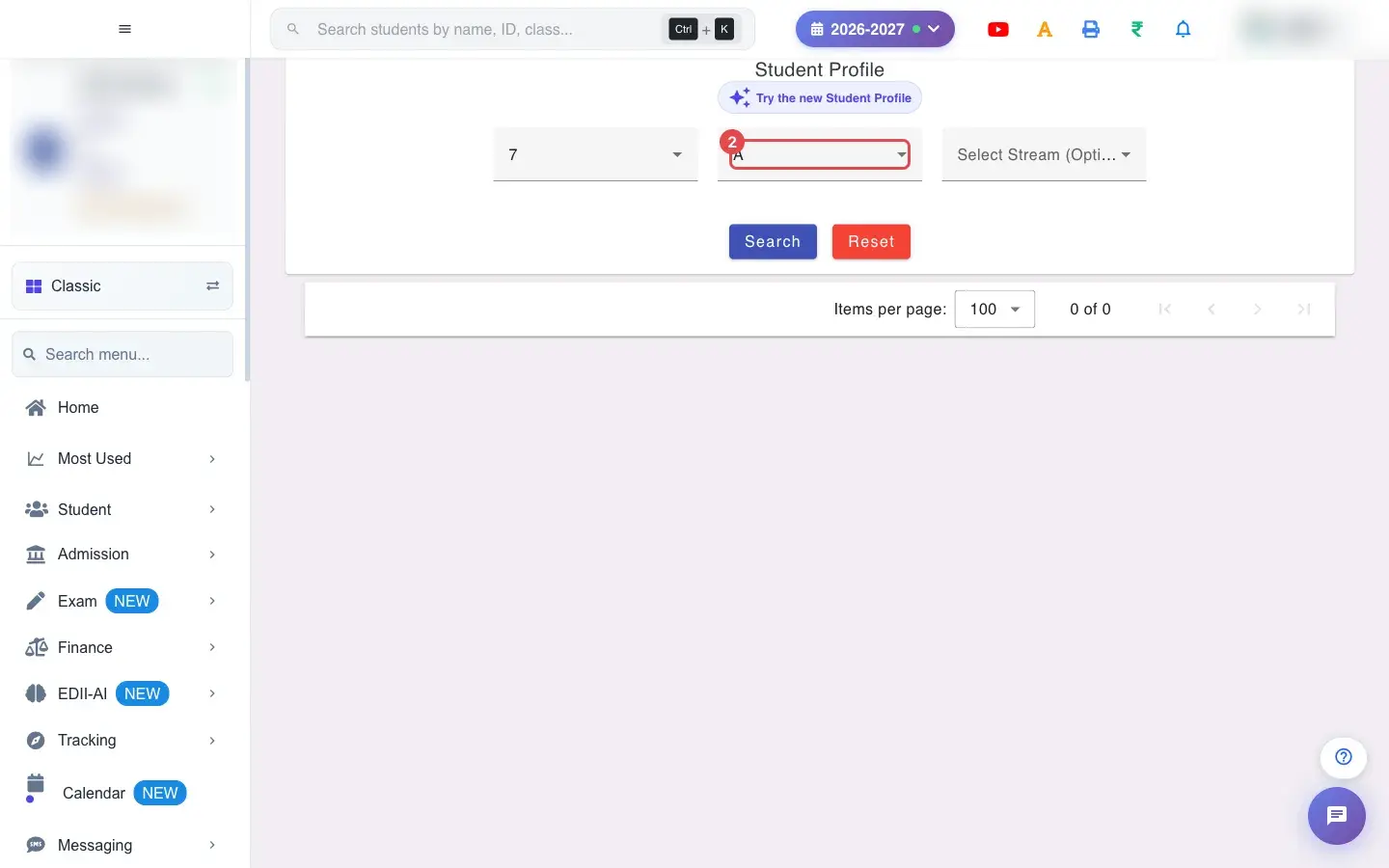
2. Choose Select Section (for example A)
Section titled “2. Choose Select Section (for example A)”Choose the Section.
 Open a bigger pictureतस्वीर बड़ी करें
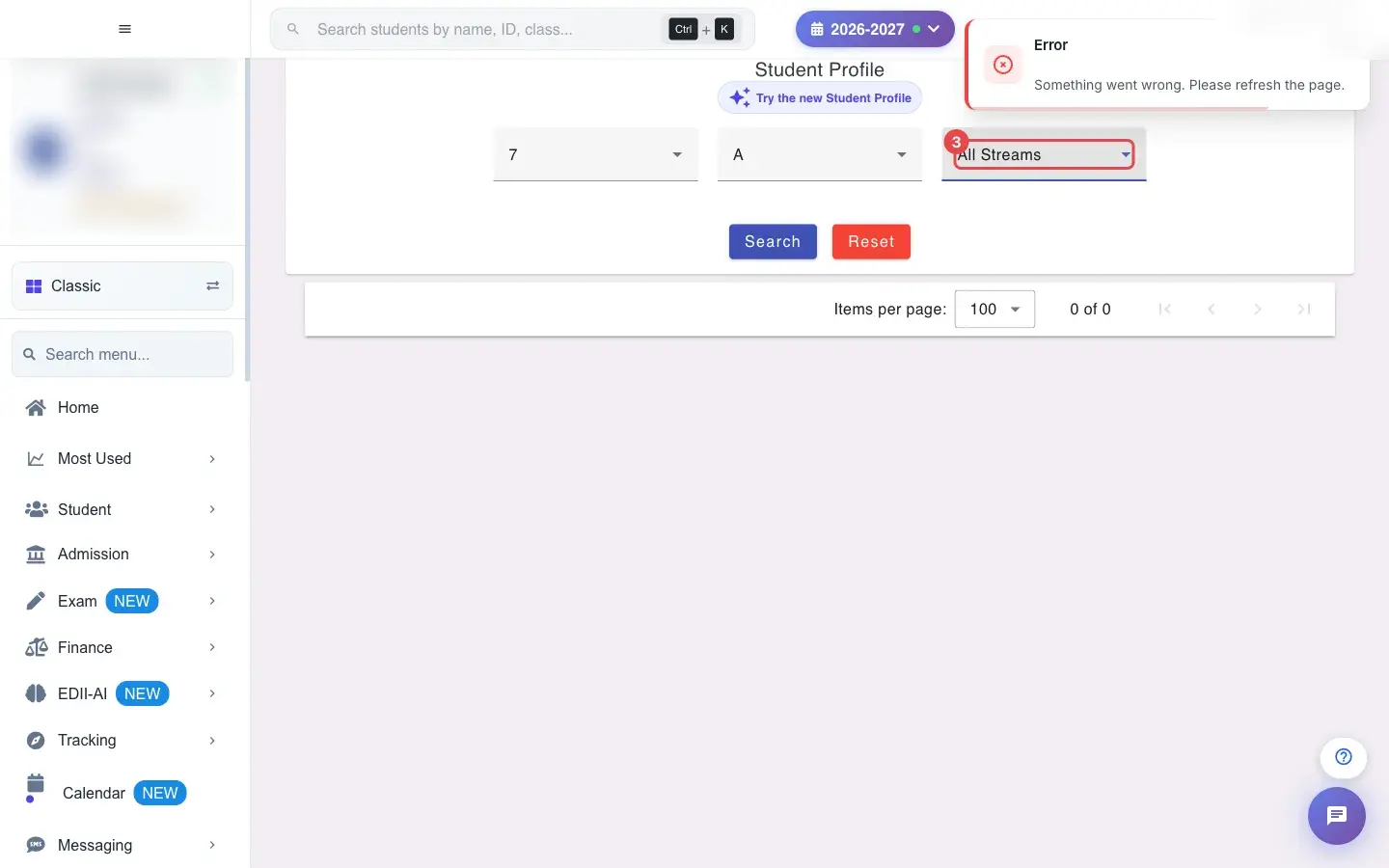
3. Choose Select Stream (Optional) (for example All Streams)
Section titled “3. Choose Select Stream (Optional) (for example All Streams)”Choose a Stream if the school has streams.
 Open a bigger pictureतस्वीर बड़ी करें
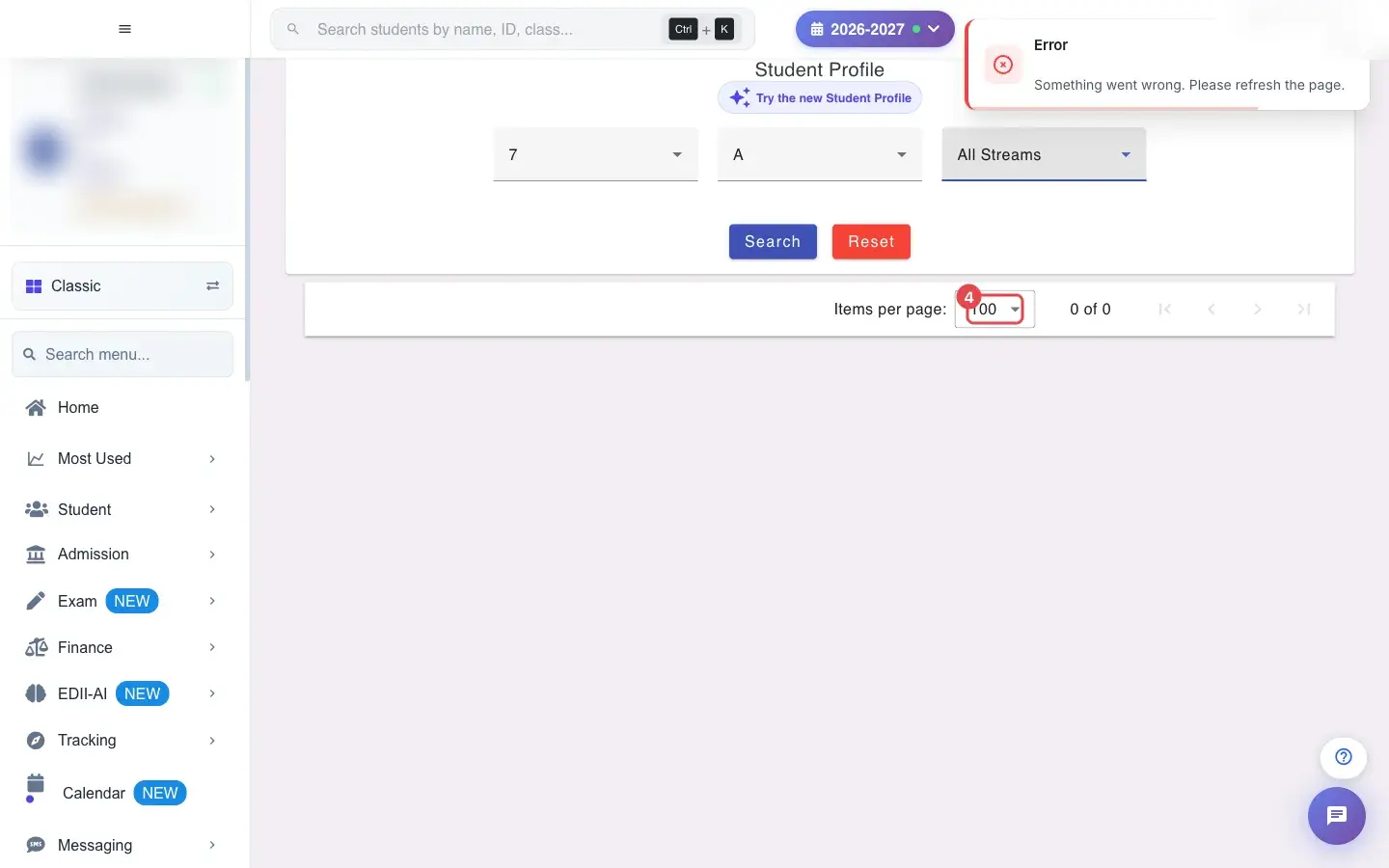
4. Choose 100 (for example 100)
Section titled “4. Choose 100 (for example 100)”Choose how many students to show per page.
 Open a bigger pictureतस्वीर बड़ी करें
5. Select Search
Section titled “5. Select Search”Select Search to load the students.
 Open a bigger pictureतस्वीर बड़ी करें
6. Choose columns and text size
Section titled “6. Choose columns and text size”Filter Columns shows or hides columns (Delete, Action, S. No, ID, Roll No, Image, Name, Name on Document, Fees, Class, Date Of Birth, Father Name, Mother Name, Email, Phone No, Mobile No, Fathers No, Mothers No, Address, State Id, GR No, UID, Admission Status, Enrollment No, Gender, Category, Student Type, TC Provided, Blood Group, Weight, Height, Created By, Comments, Religion, Community, Annual Income, Subject Stream, 10th Roll, 10th Board, 10th RegNo, Date Of Admission, Aadhaar, PEN, Family ID, Allergy, Udise No, Mother Tongue, End Date Of School, SMID, FMID, SCH. NO., Apaar Id, PRN). Increase Font makes the table easier to read.
7. Load the fees status
Section titled “7. Load the fees status”Select Load Fees Status to fill the Fees column: Paid, Partial ₹ due or Unpaid ₹. For a big class it can take time: Fee status for this class is taking longer than usual. If it fails you see Fee status could not be loaded for this class.
8. Print forms
Section titled “8. Print forms”For one student use the row’s Action menu: Student Form (Student Form Fetched) or Admission Form (Admission Form Fetched). For many, tick students and use Print Multiple Admission Form or Print Multiple Report Card.
9. Edit shortcuts
Section titled “9. Edit shortcuts”The pencil, calendar and plus icons in a row open the student’s edit screen, attendance view and fee actions.
10. Delete students
Section titled “10. Delete students”Tick students and select the bin. EDII asks Are you sure you want to delete the selected students? Choose CONFIRM or CANCEL. With nobody ticked you see Please select at least one student to delete. Deleted students can be restored from Deleted Student.
11. Try the new Student Profile
Section titled “11. Try the new Student Profile”The banner Try the new Student Profile opens the redesigned list.
12. Print or download
Section titled “12. Print or download”Download Excel / Text / CSV File and Print with Report Generated On.
With data
Section titled “With data”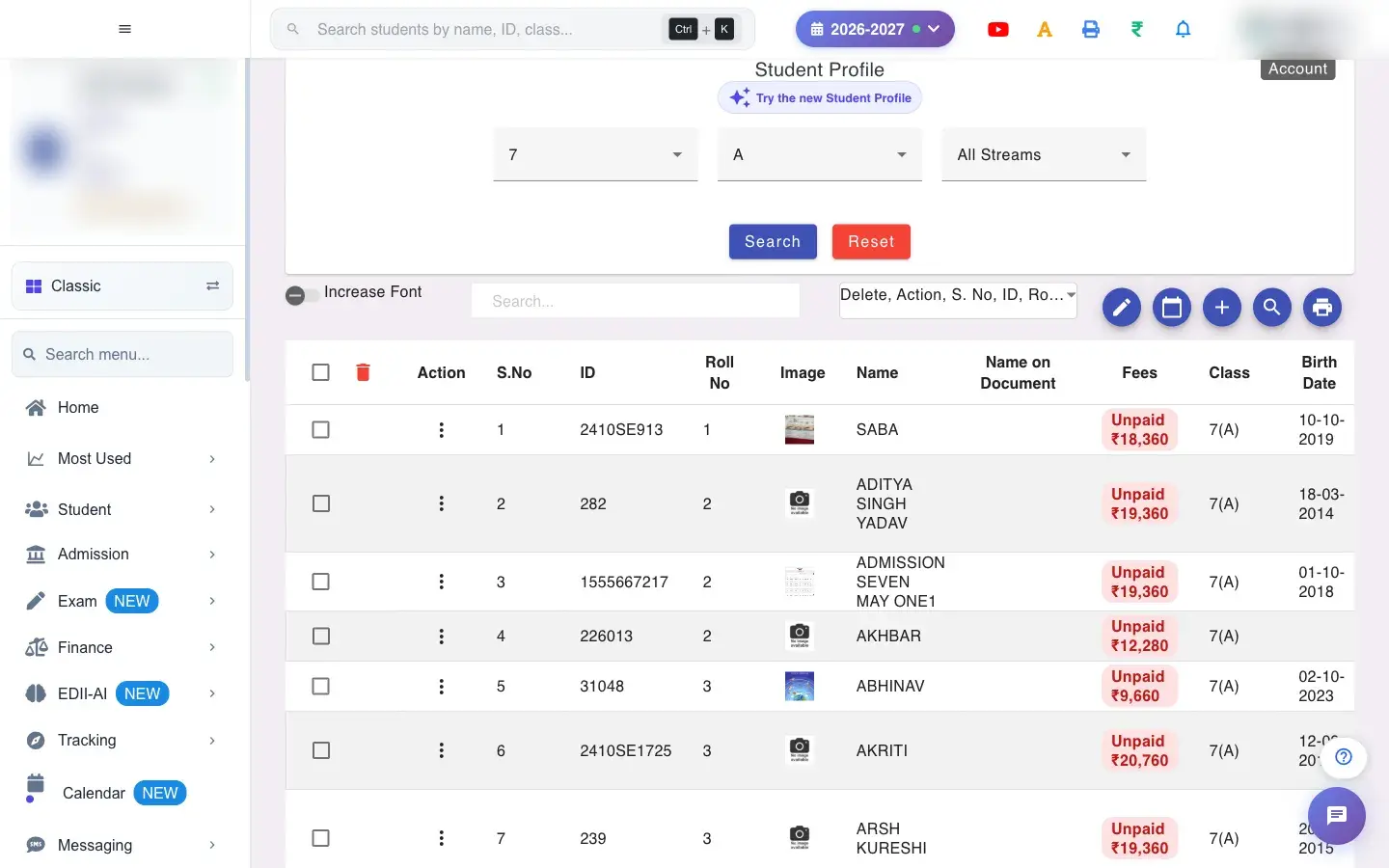 Open a bigger pictureतस्वीर बड़ी करें
Fields and filters
Section titled “Fields and filters”| Field | What it is | Notes |
|---|---|---|
| Select Class / Select Section | The students. | Required. |
| Select Stream (Optional) | Stream filter. | Shown if the school has streams. |
| Filter Columns | Visible columns. | View only. |
Buttons
Section titled “Buttons”| Button | What it does | What happens next |
|---|---|---|
| Search | Loads the class. | Shows Network Issue, Please Try Again. if it fails. |
| Load Fees Status | Fills the Fees column. | Needs fee access. |
| Print Multiple Admission Form / Report Card | Prints for the ticked students. | Opens the print window. |
| Delete (bin) | Deletes the ticked students. | After confirmation; restorable from Deleted Student. |
Columns
Section titled “Columns”| Column | Meaning |
|---|---|
| Fees | Paid, Partial with amount due, or Unpaid with amount. |
| Name on Document / Enrollment No / State Id / GR no / UID / PEN / Aadhaar | Identity records. |
| Admission Status / TC Provided / Created By | Administrative status. |
After you save
Section titled “After you save”- Viewing and printing change nothing. Delete removes the students from the active roll (they can be restored).
Good to know
Section titled “Good to know”- Class and section are required.
- Fee information needs fee access.
- Deleting asks for confirmation.
Messages you may see
Section titled “Messages you may see”| Message | What it means | What to do |
|---|---|---|
| Search a class/section first. | Fees status needs a loaded class. | Search first. |
| Fee status could not be loaded for this class | The calculation failed. | Try again later. |
| Your role does not have access to fee information. | No fee permission. | Ask an administrator. |
| Please select at least one student to delete | Nobody ticked. | Tick students. |
- Load fees status only when you need it; it is calculated for the whole class.
- Hide columns you do not need before printing.
Stuck? Try this
Section titled “Stuck? Try this”| Problem | Likely cause | What to do |
|---|---|---|
| Fees column stays empty | Load Fees Status was not pressed or your role has no fee access. | Press it, or ask for access. |
Did this page help?क्या इस पेज से मदद मिली?
Thanks! Glad it helped.धन्यवाद! अच्छा लगा कि काम बन गया।
Sorry about that. Ask in your own words, or write to us.माफ़ कीजिए। अपने शब्दों में पूछें, या हमें लिखें।