
Screen guide · Teacher app
Contests & Voting
Run school contests: create a contest with entries, choose who can vote and when, watch results, announce winners and share them on Buzz.
यह पेज अंग्रेज़ी में है। कुछ समझ न आए तो ।
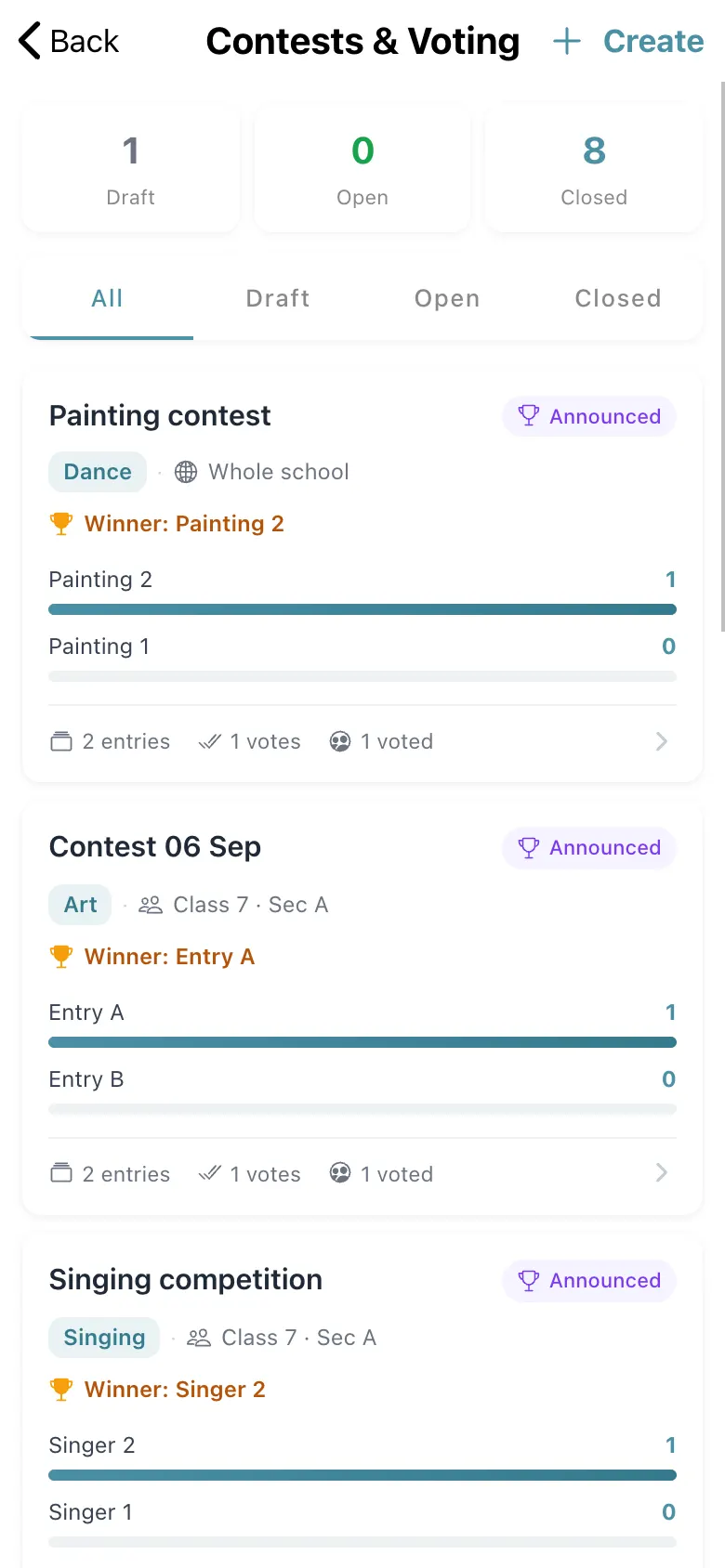
Contests & Voting lists contests under All, Draft, Open and Closed with their category, audience, entries, votes and winner. Create starts New Contest: Contest title (required), Description, Category, what is being shown (Photos, Video or YouTube), the entries (add photos by Camera or Gallery, a video by Record or Browse, and the Students in this entry, needed for certificates; Add another entry), Who can vote? (Whole school or Specific classes and sections), the Voting window (Opens, Closes) and Rules (let students change their vote, let them vote for their own entry — off is the fairer default, show live results, show results after closing). Save a Draft saved or open it for voting.
When voting has closed pick the winners (Pick a winner, Pick 2nd place) and select announce (Results announced); results can be shared on Buzz (Shared on Buzz) and winners posted. An entry can be withdrawn (Entry withdrawn) before voting ends; a closing time must be set (Set a closing time) and still in the future (Closing time has passed).
Who uses it and when
Section titled “Who uses it and when”Teachers and coordinators running contests.
Before you start
Section titled “Before you start”- Collect the entries and decide who can vote.
Where to find it
Section titled “Where to find it”- Select Contests on Home.
 Open a bigger pictureतस्वीर बड़ी करें
Step by step
Section titled “Step by step”1. See contests
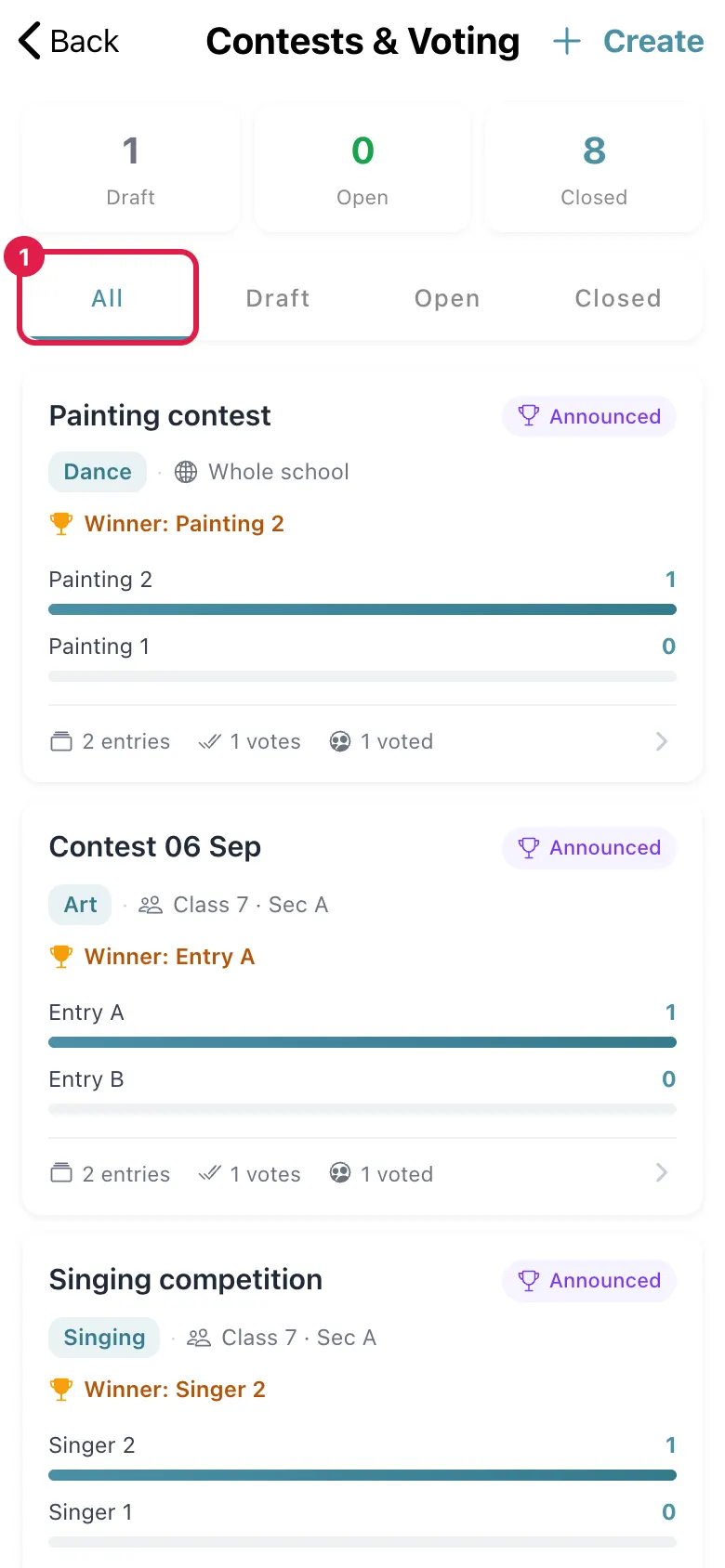
Section titled “1. See contests”Use the filters All, Draft, Open and Closed.
 Open a bigger pictureतस्वीर बड़ी करें
2. Create one
Section titled “2. Create one”Select Create and fill in title, entries, audience and the voting window.
3. Close and announce
Section titled “3. Close and announce”After voting ends choose the winners and announce the results.
Fields and filters
Section titled “Fields and filters”| Field | What it is | Notes |
|---|---|---|
| Contest title | The name. | Required. |
| Entries | Photos or videos with the students in each. | At least two usually. |
| Who can vote? | Whole school or specific classes. | Required. |
| Voting window | When voting opens and closes. | A closing time is required. |
Buttons
Section titled “Buttons”| Button | What it does | What happens next |
|---|---|---|
| Create | Starts a new contest. | The form opens. |
| Announce results | Publishes winners. | Results announced. |
| Share on Buzz | Posts the results to Buzz. | Shared on Buzz. |
After you save
Section titled “After you save”- Open contests appear to voters in the student app; announced results show to everyone.
Good to know
Section titled “Good to know”- A closing time in the future is required.
- Winners are chosen after voting closes.
Messages you may see
Section titled “Messages you may see”| Message | What it means | What to do |
|---|---|---|
| Set a closing time | No closing time. | Choose one. |
| Closing time has passed | The time is in the past. | Choose a later time. |
| Pick a winner / Pick 2nd place | A winner is missing. | Choose them. |
| Same entry twice | The same entry was chosen twice. | Pick different entries. |
| Video too large | The video exceeds the limit. | Use a smaller video. |
| Draft saved | Saved as a draft. | Open it when ready. |
- Leave voting for your own entry off.
Stuck? Try this
Section titled “Stuck? Try this”| Problem | Likely cause | What to do |
|---|---|---|
| Voters cannot see the contest | It is still a draft. | Open it for voting. |
Did this page help?क्या इस पेज से मदद मिली?
Thanks! Glad it helped.धन्यवाद! अच्छा लगा कि काम बन गया।
Sorry about that. Ask in your own words, or write to us.माफ़ कीजिए। अपने शब्दों में पूछें, या हमें लिखें।