
Screen guide · Web app
Files
Create student ID cards in the EDII standard layout or with your school's own blank artwork, queue them for generation and download the finished PDF files from the Files list.
यह पेज अंग्रेज़ी में है। कुछ समझ न आए तो ।
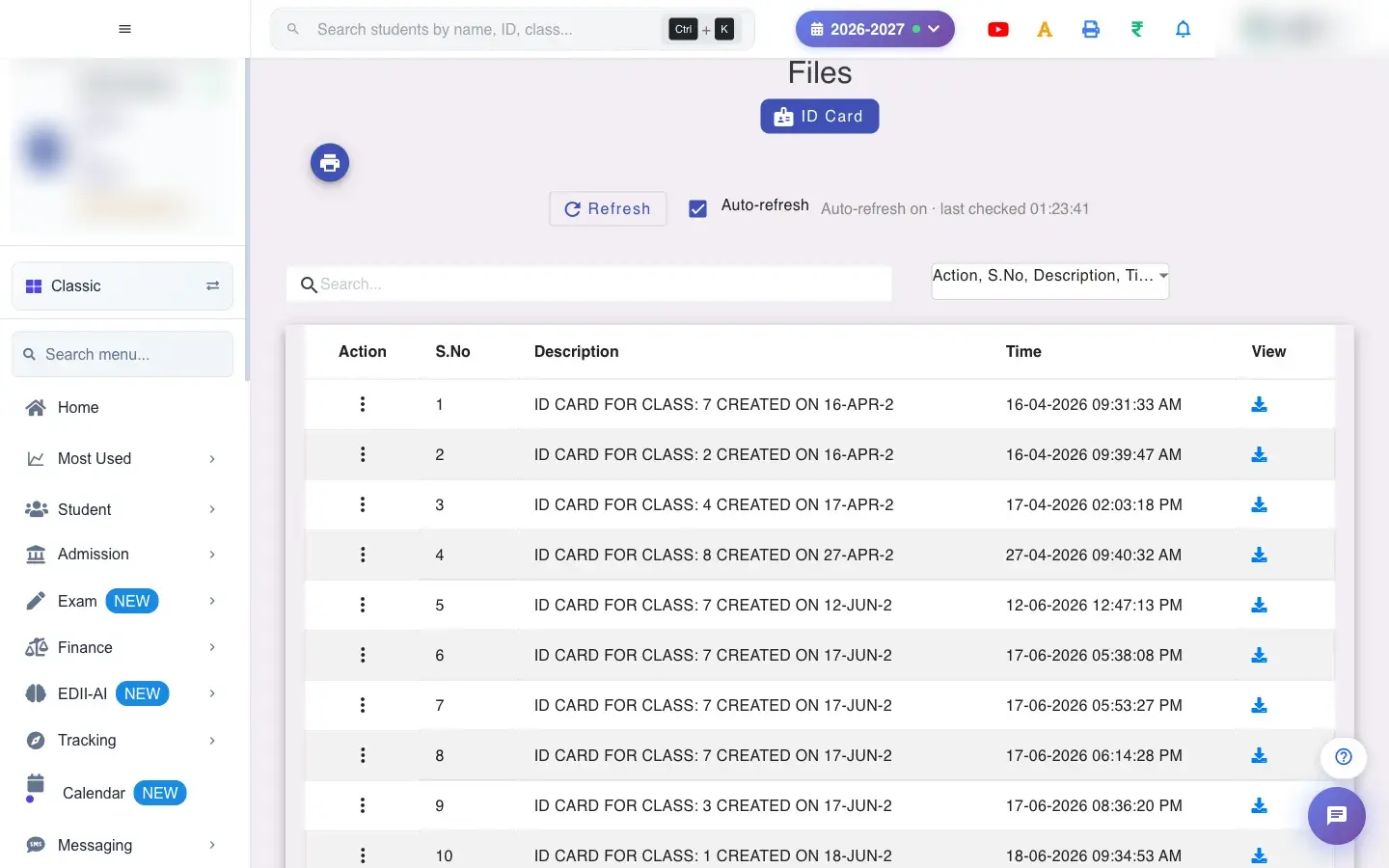
Files · ID Card (Student › ID Card, also Report › File) does two jobs. At the top you create ID cards; below, Files lists every file EDII has generated for you (ID card PDFs and similar), each with a description and the time it was made.
ID cards are built in the background and appear in the list when ready, so you can queue a class and carry on working. Choose Standard ID Card (EDII’s existing layout, unchanged) or Custom ID Card (your own artwork in a fixed safe layout).
Who uses it and when
Section titled “Who uses it and when”The office uses it before the session starts or when new admissions need cards.
Before you start
Section titled “Before you start”- Students need a photo and details on their records; missing photos show as blanks.
- For a custom card prepare a blank background image with no text, labels or photo frame, in the exact pixel size shown on the page (PNG, JPG or JPEG, up to 5 MB).
Where to find it
Section titled “Where to find it”- Menu: Student › ID Card
- Menu: Report › File
- Address:
/view/file-data - If it is missing from your menu, your role does not include it. Ask your school admin.
 Open a bigger pictureतस्वीर बड़ी करें
Step by step
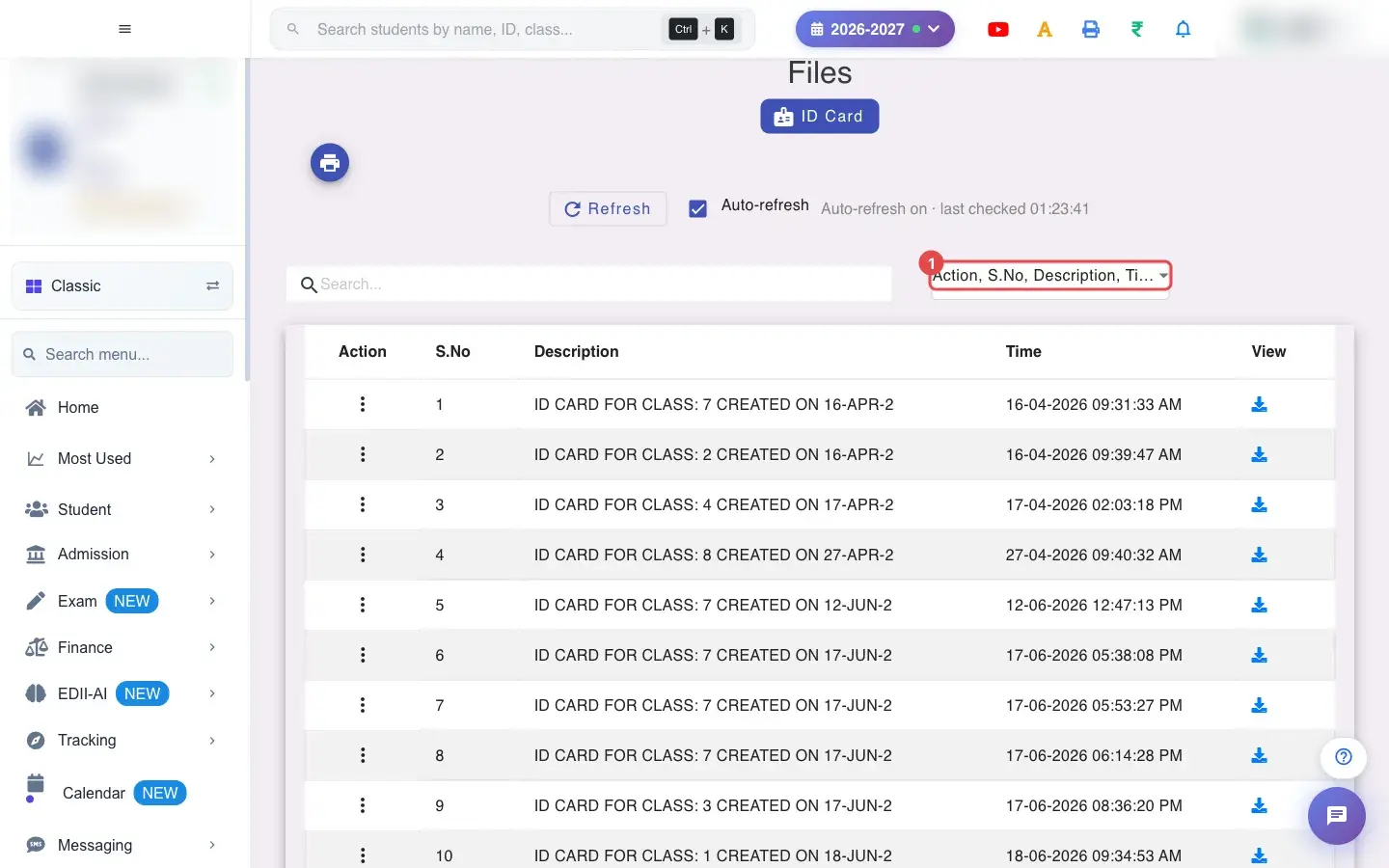
Section titled “Step by step”1. Choose Select Fields to Display (for example Action, S.No, Description, Time, View)
Section titled “1. Choose Select Fields to Display (for example Action, S.No, Description, Time, View)”Select Fields to Display chooses the columns of the files list: Action, S.No, Description, Time, View.
 Open a bigger pictureतस्वीर बड़ी करें
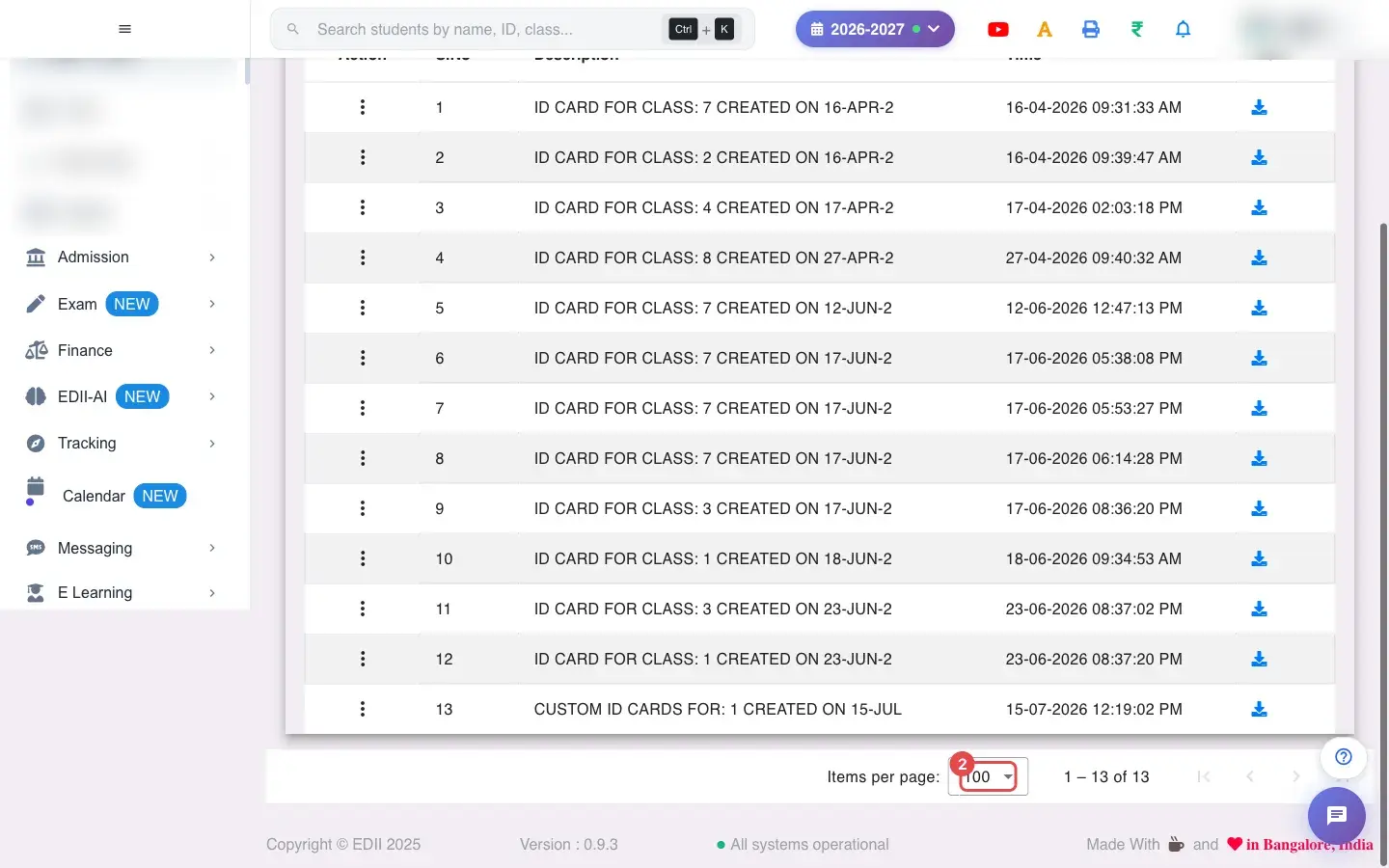
2. Choose 100 (for example 100)
Section titled “2. Choose 100 (for example 100)”Choose how many files to show per page.
 Open a bigger pictureतस्वीर बड़ी करें
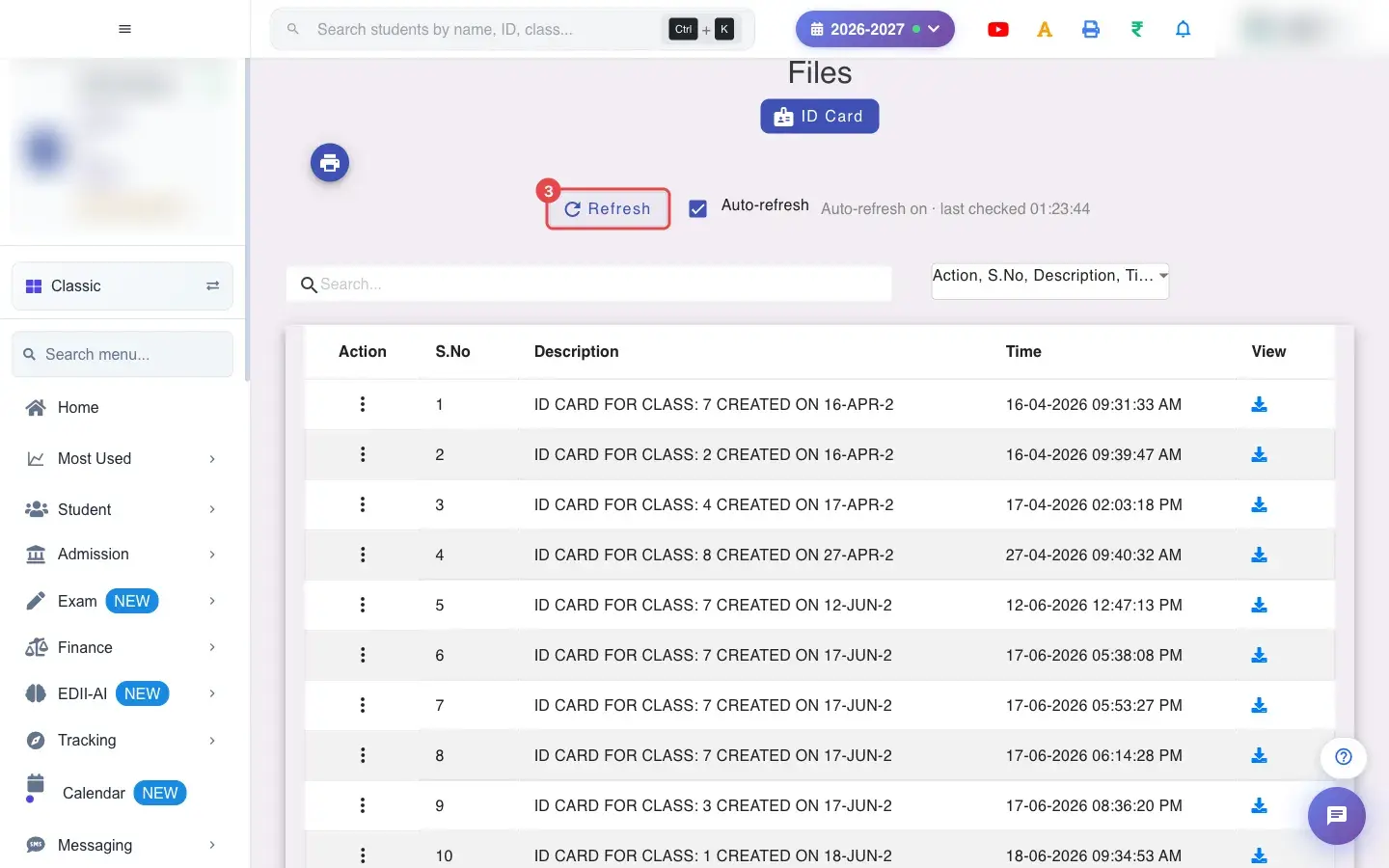
3. Select Refresh
Section titled “3. Select Refresh”Select Refresh to load the latest generated files.
 Open a bigger pictureतस्वीर बड़ी करें
4. Standard ID cards
Section titled “4. Standard ID cards”Choose Standard ID Card, then Select class (and a student if you want one card) and the number of ID cards per page, and select Generate cards. The message Queued confirms it. The current ID-card template is not changed. If you forget the class you see Please select a class.
5. Custom ID cards: upload the background
Section titled “5. Custom ID cards: upload the background”Choose Custom ID Card, then Upload blank background artwork. Do not draw student text, labels or a photo frame in the artwork; EDII adds them in fixed safe zones shown in the preview. The image must be exactly the Canvas size shown (width × height px), PNG, JPG or JPEG, up to 5 MB. Layouts are 8 cards per A4 page or 9 cards per A4 page. Wrong size gives Background must be exactly W × H px; wrong type Please upload a PNG, JPG or JPEG image.; too big Maximum background size is 5 MB.
6. Custom ID cards: choose fields and text size
Section titled “6. Custom ID cards: choose fields and text size”Choose which detail fields to print and set each text field’s size so long details stay readable. At least one field is required (Please select at least one field.) and at most 7 (Please select no more than 7 detail fields.). The school name can be shown too.
7. Save the template and generate
Section titled “7. Save the template and generate”Select save to store the custom template (Custom ID-card template saved.). Then generate cards for a class or a student; they are queued like standard cards (Custom ID cards are queued…).
8. Download the result
Section titled “8. Download the result”When a file appears in Files, use View to open the PDF. Use Auto-refresh to keep the list updating while cards are being built.
9. Delete old files
Section titled “9. Delete old files”Use Delete in the Action menu and confirm (File Deleted!) to remove generated files you no longer need.
With data
Section titled “With data”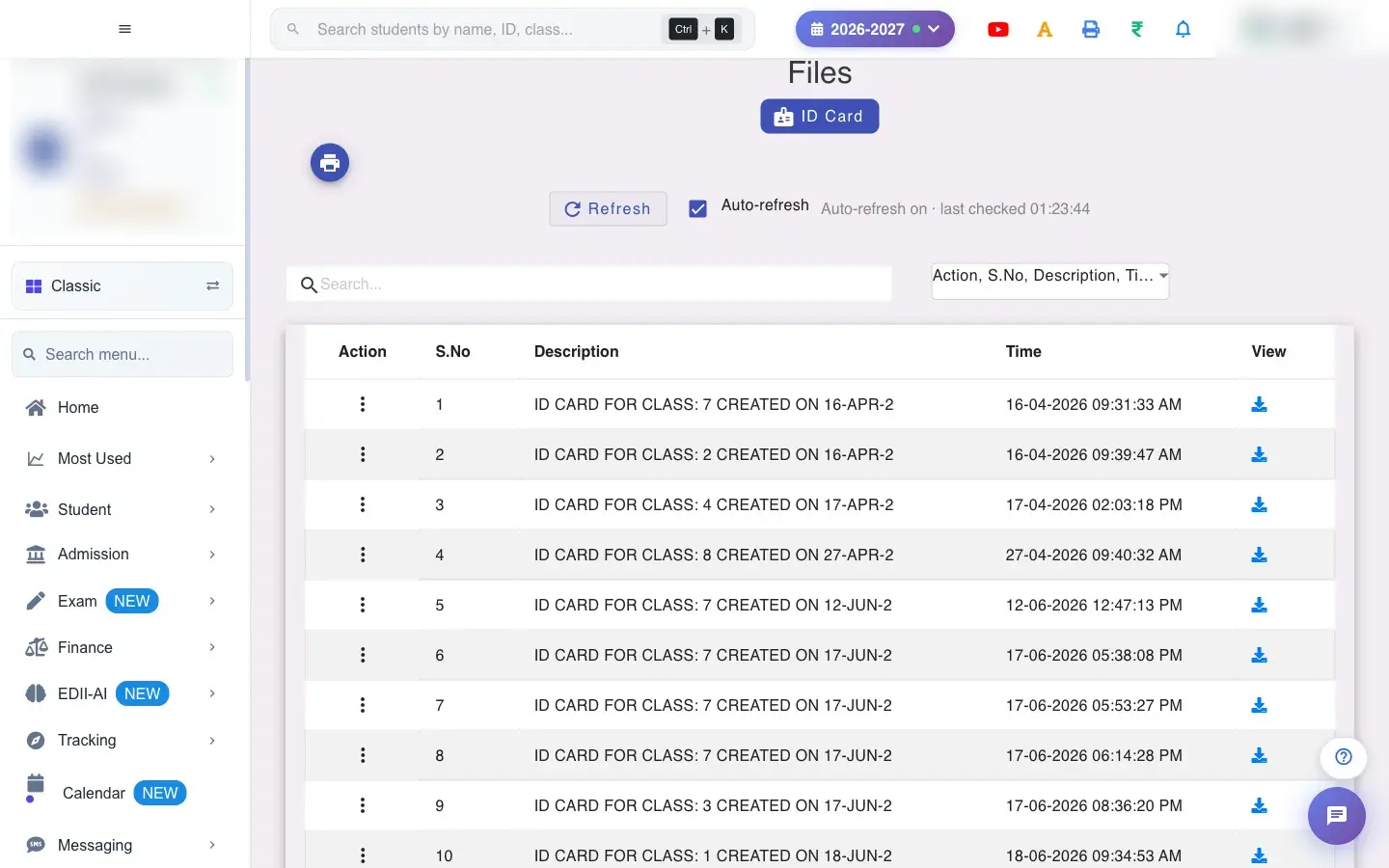 Open a bigger pictureतस्वीर बड़ी करें
Fields and filters
Section titled “Fields and filters”| Field | What it is | Notes |
|---|---|---|
| Standard / Custom ID Card | Which layout to use. | Standard keeps the EDII layout. |
| Select class / student | Who gets cards. | A class is required. |
| ID cards per page | How many cards on an A4 page. | 8 or 9. |
| Background artwork | Blank card background. | Exact pixel size, PNG/JPG/JPEG, up to 5 MB. |
| Detail fields and text size | Information printed on the card. | 1 to 7 fields. |
| Auto-refresh | Keeps the files list updating. | A checkbox. |
Buttons
Section titled “Buttons”| Button | What it does | What happens next |
|---|---|---|
| Generate cards | Queues ID cards for the class. | Queued; the PDF appears in Files. |
| save (custom template) | Stores the artwork and layout. | Custom ID-card template saved. |
| Refresh | Reloads the Files list. | Shows Network Issue, Please Try Again. if it fails. |
| View | Opens a generated file. | Read only. |
| Delete | Removes a generated file. | Asks you to confirm. |
Columns
Section titled “Columns”| Column | Meaning |
|---|---|
| Description | What the file is, for example the class of ID cards. |
| Time | When it was generated. |
| View | Opens the file. |
After you save
Section titled “After you save”- Generated cards are made in the background and listed under Files; nothing is printed automatically.
- A saved custom template is reused for later generations until you change it.
- Deleting a file removes it from the list for good.
Good to know
Section titled “Good to know”- The custom background must match the canvas size exactly.
- Between 1 and 7 detail fields can be printed on a custom card.
- A class must be selected before generating.
Messages you may see
Section titled “Messages you may see”| Message | What it means | What to do |
|---|---|---|
| Please select a class. | No class chosen. | Choose a class. |
| Please select a student. | A single-student card needs a student. | Choose a student. |
| Please upload the blank ID-card background. | No artwork uploaded. | Upload the image. |
| Background must be exactly W × H px. | The image size is wrong. | Resize to the stated pixels. |
| Maximum background size is 5 MB. | The image is too large. | Compress it. |
| Please select no more than 7 detail fields. | Too many fields. | Remove some. |
| Custom ID-card template saved. | The template was stored. | Nothing to do. |
| File Deleted! | The file was removed. | Nothing to do. |
- Make one class first and check the PDF before queuing the whole school.
- Use the video link on the page to see how to design a background of the exact size.
Stuck? Try this
Section titled “Stuck? Try this”| Problem | Likely cause | What to do |
|---|---|---|
| The card shows no photo | The student has no photo. | Add photos in Student Edit or upload them in bulk. |
| My file is not in the list | It is still being generated. | Turn on Auto-refresh or press Refresh. |
Did this page help?क्या इस पेज से मदद मिली?
Thanks! Glad it helped.धन्यवाद! अच्छा लगा कि काम बन गया।
Sorry about that. Ask in your own words, or write to us.माफ़ कीजिए। अपने शब्दों में पूछें, या हमें लिखें।