
Screen guide · Web app
Bulk Import Student
Add many students at once by uploading a CSV or Excel file, with an optional validation check before the upload.
यह पेज अंग्रेज़ी में है। कुछ समझ न आए तो ।
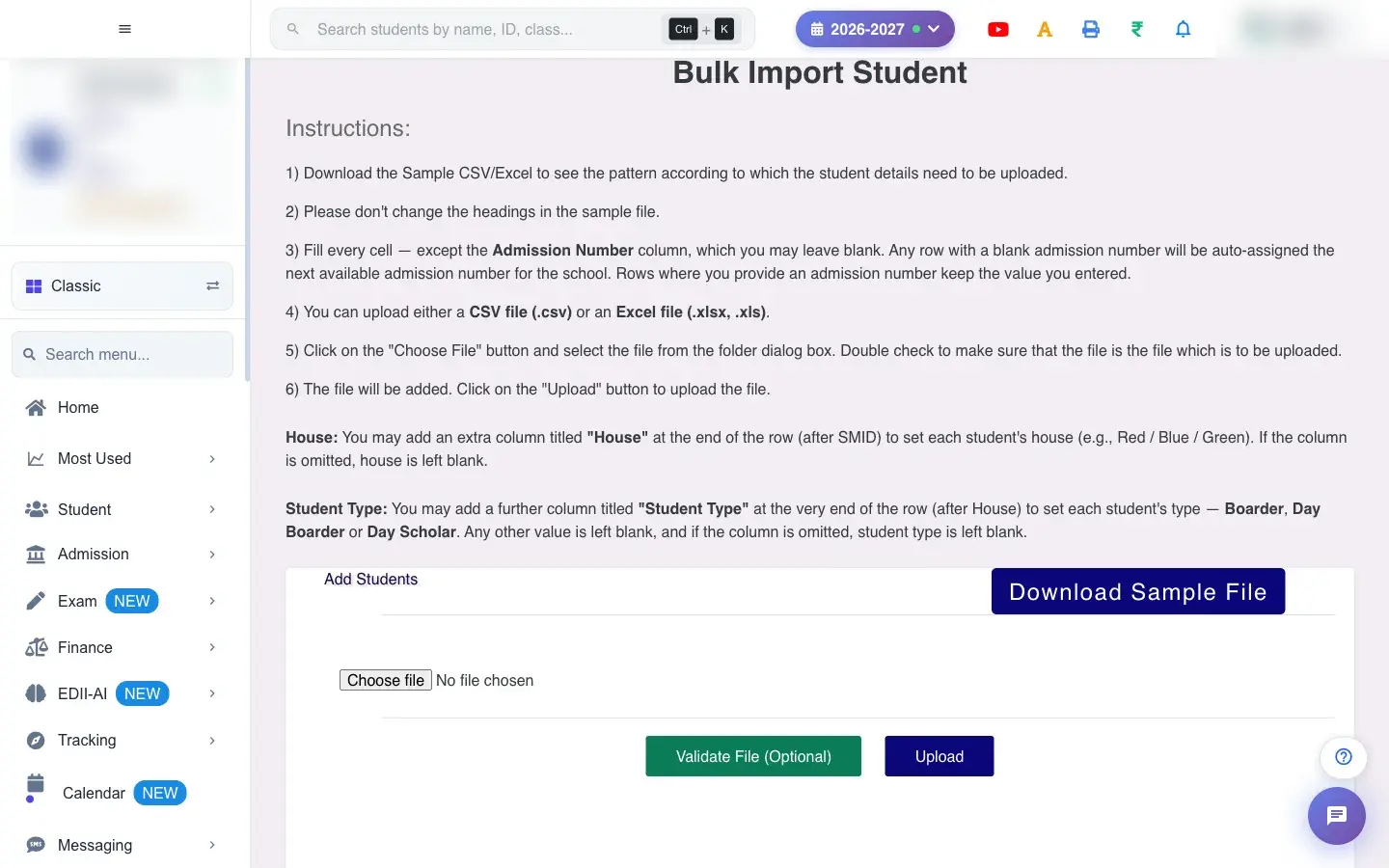
Bulk Import Student (Student › Add Multiple) admits a whole list of students from one file. You download the sample file, fill it in, optionally Validate File to catch problems, and then Upload.
Admission numbers can be left blank: any row without one is given the next available admission number for the school. A row with an admission number keeps it.
Who uses it and when
Section titled “Who uses it and when”The office uses it at the start of a session or when a new school moves its students into EDII.
Before you start
Section titled “Before you start”- Download the sample first and keep its headings exactly as they are.
- Classes and sections used in the file must exist.
- The file must be CSV (.csv) or Excel (.xlsx, .xls) and at most 5 MB.
Where to find it
Section titled “Where to find it”- Menu: Student › Add Multiple
- Address:
/add/add-studentFile - If it is missing from your menu, your role does not include it. Ask your school admin.
 Open a bigger pictureतस्वीर बड़ी करें
Step by step
Section titled “Step by step”1. Download the sample file
Section titled “1. Download the sample file”Select Download Sample File to get a template that shows the columns and the pattern the data must follow. Do not change the headings.
2. Fill in the file
Section titled “2. Fill in the file”Fill every cell except Admission Number, which you may leave blank. You may add a House column at the end (after SMID) to set each student’s house, for example Red, Blue or Green; if you leave it out, the house stays empty.
3. Choose the file
Section titled “3. Choose the file”Select Choose File and pick your CSV or Excel file. Other types give Only CSV or Excel files are allowed. Please upload a .csv, .xlsx, or .xls file.; files above 5 MB give Max File Size is 5 MB. An Excel file is converted for you (Excel file has been converted and uploaded…).
4. Validate the file (optional)
Section titled “4. Validate the file (optional)”Select Validate File (Optional) to check the file without adding anyone. It reports problems per row, or No blocking problems found. Without a file you see Please choose a CSV or Excel file first, then click Validate.
5. Upload
Section titled “5. Upload”After the file is added (File has been uploaded, Please click on the Upload Button to Continue adding the student), select Upload. You see Starting upload… and then the result for the students. If no file is loaded you see Please Add the Student List first by clicking on the “+” button!
Fields and filters
Section titled “Fields and filters”| Field | What it is | Notes |
|---|---|---|
| Sample file columns | The columns in the downloaded sample. | Do not rename them. |
| Admission Number | Optional per row. | Blank = next available number. |
| House (optional column) | Added after SMID. | Sets each student’s house. |
Buttons
Section titled “Buttons”| Button | What it does | What happens next |
|---|---|---|
| Download Sample File | Gets the template. | Opens or saves the file. |
| Validate File (Optional) | Checks the file. | Lists problems; adds nobody. |
| Upload | Adds the students. | Creates a student for each valid row. |
After you save
Section titled “After you save”- Each valid row becomes a student in its class and section for the current session, with an admission number (yours or the next free one).
- Rows with problems are reported so you can fix them and upload again.
- The new students appear in Student Search.
Good to know
Section titled “Good to know”- Only .csv, .xlsx and .xls files up to 5 MB.
- Headings must match the sample.
- Blank admission numbers are auto-assigned.
Messages you may see
Section titled “Messages you may see”| Message | What it means | What to do |
|---|---|---|
| Only CSV or Excel files are allowed. Please upload a .csv, .xlsx, or .xls file. | Wrong file type. | Save as CSV or Excel. |
| Max File Size is 5 MB | The file is too large. | Split it. |
| Error processing Excel file. Please ensure the file is valid. | The Excel file could not be read. | Save it again as .xlsx. |
| Please choose a CSV or Excel file first, then click Validate. | No file. | Choose one. |
| No blocking problems found. | Validation passed. | Upload. |
| Network Issue, Please Try Again. | A request failed. | Try again. |
- Validate before uploading; it costs nothing and catches typos.
- Upload one class at a time for easier checking.
Stuck? Try this
Section titled “Stuck? Try this”| Problem | Likely cause | What to do |
|---|---|---|
| Some rows were rejected | A required cell is empty or a class or section does not exist. | Read the validation messages, fix those rows and upload again. |
Did this page help?क्या इस पेज से मदद मिली?
Thanks! Glad it helped.धन्यवाद! अच्छा लगा कि काम बन गया।
Sorry about that. Ask in your own words, or write to us.माफ़ कीजिए। अपने शब्दों में पूछें, या हमें लिखें।