
How-to · Web app
Give homework
Give homework with instructions and attachments.
यह पेज अंग्रेज़ी में है। कुछ समझ न आए तो ।
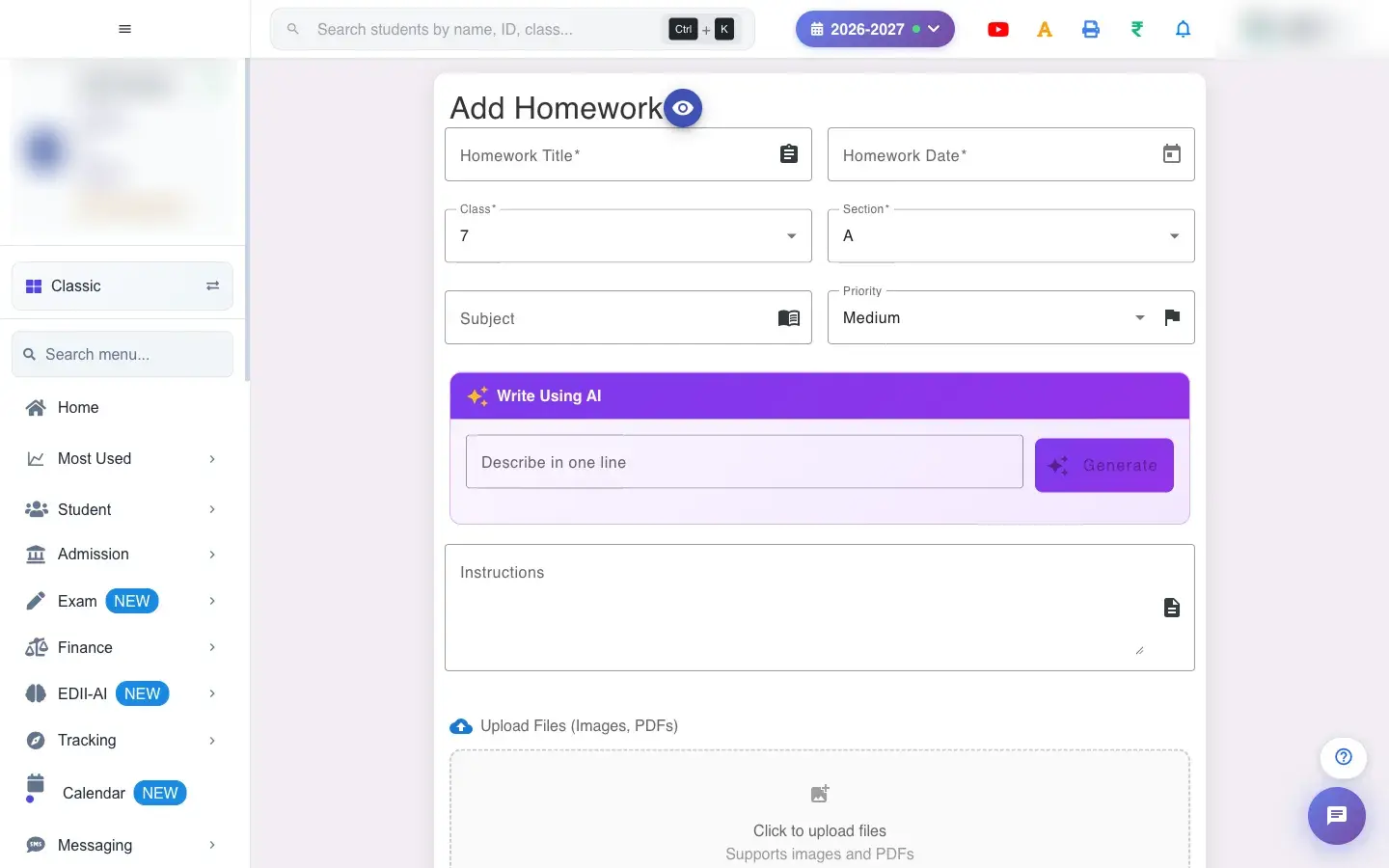
Add Homework (Student › Add) sets homework for a class and section. Choose the Class, Section and Priority, pick the Homework Date, type the Homework Title and Subject, and write the Instructions or attach a file or images. For help writing, type a short line in Describe in one line and select Generate (the sparkle button): EDII’s AI drafts the instructions (Content generated successfully); read and edit it before saving. Select Add Homework to save; Reset clears the form.
Before you start
Section titled “Before you start”- Know the class, subject and what students must do.
1. Choose who
Section titled “1. Choose who”Select the Class and Section.
 Open a bigger pictureतस्वीर बड़ी करें
2. Describe the work
Section titled “2. Describe the work”Fill the title, subject, date and instructions, or generate the instructions with AI and edit them.
3. Attach material
Section titled “3. Attach material”Add images or files if needed (Uploading Images/Files..).
4. Save
Section titled “4. Save”Select Add Homework. Home Work Added confirms it.
Full details of this screen Give homework
What happens next
Section titled “What happens next”- The homework appears in Homework for the teacher and in the student and parent apps for that class and section.
Good to know
Section titled “Good to know”- Class, section and date are required.
- Add instructions or attach a file.
Stuck? Try this
Section titled “Stuck? Try this”| You see | Why | What to do |
|---|---|---|
| Parents did not see it | Wrong class or section. | Check in Homework and fix via edit. |
Did this page help?क्या इस पेज से मदद मिली?
Thanks! Glad it helped.धन्यवाद! अच्छा लगा कि काम बन गया।
Sorry about that. Ask in your own words, or write to us.माफ़ कीजिए। अपने शब्दों में पूछें, या हमें लिखें।