
Screen guide · Web app
Send SMS
Send an SMS to parents using a ready template: choose the template, fill its variables, pick a class and section or individual students, and send.
यह पेज अंग्रेज़ी में है। कुछ समझ न आए तो ।
Send SMS (Messaging › Send SMS) sends SMS messages to students’ parents using predefined templates. Select a template (Please select an SMS template); its text appears in SMS Message and any Template Variables (for example Variable 1) become boxes you fill in. Then choose who gets it: a Class and Section (or Select All), or individual students found with Search Student, shown under Selected Students. Select Send SMS.
Who uses it and when
Section titled “Who uses it and when”The office and teachers send notices, reminders and announcements to parents.
Before you start
Section titled “Before you start”- The school needs SMS balance. Only approved templates can be used; you cannot send free text.
Where to find it
Section titled “Where to find it”- Menu: Messaging › Send SMS
- Address:
/view/generate-sms - If it is missing from your menu, your role does not include it. Ask your school admin.
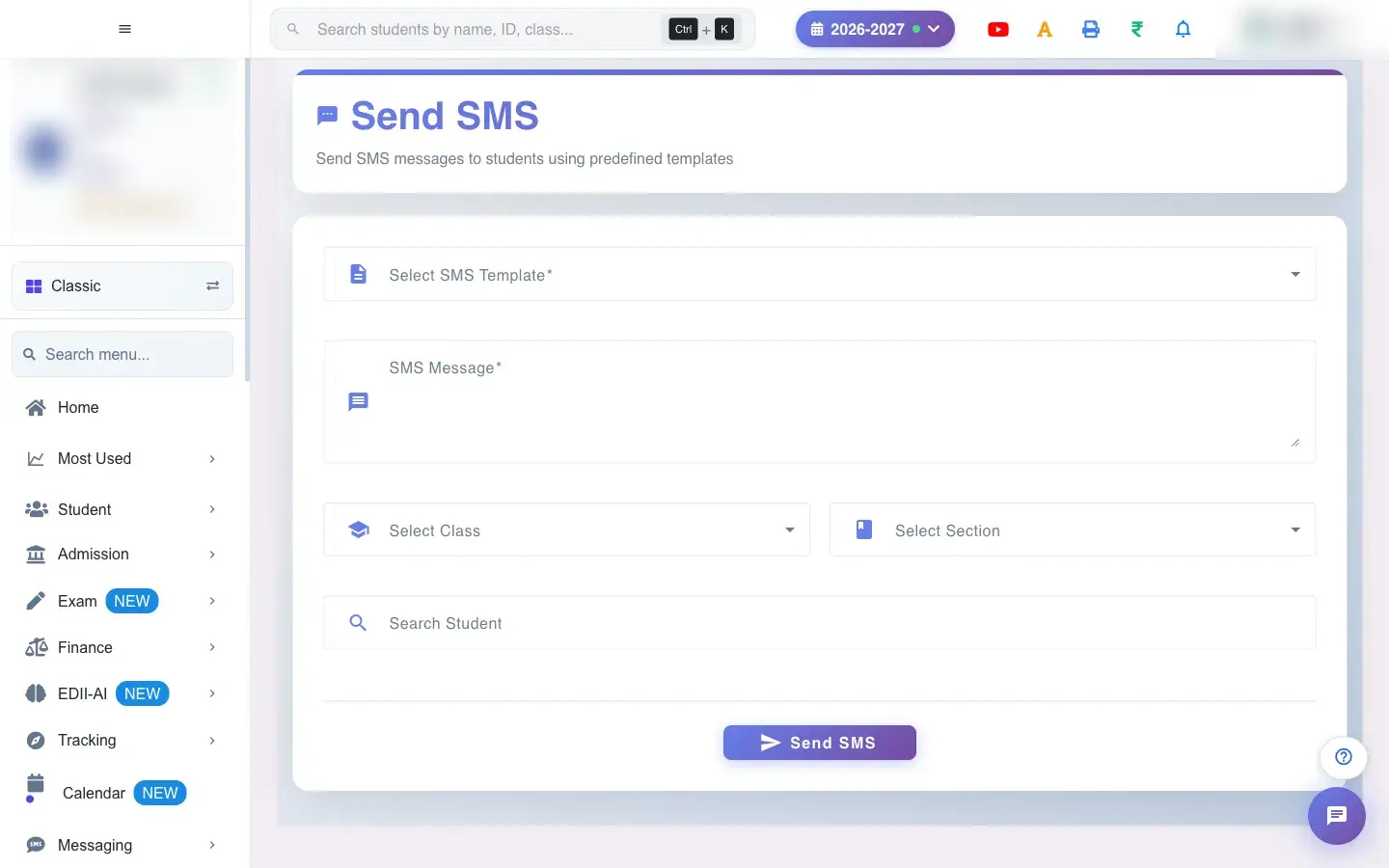 Open a bigger pictureतस्वीर बड़ी करें
Step by step
Section titled “Step by step”1. Choose the template
Section titled “1. Choose the template”Pick a template under Select SMS Template. The message is required (SMS message is required).
2. Fill the variables
Section titled “2. Fill the variables”Type a value for each Template Variable; they are placed into the message where the template has gaps.
3. Choose the recipients
Section titled “3. Choose the recipients”Select a Class and Section, or search students by name, ID, roll number, enrollment number or father’s name and pick them. If you choose neither you see Choose a class and a section, or search and pick students first. Selected students appear with a cancel icon to remove them.
4. Send
Section titled “4. Send”Select Send SMS. Notifications Sent confirms. SMS use the school’s SMS balance and cannot be recalled.
With data
Section titled “With data”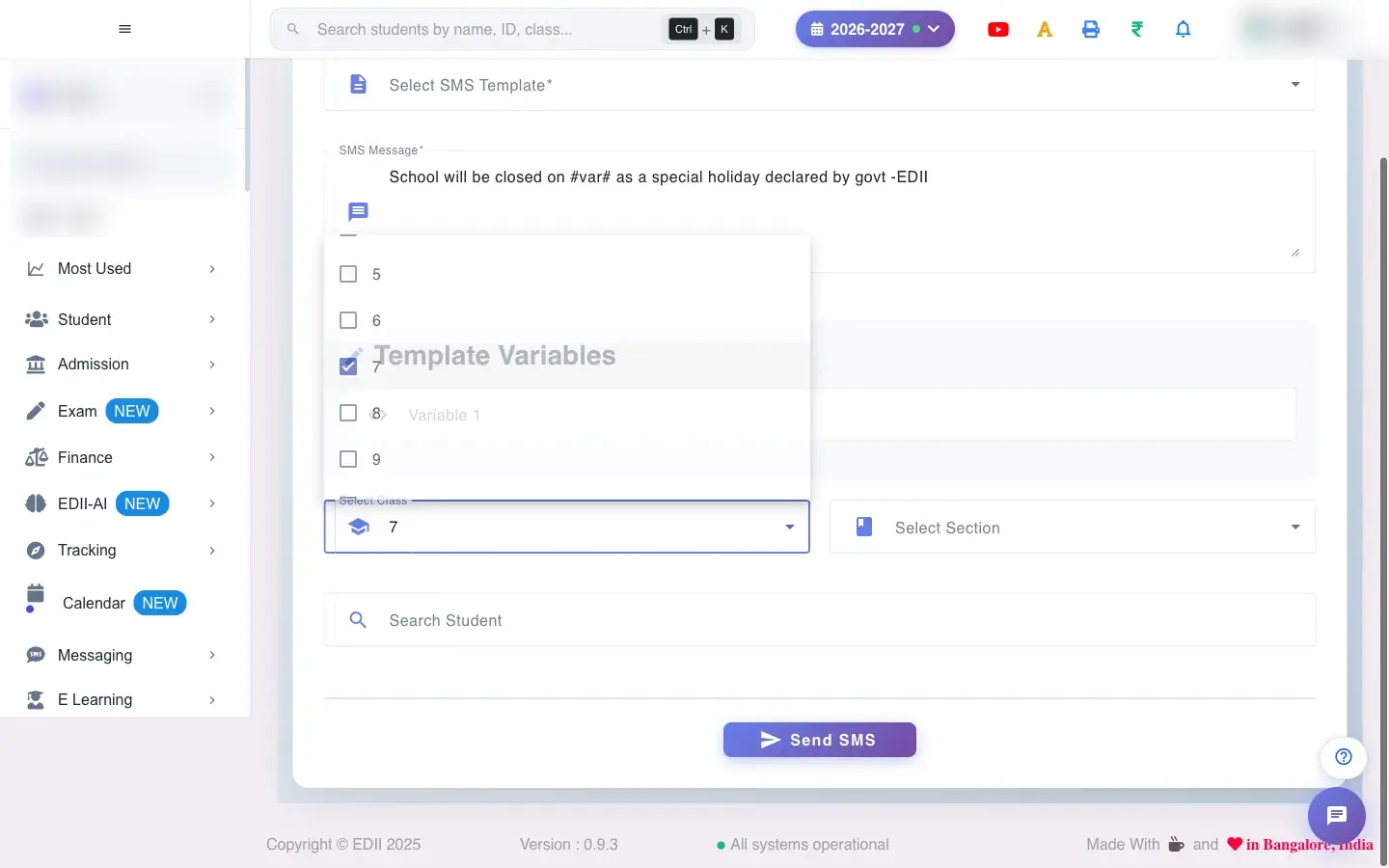 Open a bigger pictureतस्वीर बड़ी करें
Fields and filters
Section titled “Fields and filters”| Field | What it is | Notes |
|---|---|---|
| Select SMS Template | The approved message. | Required. |
| Template Variables | Values for the gaps in the template. | Fill all. |
| Select Class / Select Section | A whole class or section. | Or pick students. |
| Search Student | Pick individual students. | Name, ID, Roll No, Enrollment No or Father Name. |
Buttons
Section titled “Buttons”| Button | What it does | What happens next |
|---|---|---|
| Send SMS | Sends the SMS to every recipient. | Notifications Sent. |
After you save
Section titled “After you save”- An SMS is sent to the parent’s registered number of every recipient and counted against the school’s SMS balance; it appears in the SMS Report.
- A message cannot be recalled.
Good to know
Section titled “Good to know”- Only predefined templates can be sent.
- A template and recipients are required.
Messages you may see
Section titled “Messages you may see”| Message | What it means | What to do |
|---|---|---|
| Notifications Sent | The SMS were sent. | Check the SMS Report. |
| Choose a class and a section, or search and pick students first. | No recipients. | Choose recipients. |
| Network Issue, Please Try Again. | A request failed. | Check the SMS Report before resending. |
- Check the SMS report after a send so you do not send twice.
- Preview the message with a test student first.
Stuck? Try this
Section titled “Stuck? Try this”| Problem | Likely cause | What to do |
|---|---|---|
| Some parents did not get it | No registered number or no balance. | Check numbers and SMS balance. |
Did this page help?क्या इस पेज से मदद मिली?
Thanks! Glad it helped.धन्यवाद! अच्छा लगा कि काम बन गया।
Sorry about that. Ask in your own words, or write to us.माफ़ कीजिए। अपने शब्दों में पूछें, या हमें लिखें।