
Screen guide · Web app
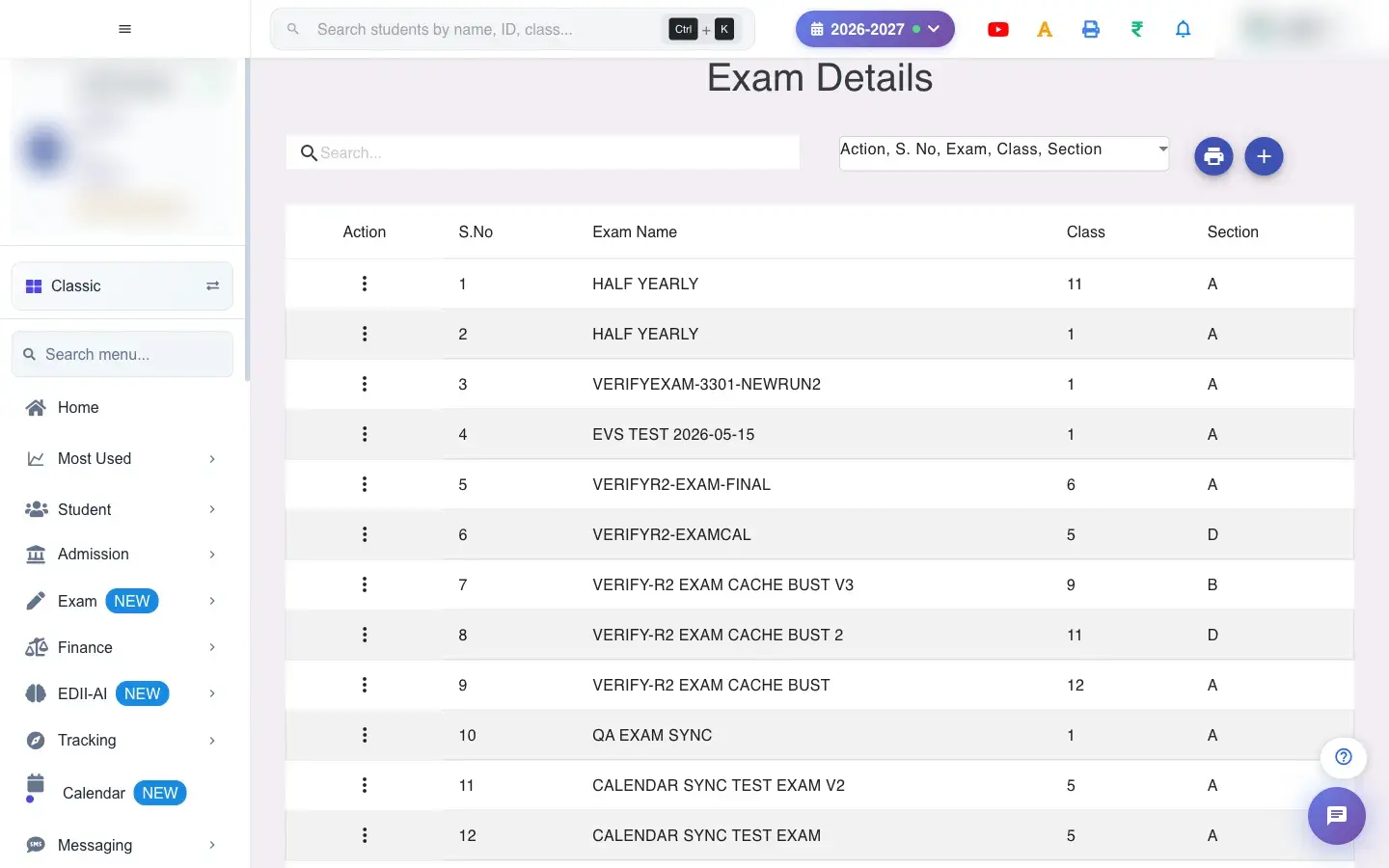
Exam Details
Print admit cards for a class and section in your chosen layout: select the cards, choose which sections to show and how many cards fit on a page.
यह पेज अंग्रेज़ी में है। कुछ समझ न आए तो ।
Print Admit Cards lists exam schedules; choosing one opens its admit cards. Select All Cards ticks every card and Print Selected (N) prints them. Print Layout Configuration lets you choose which sections appear on each card (Exam Schedule, Exam Timings, Important Instructions, Signature Section): fewer sections means more cards per page. The current layout shows how many cards print per page (for example 1, 2 or more per page).
Who uses it and when
Section titled “Who uses it and when”The exam in-charge prints admit cards before the exams.
Before you start
Section titled “Before you start”- An exam schedule must exist (No Admit Card Present for this Class/Section otherwise). The service must be enabled for your school (This Service is not enabled for your School, Please contact EDII to enable this feature).
Where to find it
Section titled “Where to find it”- This screen opens from another screen, not from the menu.
- Address:
/view/print-admit-card - If it is missing from your menu, your role does not include it. Ask your school admin.
 Open a bigger pictureतस्वीर बड़ी करें
With data
Section titled “With data”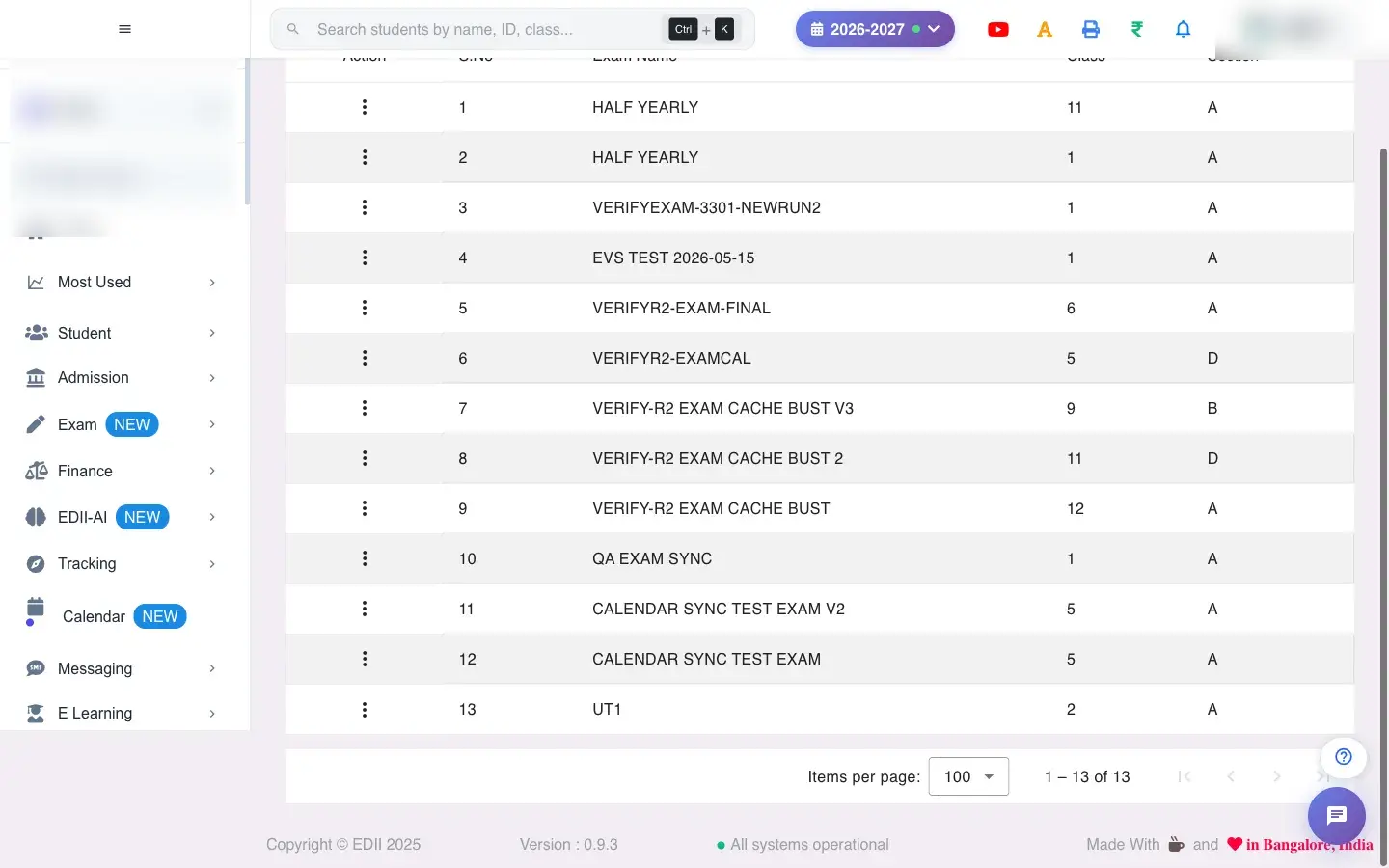 Open a bigger pictureतस्वीर बड़ी करें
Fields and filters
Section titled “Fields and filters”| Field | What it is | Notes |
|---|---|---|
| Select Fields to Display | Columns of the exam list. | View only. |
| Layout sections | Exam Schedule, Exam Timings, Important Instructions, Signature Section. | Fewer sections = more cards per page. |
Buttons
Section titled “Buttons”| Button | What it does | What happens next |
|---|---|---|
| Select All Cards / Deselect All | Ticks or unticks cards. | Only the selection changes. |
| Select All Sections / Deselect All | Chooses layout sections. | Changes cards per page. |
| Print Selected (N) | Prints the ticked cards. | Opens the print window. |
After you save
Section titled “After you save”- Printing only reads data; no record changes.
Good to know
Section titled “Good to know”- The cards follow the schedule you saved.
Messages you may see
Section titled “Messages you may see”| Message | What it means | What to do |
|---|---|---|
| No Admit Card Present for this Class/Section | No schedule exists. | Create one in Add Admit Cards. |
| This Service is not enabled for your School, Please contact EDII to enable this feature | The feature is off. | Contact EDII. |
| Bad/Slow Internet Connection, Please check your internet connection | A request failed. | Try again. |
- Drop the Instructions section to fit more cards on a page.
- Check one card in print preview before printing the class.
Stuck? Try this
Section titled “Stuck? Try this”| Problem | Likely cause | What to do |
|---|---|---|
| Cards are cut off | Too many sections for the page. | Reduce the sections. |
Did this page help?क्या इस पेज से मदद मिली?
Thanks! Glad it helped.धन्यवाद! अच्छा लगा कि काम बन गया।
Sorry about that. Ask in your own words, or write to us.माफ़ कीजिए। अपने शब्दों में पूछें, या हमें लिखें।