
Screen guide · Web app
Invoices
View your school's monthly EDII subscription invoices, see what is billed, paid and outstanding, and pay outstanding invoices online.
यह पेज अंग्रेज़ी में है। कुछ समझ न आए तो ।
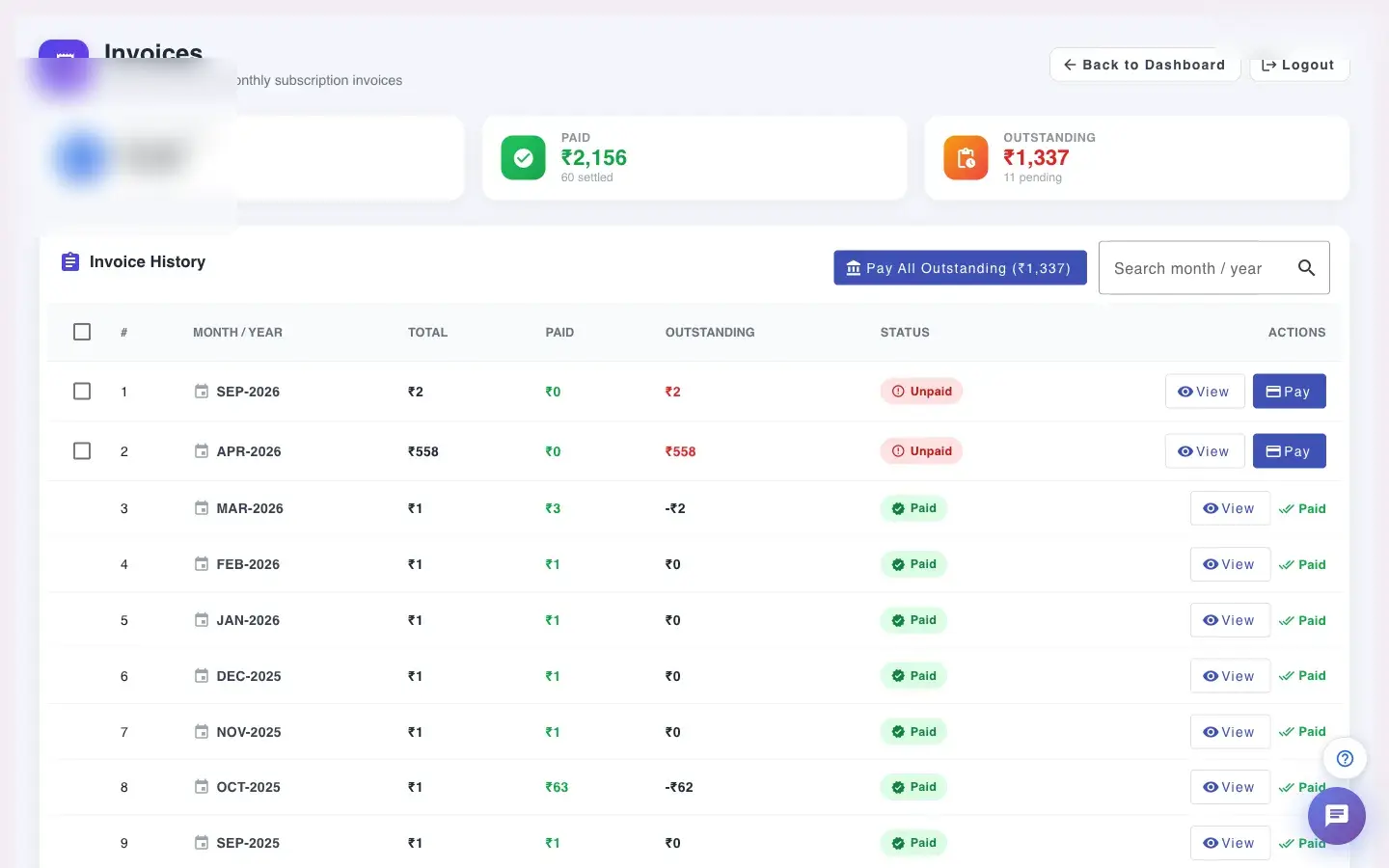
Invoices (Finance › Invoice) shows the school’s monthly invoices for its EDII subscription. Three tiles show Total Billed, Paid and Outstanding. The Invoice History table lists each month with the Total, Paid, Outstanding and Status, and a View and Pay button.
If a payment is pending, access to the rest of the application is paused until the outstanding amount is cleared; the page says so and offers Back to Dashboard and Logout.
Who uses it and when
Section titled “Who uses it and when”The school’s administrator opens it when an invoice is due or when access is paused for a pending payment.
Before you start
Section titled “Before you start”- Only school administrators with finance access should pay invoices.
Where to find it
Section titled “Where to find it”- Menu: Finance › Invoice
- Address:
/view/invoice - If it is missing from your menu, your role does not include it. Ask your school admin.
 Open a bigger pictureतस्वीर बड़ी करें
Step by step
Section titled “Step by step”1. Read the totals
Section titled “1. Read the totals”Total Billed, Paid and Outstanding show the position for all invoices, with the number of invoices.
2. Find an invoice
Section titled “2. Find an invoice”Use Search month / year to find a month and choose how many rows to show.
3. View an invoice
Section titled “3. View an invoice”View opens the invoice details for that month.
4. Pay online
Section titled “4. Pay online”Pay pays one invoice. Tick several invoices and select Pay Selected (N) to pay them together, or Pay All Outstanding to clear everything due. After payment you see Payment successful. If the payment cannot be confirmed you see Payment could not be confirmed. If money was debited it will reflect shortly; please refresh.
With data
Section titled “With data”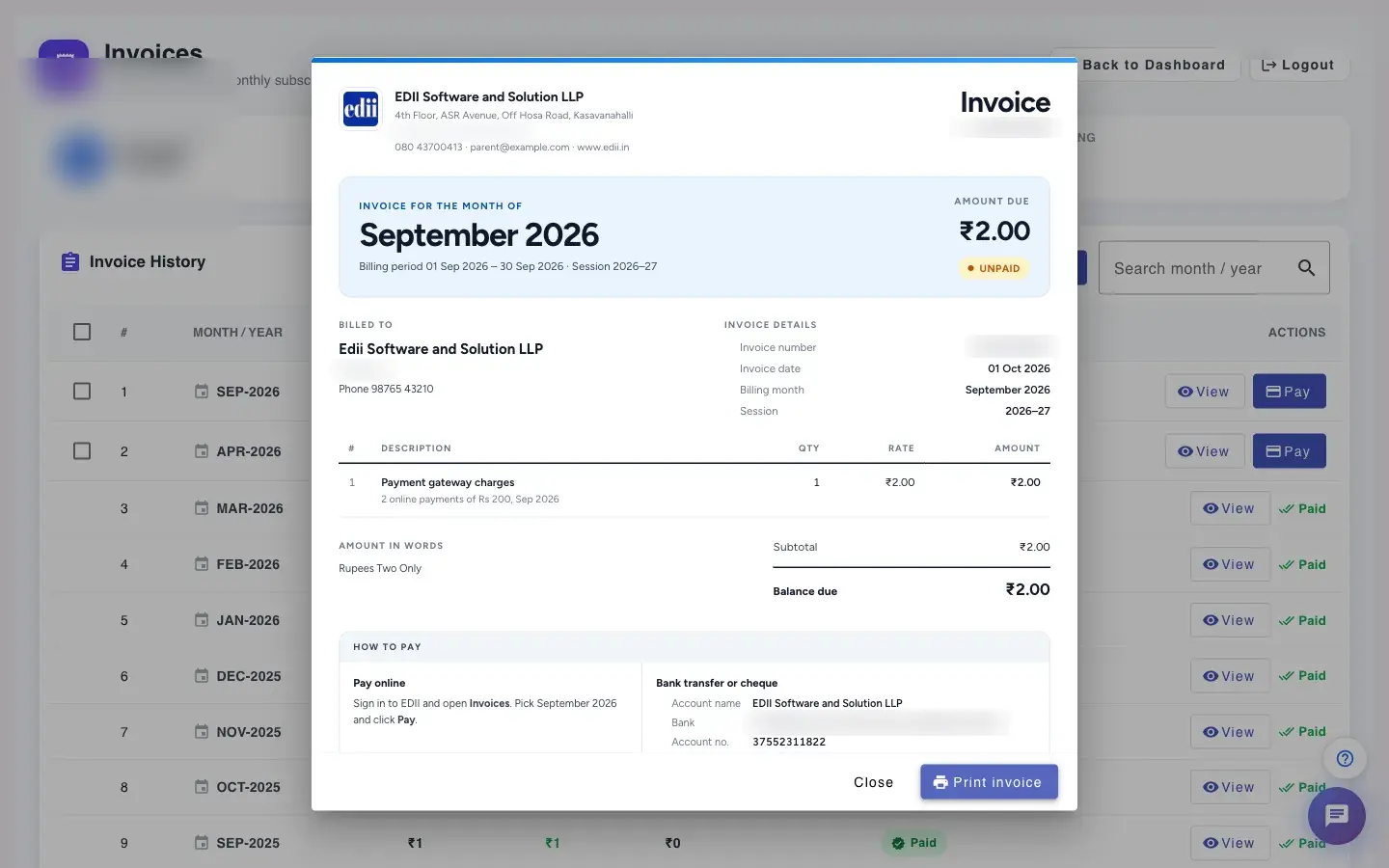 Open a bigger pictureतस्वीर बड़ी करें
Fields and filters
Section titled “Fields and filters”| Field | What it is | Notes |
|---|---|---|
| Search month / year | Find an invoice. | Only filters. |
| Invoice tick boxes | Choose invoices to pay together. | Optional. |
Buttons
Section titled “Buttons”| Button | What it does | What happens next |
|---|---|---|
| View | Opens the invoice. | Read only. |
| Pay / Pay Selected / Pay All Outstanding | Pays invoices online. | Status changes to paid once the payment is confirmed. |
| Back to Dashboard / Logout | Leaves the page. | Access stays paused while an amount is outstanding. |
Columns
Section titled “Columns”| Column | Meaning |
|---|---|
| Month / Year | The billing month. |
| Total / Paid / Outstanding | Billed, paid and still due. |
| Status | Paid, partly paid or unpaid. |
After you save
Section titled “After you save”- A confirmed payment marks the invoice as paid and, if access was paused, restores it.
Good to know
Section titled “Good to know”- Access to the rest of the app is paused while a subscription payment is pending.
- A payment that cannot be confirmed may still reflect shortly after.
Messages you may see
Section titled “Messages you may see”| Message | What it means | What to do |
|---|---|---|
| Payment successful | The payment was confirmed. | Nothing to do. |
| Payment could not be confirmed. If money was debited it will reflect shortly; please refresh. | The result is not known yet. | Wait a few minutes, then refresh before paying again. |
| Bad/Slow Internet Connection, Please check your internet connection | The page could not load. | Try again. |
- After paying, refresh before trying again so you do not pay twice.
Stuck? Try this
Section titled “Stuck? Try this”| Problem | Likely cause | What to do |
|---|---|---|
| The application is locked | An invoice is outstanding. | Pay the outstanding amount here. |
Did this page help?क्या इस पेज से मदद मिली?
Thanks! Glad it helped.धन्यवाद! अच्छा लगा कि काम बन गया।
Sorry about that. Ask in your own words, or write to us.माफ़ कीजिए। अपने शब्दों में पूछें, या हमें लिखें।