
Screen guide · Teacher app
Home (Today)
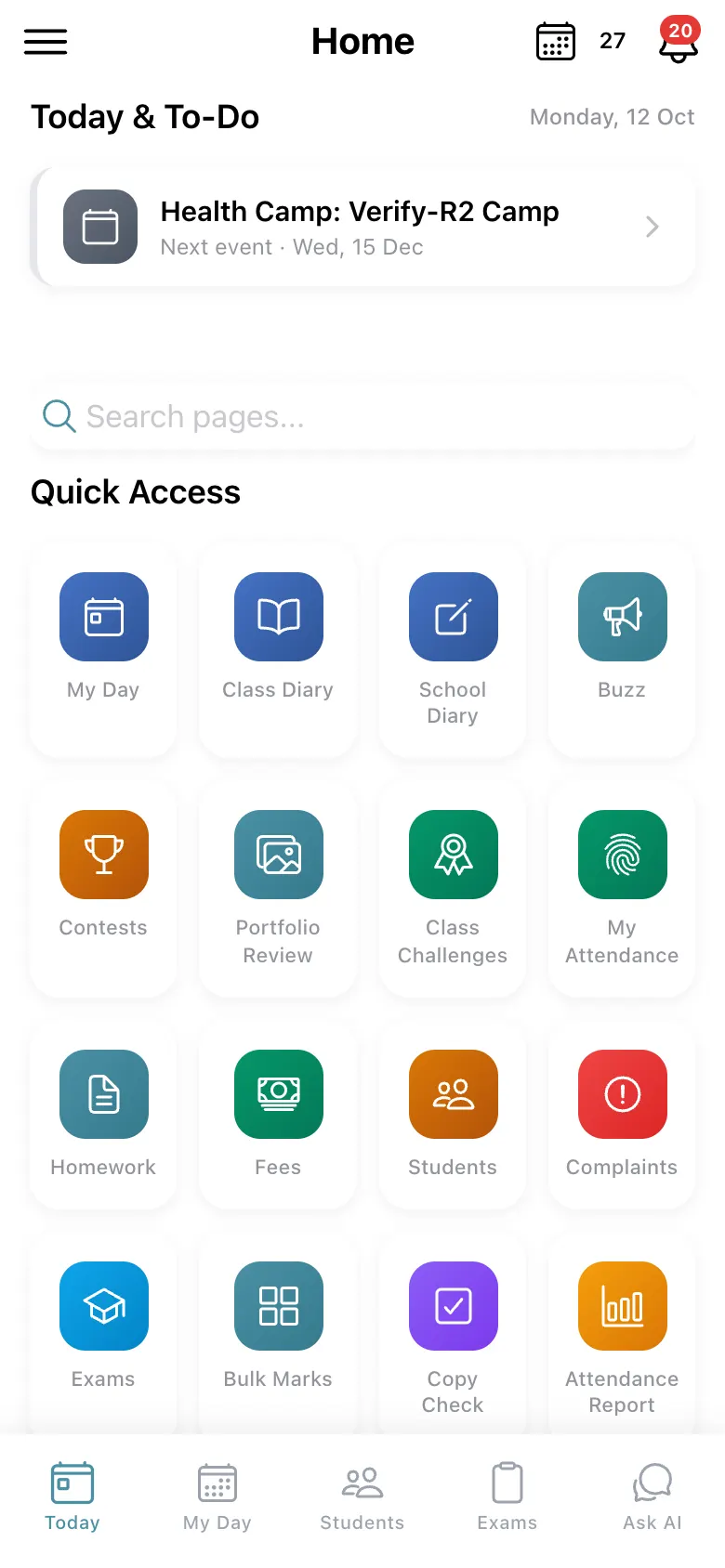
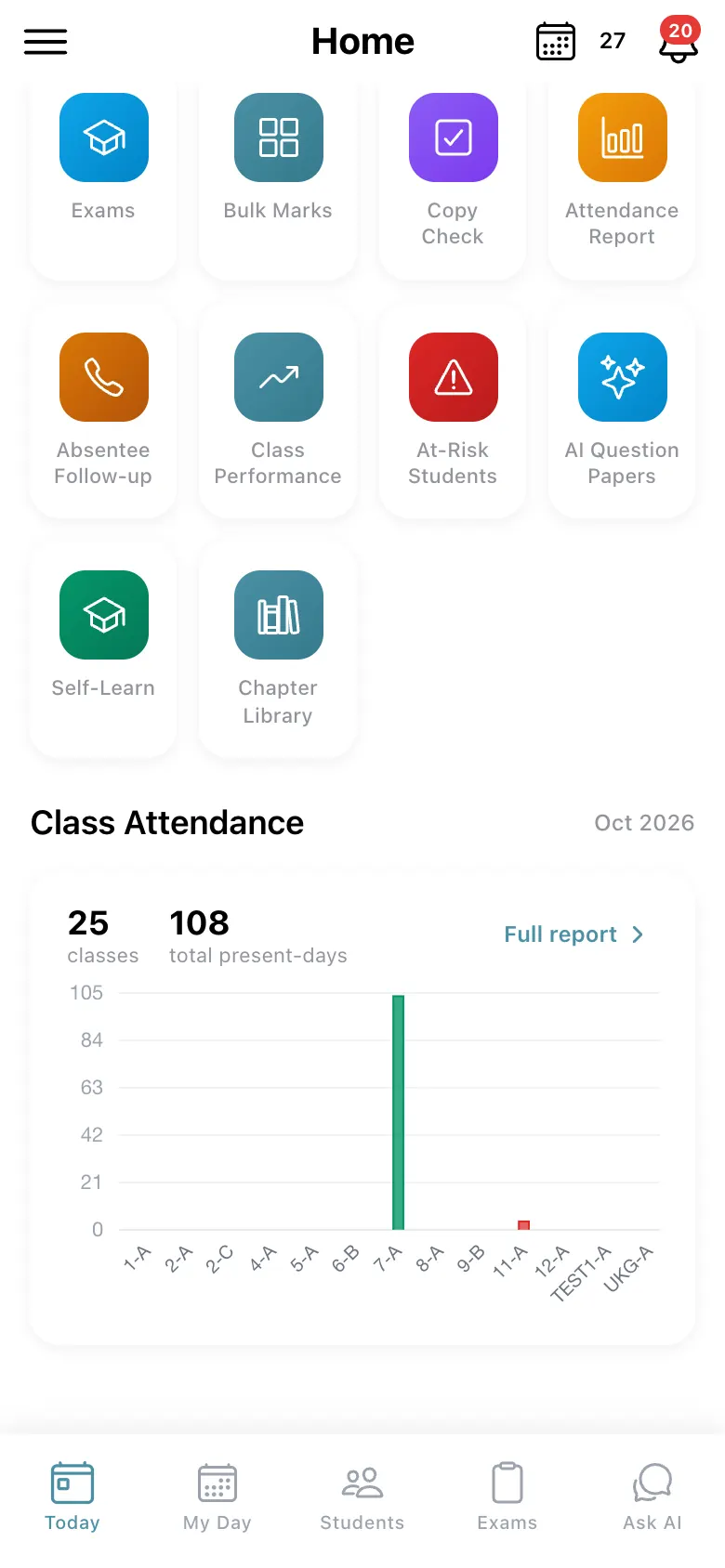
The teacher's home screen: today's to-do list, the next school event and the Quick Access grid of every tool, plus a class attendance summary.
यह पेज अंग्रेज़ी में है। कुछ समझ न आए तो ।
Home answers what do I need to do today? Today & To-Do shows today’s date, the next school event with its date, and what is pending: Checking today’s attendance…, Not marked yet today, Substitution duty today — tap to view, or All caught up — No pending attendance, cover duty or periods right now. The top right has the date chip and the notification bell, and Search pages… jumps to any screen by name.
Quick Access is the app’s feature list: My Day, Class Diary, School Diary, Buzz, Contests, Portfolio Review, Class Challenges, My Attendance, Homework, Fees, Students, Complaints, Exams, Bulk Marks, Copy Check, Attendance Report, Absentee Follow-up, Class Performance, At-Risk Students, AI Question Papers, Self-Learn and Chapter Library. A tile only appears when it is switched on for your school and role. Below, Class Attendance summarises the month (classes taken and total present-days) with Full report.
Who uses it and when
Section titled “Who uses it and when”Teachers, every morning.
Before you start
Section titled “Before you start”- Sign in with your User ID and password.
Where to find it
Section titled “Where to find it”- Open the app: Today (Home) is the first tab and the screen it opens on.
 Open a bigger pictureतस्वीर बड़ी करें
Step by step
Section titled “Step by step”1. Read the to-do
Section titled “1. Read the to-do”Check Today & To-Do for pending attendance, cover duty and the next event.
 Open a bigger pictureतस्वीर बड़ी करें
2. Open a tool
Section titled “2. Open a tool”Select a tile under Quick Access, or type a name in Search pages….
3. Check the bell
Section titled “3. Check the bell”Select the bell for notifications.
Fields and filters
Section titled “Fields and filters”| Field | What it is | Notes |
|---|---|---|
| Search pages… | Jumps to a screen by name. | Type a word such as marks or fees. |
Buttons
Section titled “Buttons”| Button | What it does | What happens next |
|---|---|---|
| Quick Access tiles | Open each tool. | The tool opens. |
| Full report | Opens the attendance report. | Attendance Report opens. |
After you save
Section titled “After you save”- This screen only shows information.
Good to know
Section titled “Good to know”- Everything is scoped to your classes and the current session.
Messages you may see
Section titled “Messages you may see”| Message | What it means | What to do |
|---|---|---|
| All caught up | Nothing is pending today. | Nothing to do. |
| Not marked yet today | You have not marked attendance for a class today. | Open Class Attendance. |
| Substitution duty today — tap to view | You are covering a free period. | Tap to see the period. |
- Use Search pages… for tools you rarely use.
Stuck? Try this
Section titled “Stuck? Try this”| Problem | Likely cause | What to do |
|---|---|---|
| A tile is missing | It is switched off for your school or role. | Ask the school administrator. |
Did this page help?क्या इस पेज से मदद मिली?
Thanks! Glad it helped.धन्यवाद! अच्छा लगा कि काम बन गया।
Sorry about that. Ask in your own words, or write to us.माफ़ कीजिए। अपने शब्दों में पूछें, या हमें लिखें।