
Screen guide · Web app
Buzz
Buzz is the school's social feed: post photos, videos, events, achievements and announcements, with likes, comments, pinning and automatic tagging of students in photos.
यह पेज अंग्रेज़ी में है। कुछ समझ न आए तो ।
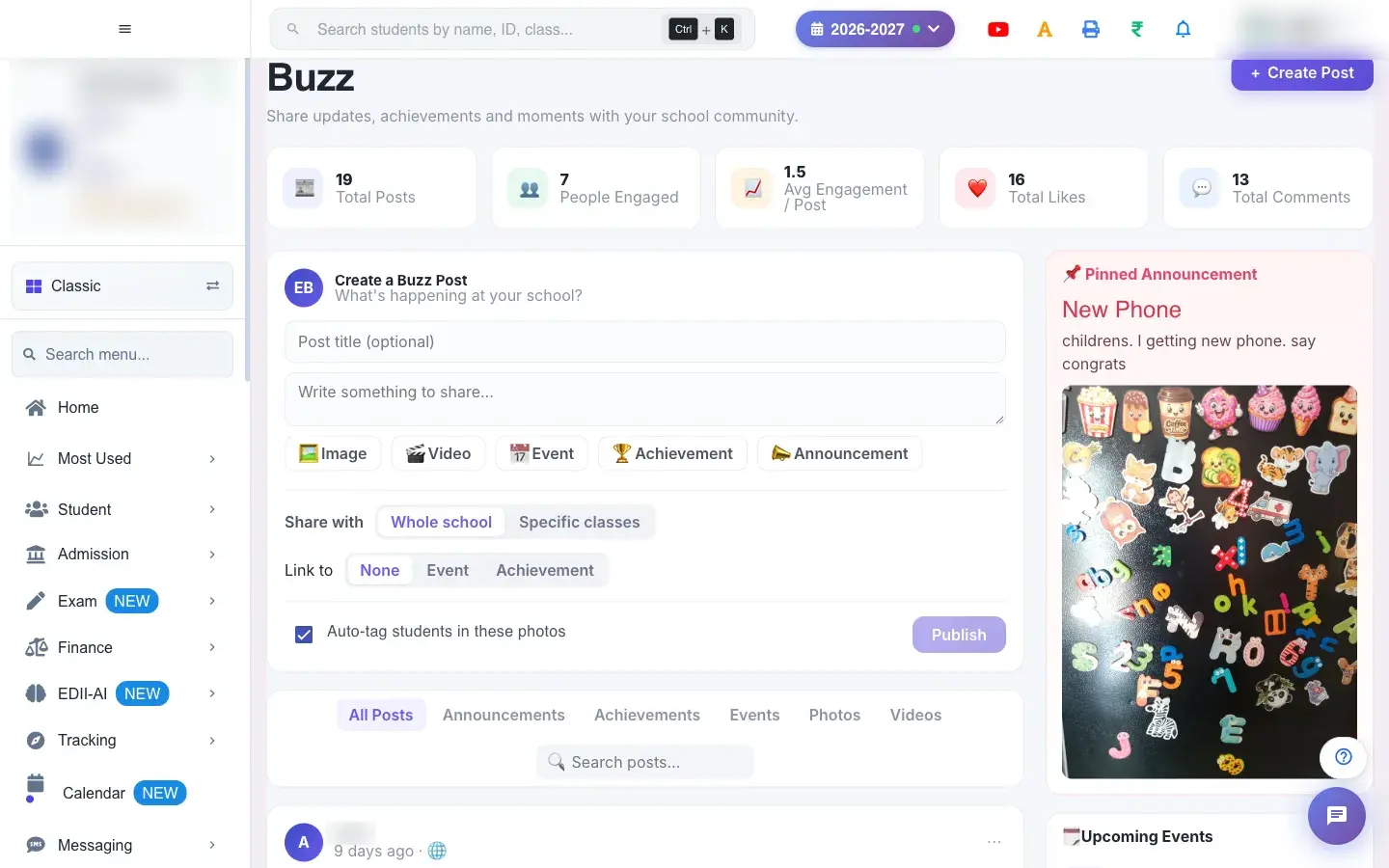
Buzz (Social Media › Buzz) is the school’s private feed. Use + Create Post and pick the type: Image, Video, Event, Achievement or Announcement. Write something to share, add an optional title, choose the audience (Whole school or Specific classes, with Classes and Sections), attach an event or certificate where relevant, and select Publish (Posted to Buzz!). Filter the feed by All Posts, Announcements, Achievements, Events, Photos or Videos, and search with Search posts….
Each post can be liked (React), commented on (Comment), pinned to the top (Pin to top, shown as Pinned), edited or deleted from the ⋯ menu. A pinned announcement also shows in the side panel. When the school has auto-tagging on, Auto-tag students in these photos matches faces against student profile photos after publishing; suggestions show a confidence (for example 96%), and you confirm (Yes, this is the student) or remove (Not this student) each tag, or Tag manually; Identify students starts it on a post (Student identification started).
Who uses it and when
Section titled “Who uses it and when”Teachers and the office share school life; parents see the posts in their app.
Before you start
Section titled “Before you start”- Photos should be clear faces for good tagging. Post only what parents should see.
Where to find it
Section titled “Where to find it”- Menu: Social Media › Buzz
- Address:
/view/buzz - If it is missing from your menu, your role does not include it. Ask your school admin.
 Open a bigger pictureतस्वीर बड़ी करें
Step by step
Section titled “Step by step”1. Create a post
Section titled “1. Create a post”Select + Create Post, choose a type, write the text and add images or a video (Images added.; Upload failed, please retry. if it fails).
2. Choose who sees it
Section titled “2. Choose who sees it”Pick Whole school or Specific classes and the sections.
3. Publish
Section titled “3. Publish”Select Publish. Posted to Buzz! confirms it.
4. Tag students
Section titled “4. Tag students”Tick auto-tag or use Identify students on a photo post; confirm or reject each suggestion. Select at least one photo for recognition. appears if none is chosen.
Fields and filters
Section titled “Fields and filters”| Field | What it is | Notes |
|---|---|---|
| Post type | Image, Video, Event, Achievement, Announcement. | Choose one. |
| Write something to share / Post title | The text and optional title. | Text recommended. |
| Audience | Whole school or Specific classes. | Classes and Sections for the latter. |
| Auto-tag students in these photos | Match faces to students. | Shown when the school enables it. |
| Search posts… | Find a post. | Filters. |
Buttons
Section titled “Buttons”| Button | What it does | What happens next |
|---|---|---|
| Publish | Posts to Buzz. | Posted to Buzz! |
| React / Comment | Like or comment. | Counts update. |
| Pin to top / Edit / Delete (⋯) | Manage a post. | The feed updates. |
| Identify students / Tag manually | Tag students in photos. | Suggestions appear. |
After you save
Section titled “After you save”- The post appears in the feed and in parents’ apps for the chosen audience; students tagged in a photo can see it.
Good to know
Section titled “Good to know”- Only publish content suitable for parents.
- Tag suggestions need confirming.
Messages you may see
Section titled “Messages you may see”| Message | What it means | What to do |
|---|---|---|
| Posted to Buzz! | Published. | Check the feed. |
| Upload failed, please retry. | A file failed. | Try again. |
| Select at least one photo for recognition. | No photo chosen. | Tick a photo. |
| Student identification started | Matching began. | Wait and review. |
| Network Issue, Please Try Again. | A request failed. | Try again. |
- Pin important announcements.
- Review auto-tags before relying on them.
Stuck? Try this
Section titled “Stuck? Try this”| Problem | Likely cause | What to do |
|---|---|---|
| No auto-tag option | The school has not enabled it. | Ask the administrator to enable it in Preferences. |
Did this page help?क्या इस पेज से मदद मिली?
Thanks! Glad it helped.धन्यवाद! अच्छा लगा कि काम बन गया।
Sorry about that. Ask in your own words, or write to us.माफ़ कीजिए। अपने शब्दों में पूछें, या हमें लिखें।