
Screen guide · Web app
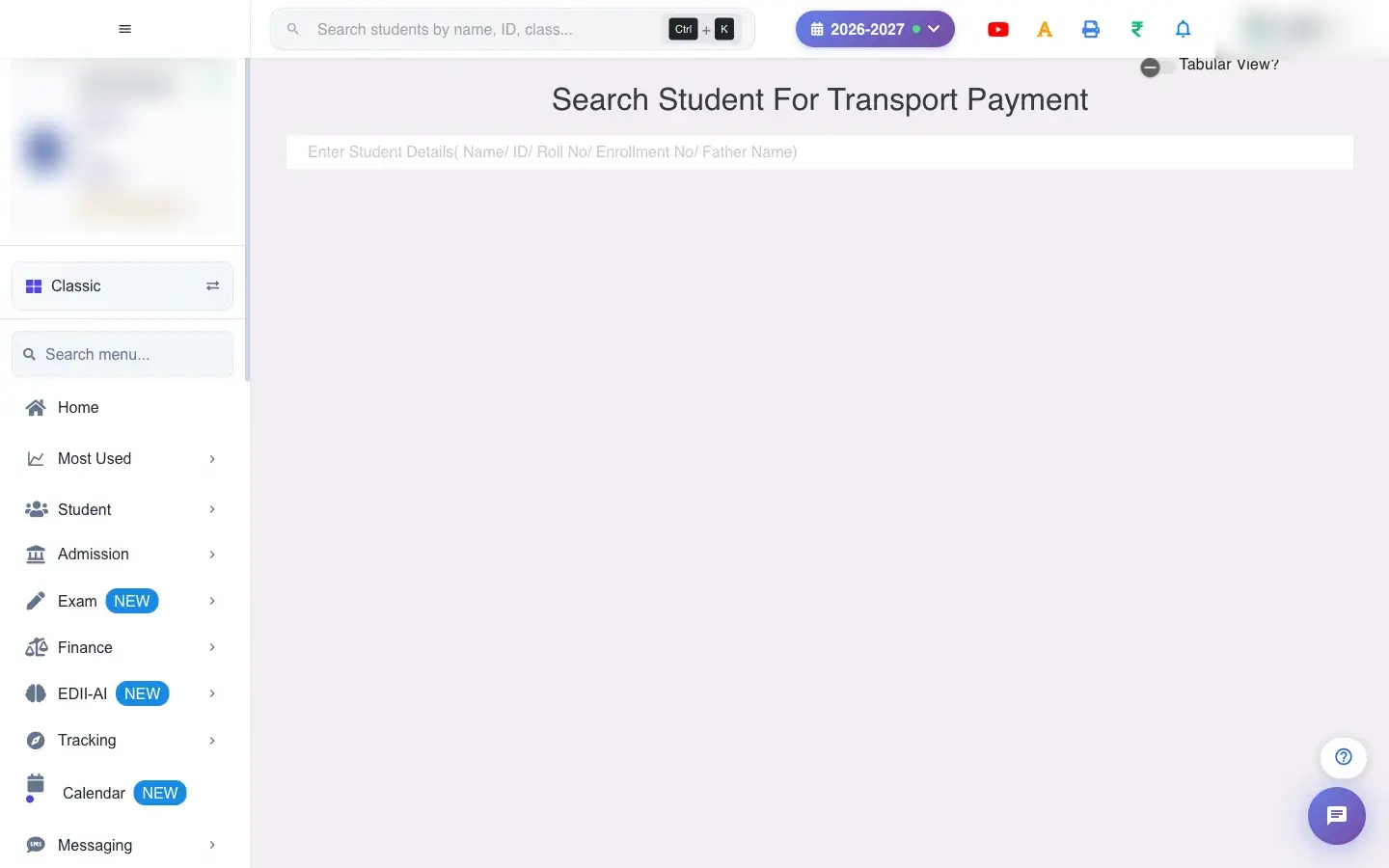
Search Student For Transport Payment
Collect transport (bus) fees for a student: find the student, pick months, adjust amounts, choose the payment mode and pay, with a separate transport ledger.
यह पेज अंग्रेज़ी में है। कुछ समझ न आए तो ।
Search Student For Transport Payment (Finance › Payment-Transport) is the fee counter for bus fees. It works like the main fee payment screen but loads the student’s transport fees. After you pick the student you see the fee table, the payment details and a Master Ledger and Transport Ledger.
It can also show balances from earlier sessions (for example Balance For Previous Fees (2019) and each earlier session) and a Transaction Mode Ledger that counts receipts by payment mode.
Who uses it and when
Section titled “Who uses it and when”The transport in-charge or accountant collects bus fees here.
Before you start
Section titled “Before you start”- Transport fees must be set up for the student (route and stop) and the student must be active.
Where to find it
Section titled “Where to find it”- Menu: Finance › Payment-Transport
- Address:
/view/payment-transport - If it is missing from your menu, your role does not include it. Ask your school admin.
 Open a bigger pictureतस्वीर बड़ी करें
Step by step
Section titled “Step by step”1. Find the student
Section titled “1. Find the student”Type a Name, ID, Roll No, Enrollment No or Father Name and choose the student. Student not found, please search again means no match.
2. Check the details and date
Section titled “2. Check the details and date”ID/SR Number, Name, Class, Father’s Name, External Invoice ID, Remark and the receipt Date (required) are shown.
3. Choose the months
Section titled “3. Choose the months”Tick the months to pay, or Select All. Show All Months and Skip Installment widen the choice; Hide Transport Fees hides the transport lines. Fees must be paid in sequence unless the school allows otherwise (Fees Selection is Not in Sequence…).
4. Check the fee heads
Section titled “4. Check the fee heads”The table shows Fee head, Actual, Paid, Month and Discount for each line, and Discounts Applied. You may change the amount for a part payment, but not above what is due.
5. Choose the payment mode and pay
Section titled “5. Choose the payment mode and pay”Under Amount Receiving Details choose Cash, Chq./DD, Debit/Credit, Cash+Chq/DD or Online/UPI/Wallet and fill the details. Select Pay Fees or Pay Balance Fees to pay everything left. The receipt is created (Fee Receipt Fetched).
6. Review the ledgers
Section titled “6. Review the ledgers”The Master Ledger shows each month’s ACT., PAID, BAL. and DISC.; the Transport Ledger shows the transport lines; the Transaction Mode Ledger shows how many receipts were cash, cheque and so on.
Fields and filters
Section titled “Fields and filters”| Field | What it is | Notes |
|---|---|---|
| Enter Student Details | Find the student. | Name, ID, Roll No, Enrollment No or Father Name. |
| Date | Receipt date. | Required. |
| Amounts and payment mode details | What was received and how. | Cheque no and bank, card no and bank, account no, UTR no. |
Buttons
Section titled “Buttons”| Button | What it does | What happens next |
|---|---|---|
| Pay Fees / Pay Balance Fees | Records the payment. | A receipt is created. |
| Select All / Show All Months / Skip Installment | Controls the months. | Only changes the selection. |
| Cancel | Closes without saving. | Nothing is recorded. |
After you save
Section titled “After you save”- A receipt is created for the transport fees; the ledger and reports update.
- The payment appears in Fee Receipts and in the student app.
Good to know
Section titled “Good to know”- Pay oldest month first unless the preference allows otherwise.
- A payment cannot exceed what is due.
- The date is required.
Messages you may see
Section titled “Messages you may see”| Message | What it means | What to do |
|---|---|---|
| You Cannot pay the fees without selecting the fees!/ Fees has to be Number | Nothing selected or a non-number. | Tick months and check amounts. |
| Fees Selection is Not in Sequence… | An older month is unpaid. | Pay in order. |
| Fees Amount Entered is more than the Fees Amount, Please fix it. | Too much entered. | Reduce it. |
| Fee Receipt Fetched | The receipt was made. | Print it. |
| Network Issue, Please Try Again. | A request failed. | Check Fee Receipts before paying again. |
- Collect transport and tuition fees together on the main Fees Payment screen if your school allows.
Stuck? Try this
Section titled “Stuck? Try this”| Problem | Likely cause | What to do |
|---|---|---|
| No transport fees show | The student has no transport fee set up. | Set route and stop in Transport. |
Did this page help?क्या इस पेज से मदद मिली?
Thanks! Glad it helped.धन्यवाद! अच्छा लगा कि काम बन गया।
Sorry about that. Ask in your own words, or write to us.माफ़ कीजिए। अपने शब्दों में पूछें, या हमें लिखें।