
Screen guide · Web app
Messaging Configuration
Messaging Configuration: schedule automatic messages (fee reminders, notices and more) for students or staff with a template, a date and time and a repeat frequency.
यह पेज अंग्रेज़ी में है। कुछ समझ न आए तो ।
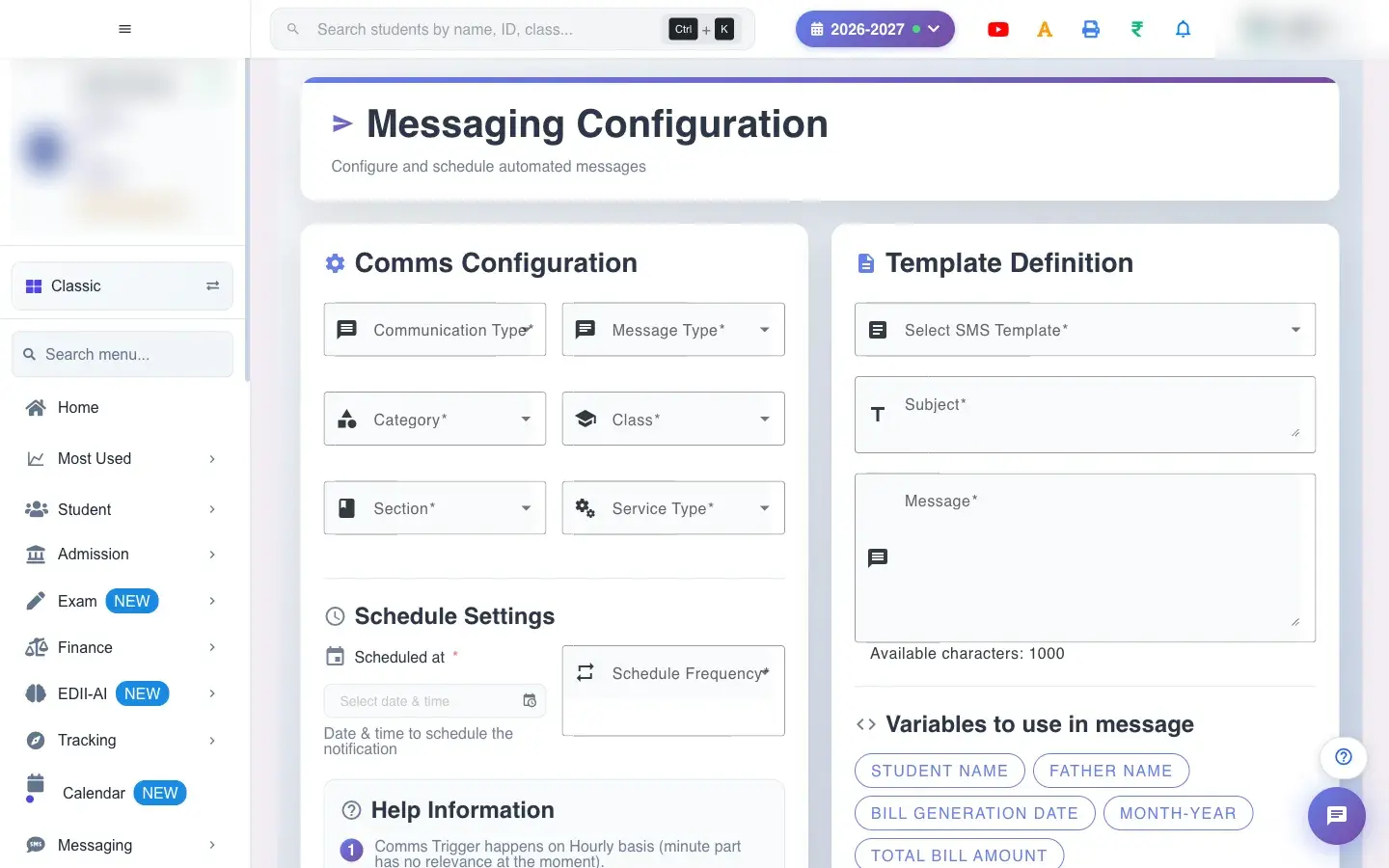
Messaging Configuration (Comms Configuration) lets you schedule messages that EDII sends by itself. You choose the Communication Type (the mode, for example SMS), the Message Type (for example Reminder), the Category (for example Student), the Class and Section or, for staff, the Staff Name (Select All Active Staff is offered), and the Service Type (for example Fee Payment Reminder).
Under Schedule Settings pick the date and time (Scheduled at) and the Schedule Frequency. The Help Information explains the rules: the trigger runs on an hourly basis (the minute is ignored); with frequency None the message goes once on that date and hour; Daily every day at the hour; Weekly on that day of the week; Monthly on that date.
Under Template Definition select the SMS template (for example Fee(s) Payment Reminder Message), edit the Subject and Message (a counter shows available characters, for example 100) and use the listed Variables to use in message such as student name, father name, bill generation date, month-year, total bill amount, last submission date, employee name and paid amount. Select Submit Template (Template Added).
Who uses it and when
Section titled “Who uses it and when”The accountant and office set up recurring reminders once and let them run.
Before you start
Section titled “Before you start”- Know who should receive the message and how often. Messages use SMS balance.
Where to find it
Section titled “Where to find it”- This screen opens from another screen, not from the menu.
- Address:
/view/comms - If it is missing from your menu, your role does not include it. Ask your school admin.
 Open a bigger pictureतस्वीर बड़ी करें
Step by step
Section titled “Step by step”1. Choose the audience
Section titled “1. Choose the audience”Select the Category (students or staff), the Class and Section (or staff), and the Service Type.
2. Set the schedule
Section titled “2. Set the schedule”Pick Scheduled at and a Schedule Frequency (None, Daily, Weekly or Monthly) following the rules in Help Information.
3. Write the template
Section titled “3. Write the template”Pick a template, then edit the Subject and Message, inserting variables where you want details filled in for each person.
4. Submit
Section titled “4. Submit”Select Submit Template. Template Added confirms it. Manage or delete schedules on the Messaging list.
With data
Section titled “With data”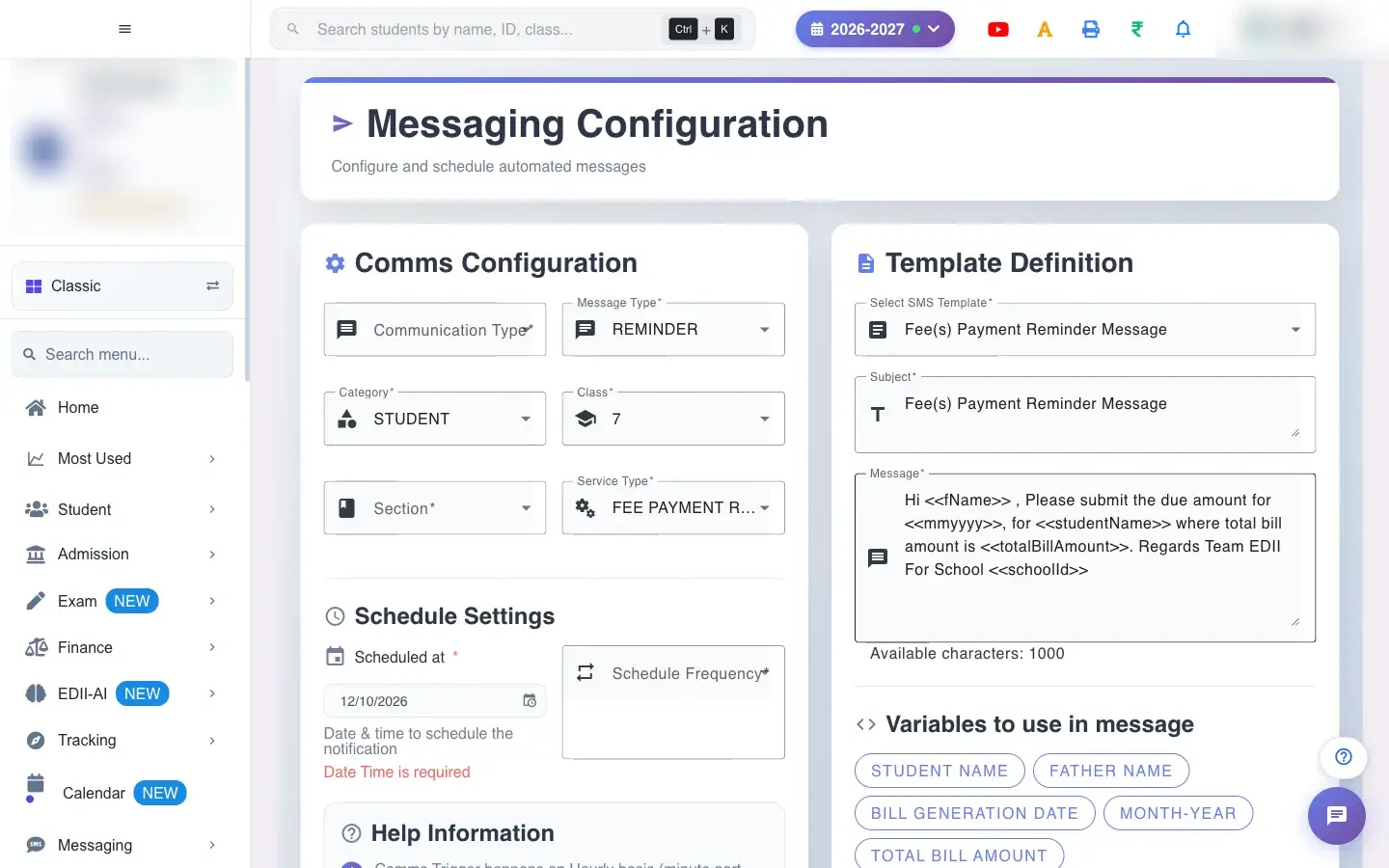 Open a bigger pictureतस्वीर बड़ी करें
Fields and filters
Section titled “Fields and filters”| Field | What it is | Notes |
|---|---|---|
| Communication Type / Message Type / Category / Service Type | What kind of message and for whom. | All required. |
| Class / Section / Staff Name | Recipients. | Required. |
| Scheduled at / Schedule Frequency | When and how often. | Required. |
| Subject / Message | The text with variables. | Required. |
Buttons
Section titled “Buttons”| Button | What it does | What happens next |
|---|---|---|
| Submit Template | Creates the scheduled message. | Template Added. |
After you save
Section titled “After you save”- The scheduled message is stored and EDII sends it to the applicable recipients at the chosen hour and frequency, using SMS balance.
Good to know
Section titled “Good to know”- The scheduler runs hourly; the minute is ignored.
- None = once; Daily, Weekly and Monthly repeat.
Messages you may see
Section titled “Messages you may see”| Message | What it means | What to do |
|---|---|---|
| Template Added | The schedule was saved. | Check the Messaging list. |
| Bad/Slow Internet Connection, Please check your internet connection | A request failed. | Try again. |
- Test a Daily or Monthly message on one class first.
- Delete schedules you no longer need to avoid extra SMS.
Stuck? Try this
Section titled “Stuck? Try this”| Problem | Likely cause | What to do |
|---|---|---|
| A message did not go out | The hour has not come yet, or SMS balance is low. | Check the schedule time and balance. |
Did this page help?क्या इस पेज से मदद मिली?
Thanks! Glad it helped.धन्यवाद! अच्छा लगा कि काम बन गया।
Sorry about that. Ask in your own words, or write to us.माफ़ कीजिए। अपने शब्दों में पूछें, या हमें लिखें।