
Screen guide · Web app
EdiiBrain
EdiiBrain, the school's AI assistant: a morning brief, a school health score, plain-English questions about live data, a weekly playbook, an at-risk watchlist and parent message drafts.
यह पेज अंग्रेज़ी में है। कुछ समझ न आए तो ।
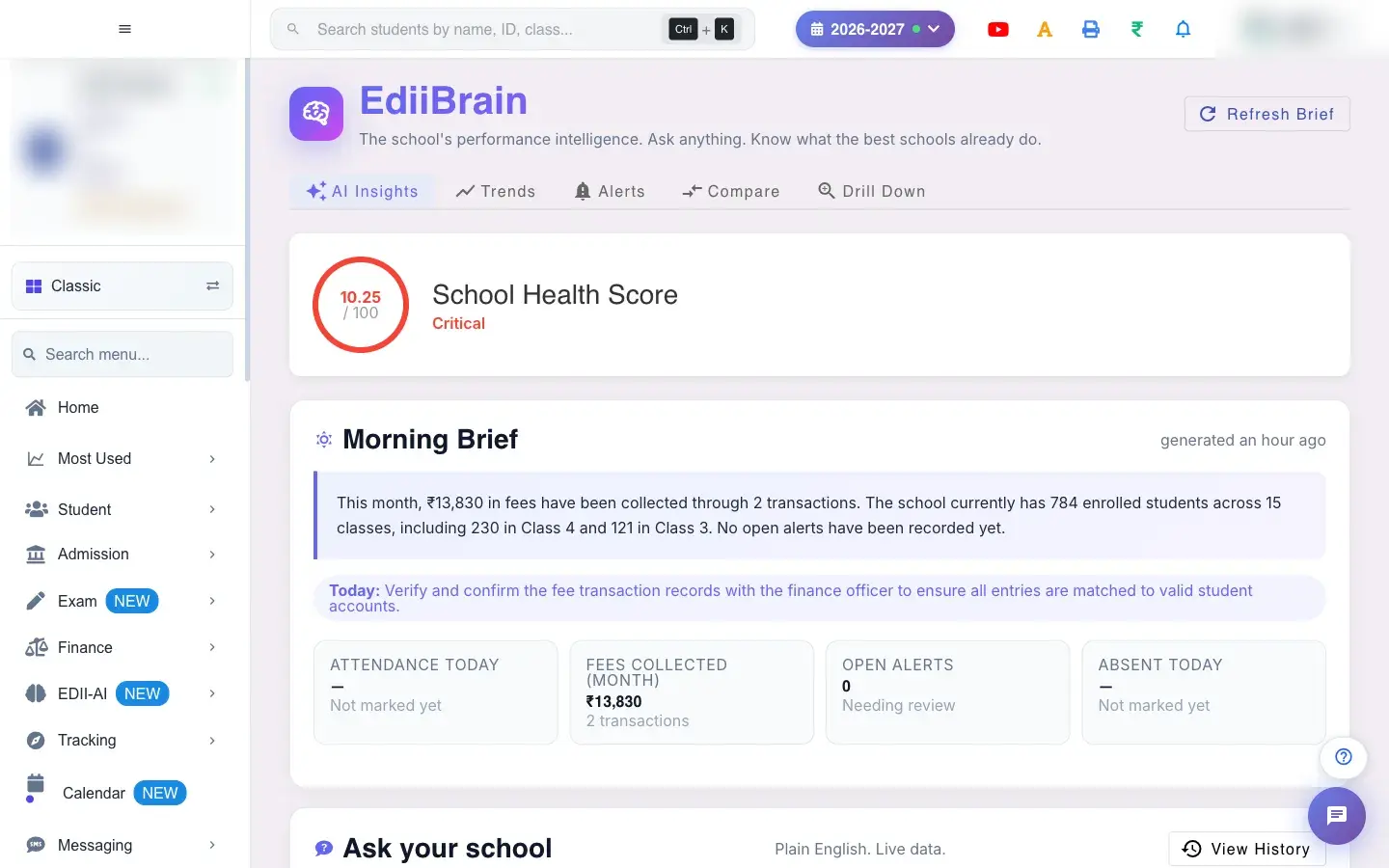
EdiiBrain (EDII-AI › EdiiBrain) is the school’s performance intelligence: Ask anything. Know what the best schools already do. The top shows a School Health Score out of 100 and a Morning Brief with today’s numbers: Attendance today, Fees collected (month), Open alerts, Needing review, Absent today and Top risks today.
Tabs and buttons give more: AI Insights, Trends, Alerts, Compare and Drill Down; Refresh Brief rebuilds the brief. In Ask your school you type a question in plain words (for example Which Class 10 students need help this week?) and Ask EdiiBrain answers from live data. It works in the background: EdiiBrain is working on your question in the background. You can keep using the app — a notification will arrive when the answer is ready. View History shows every question and answer.
This week’s playbook suggests actions such as launching a parent engagement campaign, a daily attendance check-in system or a homework accountability system. The At-risk watchlist lists students who need attention; select students and EdiiBrain drafts parent messages for your review (N drafts ready for your review), which you can copy (Copied to clipboard).
Who uses it and when
Section titled “Who uses it and when”The principal opens it each morning; coordinators use the watchlist and drafts.
Before you start
Section titled “Before you start”- The brief uses your attendance, fees, exam and homework data, so it is richer when those are being recorded.
Where to find it
Section titled “Where to find it”- Menu: EDII-AI › EdiiBrain
- Address:
/view/edii-brain - If it is missing from your menu, your role does not include it. Ask your school admin.
 Open a bigger pictureतस्वीर बड़ी करें
Step by step
Section titled “Step by step”1. Read the morning brief
Section titled “1. Read the morning brief”Read today’s figures and top risks. The brief says when it was generated and as of when; select Refresh Brief to update it.
2. Ask a question
Section titled “2. Ask a question”Type a question and select Ask EdiiBrain (Type a question first. if empty). The answer arrives as a notification; if EdiiBrain cannot be reached you see EdiiBrain is unreachable. Please try again shortly.
3. Open the history
Section titled “3. Open the history”View History lists your questions with the answer, highlights and next step, in a page of its own.
4. Use the playbook
Section titled “4. Use the playbook”Read the weekly playbook items and act on them. If it cannot load you see Could not load playbook.
5. Work the at-risk watchlist
Section titled “5. Work the at-risk watchlist”Select students (or Select all, Clear) and ask EdiiBrain to draft messages to their parents. With nobody selected you see Select at least one student to draft a message. If drafting fails you see EdiiBrain could not draft the messages right now. Review and edit every draft before you send it from your messaging screen.
With data
Section titled “With data”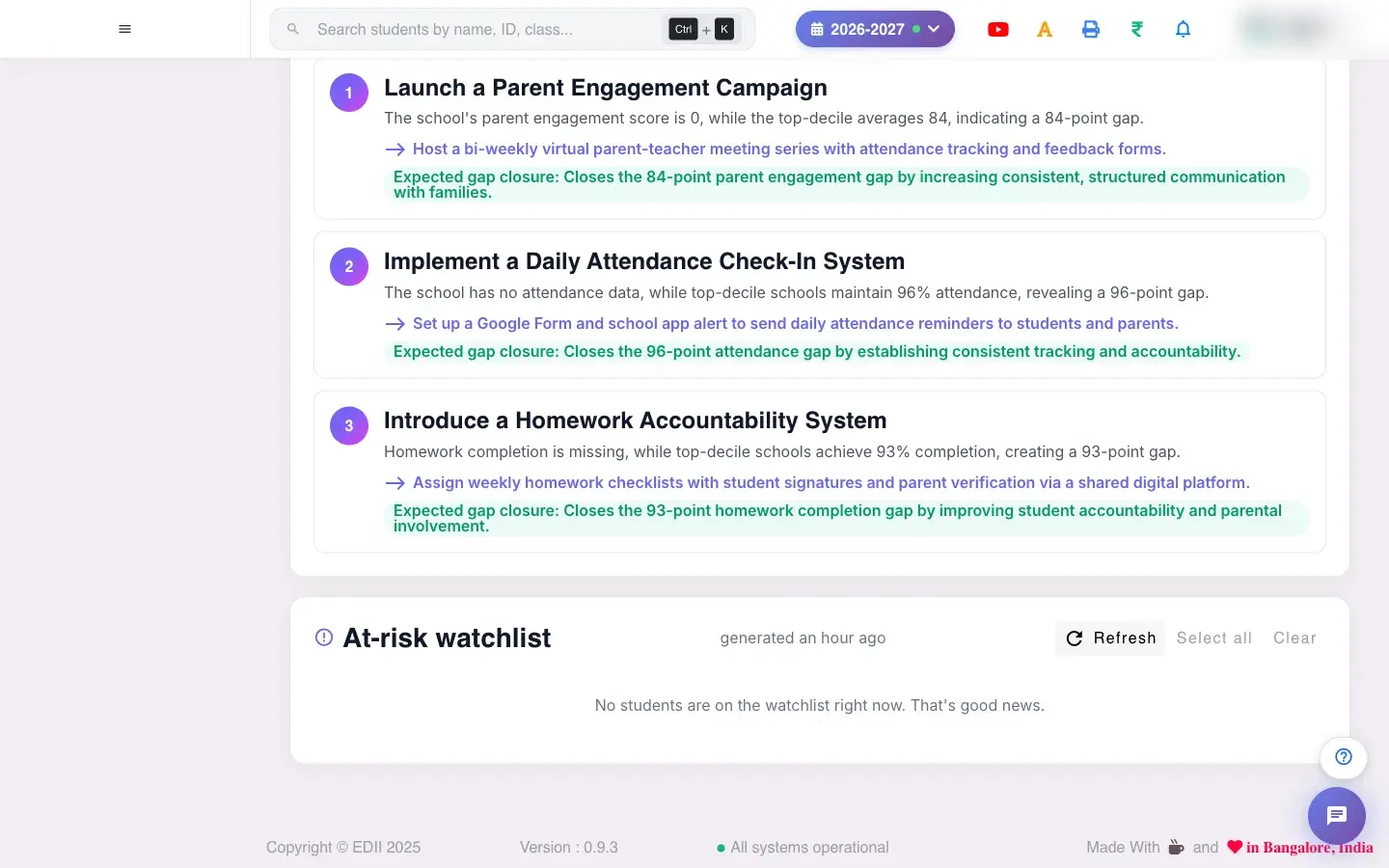 Open a bigger pictureतस्वीर बड़ी करें
Fields and filters
Section titled “Fields and filters”| Field | What it is | Notes |
|---|---|---|
| Ask box | A question about your school. | Plain words. |
| Student tick boxes | Who to draft messages for. | At least one. |
Buttons
Section titled “Buttons”| Button | What it does | What happens next |
|---|---|---|
| Refresh Brief | Rebuilds the morning brief. | Updates the figures. |
| Ask EdiiBrain | Answers a question. | A notification arrives with the answer. |
| Draft messages | Writes parent message drafts for selected students. | Nothing is sent; you review them. |
| AI Insights / Trends / Alerts / Compare / Drill Down | Switch the view. | Only the view changes. |
After you save
Section titled “After you save”- Asking and drafting do not change school data; nothing is sent to parents automatically. Questions and answers are kept in your history.
Good to know
Section titled “Good to know”- Answers come from your own school data.
- Always review a draft before sending.
Messages you may see
Section titled “Messages you may see”| Message | What it means | What to do |
|---|---|---|
| EdiiBrain is unreachable. Please try again shortly. | The AI did not answer. | Try again. |
| Type a question first. | The box is empty. | Type a question. |
| Could not load at-risk students. / Could not load playbook. | A list failed. | Refresh. |
| Select at least one student to draft a message. | Nobody selected. | Select students. |
| N drafts ready for your review. | The drafts are ready. | Review them. |
| Copy failed — select the text manually. | The clipboard was blocked. | Select and copy by hand. |
- Ask specific questions with a class or time, such as this week.
- Check the watchlist before parent-teacher meetings.
Stuck? Try this
Section titled “Stuck? Try this”| Problem | Likely cause | What to do |
|---|---|---|
| The answer is slow | It runs in the background. | Keep working; you will be notified. |
Did this page help?क्या इस पेज से मदद मिली?
Thanks! Glad it helped.धन्यवाद! अच्छा लगा कि काम बन गया।
Sorry about that. Ask in your own words, or write to us.माफ़ कीजिए। अपने शब्दों में पूछें, या हमें लिखें।