
Help homeहेल्प होम
Screen guide · Web app
Role Management
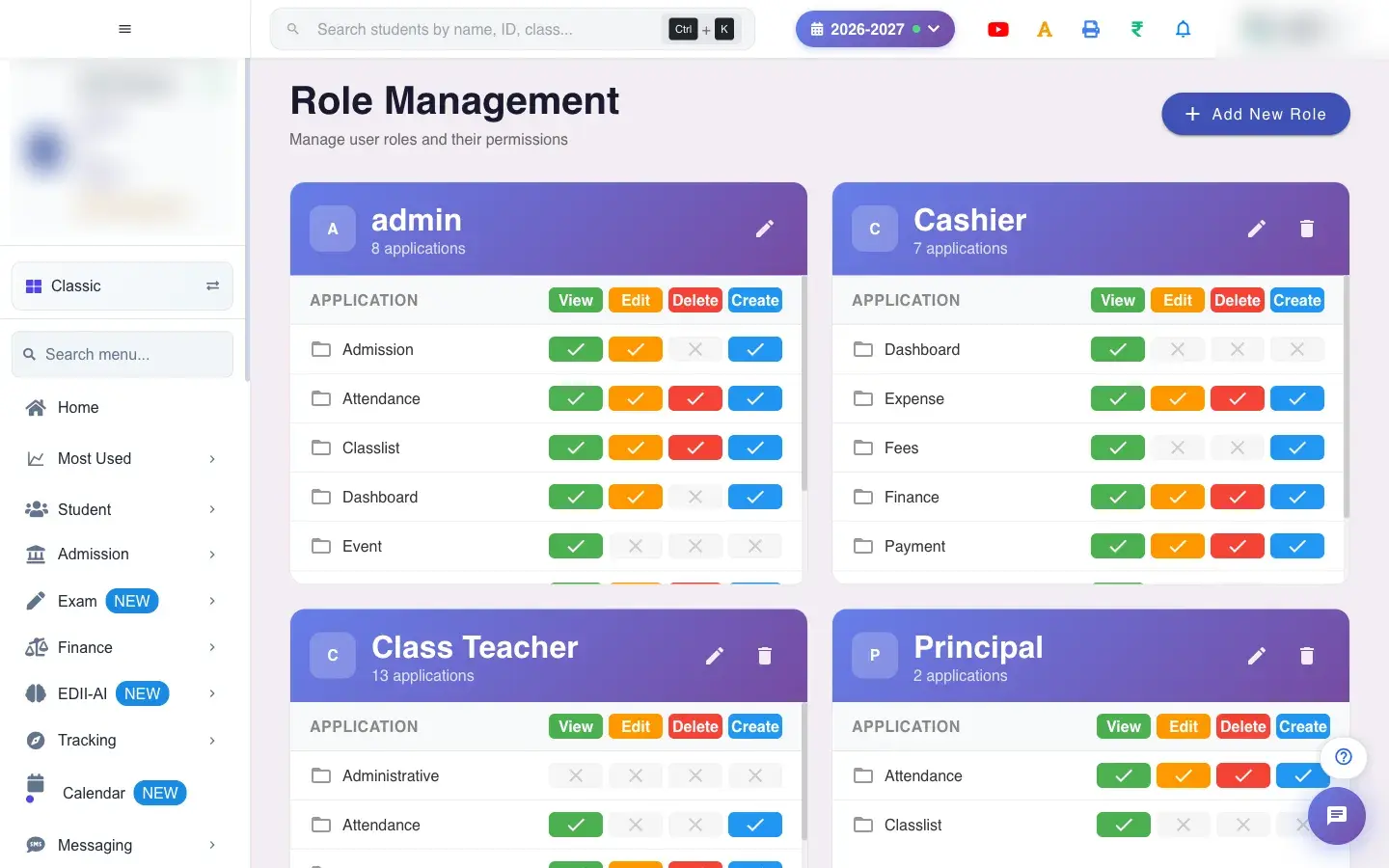
All roles with what each can access, with options to add a role or delete one.
यह पेज अंग्रेज़ी में है। कुछ समझ न आए तो ।
Role Management (User › View) lists every role (for example Admin, Cashier, Class Teacher, Principal, Teacher) with the apps and screens it can open. Add New Role opens Add Role. A role can be deleted (Role Deleted) except the Admin and Super Admin roles.
Who uses it and when
Section titled “Who uses it and when”The administrator reviews access.
Before you start
Section titled “Before you start”- Nothing.
Where to find it
Section titled “Where to find it”- Menu: User › View
- Address:
/view/view-role - If it is missing from your menu, your role does not include it. Ask your school admin.
 Open a bigger pictureतस्वीर बड़ी करें
Buttons
Section titled “Buttons”| Button | What it does | What happens next |
|---|---|---|
| Add New Role | Opens Add Role. | You leave this screen. |
| Delete | Removes a role. | Role Deleted. |
After you save
Section titled “After you save”- Deleting a role removes it; check no staff still use it.
Good to know
Section titled “Good to know”- Admin and Super Admin cannot be deleted.
Messages you may see
Section titled “Messages you may see”| Message | What it means | What to do |
|---|---|---|
| Role Deleted | Removed. | Nothing to do. |
| Bad/Slow Internet Connection, Please check your internet connection | A request failed. | Try again. |
- Move staff to another role before deleting one.
Stuck? Try this
Section titled “Stuck? Try this”| Problem | Likely cause | What to do |
|---|---|---|
| No delete option on Admin | Protected. | It cannot be removed. |
Did this page help?क्या इस पेज से मदद मिली?
Thanks! Glad it helped.धन्यवाद! अच्छा लगा कि काम बन गया।
Sorry about that. Ask in your own words, or write to us.माफ़ कीजिए। अपने शब्दों में पूछें, या हमें लिखें।