
How-to · Admin app
Change your password
Reset your password with a one-time code on WhatsApp or email.
यह पेज अंग्रेज़ी में है। कुछ समझ न आए तो ।
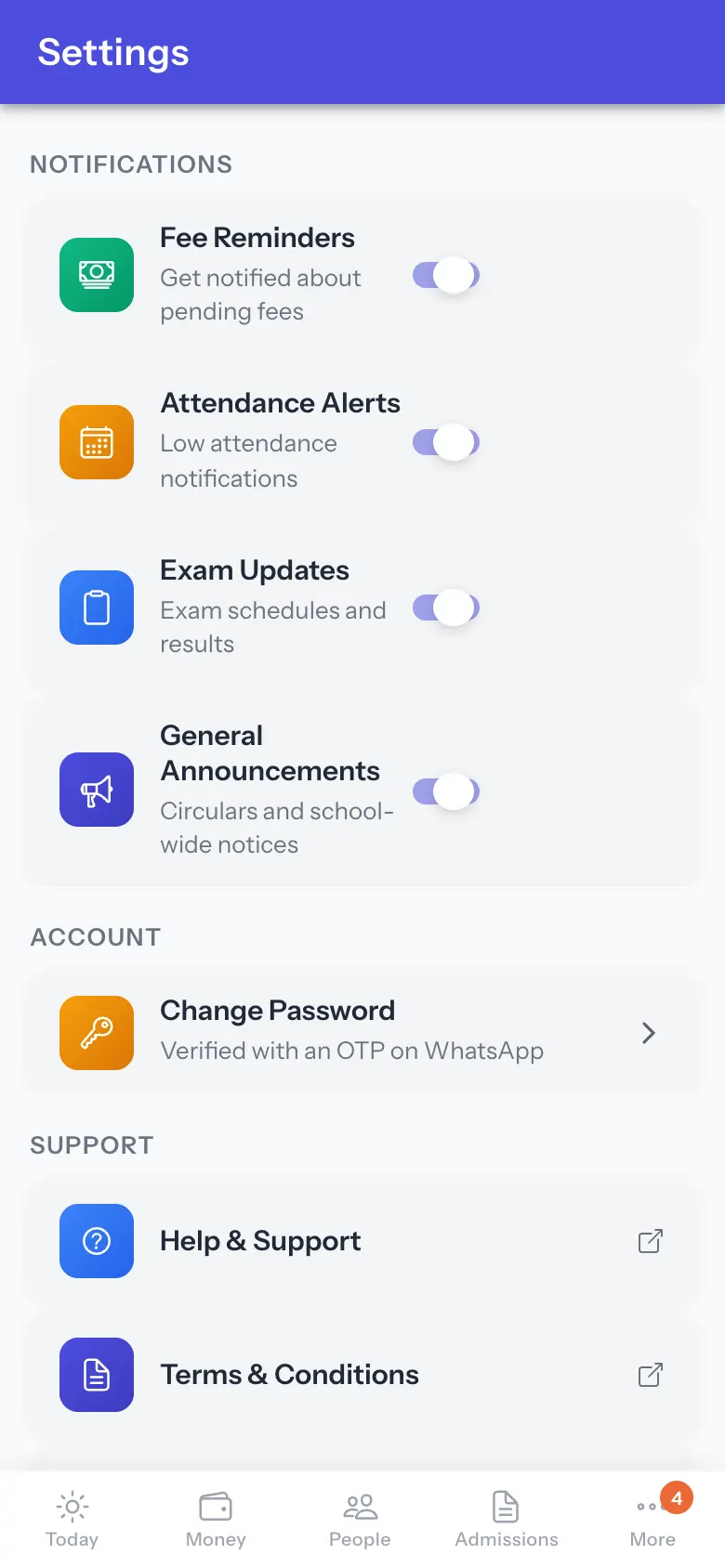
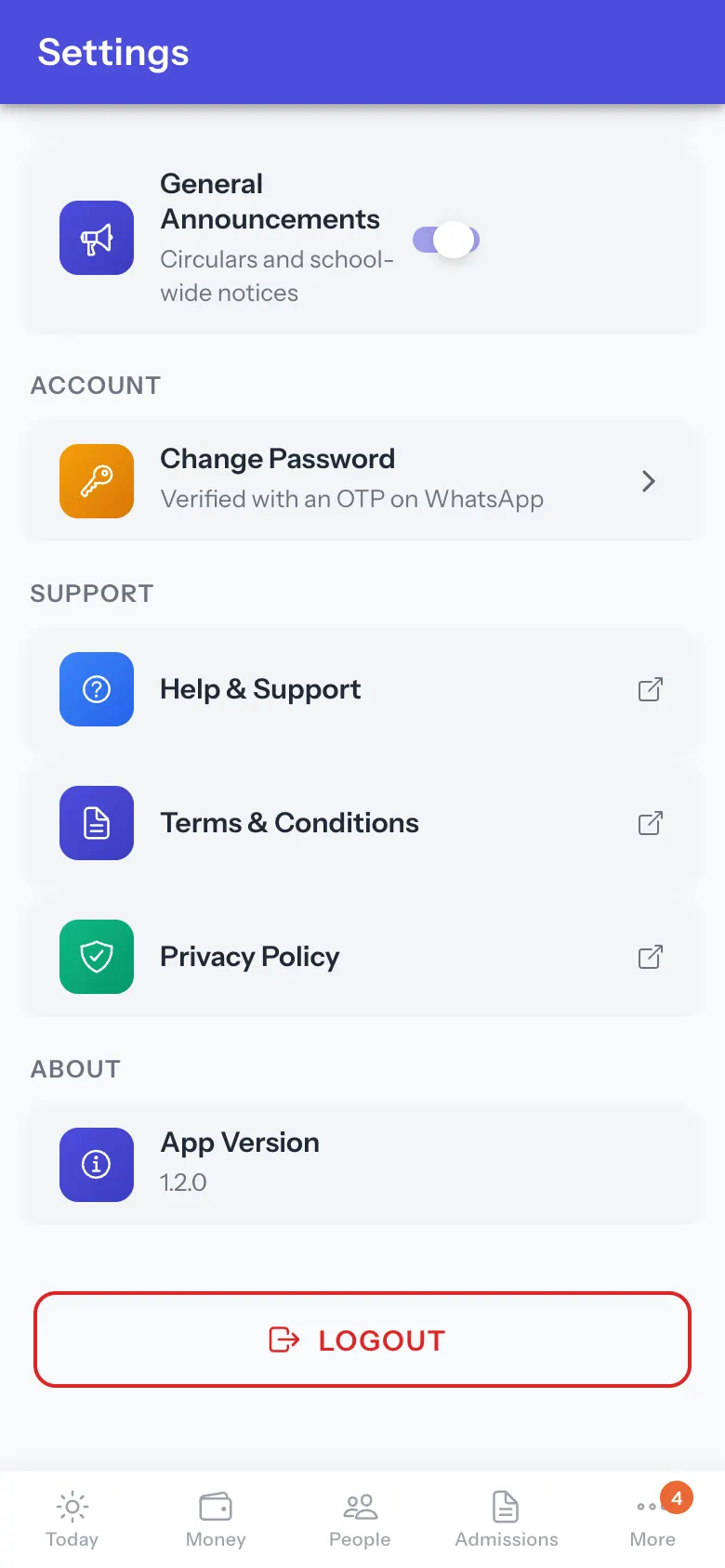
Settings shows School Information (School Name, Address, Phone, Email), Session Settings (Current Session; change it with Change Session, Session changed successfully), Notifications (Fee Reminders, Attendance Alerts, Exam Updates, General Announcements; Notification preferences saved), Account (Change Password), Support (Help & Support, Terms & Conditions, Privacy Policy), About (App Version) and LOGOUT.
Before you start
Section titled “Before you start”- Have your WhatsApp or email at hand for a password change.
1. Choose notifications
Section titled “1. Choose notifications”Switch the notification types on or off.
 Open a bigger pictureतस्वीर बड़ी करें
2. Change the password
Section titled “2. Change the password”Select Change Password and follow the one-time code steps.
 Open a bigger pictureतस्वीर बड़ी करें
What happens next
Section titled “What happens next”- Choices apply to this account straight away.
Good to know
Section titled “Good to know”- Passwords must be at least 3 characters and match.
Stuck? Try this
Section titled “Stuck? Try this”| You see | Why | What to do |
|---|---|---|
| No OTP arrives | The WhatsApp number or email on record is wrong. | Update it in the web app. |
Did this page help?क्या इस पेज से मदद मिली?
Thanks! Glad it helped.धन्यवाद! अच्छा लगा कि काम बन गया।
Sorry about that. Ask in your own words, or write to us.माफ़ कीजिए। अपने शब्दों में पूछें, या हमें लिखें।