
Screen guide · Web app
Teaching Plan Progress
School-wide teaching plan progress: how much of each class's plan is done against what was expected, which subjects are lagging, a day view, and class diary coverage.
यह पेज अंग्रेज़ी में है। कुछ समझ न आए तो ।
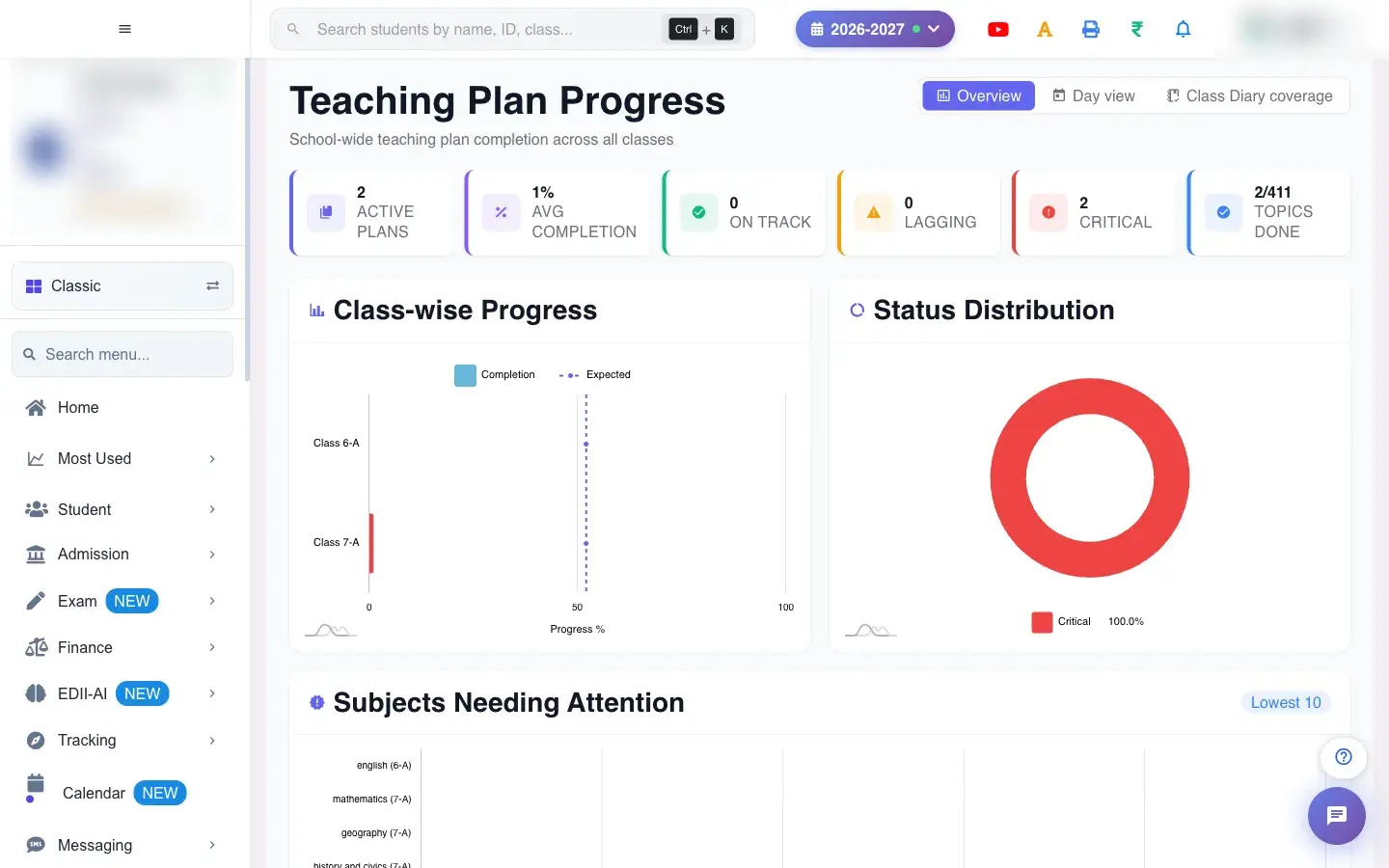
Teaching Plan Progress (EDII-AI › Teaching Plan Progress) shows how teaching plans are progressing across the school. Three views: Overview (school-wide completion), Day view (what was planned and what was taught on a single day) and Class Diary coverage (a view for pilot schools).
The overview has cards for Active Plans, Avg Completion, On Track, Lagging and Critical, then Class-wise Progress, Status Distribution, Subjects Needing Attention (the lowest 10) and a Subject-wise Breakdown table with Teacher, Total, Done, In Progress, Pending, Skipped, Completion and Expected, and a list of Flagged Issues with Severity, Class, Section, Subject, Teacher, Actual %, Expected % and Gap %.
Who uses it and when
Section titled “Who uses it and when”The principal and academic coordinator use it to check that syllabus coverage is on track.
Before you start
Section titled “Before you start”- Teachers must have created and updated teaching plans (No Teaching Plans Found otherwise).
Where to find it
Section titled “Where to find it”- Menu: EDII-AI › Teaching Plan Progress
- Address:
/view/teaching-plan-dashboard - If it is missing from your menu, your role does not include it. Ask your school admin.
 Open a bigger pictureतस्वीर बड़ी करें
Step by step
Section titled “Step by step”1. Choose the view
Section titled “1. Choose the view”Select Overview, Day view or Class Diary coverage.
2. Filter
Section titled “2. Filter”Filter by Class, Section, Subject and Status (for example On Track); Clear resets.
3. Read the status
Section titled “3. Read the status”On Track, Lagging and Critical compare the actual completion with the expected completion for the date. The gap shows how far behind a plan is.
4. Act on flagged issues
Section titled “4. Act on flagged issues”Use the flagged issues table to see which class, subject and teacher have the largest gap and follow up.
With data
Section titled “With data”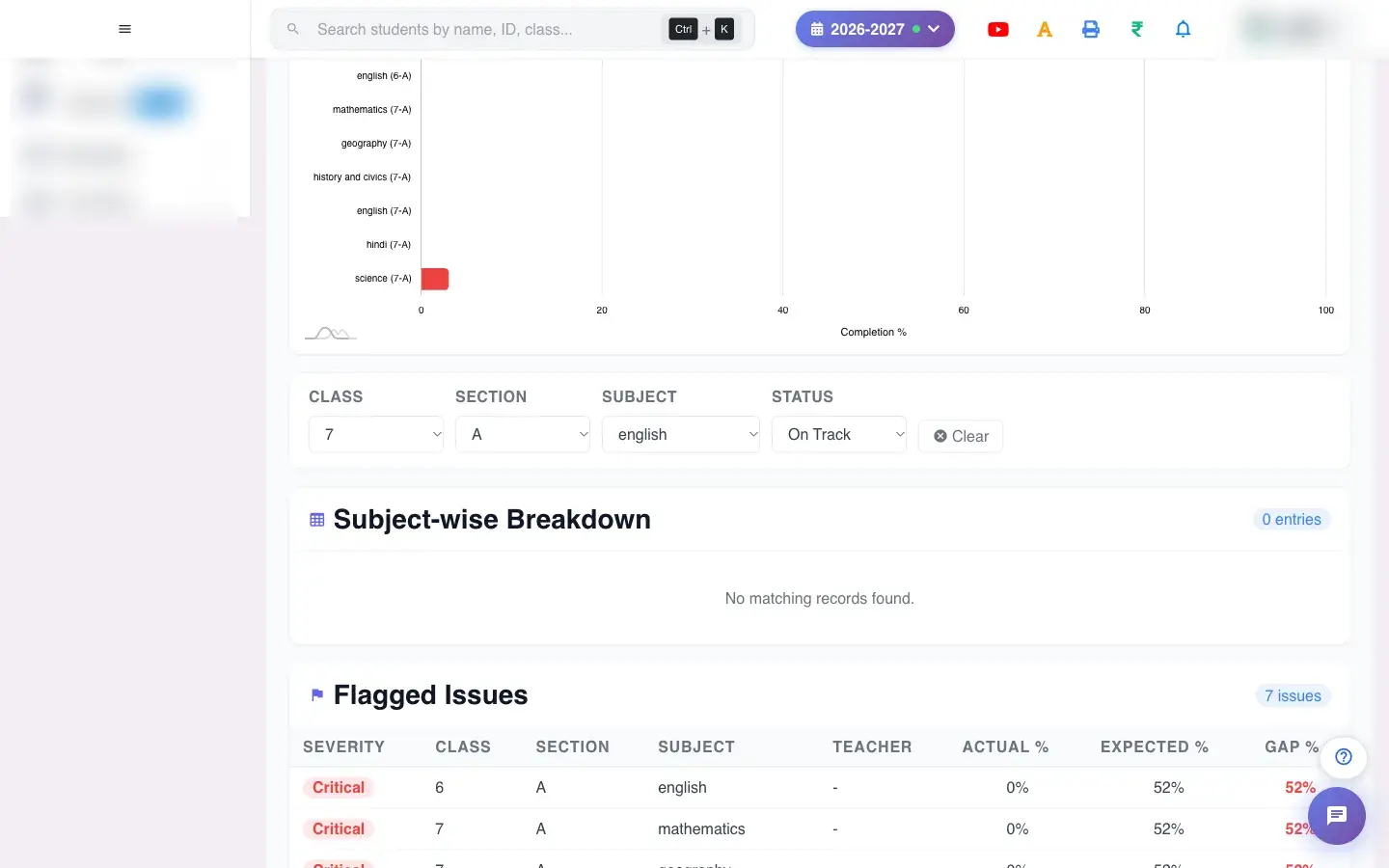 Open a bigger pictureतस्वीर बड़ी करें
Fields and filters
Section titled “Fields and filters”| Field | What it is | Notes |
|---|---|---|
| Class / Section / Subject / Status | Filters. | Default all. |
Buttons
Section titled “Buttons”| Button | What it does | What happens next |
|---|---|---|
| Overview / Day view / Class Diary coverage | Switch the view. | Only the view changes. |
| Clear | Resets the filters. | No data changes. |
Columns
Section titled “Columns”| Column | Meaning |
|---|---|
| Severity / Class / Section / Subject / Teacher | The flagged plan. |
| Actual % / Expected % / Gap % | Done, expected and the shortfall. |
After you save
Section titled “After you save”- This screen only reads data.
Good to know
Section titled “Good to know”- Expected completion is based on the dates of the plan.
Messages you may see
Section titled “Messages you may see”| Message | What it means | What to do |
|---|---|---|
| No teaching plan data found | No plans exist. | Ask teachers to create plans. |
| Error loading dashboard | It failed to load. | Try again. |
- Review Critical plans weekly with the subject heads.
Stuck? Try this
Section titled “Stuck? Try this”| Problem | Likely cause | What to do |
|---|---|---|
| A teacher shows zero progress | They have not updated the plan. | Ask them to mark topics done in their planner. |
Did this page help?क्या इस पेज से मदद मिली?
Thanks! Glad it helped.धन्यवाद! अच्छा लगा कि काम बन गया।
Sorry about that. Ask in your own words, or write to us.माफ़ कीजिए। अपने शब्दों में पूछें, या हमें लिखें।