Mark each student present, absent, on leave or half-day, and let parents of absent students know.
11 steps11 स्टेप
यह पेज अंग्रेज़ी में है। कुछ समझ न आए तो ।
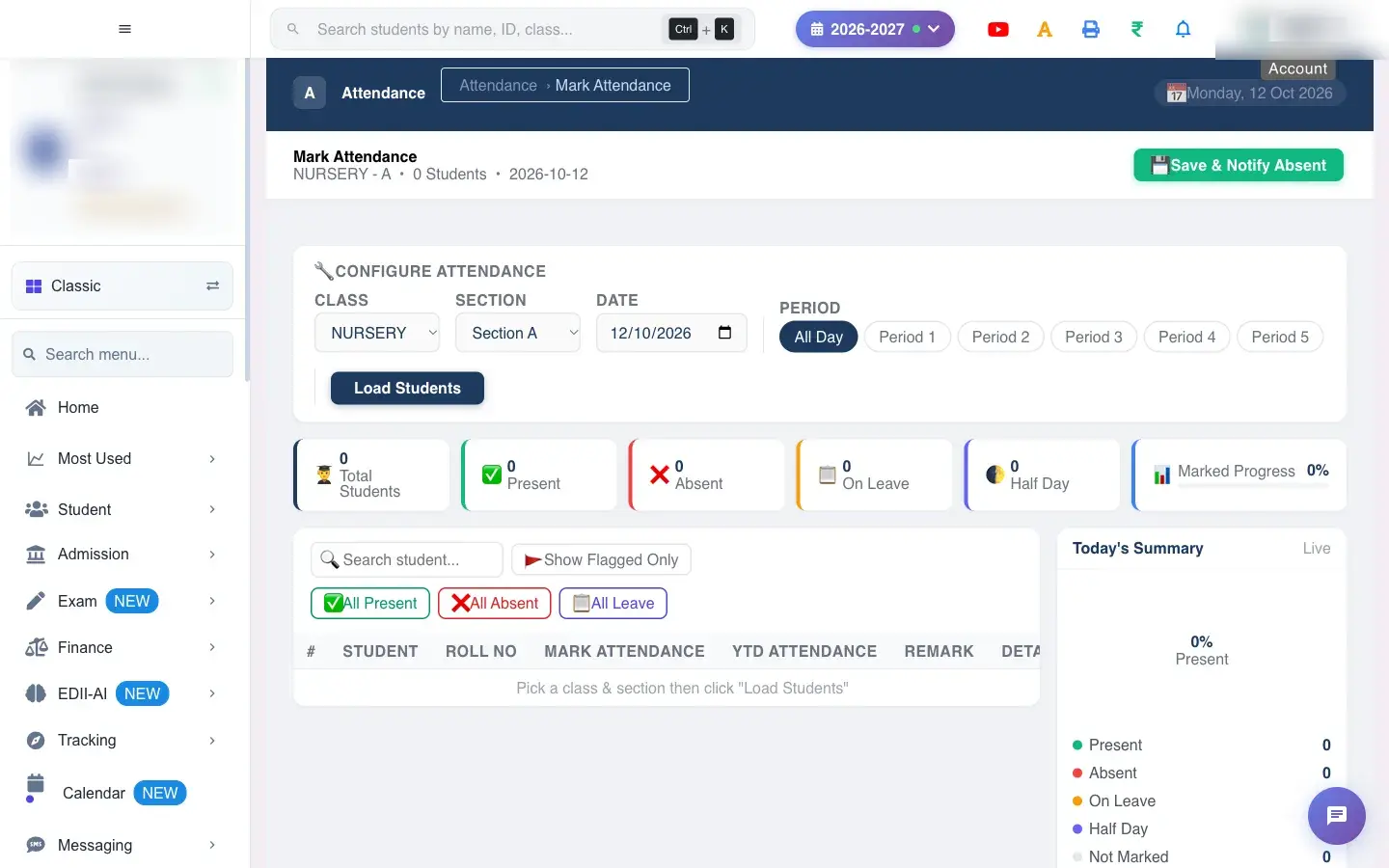
Mark Attendance is the daily register. You pick a class, a section and a date, load the students, mark each child, and save. One save stores the whole class for that day.
Also searched as: attendance, hazri, absent sms, mark attendance, hazri lagana, attendance lagao, roll call, daily attendance, class attendance, present absent, half day, leave, haziri, upasthiti, absent bacche, hazri kaise lagaye, attendance lagana, हाज़िरी, हाजिरी, हाज़िरी लगाएँ, हाजिरी लगाएँ, हाज़िरी लगाएं, हाजिरी लगाएं, हाज़िरी कैसे लगाएँ, हाजिरी कैसे लगाएँ, हाज़िरी कैसे लगाएं, हाजिरी कैसे लगाएं, हाज़िरी कैसे लगाये, हाजिरी कैसे लगाये, आज की हाज़िरी, आज की हाजिरी, उपस्थिति
Your role needs access to attendance. If Mark Attendance is not in your menu, ask your school admin to add it to your role.
You may see an information note, New attendance experience is off. Toggle it from Settings., when the school has not switched on the new attendance setting. The screen still opens; an admin can change the setting in Settings.
Your class and section must have students on the roll for the selected session.
Open Section and pick the section (the list reads Section A, Section B and so on). You must choose both a class and a section, or Load Students will say Select class and section first.
Date is today by default. Change it only to mark or correct another day. The page title under Mark Attendance repeats the class, the number of students and the date, so you can confirm you are on the right day.
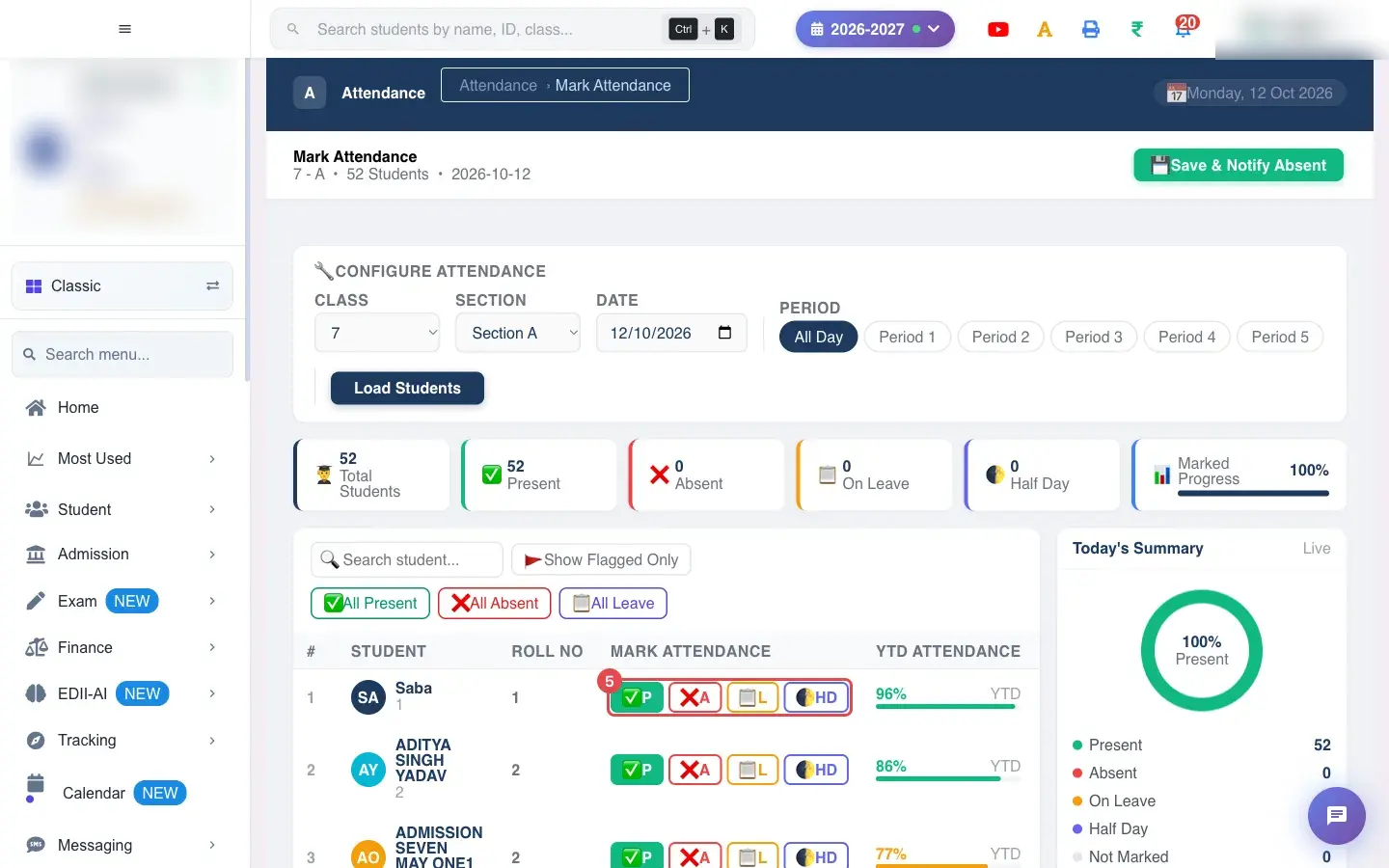
Select Load Students. The roll appears with one row per student, showing name, roll number, the four attendance buttons, the year-to-date percentage and a remark box. The counters at the top fill in at the same time.
In the Mark Attendance column each student has four buttons: P (present), A (absent), L (leave) and HD (half day). The selected button is highlighted and the row is tinted: red for absent, amber for leave, blue for half-day.
Everyone starts as present, so only click the children who are not. To change your mind, click another button on the same row.
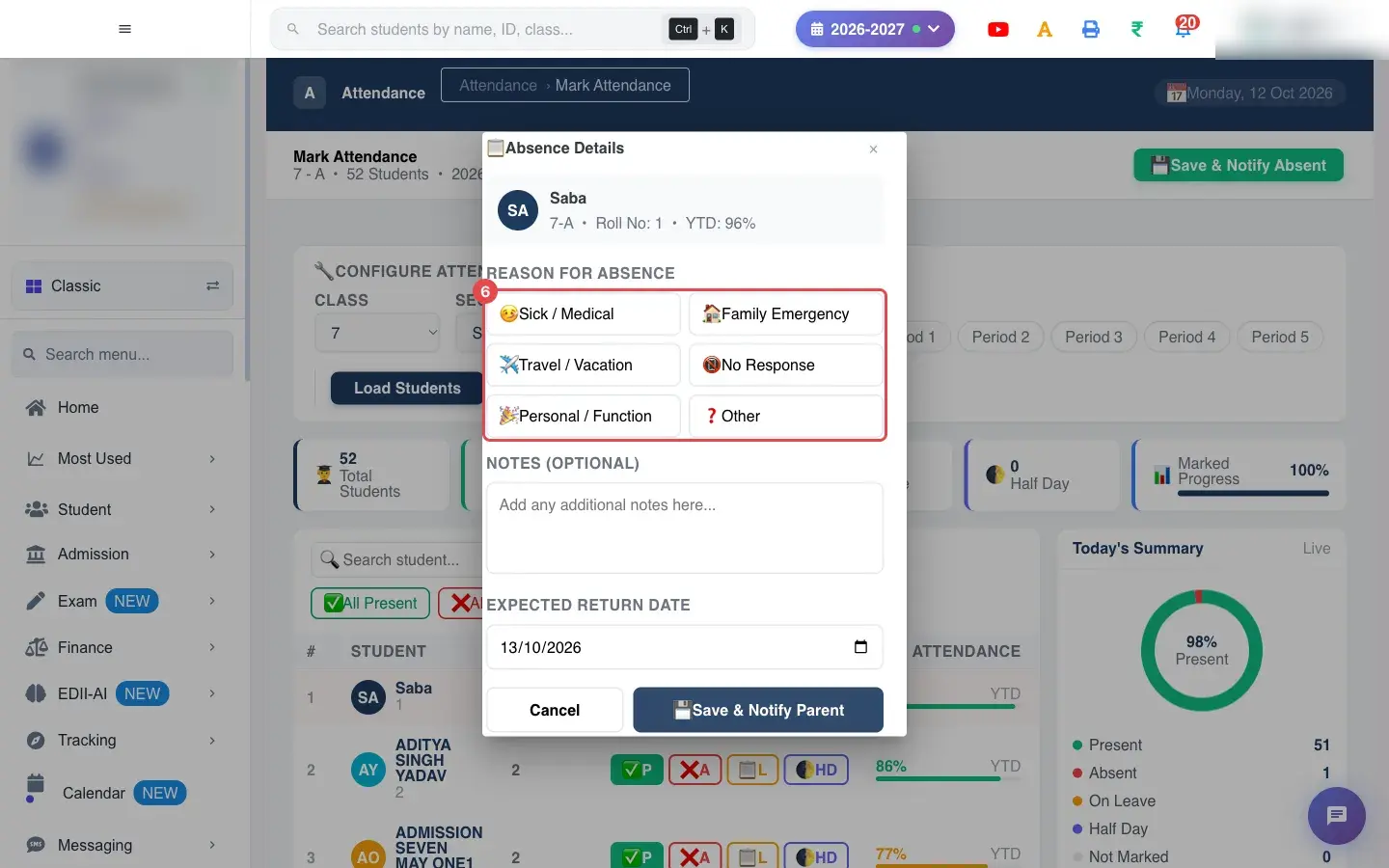
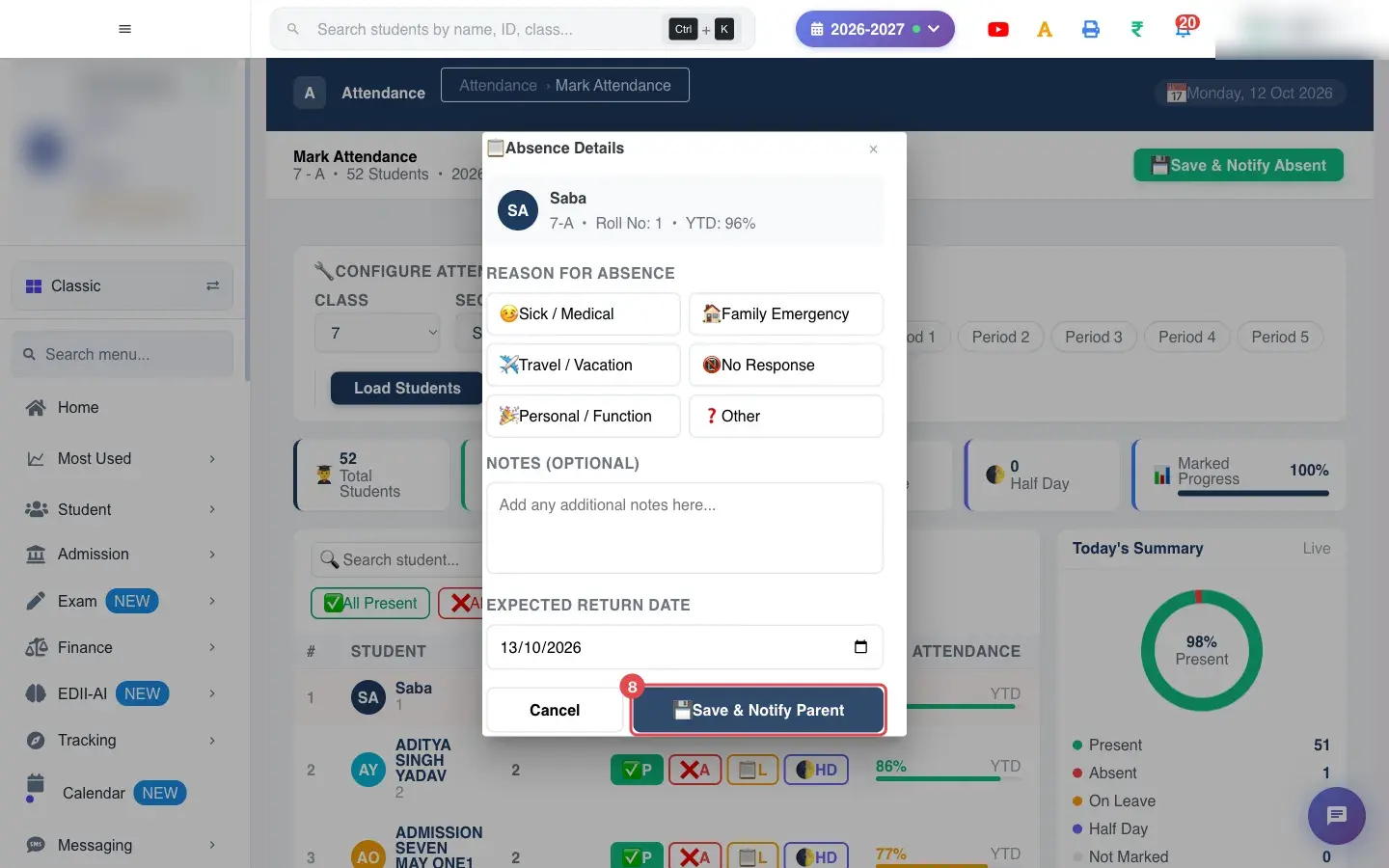
When you click A on a student who was not absent before, an Absence Details window opens. Pick one reason: Sick / Medical, Family Emergency, Travel / Vacation, No Response, Personal / Function or Other.
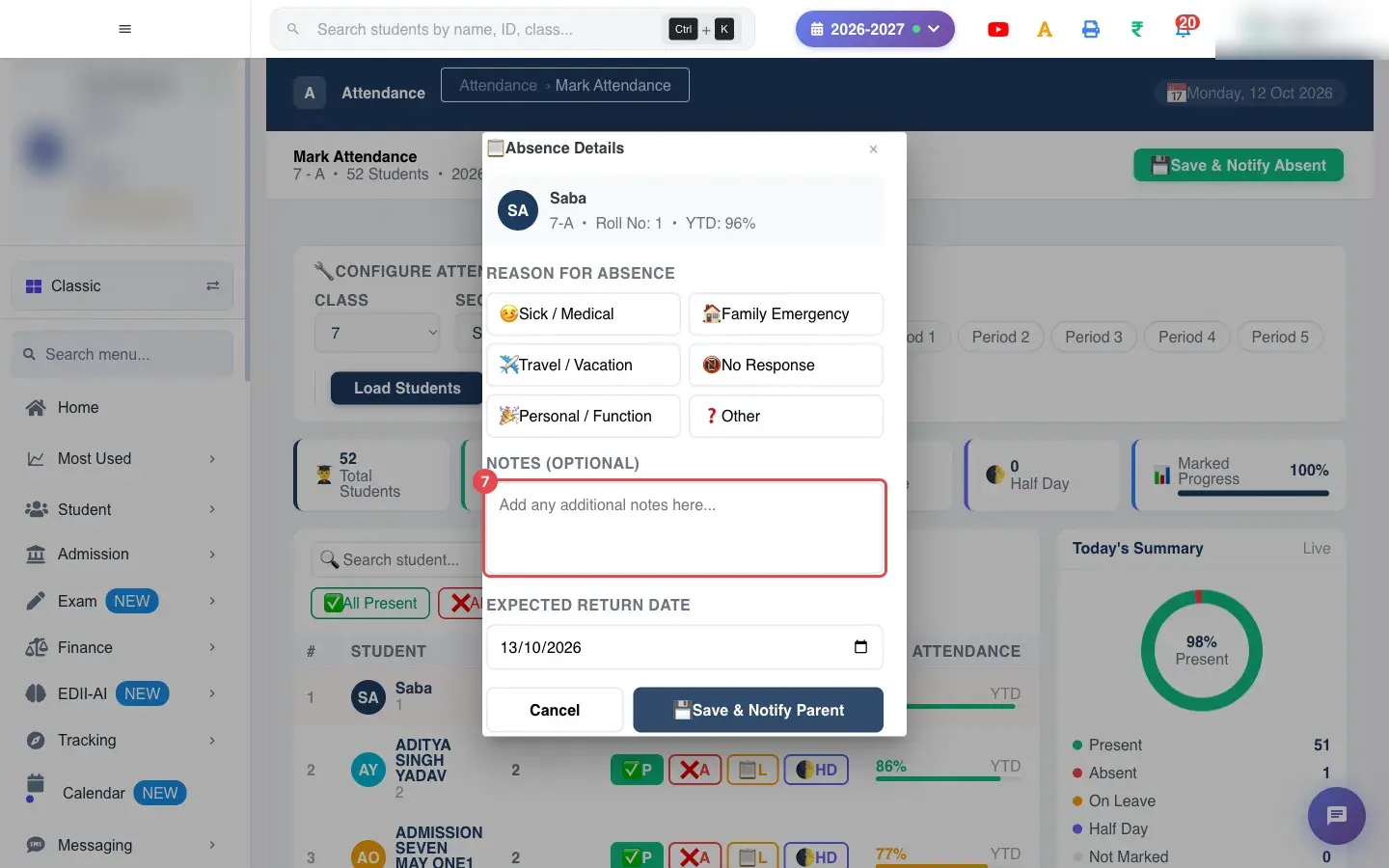
Add an optional note, for example which teacher the parent spoke to. Expected Return Date is set to tomorrow; change it if the parent told you otherwise. The note is copied into the student’s Remark box on the roll.
Select Save & Notify Parent in the window. The reason is stored straight away in Attendance Follow-up, and an SMS is sent to the parent (Dear Parent, your child was marked absent on <date>. Please contact the school office.). Select Cancel to close the window without recording a reason; the student stays marked absent.
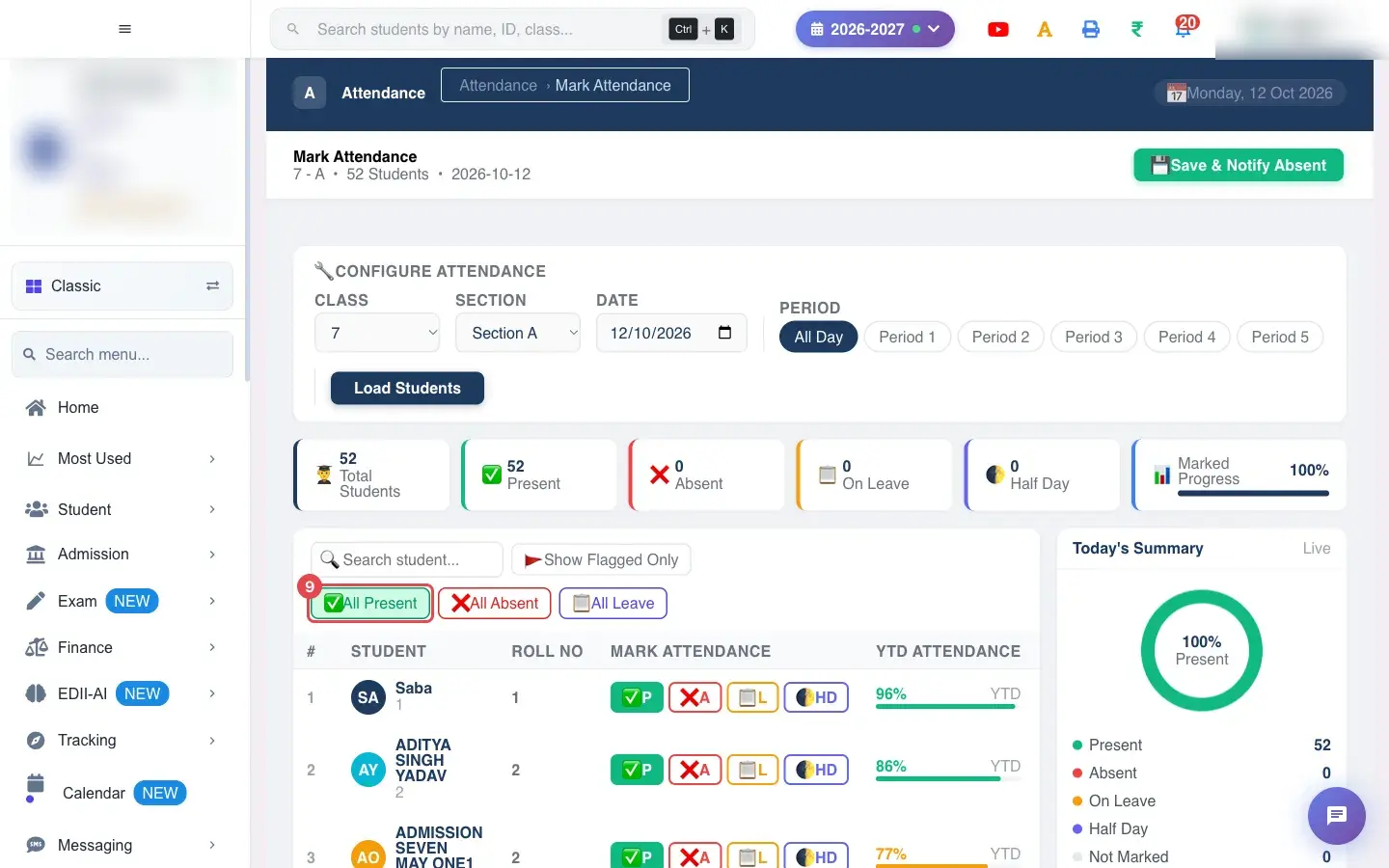
Above the roll, All Present, All Absent and All Leave set every student shown to that status in one click. If you have used Search student… or Show Flagged Only, only the students currently listed are changed. Use All Present to clear a wrong mark quickly, then fix individual children.
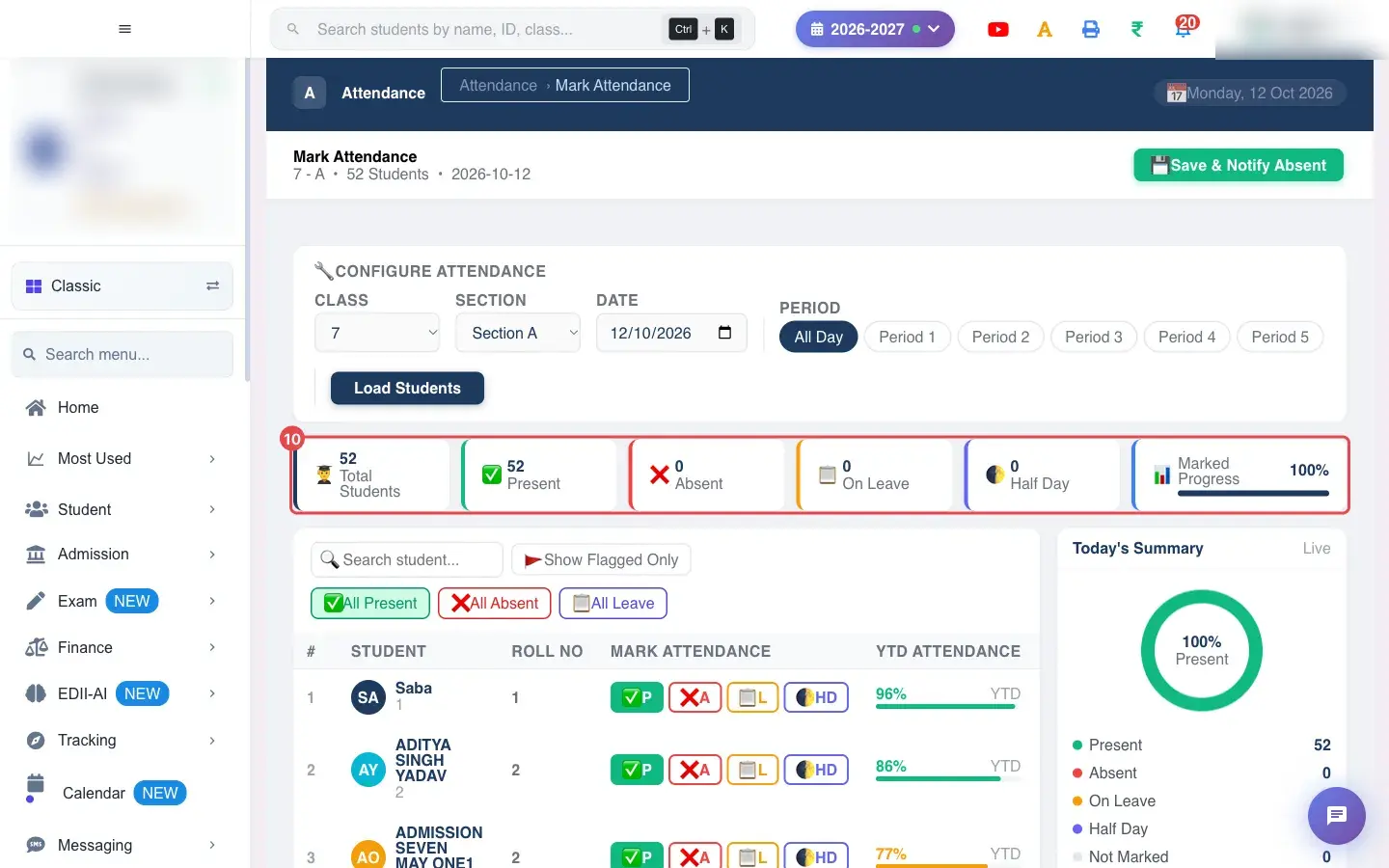
Before saving, look at the tiles: Total Students, Present, Absent, On Leave, Half Day and Marked Progress. Every student should be marked (100%). The ring on the right shows the percentage present among the students you have marked, and Absent Today lists the absent children by name.
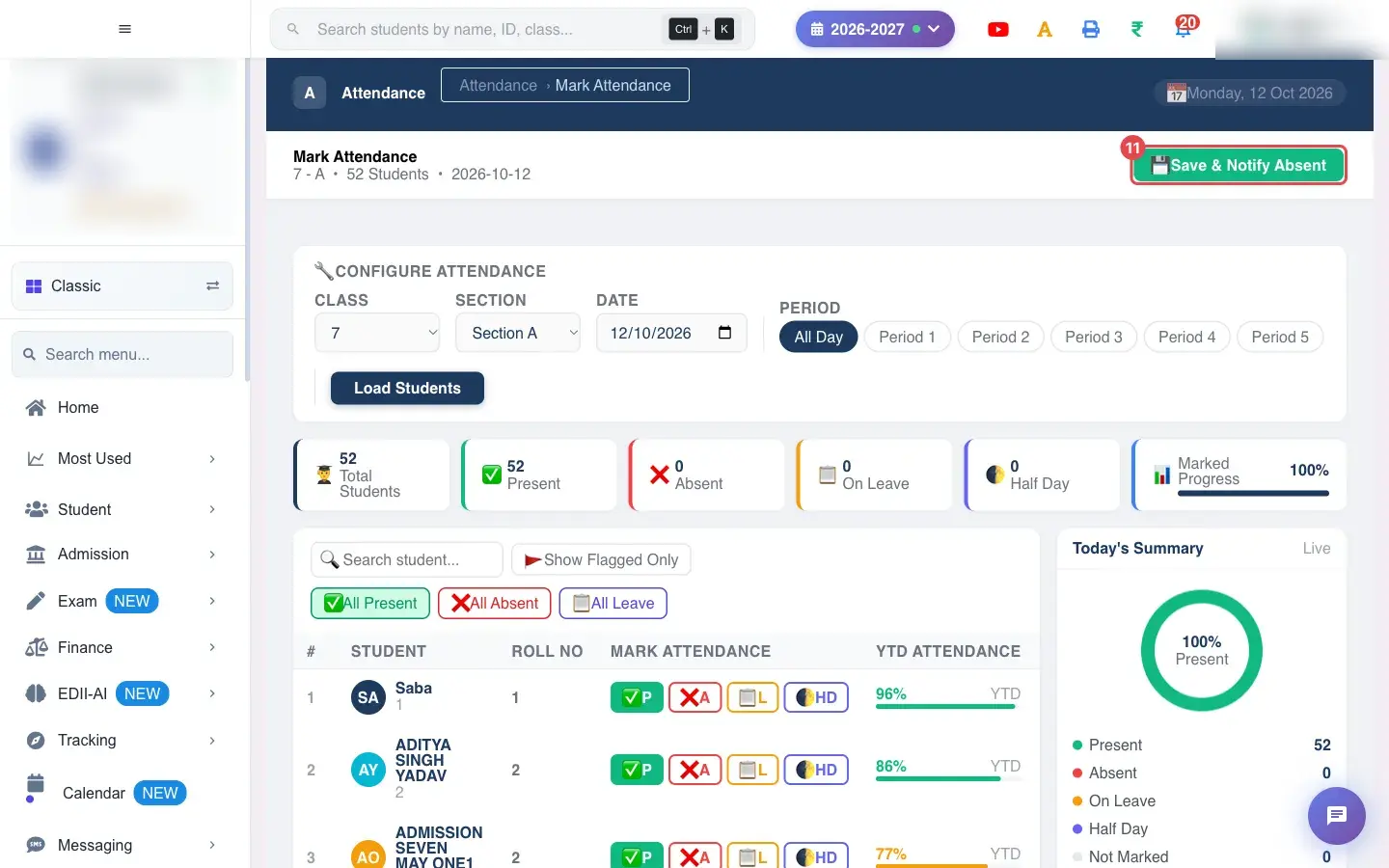
Select Save & Notify Absent at the top right. A green message, Attendance saved successfully, confirms that the day is stored. The parents of every absent student are notified at the same moment. If nothing is loaded you will see Load students first.
The day’s attendance is stored for the class: students not listed as absent, leave or half-day are recorded as present, and every remark is saved.
A Last saved time appears and the activity list on the right records what was saved (for example 2 absent, 1 leave, 0 half-day).
Each absent student gets an entry in Attendance Follow-up. If you recorded a reason the entry starts as reason received; otherwise it is not contacted so someone can call the family.
With Save & Notify Absent, each absent student’s parent receives an SMS at the number registered for them: Dear Parent, your child was marked absent on <date>. Please contact the school office. Each message is written into the student’s contact log in Attendance Follow-up as Sent, or as Failed when the parent has no registered number or the SMS could not be sent. Delivery also depends on the school’s SMS balance.
Marking the same class and date again later replaces the earlier record.
The lists only show classes and sections your role can access.
Ask an admin to check your class and section access under Users and Roles.
Every student is Present after loading
Nothing was saved for that day yet, so everyone starts as present.
Mark the absent students, then save.
Parents did not get a message
The day was saved with the plain save, or the SMS settings or balance do not allow sending.
Save with Save & Notify Absent. Then open Attendance Follow-up and look at the student’s contact log: Failed means the parent has no registered mobile number or the SMS could not be sent. Also ask an admin to check the SMS balance.
I saved the wrong day
The date was not changed before loading.
Pick the correct date, load the class, mark, and save again. The latest save replaces the earlier one for that date.
Did this page help?क्या इस पेज से मदद मिली?
Thanks! Glad it helped.धन्यवाद! अच्छा लगा कि काम बन गया।
Sorry about that. Ask in your own words, or write to us.माफ़ कीजिए। अपने शब्दों में पूछें, या हमें लिखें।

 Open a bigger pictureतस्वीर बड़ी करें
 Open a bigger pictureतस्वीर बड़ी करें
 Open a bigger pictureतस्वीर बड़ी करें
 Open a bigger pictureतस्वीर बड़ी करें
 Open a bigger pictureतस्वीर बड़ी करें
 Open a bigger pictureतस्वीर बड़ी करें
 Open a bigger pictureतस्वीर बड़ी करें
 Open a bigger pictureतस्वीर बड़ी करें