
Screen guide · Web app
Alumni Form
Add or update an alumnus with their present job, city, contact, achievements, photo and whether they will mentor or speak.
यह पेज अंग्रेज़ी में है। कुछ समझ न आए तो ।
Alumni Form records a former student. Enter the student’s ID number and select Search to auto-fill details (Student details loaded; Please enter an ID No. to search if empty). Then fill the Student name, Address, Current City, Current Country, Designation, Department, Passing Year From School, Email address, Contact 1, Contact 2, Current Company, LinkedIn Profile and Achievements, add education with + Add Education, tick Willing to Mentor current students and Willing to Speak at school events and upload a photo (up to 5 MB). Select Register.
Who uses it and when
Section titled “Who uses it and when”The alumni coordinator keeps an alumni directory.
Before you start
Section titled “Before you start”- Know the alumnus’s ID number if they studied here, and ask their consent to share details.
Where to find it
Section titled “Where to find it”- This screen opens from another screen, not from the menu.
- Address:
/add/add-alumni - If it is missing from your menu, your role does not include it. Ask your school admin.
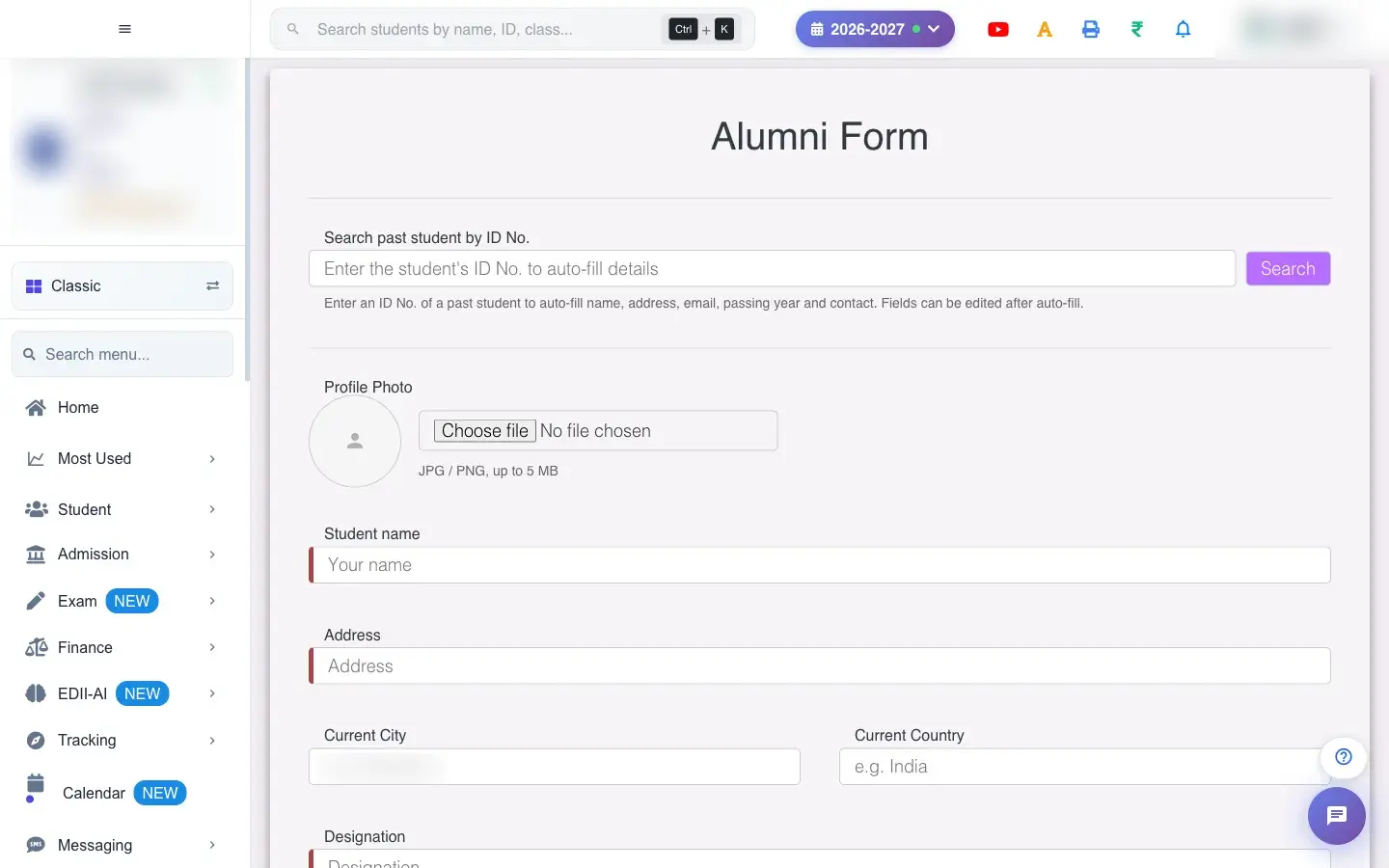 Open a bigger pictureतस्वीर बड़ी करें
With data
Section titled “With data”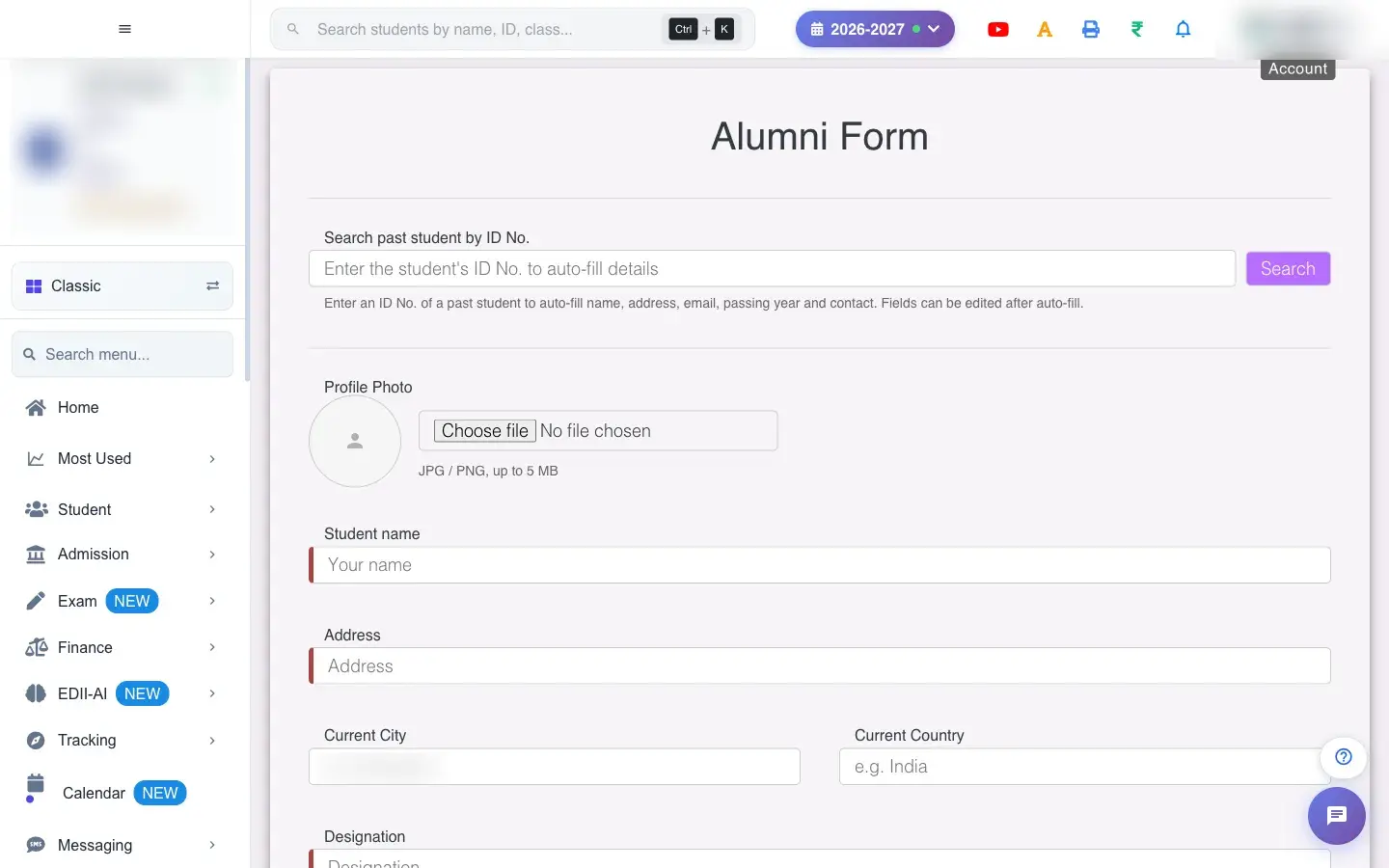 Open a bigger pictureतस्वीर बड़ी करें
Fields and filters
Section titled “Fields and filters”| Field | What it is | Notes |
|---|---|---|
| ID No. + Search | Fills details from the student record. | Optional. |
| Name, Address, City, Country | Identity and place. | Name and address required. |
| Designation, Department, Company, LinkedIn | Work details. | Designation and department required. |
| Passing Year From School | Batch. | Required. |
| Email, Contact 1, Contact 2 | How to reach them. | Contact 1 required. |
| Achievements, + Add Education | Notable work and degrees. | Optional. |
| Willing to Mentor / Speak | Their availability. | Tick if yes. |
| Photo | Their picture. | Image under 5 MB. |
Buttons
Section titled “Buttons”| Button | What it does | What happens next |
|---|---|---|
| Search | Fills from the student record. | Student details loaded. |
| Register | Saves the alumnus. | A saved message appears. |
After you save
Section titled “After you save”- The alumnus appears in the Alumni dashboard and list.
Good to know
Section titled “Good to know”- Name, address, designation, department, year and Contact 1 are required.
- A photo must be an image under 5 MB.
Messages you may see
Section titled “Messages you may see”| Message | What it means | What to do |
|---|---|---|
| Student details loaded | Found. | Check and complete the form. |
| Please enter an ID No. to search | Box empty. | Type the ID. |
| Image is too large. Please use an image under 5 MB. | Photo too big. | Use a smaller one. |
| Photo uploaded | Photo saved. | Nothing to do. |
| Network Issue, Please Try Again. | A request failed. | Try again. |
- Use Search to avoid retyping known details.
Stuck? Try this
Section titled “Stuck? Try this”| Problem | Likely cause | What to do |
|---|---|---|
| Photo fails | Too large or not an image. | Use a JPG or PNG under 5 MB. |
Did this page help?क्या इस पेज से मदद मिली?
Thanks! Glad it helped.धन्यवाद! अच्छा लगा कि काम बन गया।
Sorry about that. Ask in your own words, or write to us.माफ़ कीजिए। अपने शब्दों में पूछें, या हमें लिखें।