
Screen guide · Web app
Fees Master Detail
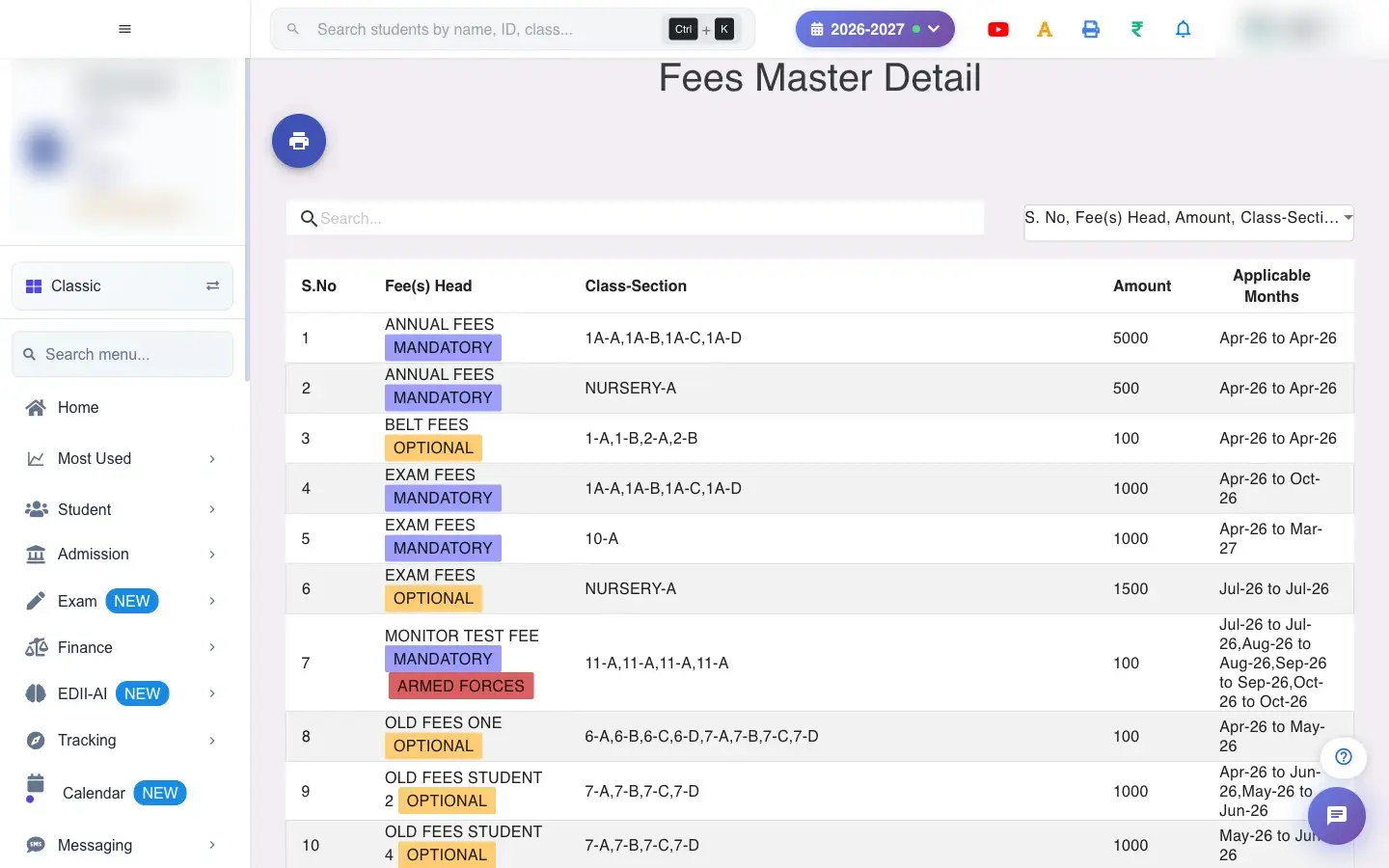
A read-only list of every fee head with its class and section, amount and applicable months, with an option to export the whole fee structure to a new session.
यह पेज अंग्रेज़ी में है। कुछ समझ न आए तो ।
Fees Master Detail (Finance › View-Fees(Master)) lists the school’s fee structure: Fee(s) Head, Class-Section, Amount and Applicable Months. It is a quick, printable reference of what is charged to whom.
The button Export Fees to New Session copies the entire fee structure to another session, which saves re-entering every fee at the start of a new year. Fees that already exist in the target session are detected and skipped.
Who uses it and when
Section titled “Who uses it and when”The accounts head uses it to review the structure and, at the start of a session, to carry the fees forward.
Before you start
Section titled “Before you start”- For the export, create the new session first and check the amounts you want to carry forward.
Where to find it
Section titled “Where to find it”- Menu: Finance › View-Fees(Master)
- Address:
/view/fees-view-master - If it is missing from your menu, your role does not include it. Ask your school admin.
 Open a bigger pictureतस्वीर बड़ी करें
Step by step
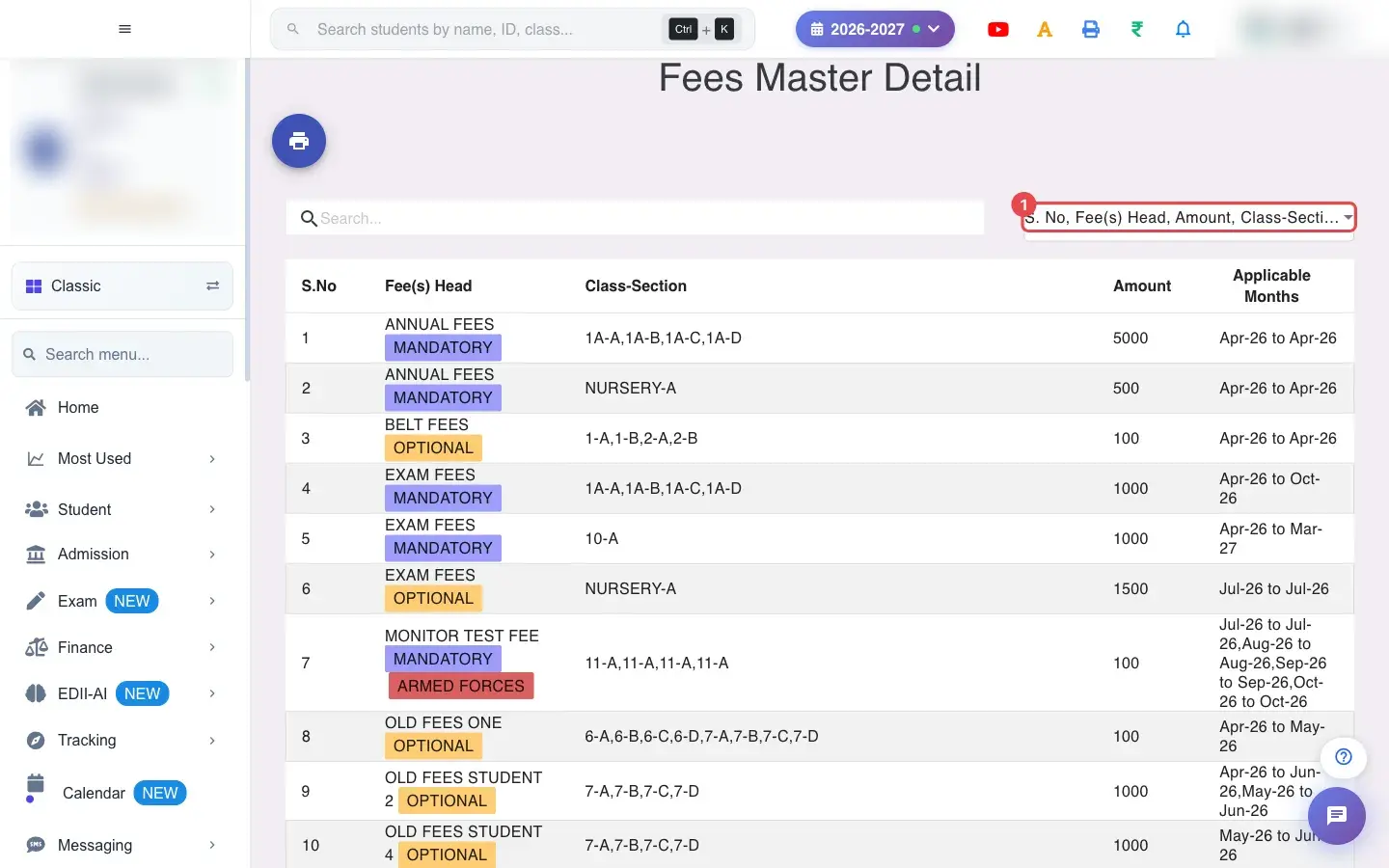
Section titled “Step by step”1. Choose Fees Master Detail (for example S. No, Fee(s) Head, Amount, Class-Section, Applicable Months)
Section titled “1. Choose Fees Master Detail (for example S. No, Fee(s) Head, Amount, Class-Section, Applicable Months)”Select Fields to Display chooses the columns: S. No, Fee(s) Head, Amount, Class-Section, Applicable Months.
 Open a bigger pictureतस्वीर बड़ी करें
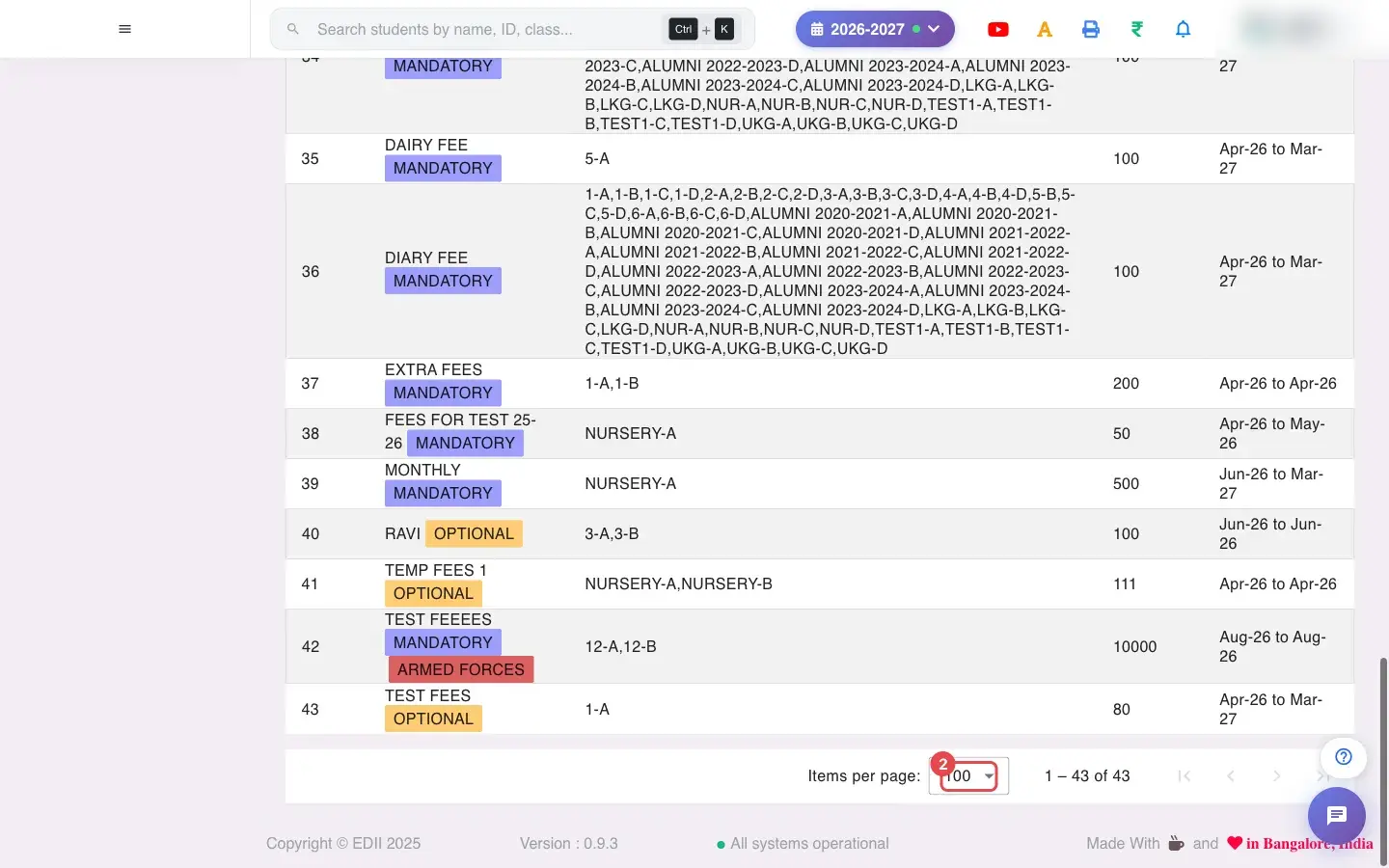
2. Choose 100 (for example 100)
Section titled “2. Choose 100 (for example 100)”Choose how many rows to show per page.
 Open a bigger pictureतस्वीर बड़ी करें
3. Search
Section titled “3. Search”Type in Search… to find a fee by name.
4. Export fees to a new session
Section titled “4. Export fees to a new session”Select Export Fees to New Session, choose the target session and confirm. EDII copies the fees and shows Fees exported successfully! Refreshing list…. Fees that already exist are skipped, so it is safe to run again.
5. Print or download
Section titled “5. Print or download”Select All, Download Excel / Text / CSV File and Print with Report Generated On.
With data
Section titled “With data”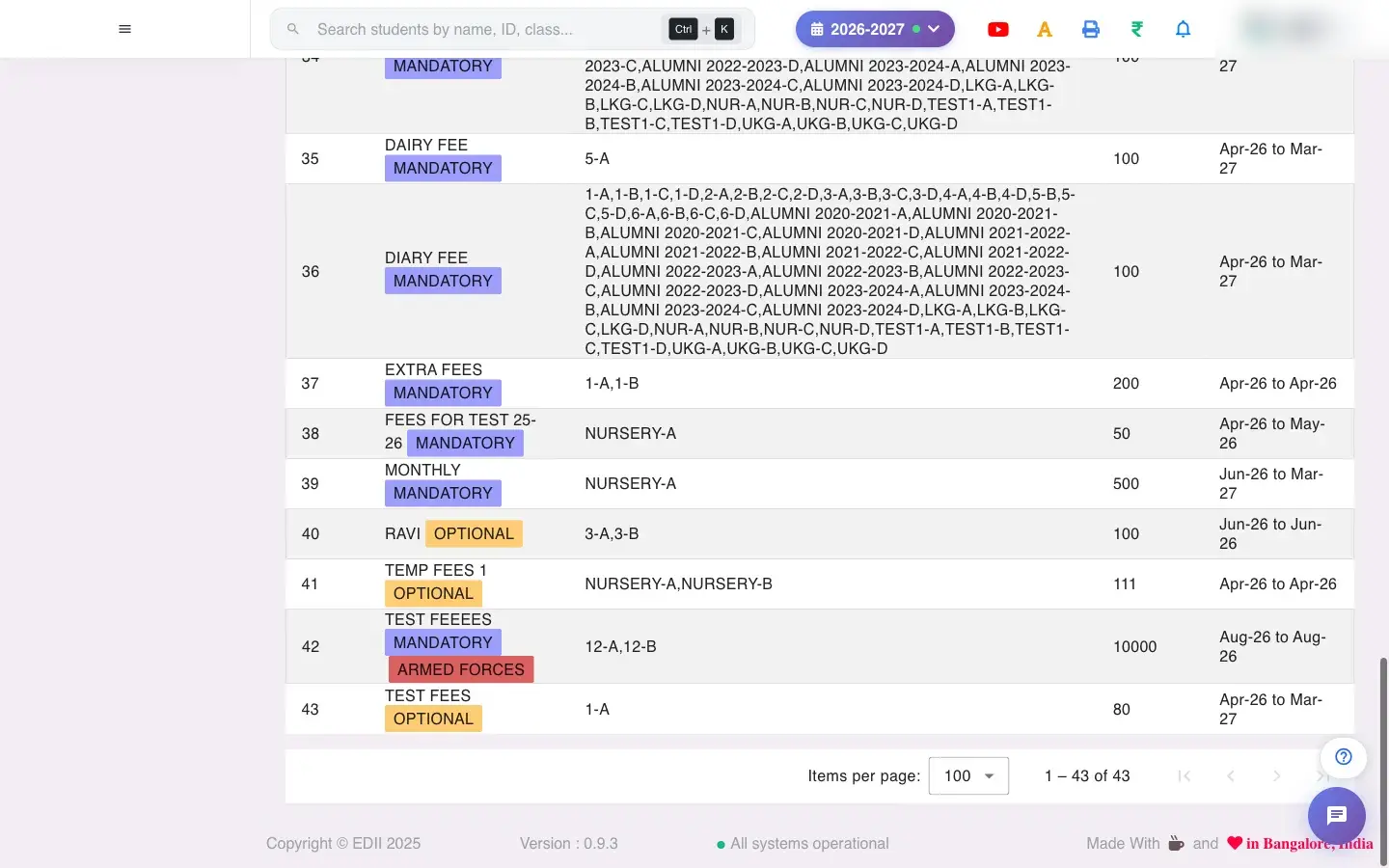 Open a bigger pictureतस्वीर बड़ी करें
Fields and filters
Section titled “Fields and filters”| Field | What it is | Notes |
|---|---|---|
| Select Fields to Display | Columns. | View only. |
| Search… | Find by typing. | Filters the list. |
| Target session (export) | Where to copy the fees. | A different session. |
Buttons
Section titled “Buttons”| Button | What it does | What happens next |
|---|---|---|
| Export Fees to New Session | Copies the fee structure to another session. | Existing fees are not duplicated. |
| Print / Download | Prints or exports. | Opens the print window or a file. |
Columns
Section titled “Columns”| Column | Meaning |
|---|---|
| Fee(s) Head | The fee. |
| Class-Section | Where it applies. |
| Amount | Per month. |
| Applicable Months | When it is charged. |
After you save
Section titled “After you save”- Viewing changes nothing. Export creates the fees in the target session; it does not change this session.
Good to know
Section titled “Good to know”- Export skips fees that already exist in the target session.
- Fees are matched to the target session’s months.
Messages you may see
Section titled “Messages you may see”| Message | What it means | What to do |
|---|---|---|
| Fees exported successfully! Refreshing list… | The export finished. | Check Fees Master in the new session. |
| Network Issue, Please Try Again. | A request failed. | Try again. |
- Export at the start of the session, then adjust amounts in Fees Master.
Stuck? Try this
Section titled “Stuck? Try this”| Problem | Likely cause | What to do |
|---|---|---|
| Some fees were not copied | They already exist in the target session. | Nothing to do. |
Did this page help?क्या इस पेज से मदद मिली?
Thanks! Glad it helped.धन्यवाद! अच्छा लगा कि काम बन गया।
Sorry about that. Ask in your own words, or write to us.माफ़ कीजिए। अपने शब्दों में पूछें, या हमें लिखें।