
Screen guide · Web app
Master Report
Ask for any fee report in plain English (or pick a suggestion) and get totals, mode mix, comparisons and the underlying receipts, with a CSV export that records its purpose in an audit log.
यह पेज अंग्रेज़ी में है। कुछ समझ न आए तो ।
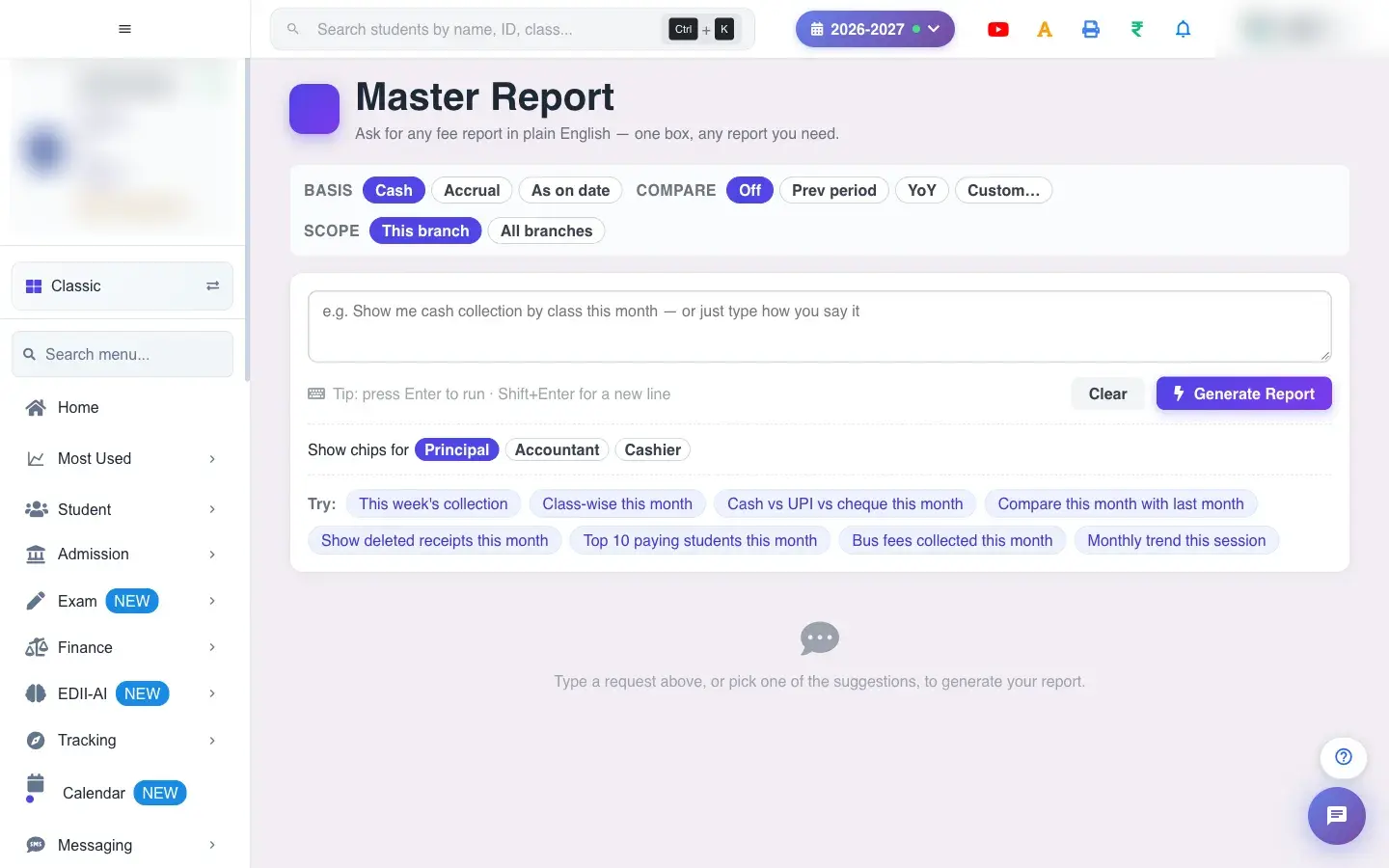
Master Report (Finance › Master Report) is a single box where you type what you need, for example Show me cash collection by class this month, and EDII builds the report. You can press Enter to run it (Shift+Enter for a new line) and Clear to start over.
Options above the box shape the report: Basis (Cash by when money was received, Accrual, or As on date), Compare (Off, Prev period, YoY or Custom…) and Scope (This branch or All branches). Suggestion chips such as This week’s collection, Class-wise this month, Cash vs UPI vs cheque this month, Compare this month with last month, Show deleted receipts this month, Top 10 paying students this month, Bus fees collected this month and Monthly trend this session run common reports in one click, and you can choose chips for Principal, Accountant or Cashier.
The result shows an Audit Footprint (basis, branches, run ID, who generated it, the period, rows scanned and matched, and deleted receipts excluded), the filters applied, and the figures: Total Collected, Transactions, Discount Given and a Mode Mix with each mode’s share. With a comparison on, each figure shows the change against the other period. Below, Underlying receipts lists the receipts behind the numbers.
Who uses it and when
Section titled “Who uses it and when”The principal, accountant or trustee uses it when the standard reports do not answer a question.
Before you start
Section titled “Before you start”- Type a clear request, or use a chip. With nothing typed you see Please type what report you need.
Where to find it
Section titled “Where to find it”- Menu: Finance › Master Report
- Address:
/view/master-report - If it is missing from your menu, your role does not include it. Ask your school admin.
 Open a bigger pictureतस्वीर बड़ी करें
Step by step
Section titled “Step by step”1. Type or pick a request
Section titled “1. Type or pick a request”Describe the report in your own words, or select a chip. EDII reads the request, shows how it understood it (the filters applied and what parsed it) and runs it.
2. Set basis, comparison and scope
Section titled “2. Set basis, comparison and scope”Choose Cash, Accrual or As on date; turn Compare on to see the change against the previous period or last year; choose This branch or All branches.
3. Read the results
Section titled “3. Read the results”The summary cards, the mode mix and the comparison appear. Showing the first N of M rows means the table is cut short; the totals still cover all rows and CSV exports the full list.
4. Check the receipts
Section titled “4. Check the receipts”Underlying receipts loads the actual receipts (Loading transactions…) with a total. No transactions to show for this selection. means none match. If they cannot load you see Could not load the underlying transactions.
5. Export or share
Section titled “5. Export or share”Export CSV asks you to state a Purpose from a list for the audit log and whether to Mask PII columns (parent name, parent phone, student name, student ID, cheque number). With the mask on, phone numbers show the last 4 digits, IDs and cheque numbers the last 4 and names initials; turn it off only when the receiver is authorised to see full identifiers. Without a purpose you see Please state a purpose before exporting. Rows can also be shared; a row without a phone number shows No phone number on this row.
Fields and filters
Section titled “Fields and filters”| Field | What it is | Notes |
|---|---|---|
| Request box | What report you need, in plain words. | Enter to run. |
| Basis | Cash, Accrual or As on date. | Changes how amounts are counted. |
| Compare | Off, Prev period, YoY, Custom. | Adds a comparison. |
| Scope | This branch or All branches. | For multi-branch schools. |
| Export purpose / Mask PII columns | Audit information for an export. | Purpose is required. |
Buttons
Section titled “Buttons”| Button | What it does | What happens next |
|---|---|---|
| Generate Report / Enter | Runs the request. | Shows the audit footprint and figures. |
| Clear | Resets the request. | Nothing is saved. |
| Suggestion chips | Run a common report. | Fills the request for you. |
| Export CSV | Downloads the rows. | Records the purpose in the audit log. |
Columns
Section titled “Columns”| Column | Meaning |
|---|---|
| Total Collected / Transactions / Discount Given | The headline figures. |
| Mode Mix / Share | How the money came in by payment mode. |
| Underlying receipts | The receipts behind the numbers. |
After you save
Section titled “After you save”- Running a report changes nothing. Exports are written to an audit log with the purpose you give, and with masking they hide personal details.
Good to know
Section titled “Good to know”- A purpose is required to export.
- Deleted receipts are excluded from the totals and shown as a count.
- Personal data is masked by default in exports.
Messages you may see
Section titled “Messages you may see”| Message | What it means | What to do |
|---|---|---|
| Please type what report you need. | The box is empty. | Type a request. |
| Could not load the underlying transactions. | The receipts failed to load. | Try again. |
| Nothing to export. | No rows. | Run a report first. |
| Please state a purpose before exporting. | The audit purpose is missing. | Pick a purpose. |
| Nothing to share yet. | No row to share. | Run a report first. |
| No phone number on this row. | That row has no number. | Use another row. |
- Use the chips for the usual questions; type for anything unusual.
- Keep Mask PII on when sharing files outside the school.
Stuck? Try this
Section titled “Stuck? Try this”| Problem | Likely cause | What to do |
|---|---|---|
| The report is not what I meant | The request was read differently. | Check the filters applied line and reword the request. |
Did this page help?क्या इस पेज से मदद मिली?
Thanks! Glad it helped.धन्यवाद! अच्छा लगा कि काम बन गया।
Sorry about that. Ask in your own words, or write to us.माफ़ कीजिए। अपने शब्दों में पूछें, या हमें लिखें।