
Screen guide · Web app
Attendance Logs
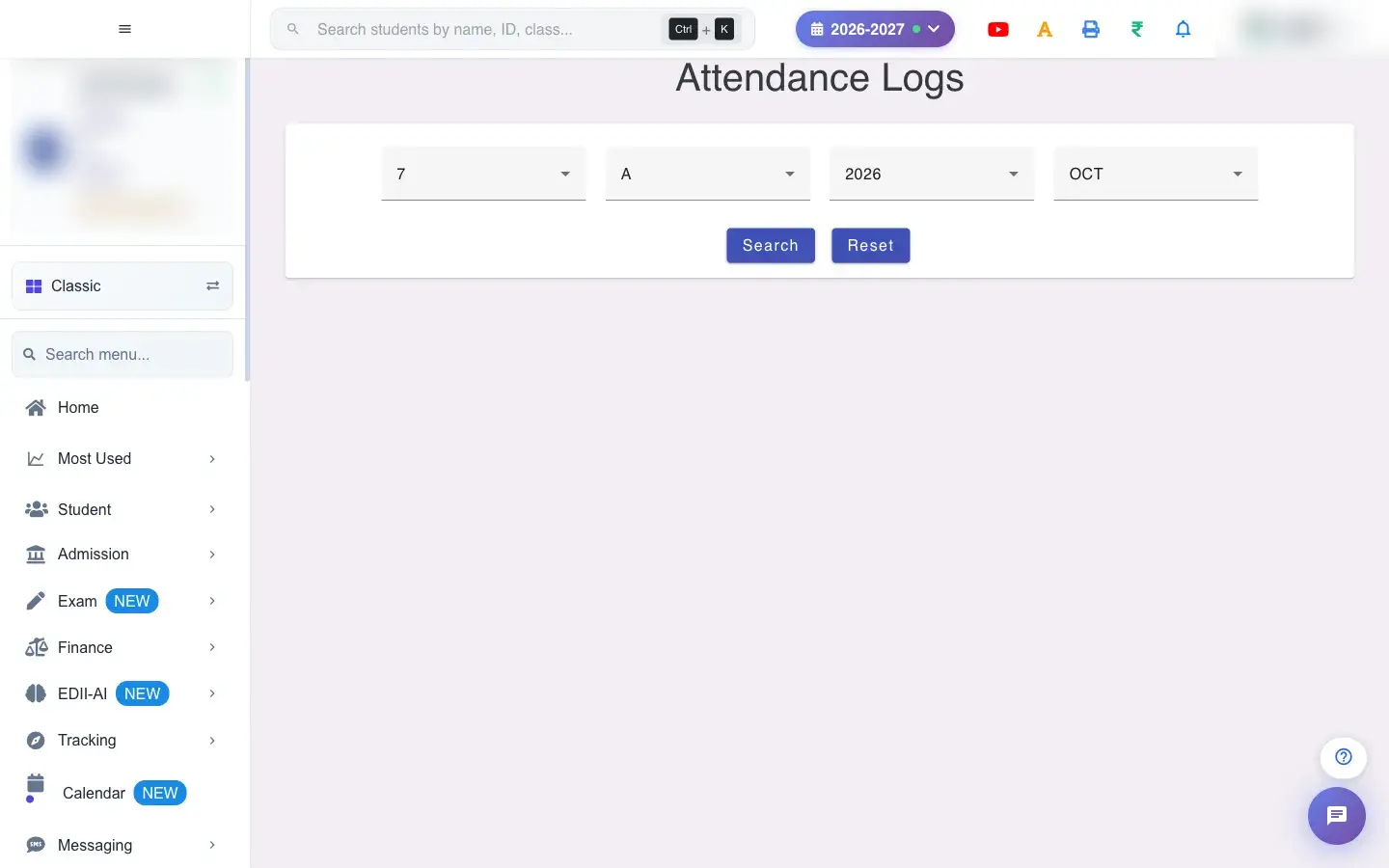
A month grid of attendance logs for one class and section: for every student and every day, the login and logout status and times, plus total present and absent, ready to print or export to CSV.
यह पेज अंग्रेज़ी में है। कुछ समझ न आए तो ।
Attendance Logs shows the detailed log behind a class’s attendance for a whole month. Each student is a row. For every day of the month there are four values: login status, logout status, in time and out time, and the last columns show Total Present and Total Absent.
Use it when you need evidence of exactly when a student arrived and left (from the school’s attendance device), or when a parent disputes an absence.
Who uses it and when
Section titled “Who uses it and when”Office staff and administrators use it at month end, or when checking a specific day. Teachers use it to confirm a student’s pattern.
Before you start
Section titled “Before you start”- In and out times appear only for students whose arrival or departure was recorded (for example by an attendance device). Days with no record show as empty.
- Choose the right Year and Month: the grid shows 28, 29, 30 or 31 days to match the month.
Where to find it
Section titled “Where to find it”- Menu: Student › Logs
- Address:
/view/attendance-logs - If it is missing from your menu, your role does not include it. Ask your school admin.
 Open a bigger pictureतस्वीर बड़ी करें
Step by step
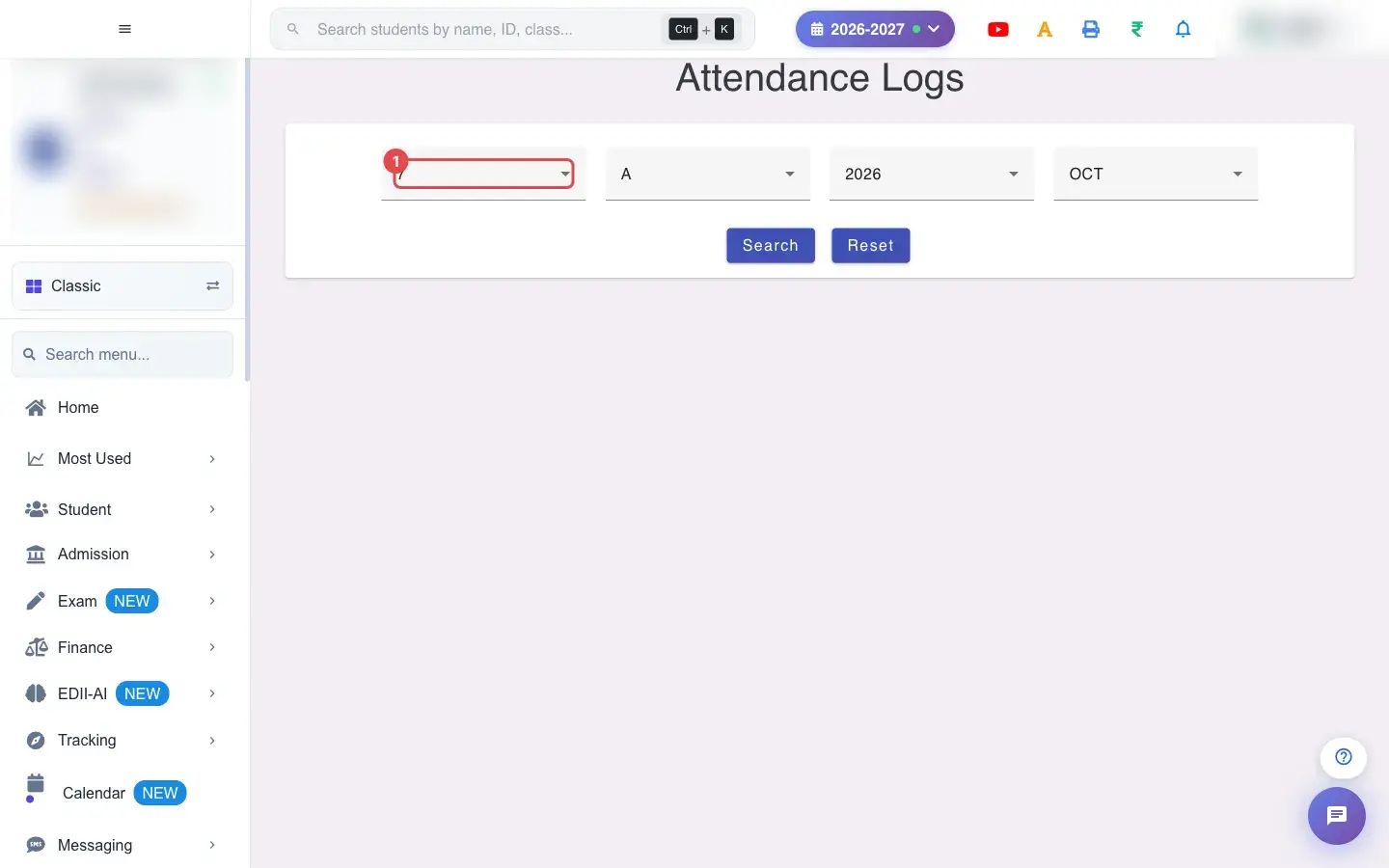
Section titled “Step by step”1. Choose Select Class (for example 7)
Section titled “1. Choose Select Class (for example 7)”Choose the Class.
 Open a bigger pictureतस्वीर बड़ी करें
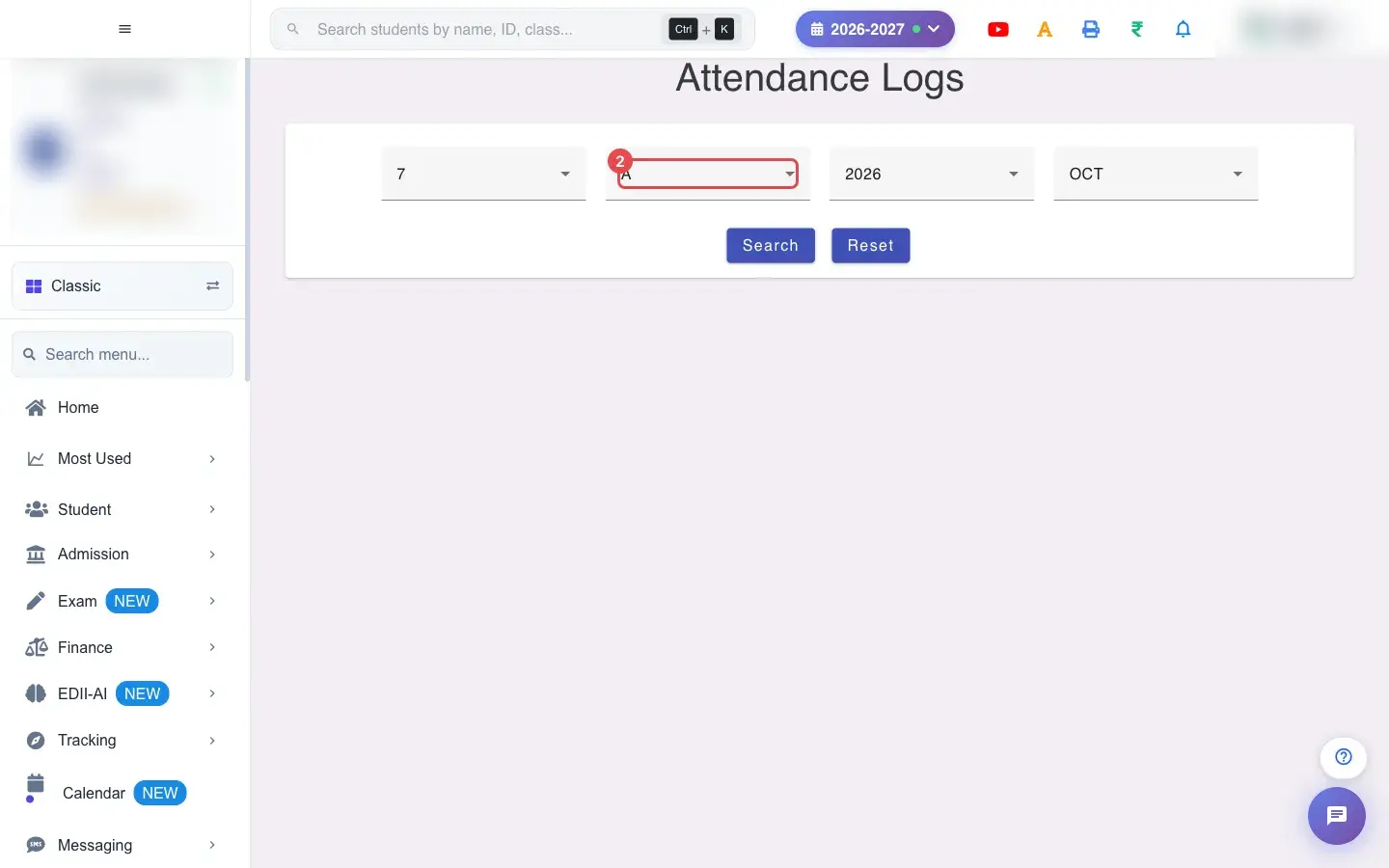
2. Choose Select Section (for example A)
Section titled “2. Choose Select Section (for example A)”Choose the Section.
 Open a bigger pictureतस्वीर बड़ी करें
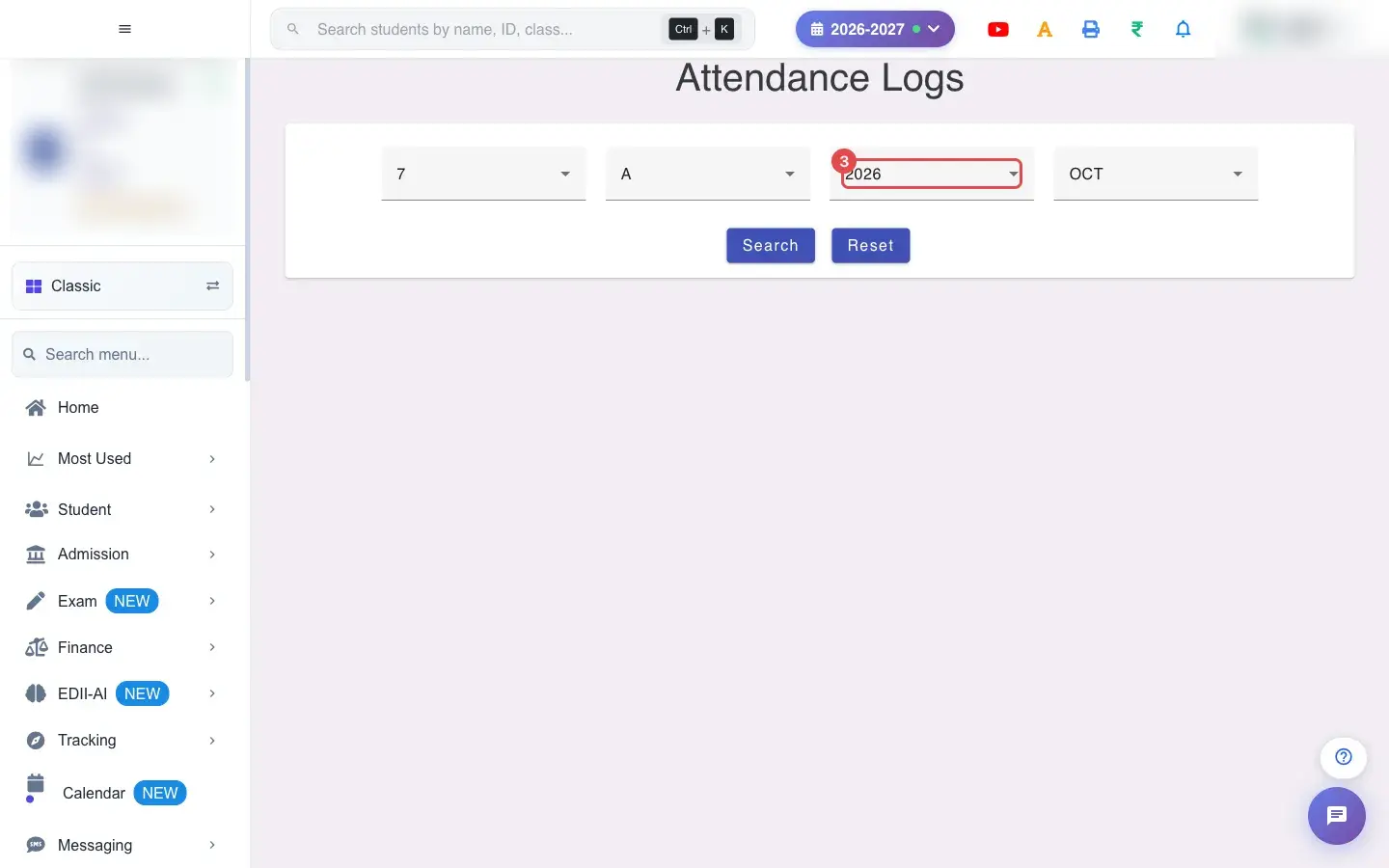
3. Choose Select Year (for example 2026)
Section titled “3. Choose Select Year (for example 2026)”Choose the Year. It starts on the current year.
 Open a bigger pictureतस्वीर बड़ी करें
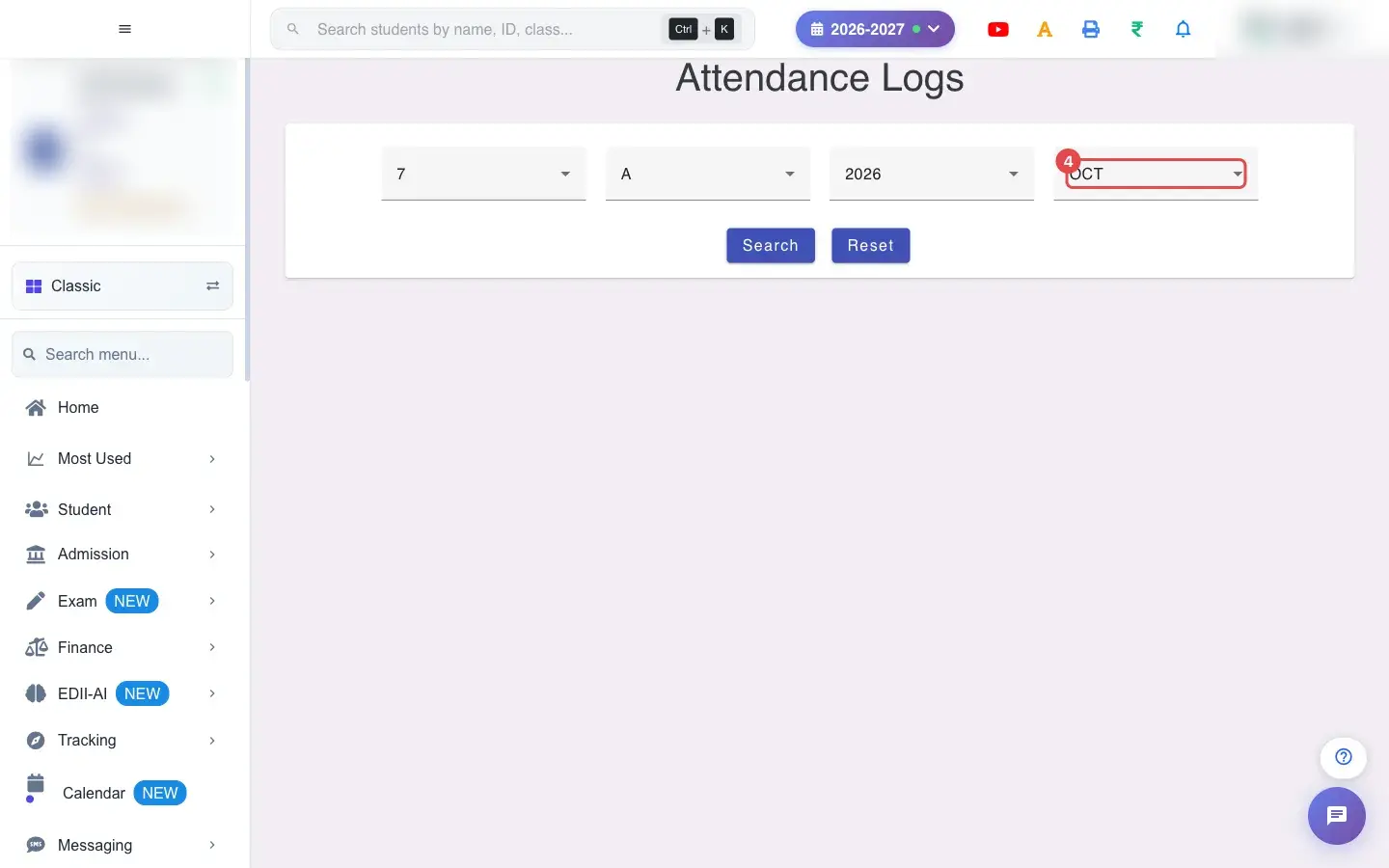
4. Choose Select Month (for example OCT)
Section titled “4. Choose Select Month (for example OCT)”Choose the Month, for example OCT.
 Open a bigger pictureतस्वीर बड़ी करें
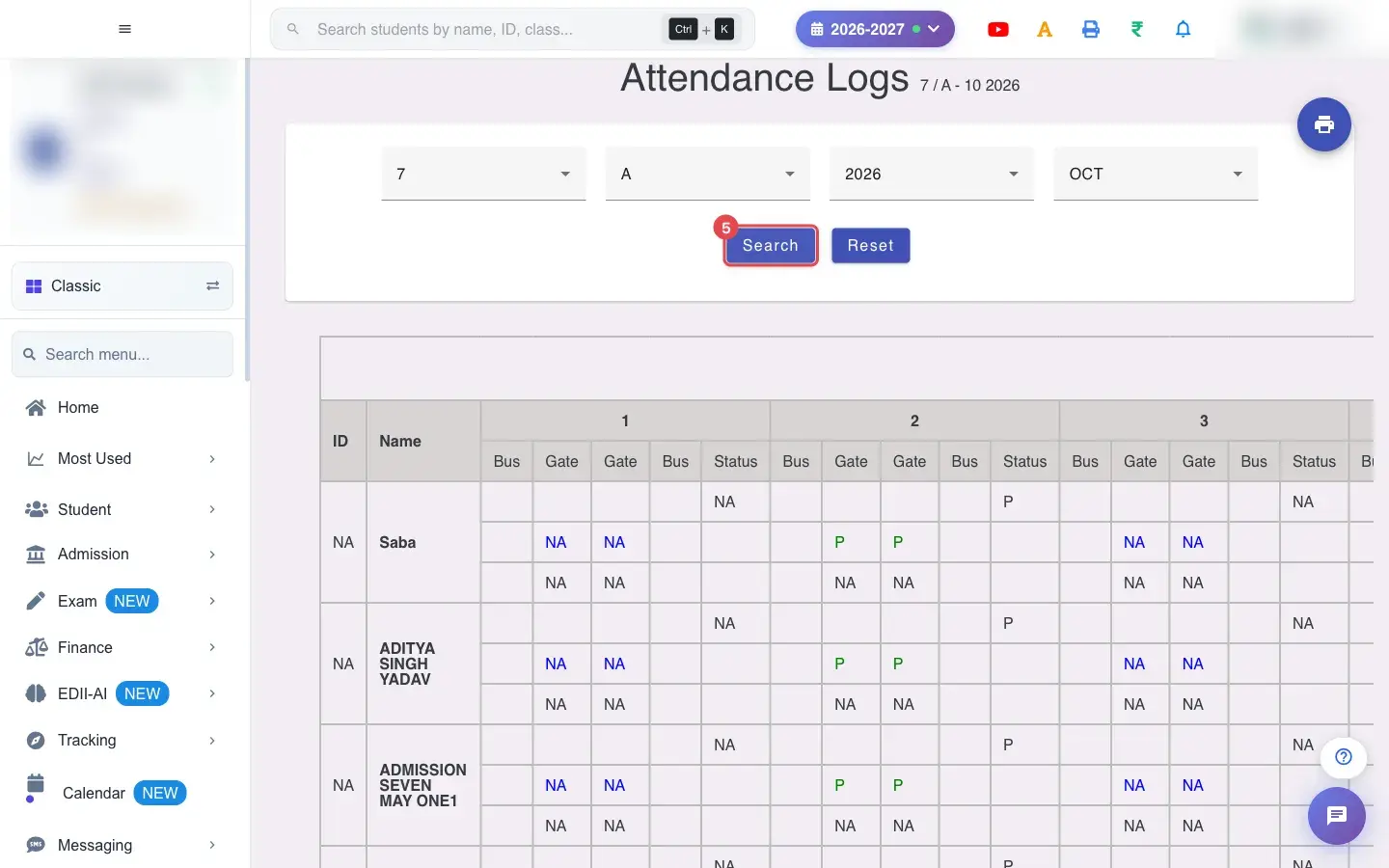
5. Select Search
Section titled “5. Select Search”Select Search. All four fields are required; the button stays disabled until they are filled, and you see Please Select Class/Section/Date if something is missing.
 Open a bigger pictureतस्वीर बड़ी करें
6. Read the grid
Section titled “6. Read the grid”Find a student’s row and read across: Total Present and Total Absent come first, then the days of the month one after the other. Under each day you see the login status, the logout status, the in time and the out time.
7. Print the grid
Section titled “7. Print the grid”Use the floating print button at the top right and pick a size: Portrait Large, Medium or Small, or the A5 versions. Choose the size that fits all days on one page. Your school’s print setting decides whether the new print layout is used.
8. Export to CSV
Section titled “8. Export to CSV”Use the CSV option to download the same grid as a file named Attendance logs. It contains the student ID, name, total present, total absent and the login status, logout status, in time and out time for every day, so it opens neatly in Excel.
9. Start again
Section titled “9. Start again”Reset clears the selection so you can look at another class or month.
With data
Section titled “With data”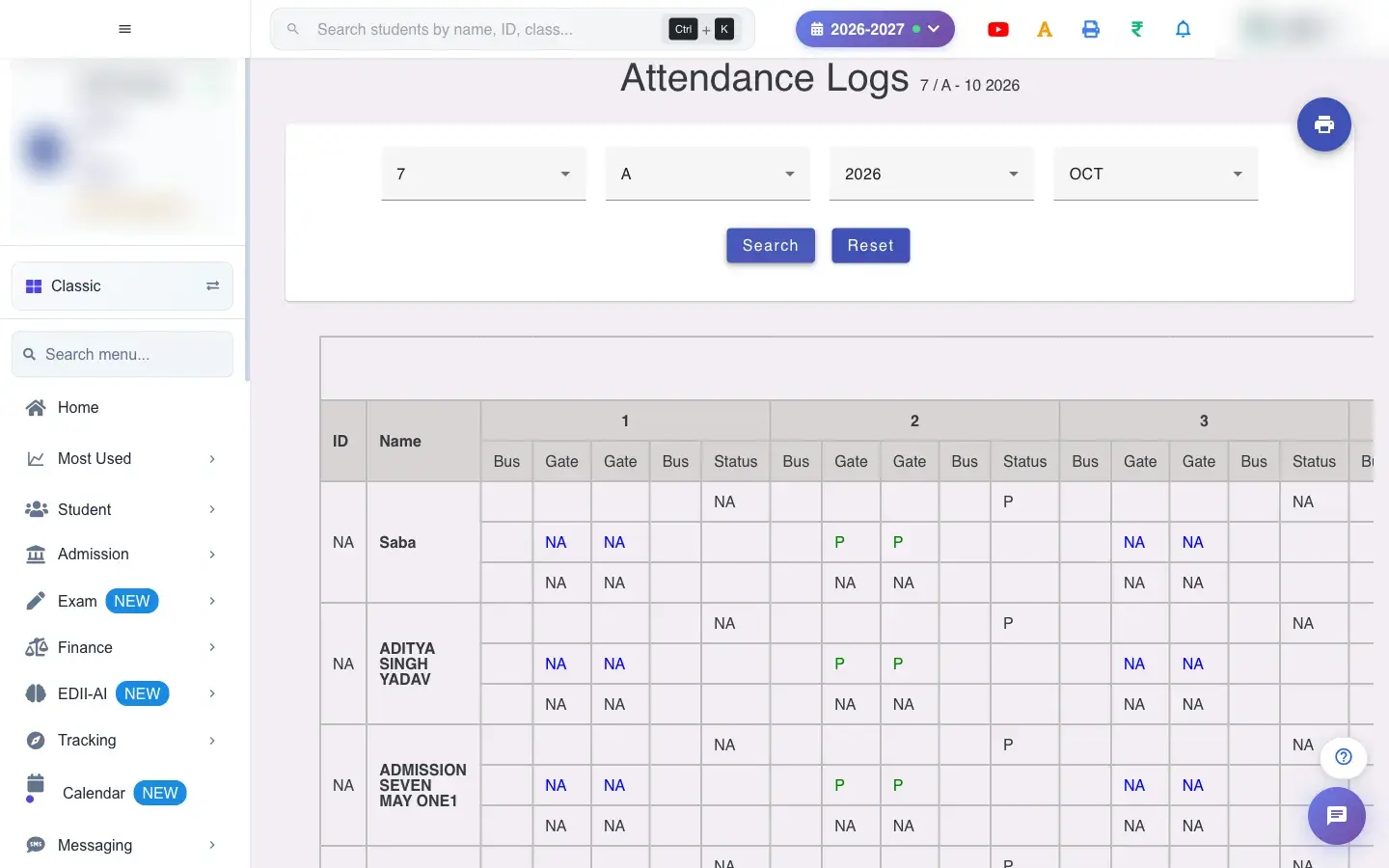 Open a bigger pictureतस्वीर बड़ी करें
Fields and filters
Section titled “Fields and filters”| Field | What it is | Notes |
|---|---|---|
| Select Class | The class to show. | Required. |
| Select Section | The section. | Required. |
| Select Year | The calendar year. | Required. Starts on the current year. |
| Select Month | The month, shown as a short name such as OCT. | Required. |
Buttons
Section titled “Buttons”| Button | What it does | What happens next |
|---|---|---|
| Search | Loads the logs for the class, section and month. | Disabled until all four fields are filled. |
| Reset | Clears the screen. | No data is changed. |
| Prints the grid in the size you choose. | Opens your browser’s print window. | |
| CSV | Downloads the grid. | Saved as Attendance logs. |
Columns
Section titled “Columns”| Column | Meaning |
|---|---|
| Total Present / Total Absent | Days present and days absent in the month. |
| Login status / Logout status | Whether an arrival and a departure were recorded that day. |
| In time / Out time | The recorded time of arrival and departure. |
After you save
Section titled “After you save”- This screen only reads data. Nothing is saved, sent or changed.
Good to know
Section titled “Good to know”- The grid always shows one class, one section and one month.
- The number of day columns follows the month (28, 29, 30 or 31).
- Printing uses the page size and font size set in the school’s print settings.
Messages you may see
Section titled “Messages you may see”| Message | What it means | What to do |
|---|---|---|
| Please Select Class/Section/Date | One of the four fields is empty. | Fill all four and press Search. |
| Bad/Slow Internet Connection, Please check your internet connection | The logs could not be fetched. | Check the internet and search again. |
- Export to CSV and use Excel filters to find students with the most absent days.
- If the grid is too wide to print, choose the Small size.
Stuck? Try this
Section titled “Stuck? Try this”| Problem | Likely cause | What to do |
|---|---|---|
| Times are empty for every student | No attendance device recorded arrivals and departures for that month. | Use Mark Attendance or the Attendance Dashboard for daily present/absent instead. |
| Search is greyed out | A field is empty. | Choose class, section, year and month. |
Did this page help?क्या इस पेज से मदद मिली?
Thanks! Glad it helped.धन्यवाद! अच्छा लगा कि काम बन गया।
Sorry about that. Ask in your own words, or write to us.माफ़ कीजिए। अपने शब्दों में पूछें, या हमें लिखें।